Modern Order Bumps Now in Forms & Surveys
Drive more revenue with high-converting add-ons—now directly within your forms and surveys
What’s New
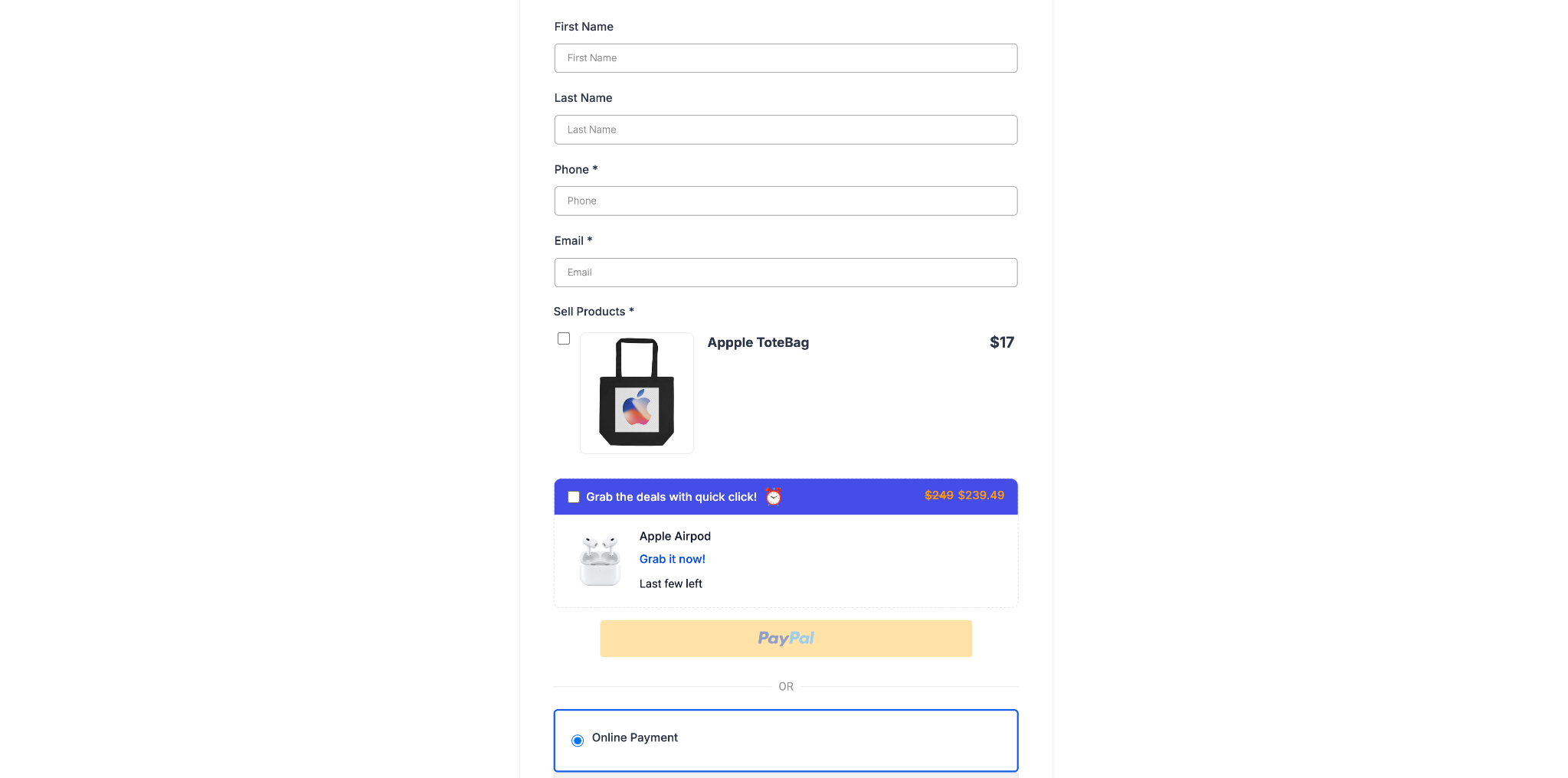
Order Bumps are now available in Forms and Surveys, expanding beyond their original use in funnel-based order forms. This update not only revives the Classic view but also introduces a powerful new Modern style with multiple templates and full customization options.
Key Highlights
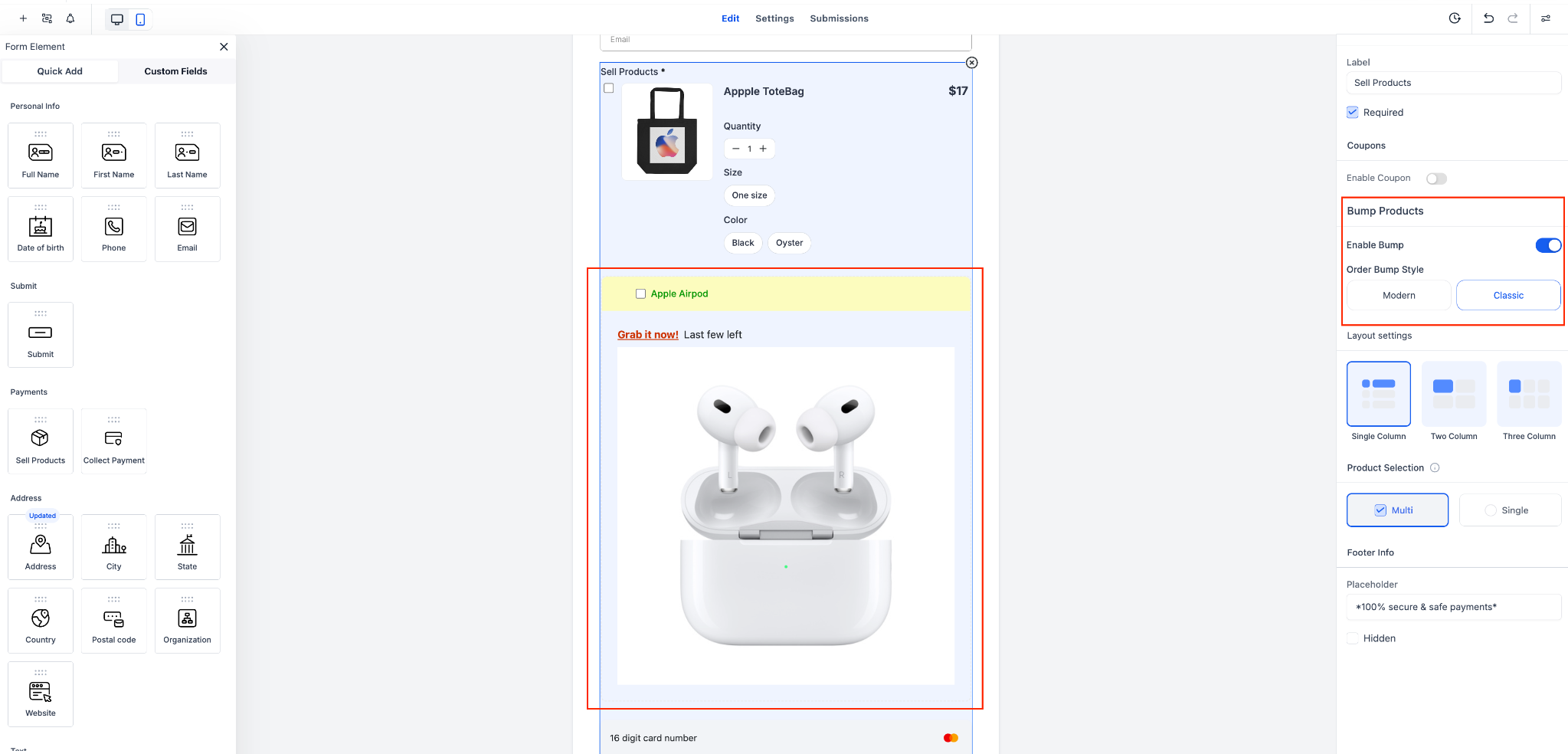
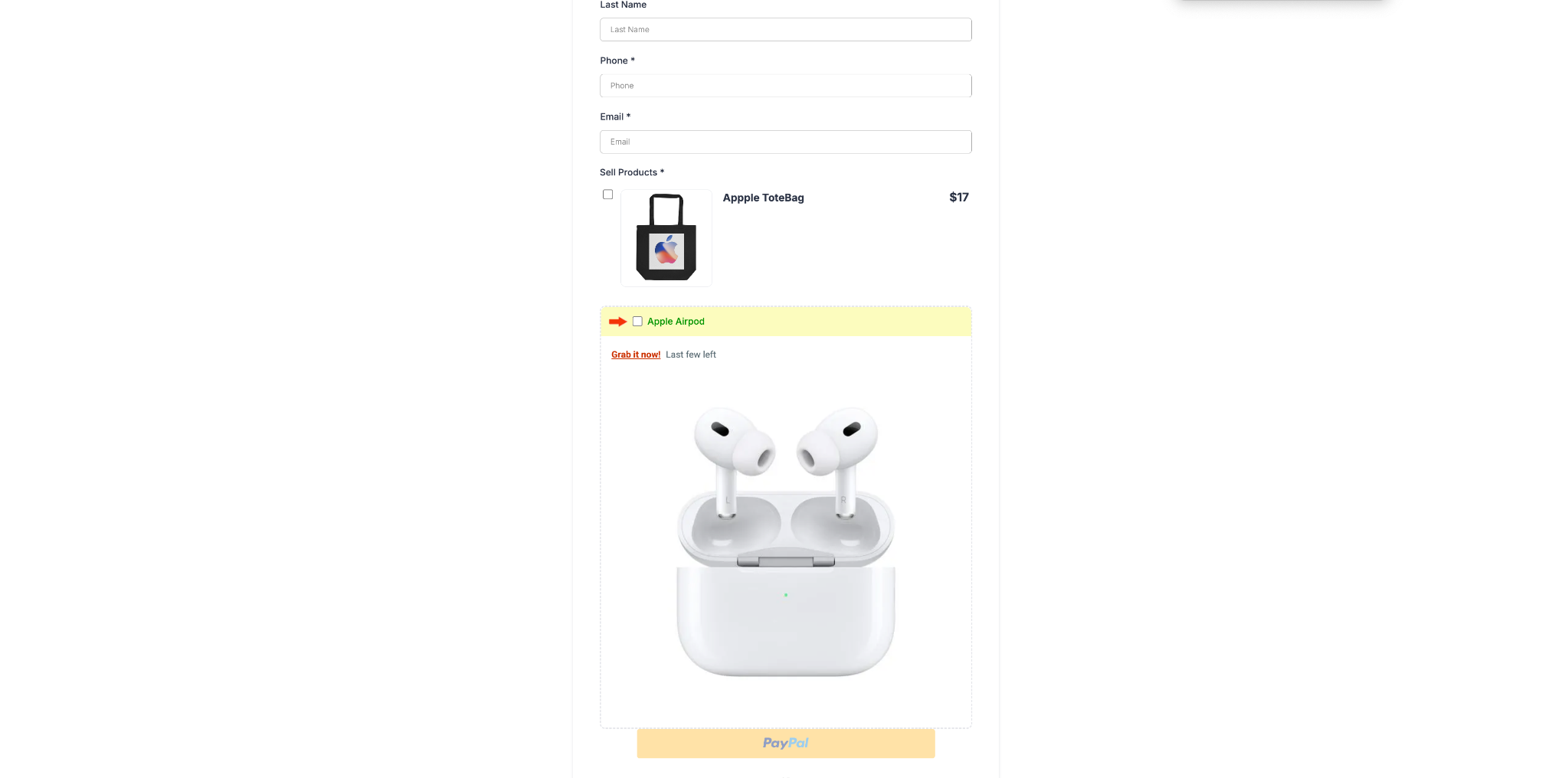
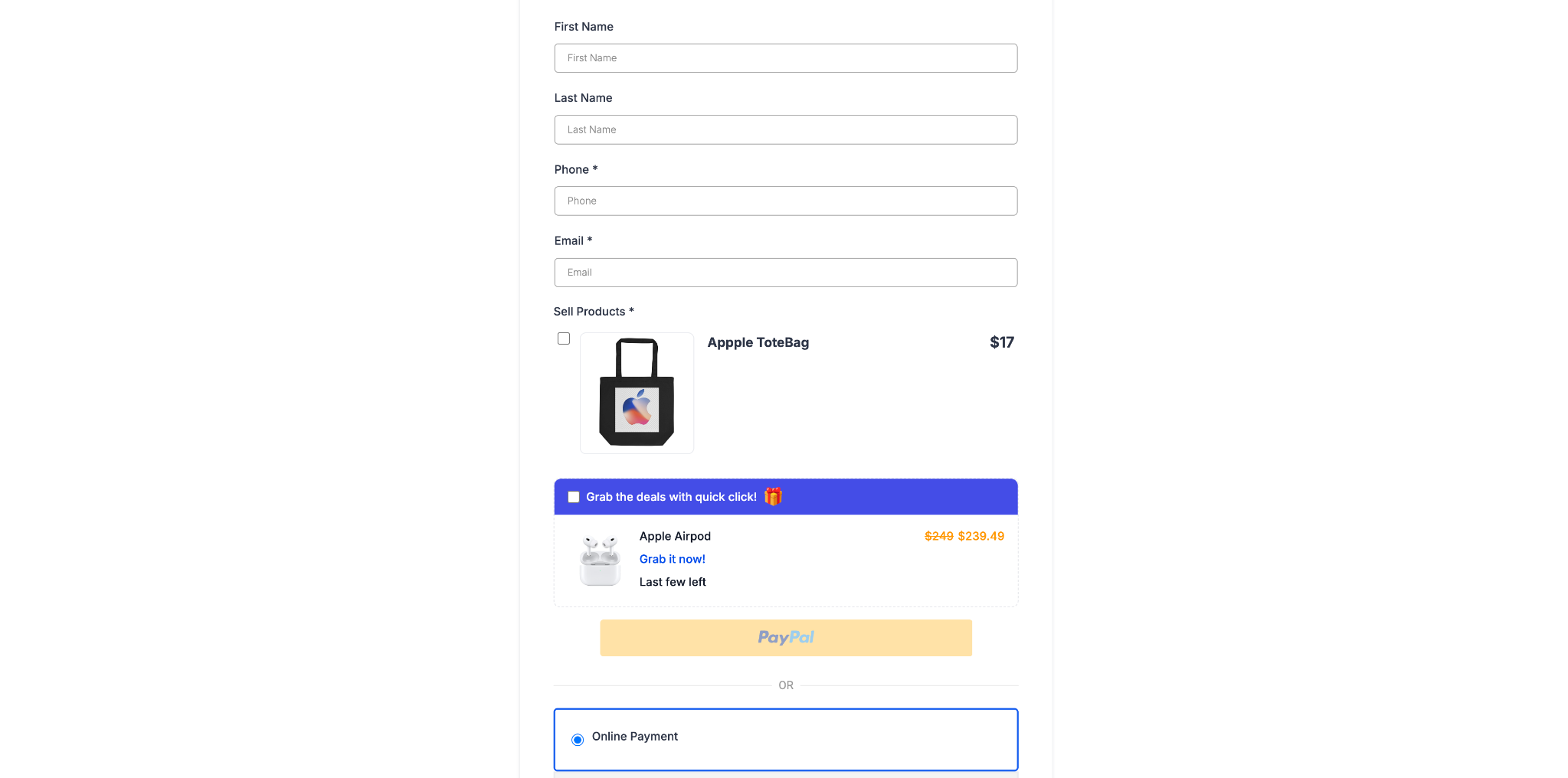
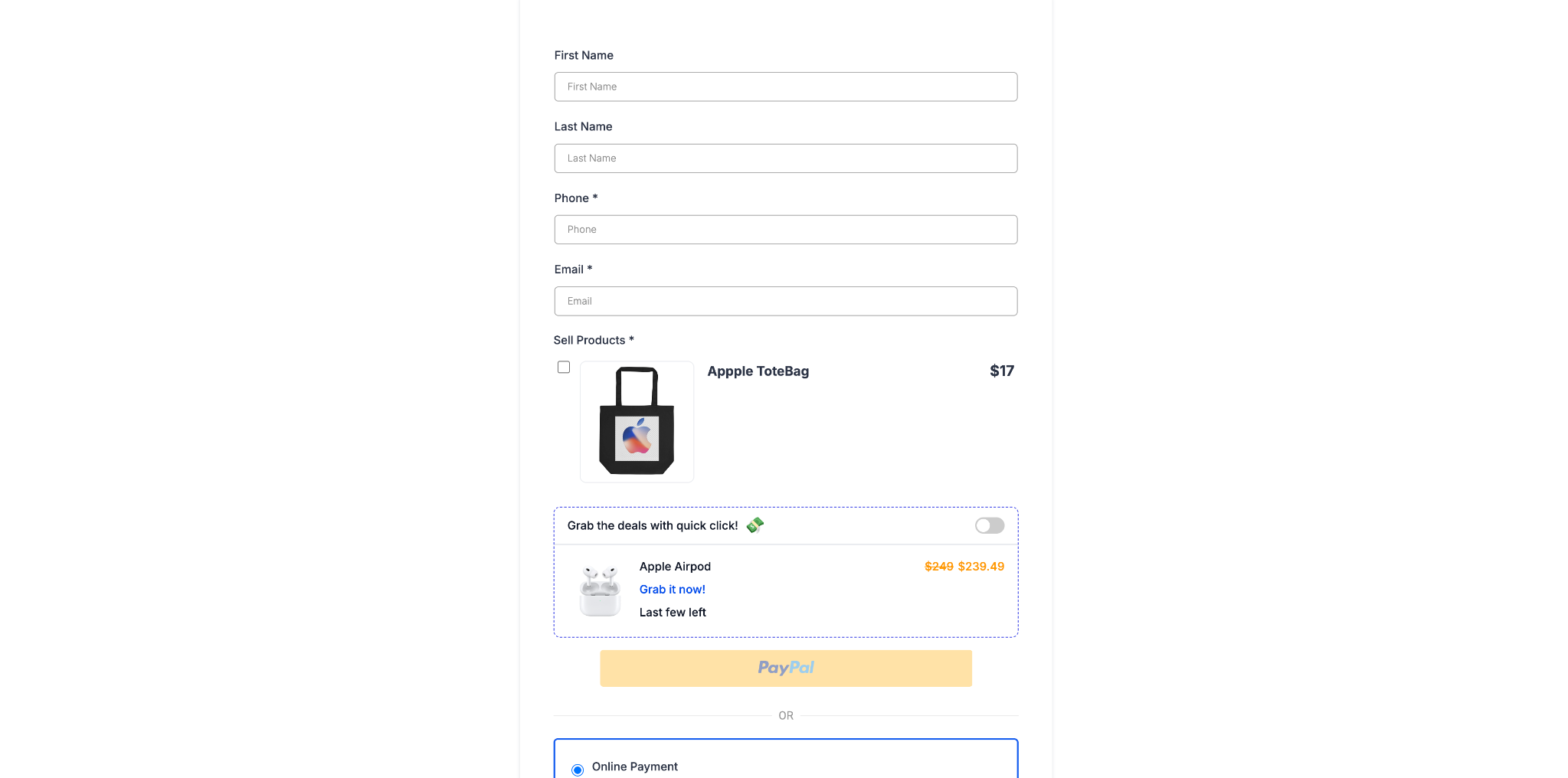
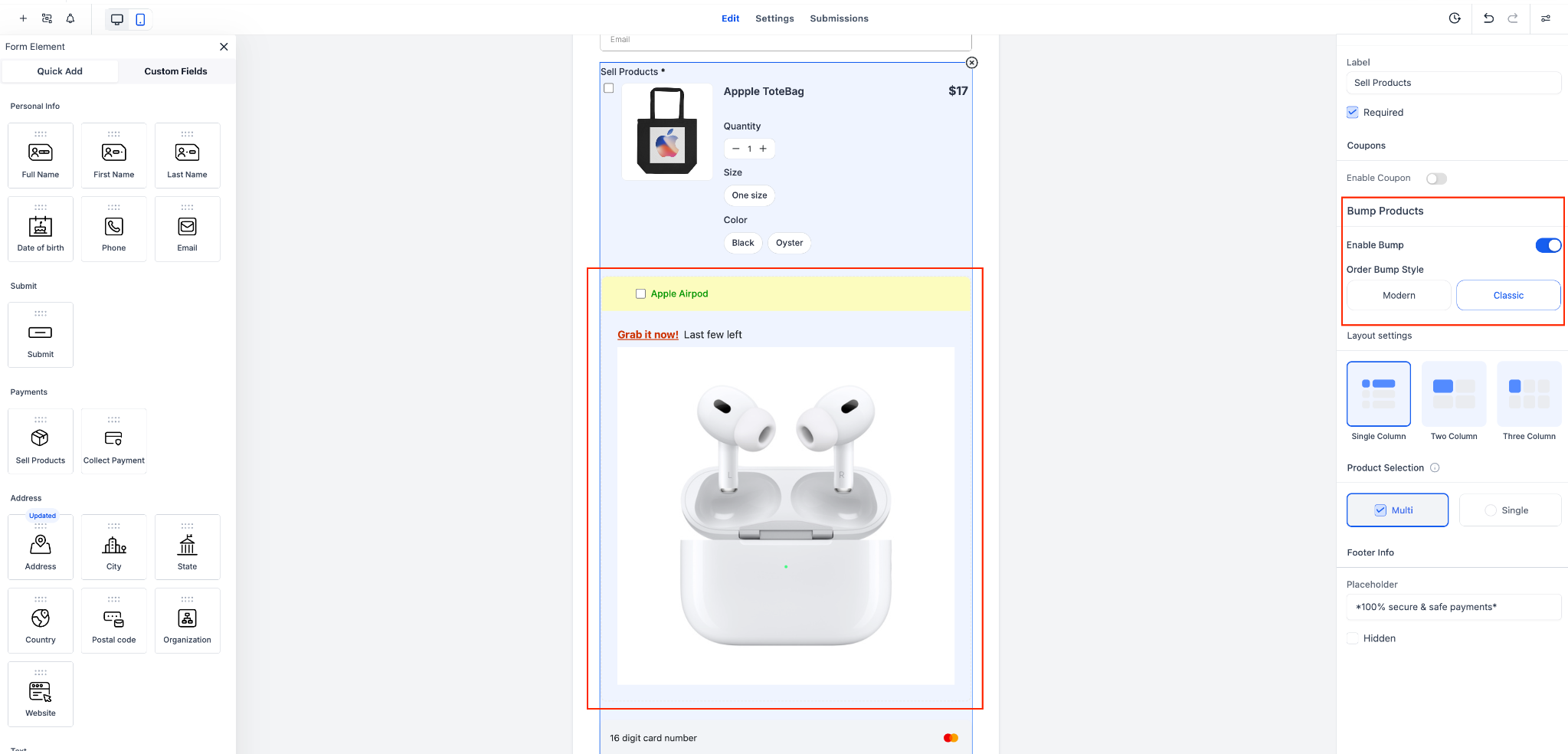
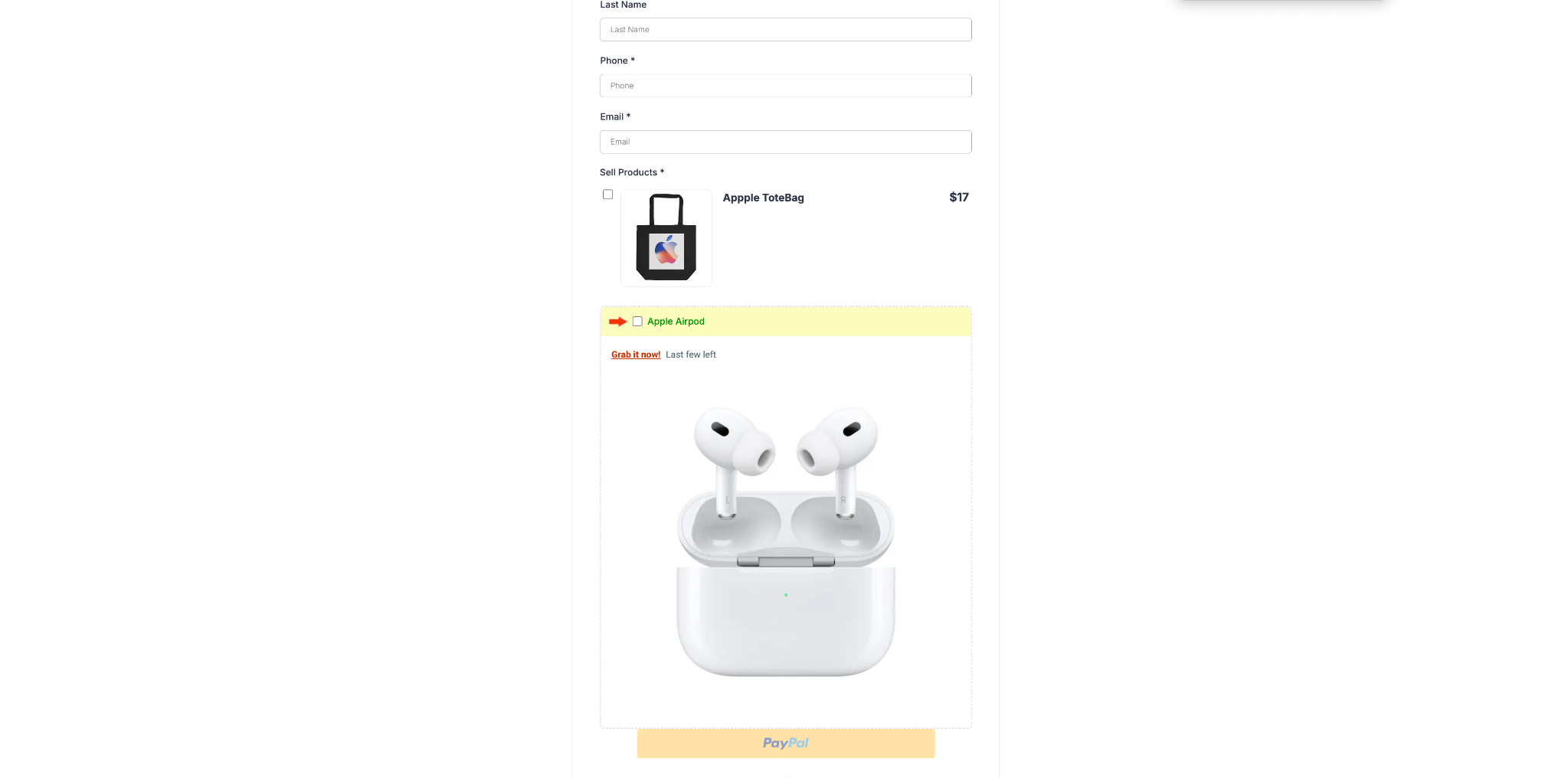
Classic & Modern Bump Styles: Choose between the traditional Classic view or a sleek Modern layout.
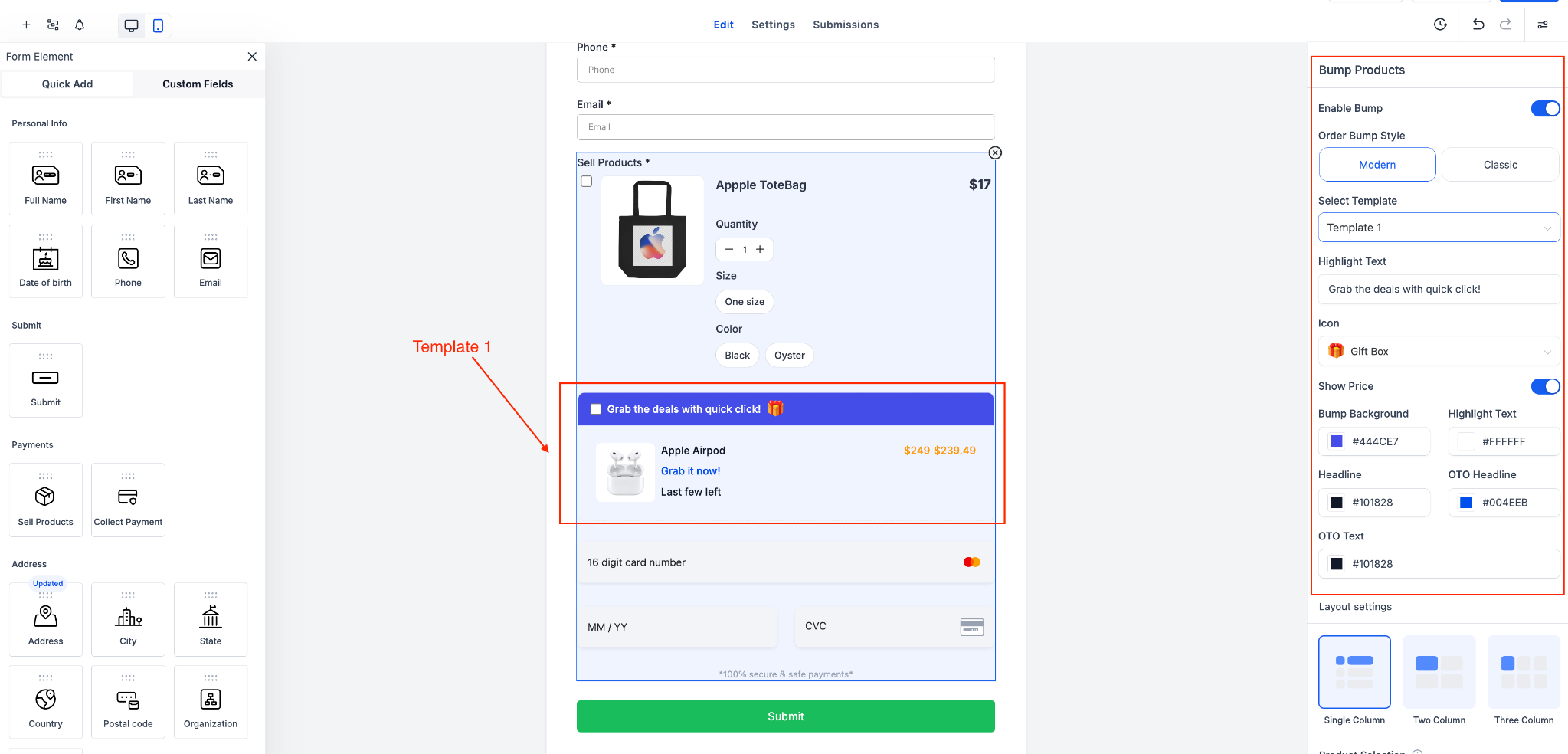
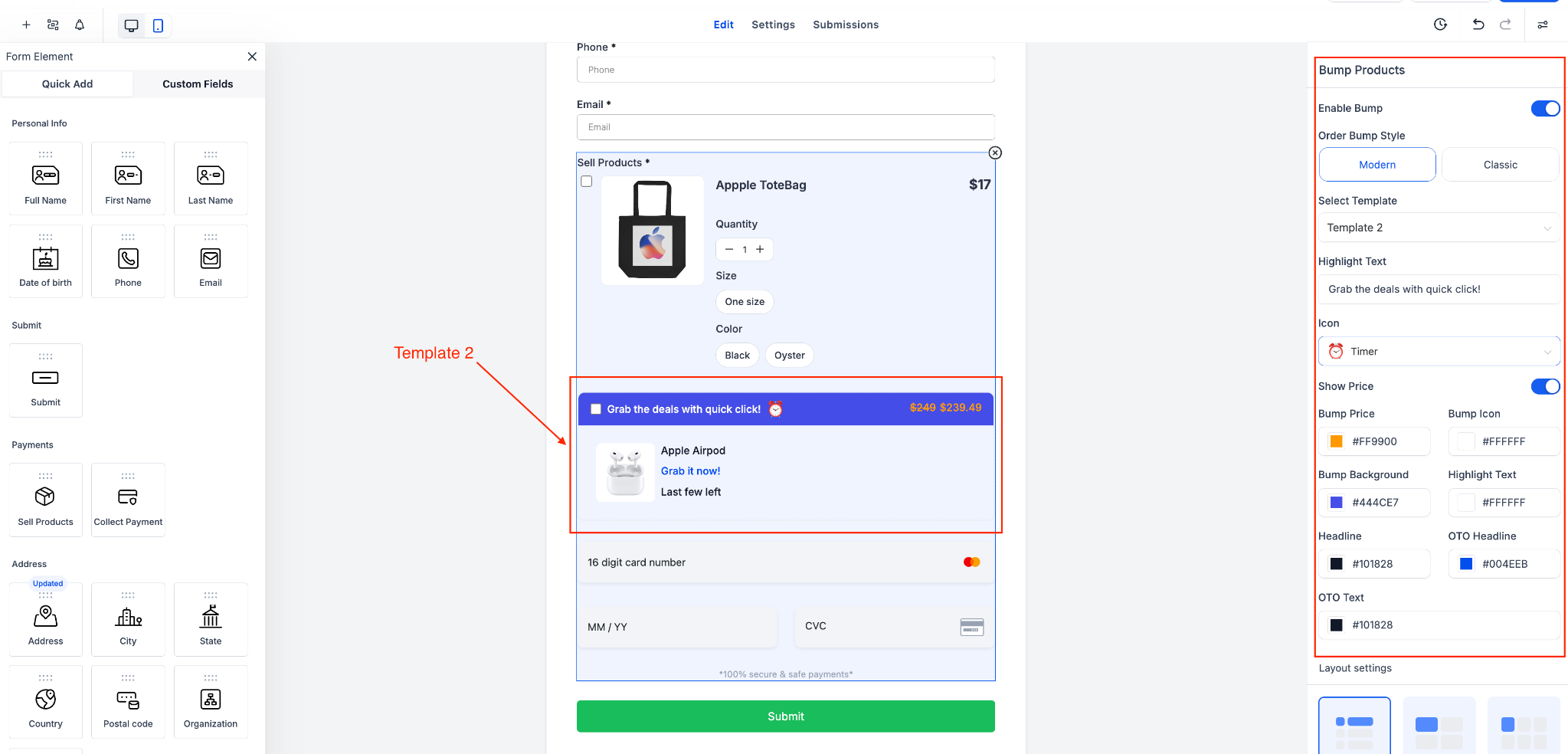
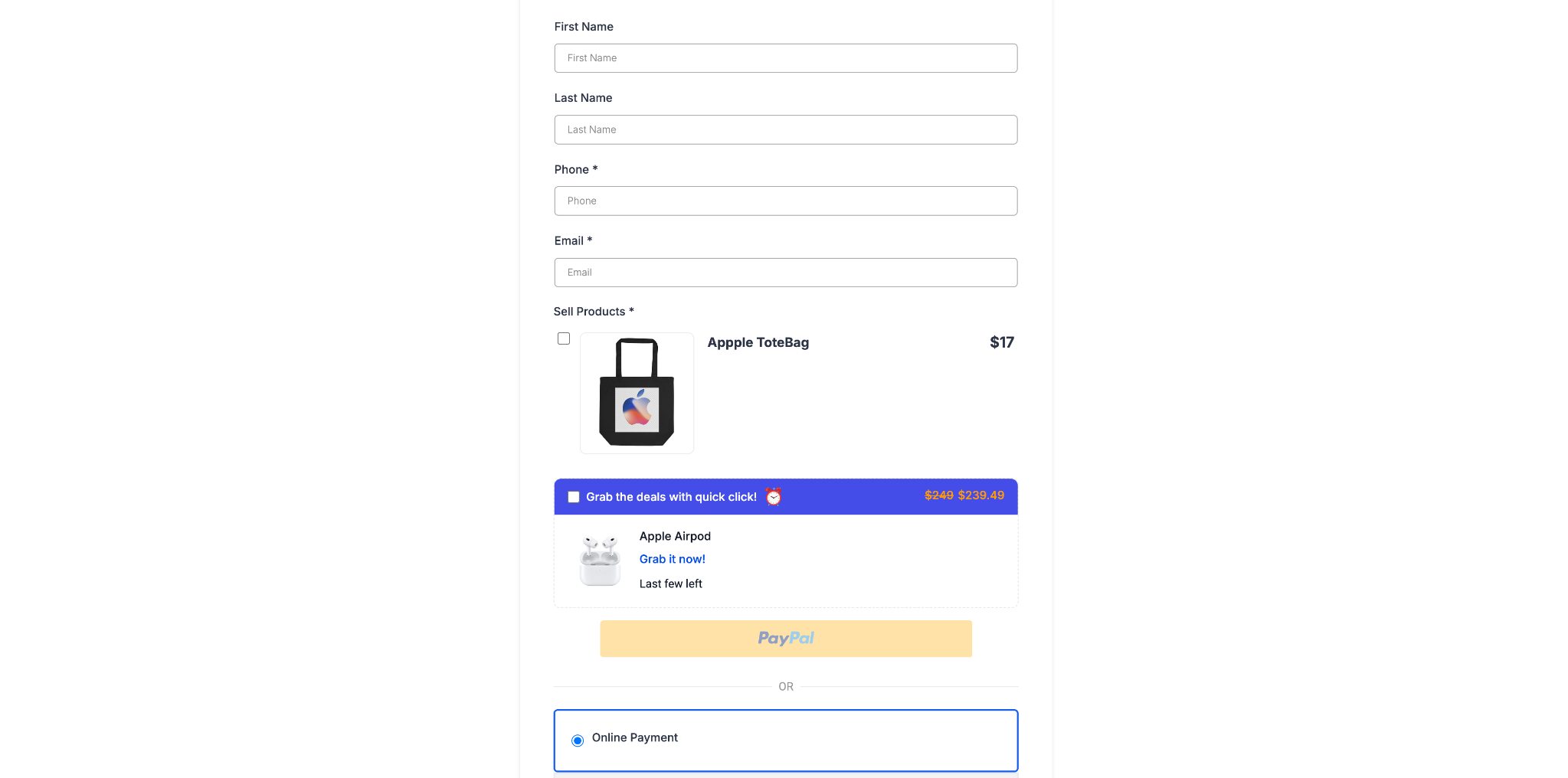
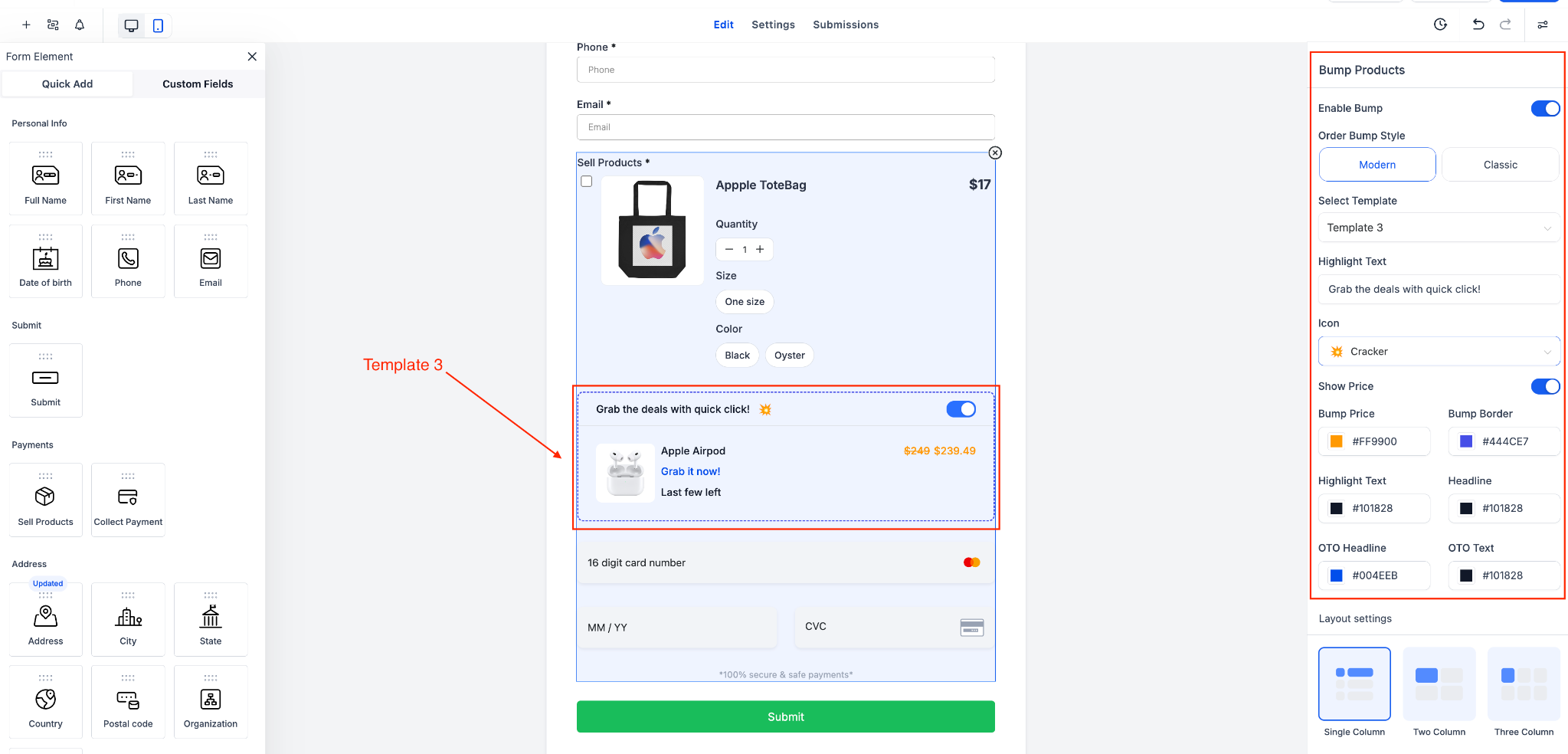
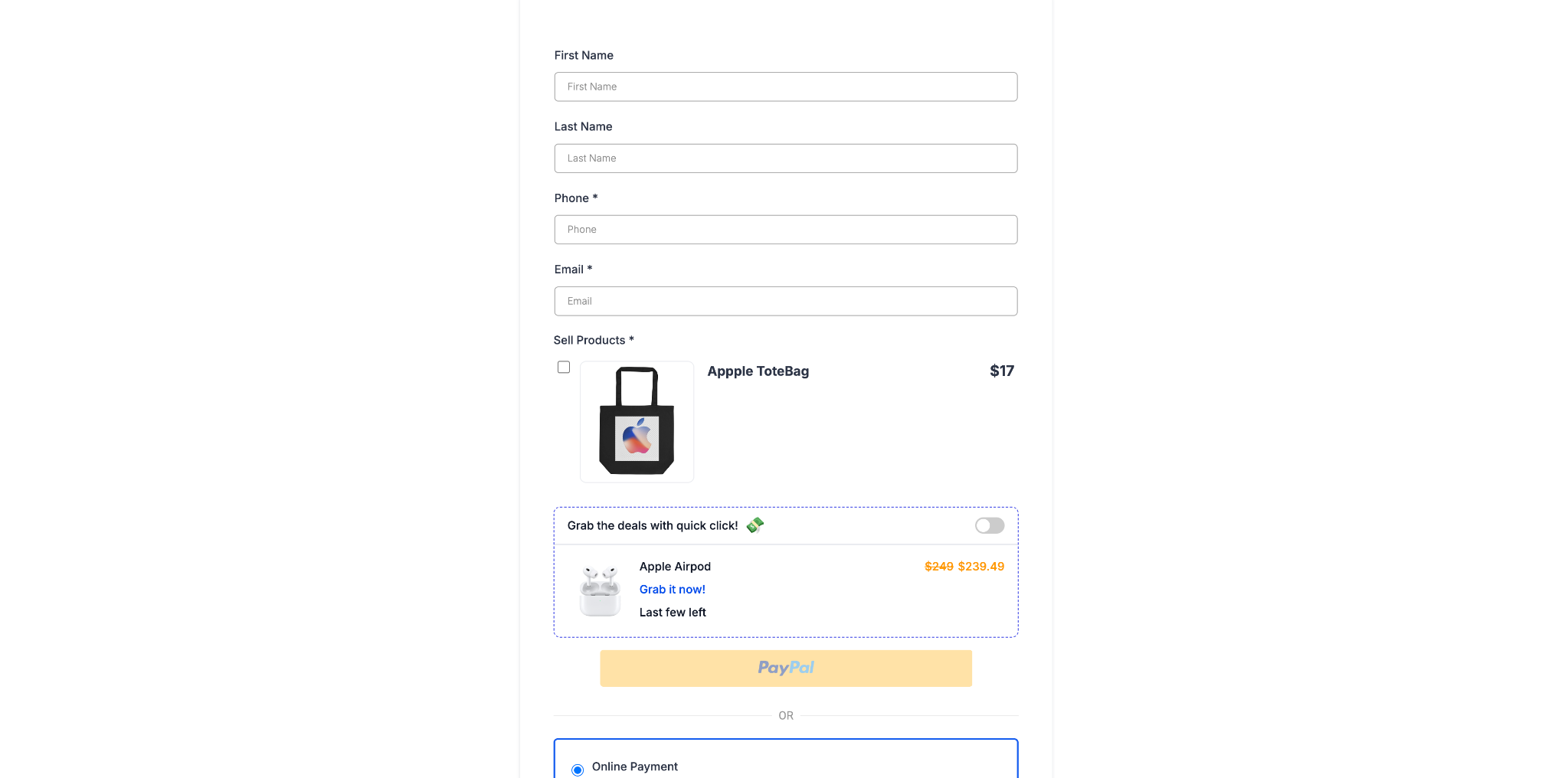
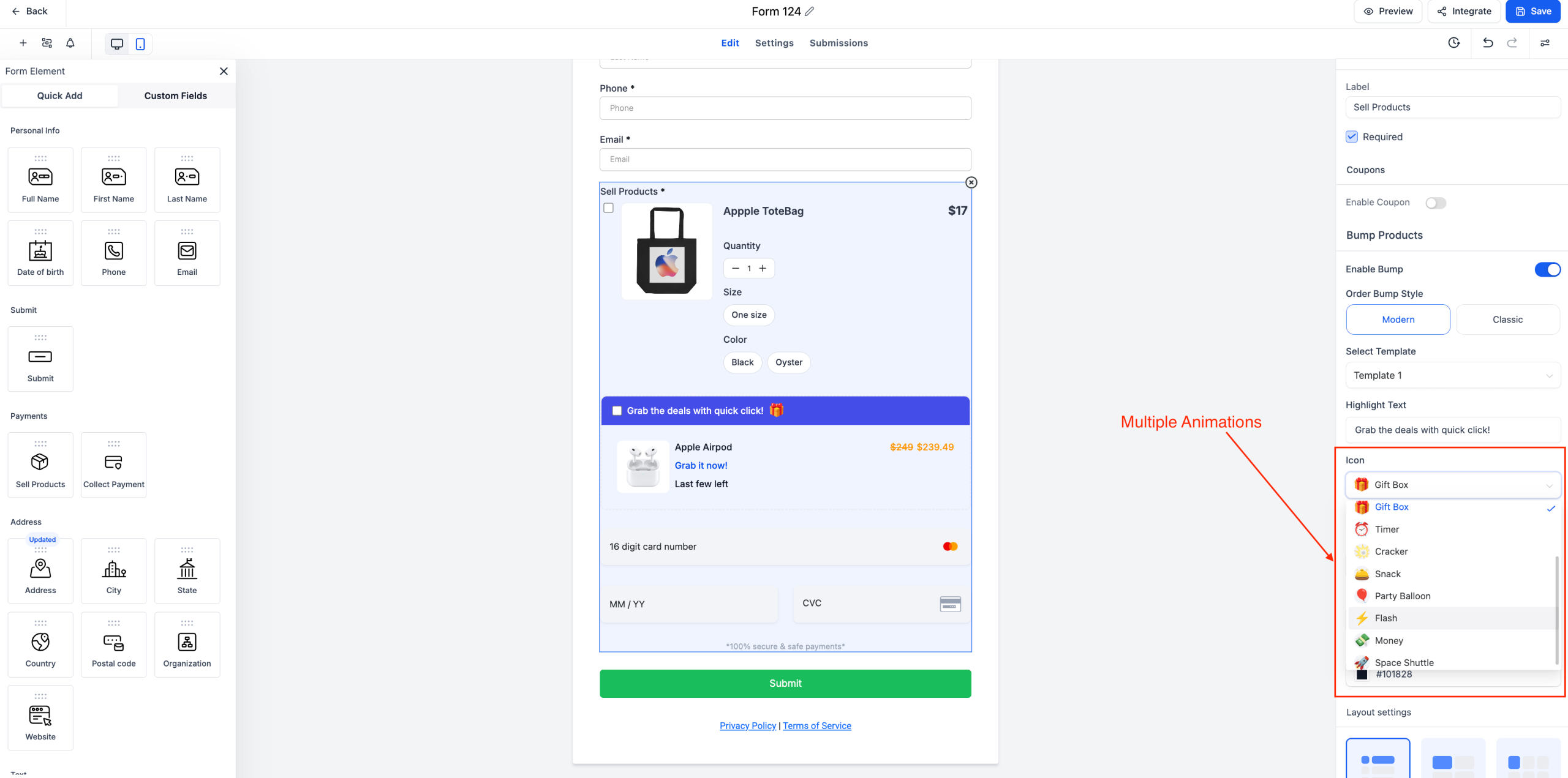
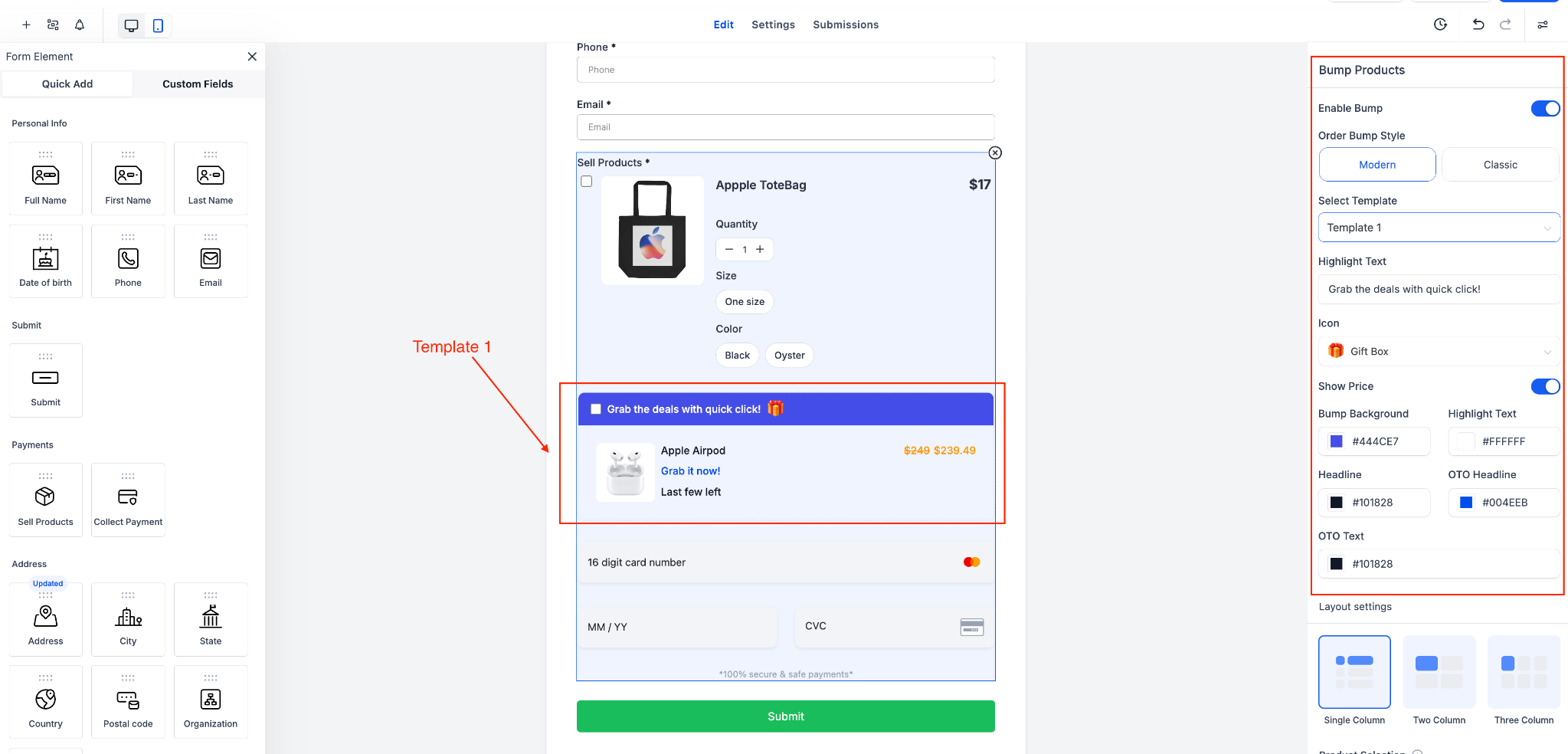
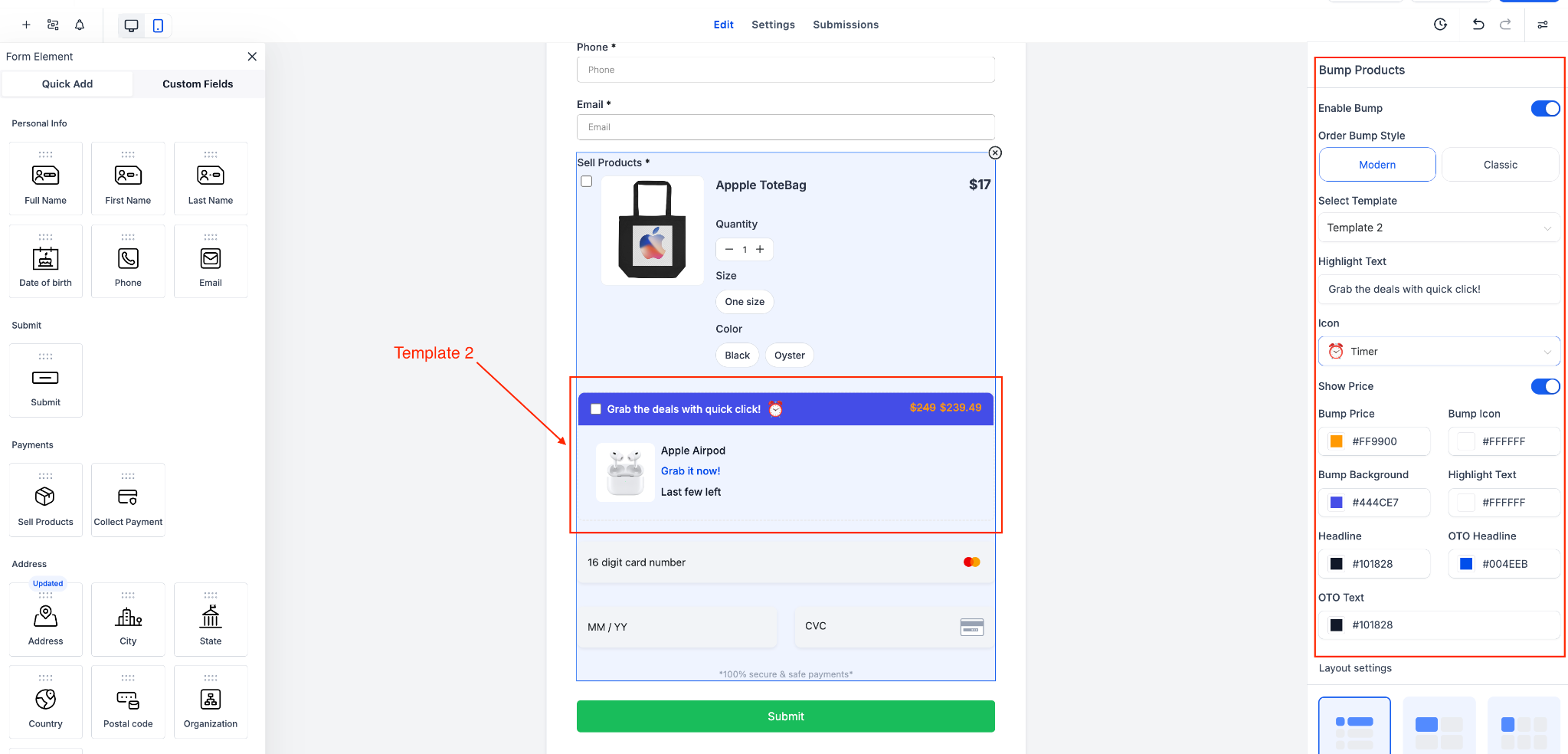
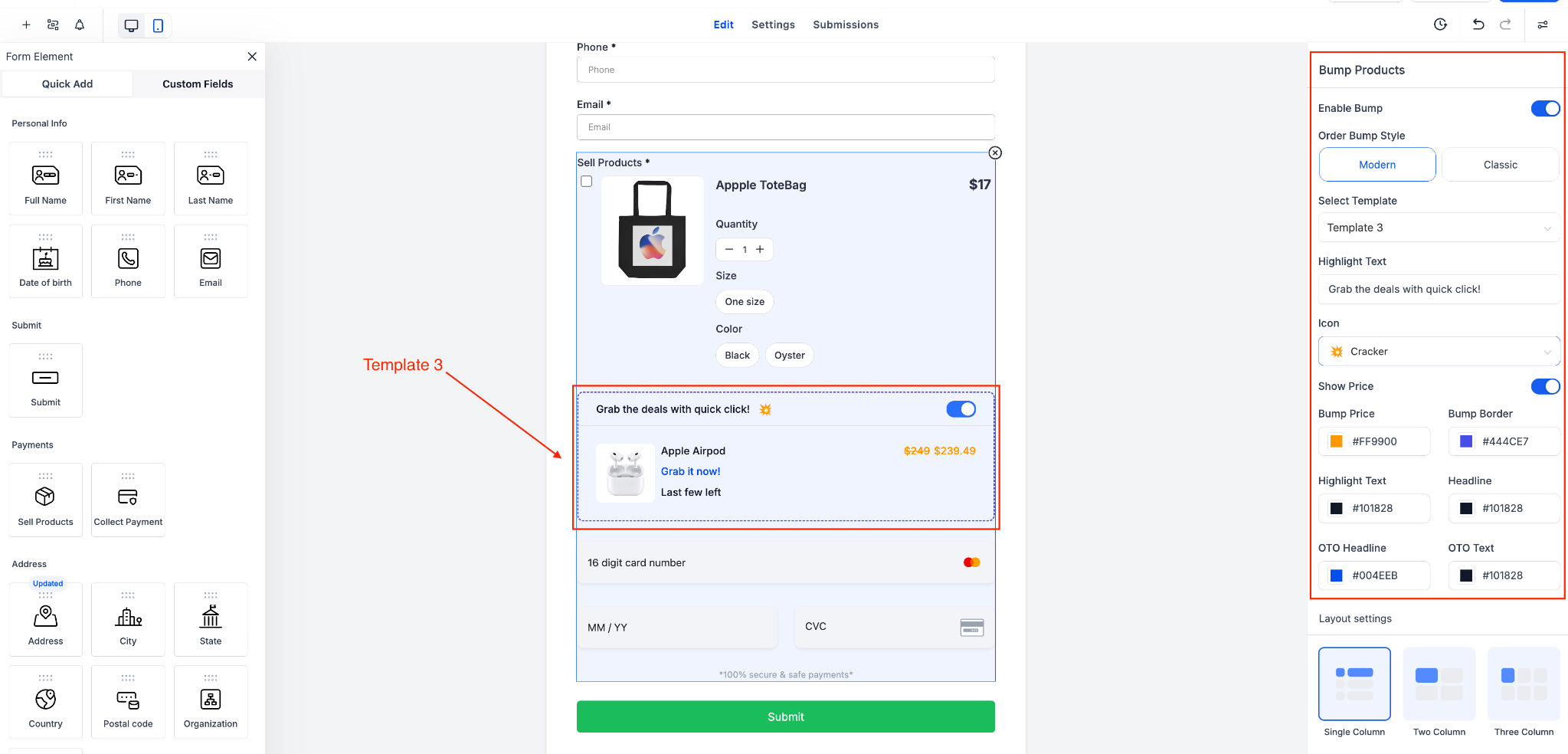
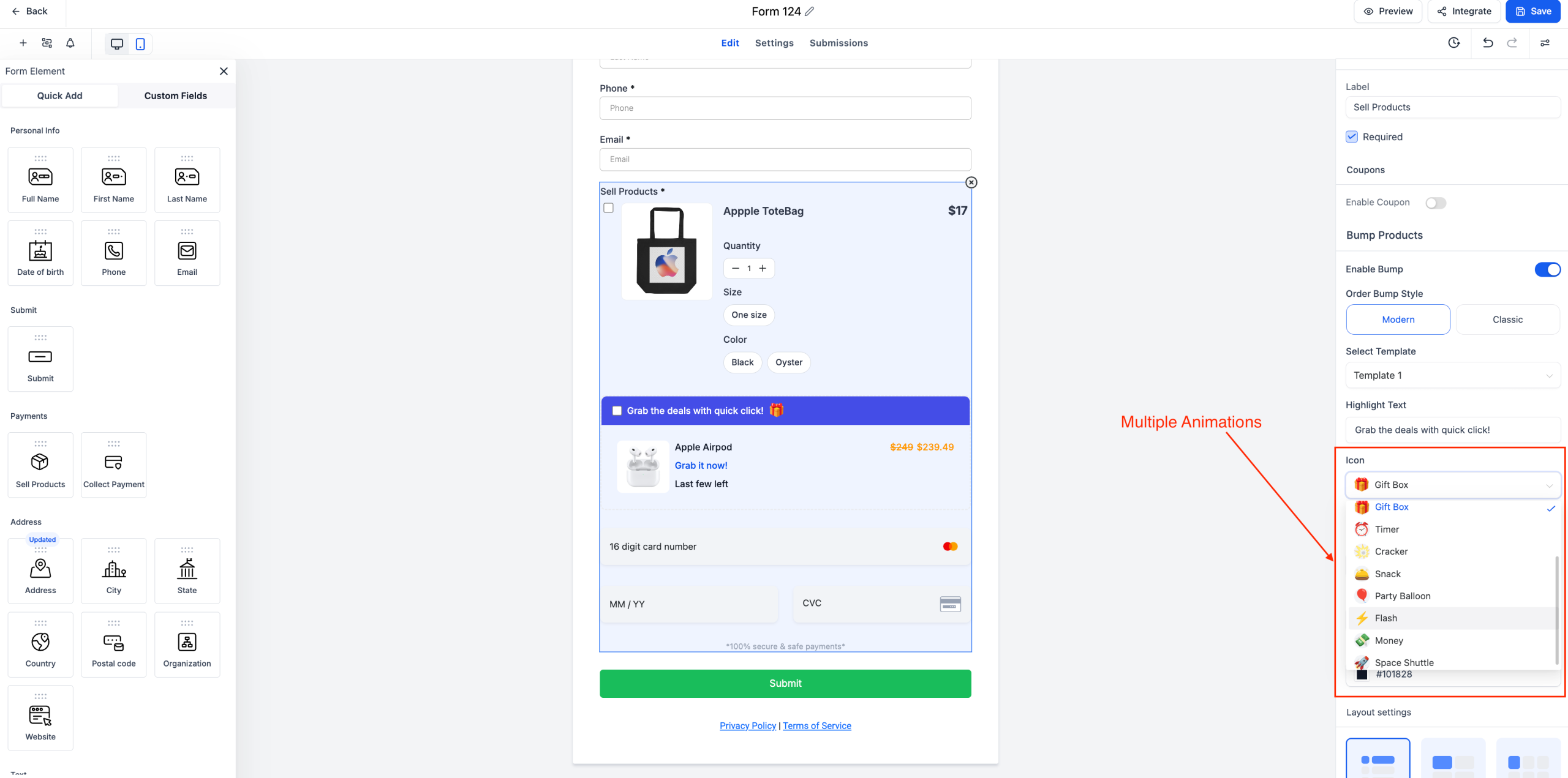
Multiple Templates: Select from Template 1, 2, or 3—each crafted to increase visibility and engagement.
Custom Design Options: Modify bump colors, icons, highlight text, borders, pricing display, and more.
Supports Multiple Bump Products: Add more than one bump product to a single form or survey.
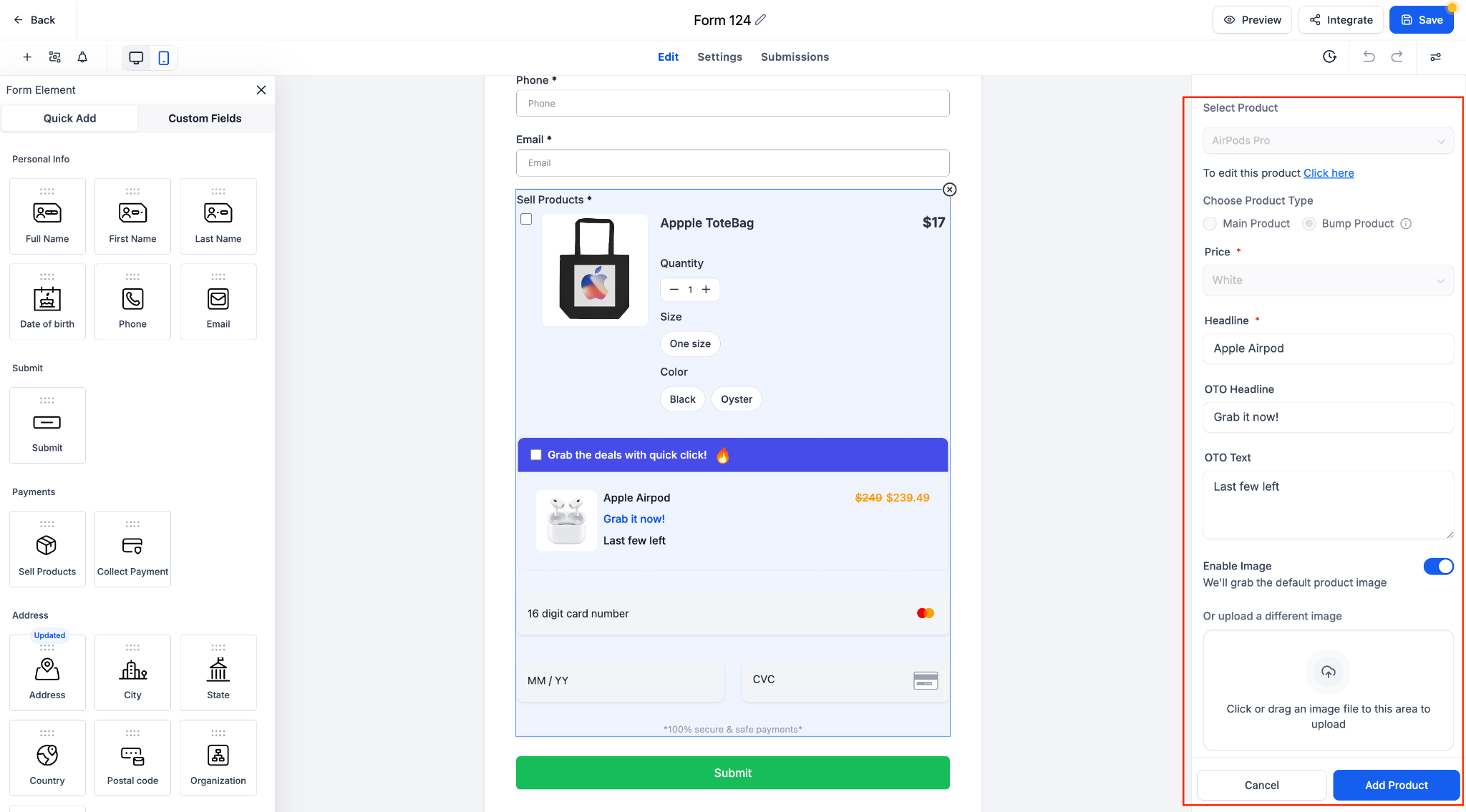
Recurring Product Logic: Either the main product or a bump product can be set as recurring, but not both simultaneously.
Toggle & Reorder: Activate or deactivate bump products with ease and arrange their order to suit your needs.
How It Works
1. Insert a Sell Product field into your form or survey.
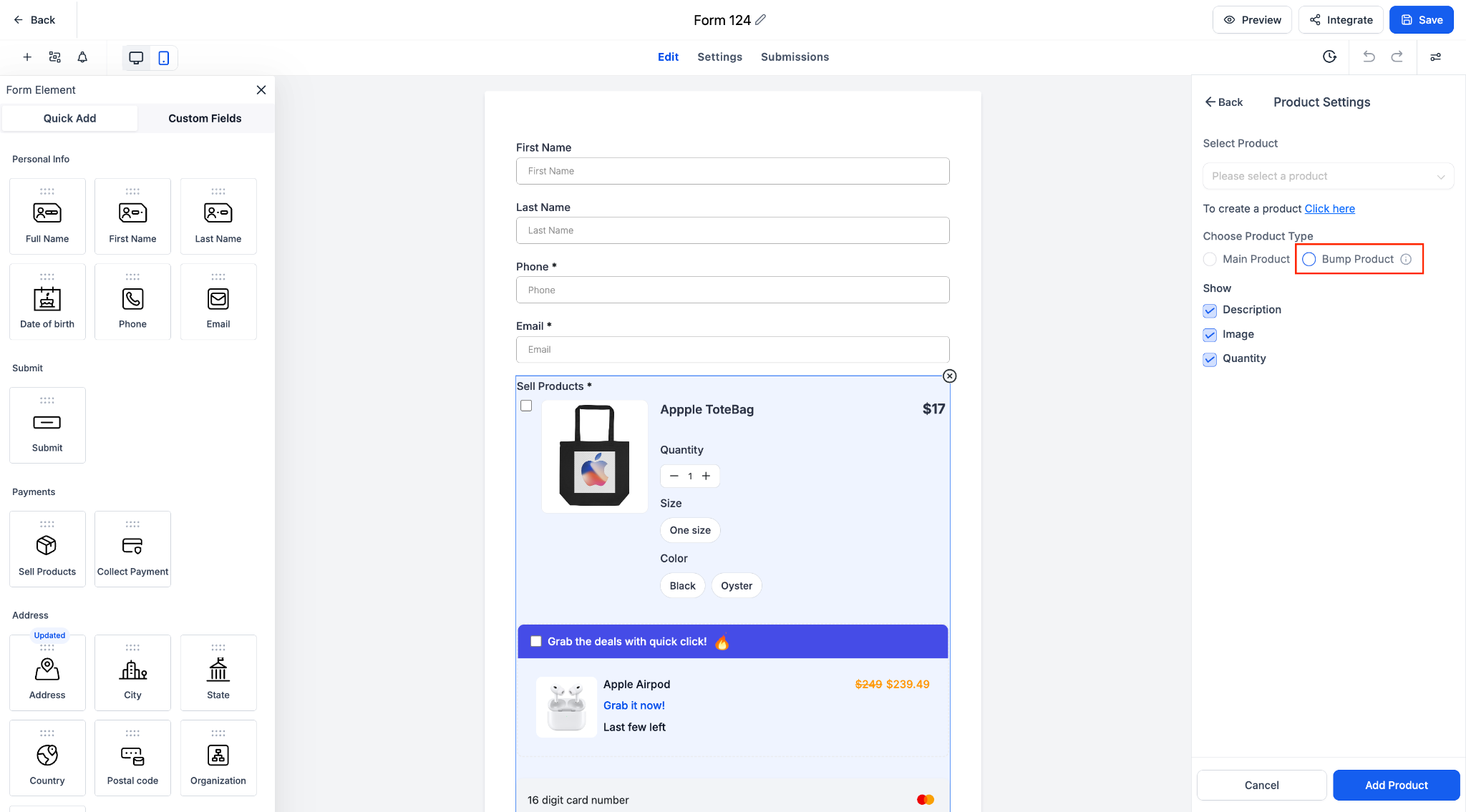
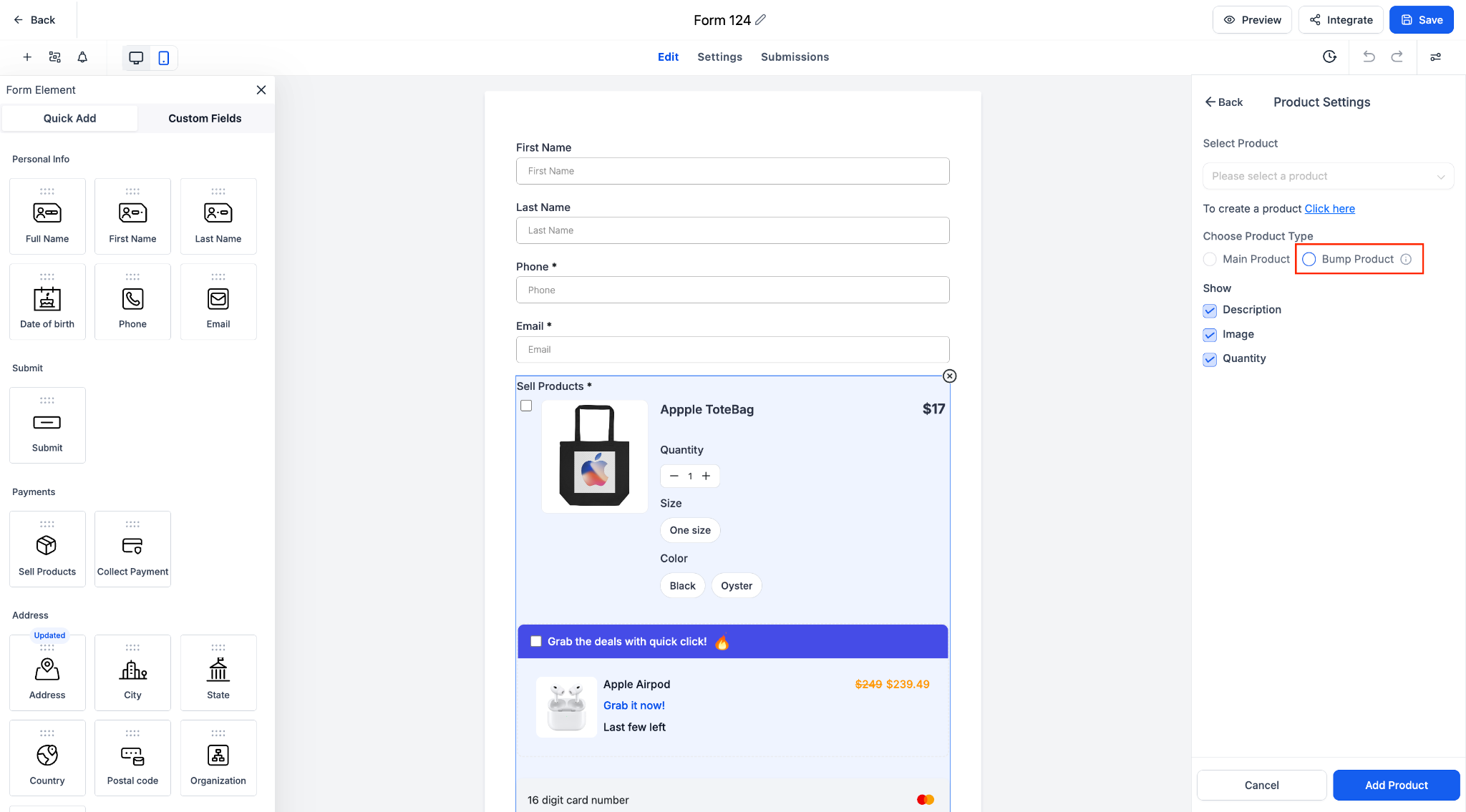
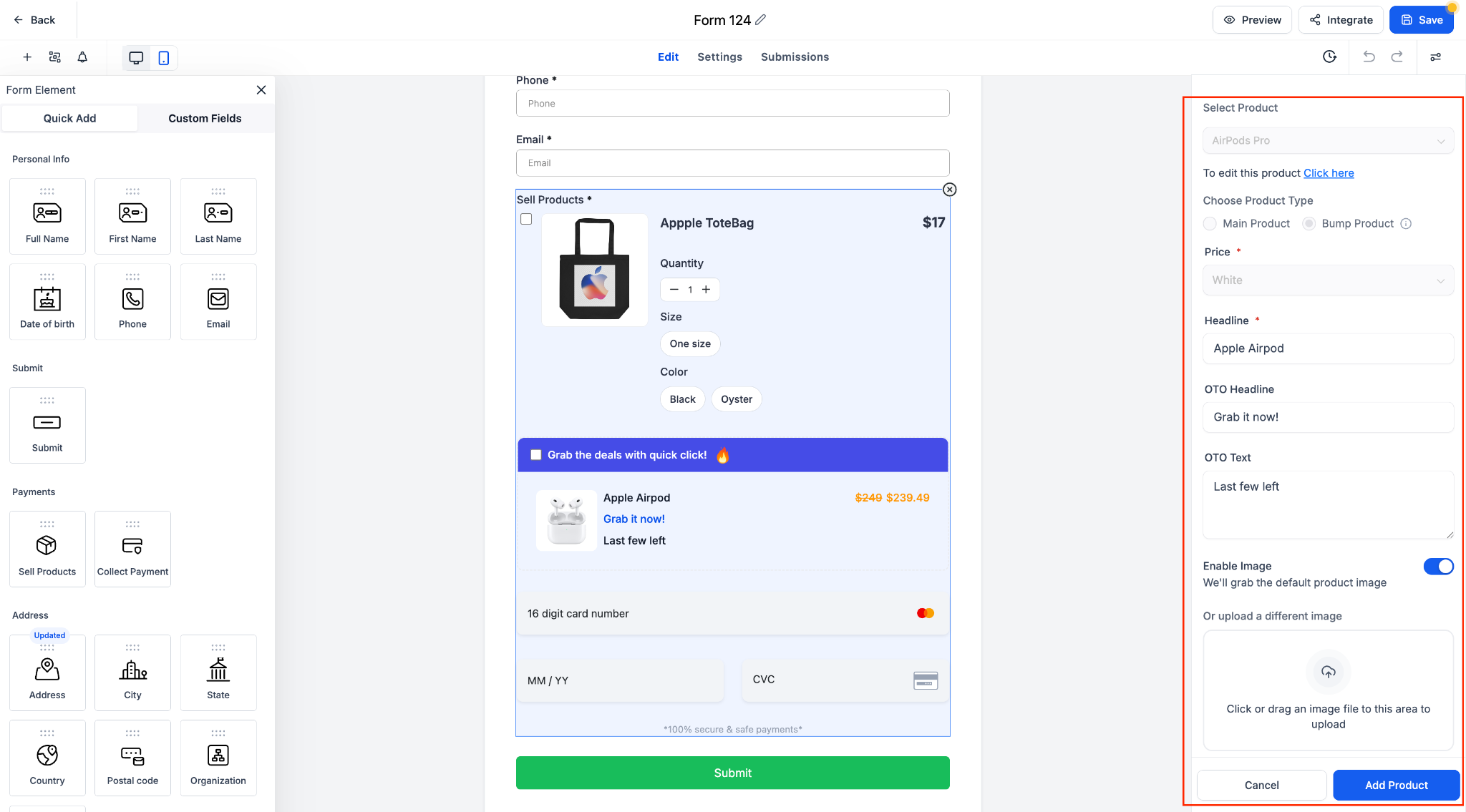
2. Choose your product type as either Main Product or Bump Product in the settings panel.
3. Enable Bump Products and select your preferred style—Classic or Modern.
4. Pick a template, configure your styling and text, and preview it live.
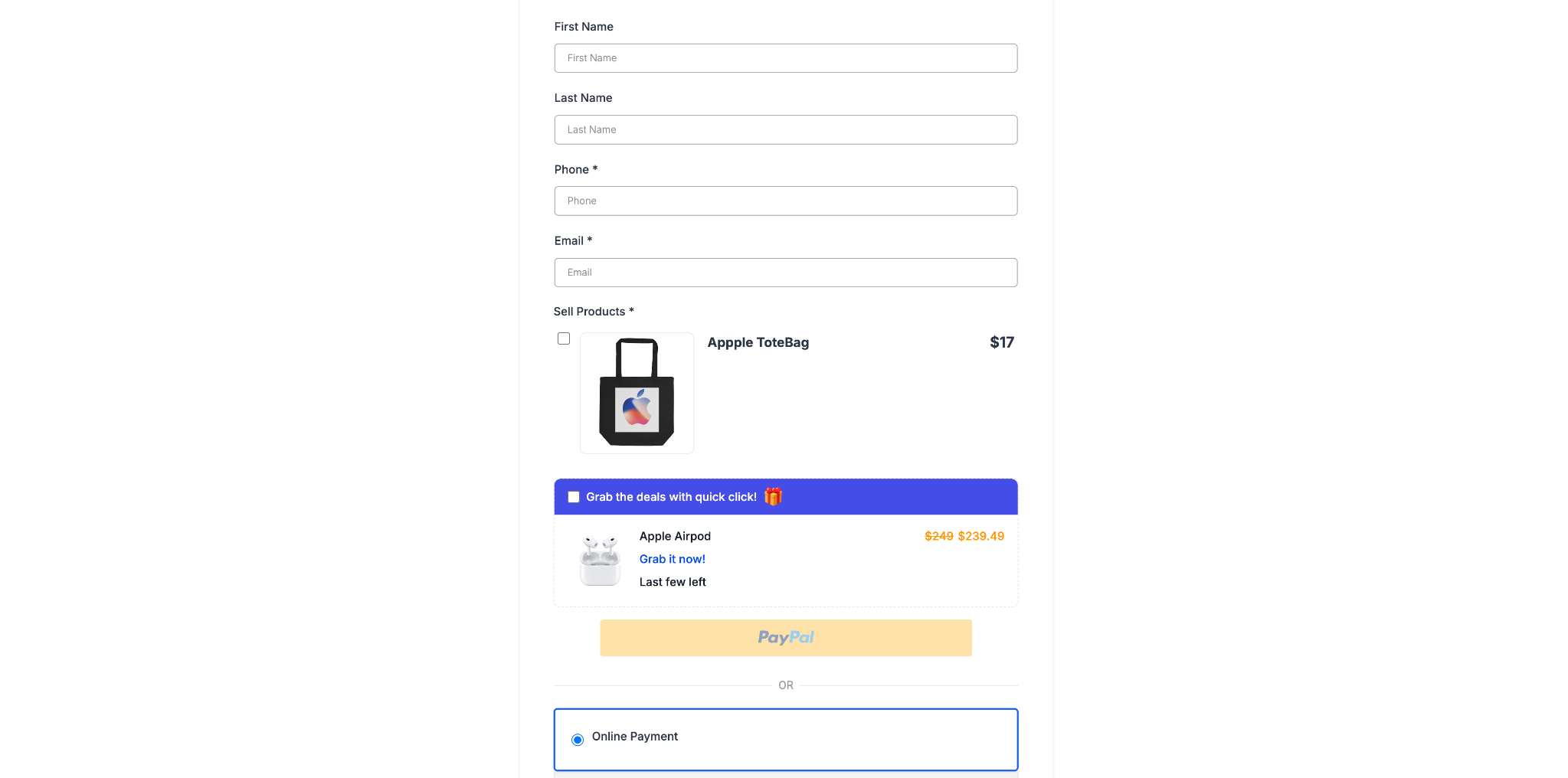
5. Save your form or survey and start collecting boosted payments.
Notes
– Multiple bump products can be used per form or survey.
– Only one product in the form (either main or bump) can be set as recurring.
– Works with all existing payment processors including Stripe and PayPal.
– Bump products can be added only when at least one main product is selected.
This enhancement makes it easier than ever to increase average order value using clean, customisable bump product experiences—now available with modern look.
Modern Order Bumps Now in Forms & Surveys
Drive more revenue with high-converting add-ons—now directly within your forms and surveys
What’s New
Order Bumps are now available in Forms and Surveys, expanding beyond their original use in funnel-based order forms. This update not only revives the Classic view but also introduces a powerful new Modern style with multiple templates and full customization options.
Key Highlights
Classic & Modern Bump Styles: Choose between the traditional Classic view or a sleek Modern layout.
Multiple Templates: Select from Template 1, 2, or 3—each crafted to increase visibility and engagement.
Custom Design Options: Modify bump colors, icons, highlight text, borders, pricing display, and more.
Supports Multiple Bump Products: Add more than one bump product to a single form or survey.
Recurring Product Logic: Either the main product or a bump product can be set as recurring, but not both simultaneously.
Toggle & Reorder: Activate or deactivate bump products with ease and arrange their order to suit your needs.
How It Works
1. Insert a Sell Product field into your form or survey.
2. Choose your product type as either Main Product or Bump Product in the settings panel.
3. Enable Bump Products and select your preferred style—Classic or Modern.
4. Pick a template, configure your styling and text, and preview it live.
5. Save your form or survey and start collecting boosted payments.
Notes
– Multiple bump products can be used per form or survey.
– Only one product in the form (either main or bump) can be set as recurring.
– Works with all existing payment processors including Stripe and PayPal.
– Bump products can be added only when at least one main product is selected.
This enhancement makes it easier than ever to increase average order value using clean, customisable bump product experiences—now available with modern look.
Email Verification forA2P Brand Registration
We’ve rolled out a new email verification step in the A2P brand registration process to strengthen platform security and ensure Brand ownership.
✨ What’s New:
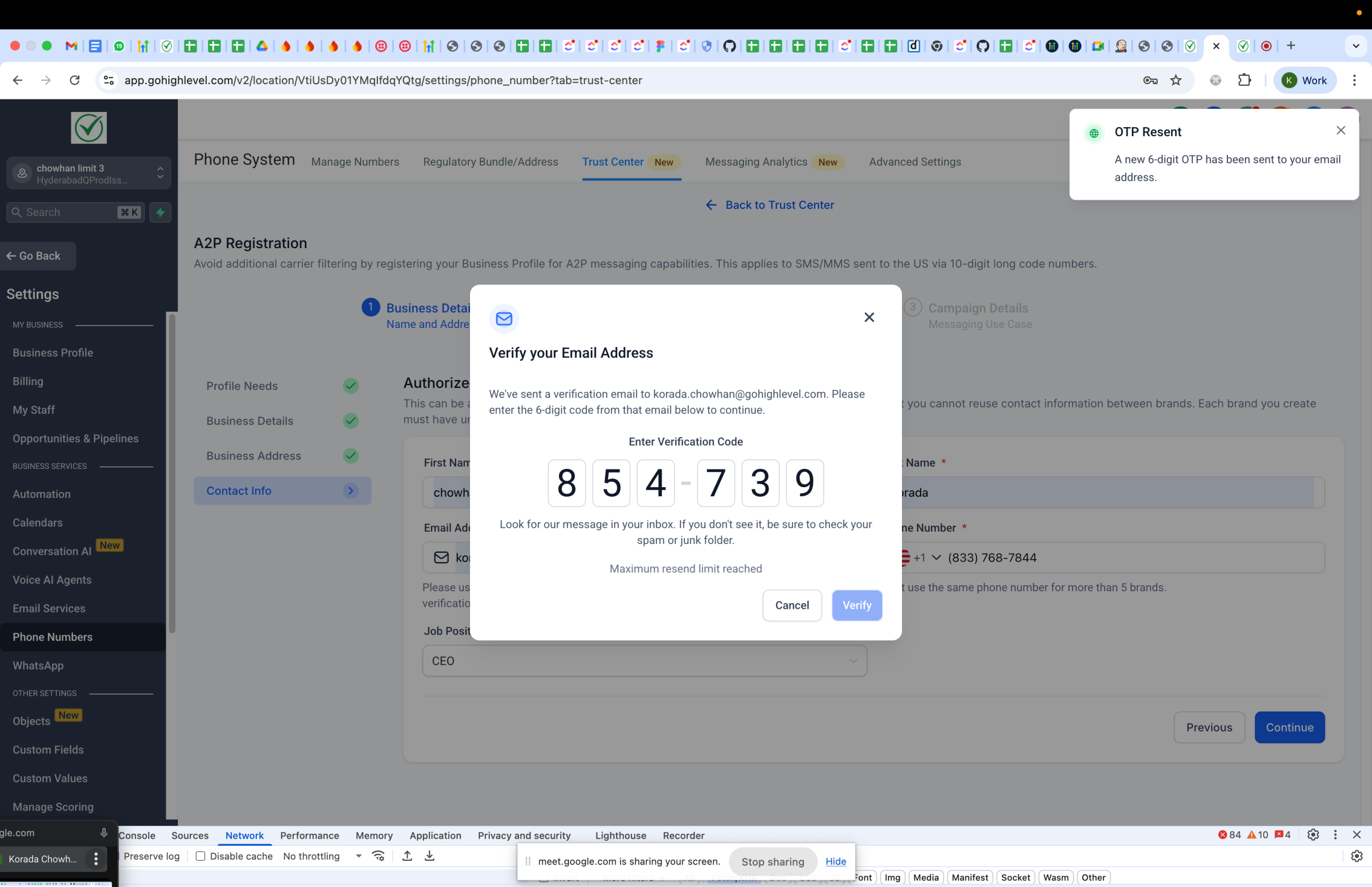
When registering an A2P brand, users are now prompted to verify their email address by entering a 6-digit OTP (One-Time Password) sent to their inbox.
– Seamless modal-based verification flow
– 6-digit OTP sent to the entered email
– Resend option available after 60 seconds
– Max 3 verification attempts and 2 resends
– Automatic progression upon successful verification
📍 Updated User Journey:
– User fills in A2P brand registration form
– Enters a valid email and clicks “Continue”
– Sees modal: “Verify your Email Address”
– Receives and enters 6-digit OTP
– ✅ Correct OTP → proceeds to next step
– ❌ Incorrect OTP → error message shown
– Option to Resend OTP becomes available after 60s
💡 Why It Matters:
This new step strengthens the integrity of brand registrations and helps protect the platform from misuse—without disrupting the experience for legitimate users.
📸 New Verification Experience:
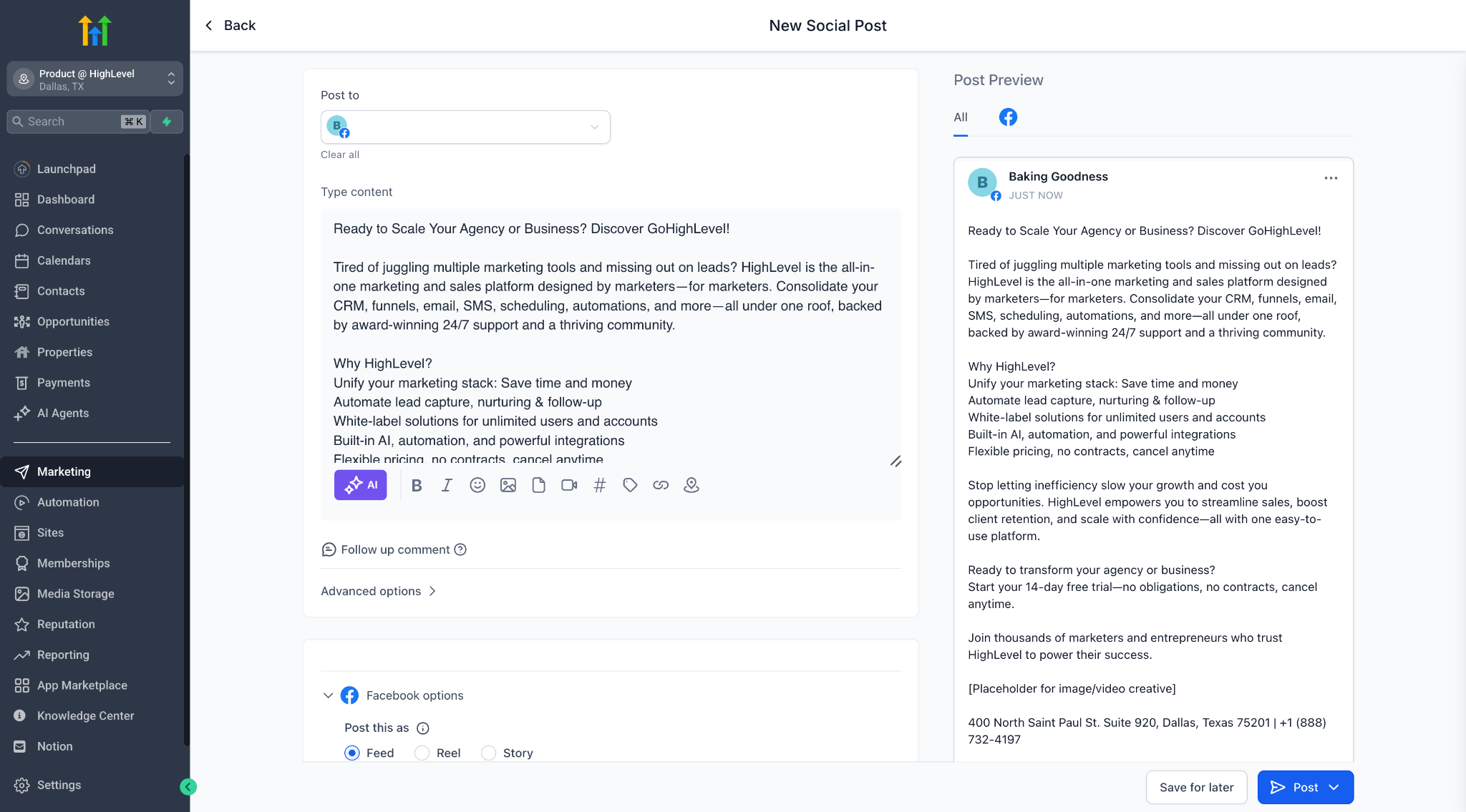
✨ Conversational editing of content with Ask AI
Say hello to a smarter, more flexible way to refine your content — with Ask AI, you can now edit any text using natural language instructions.
🔧 What’s New?
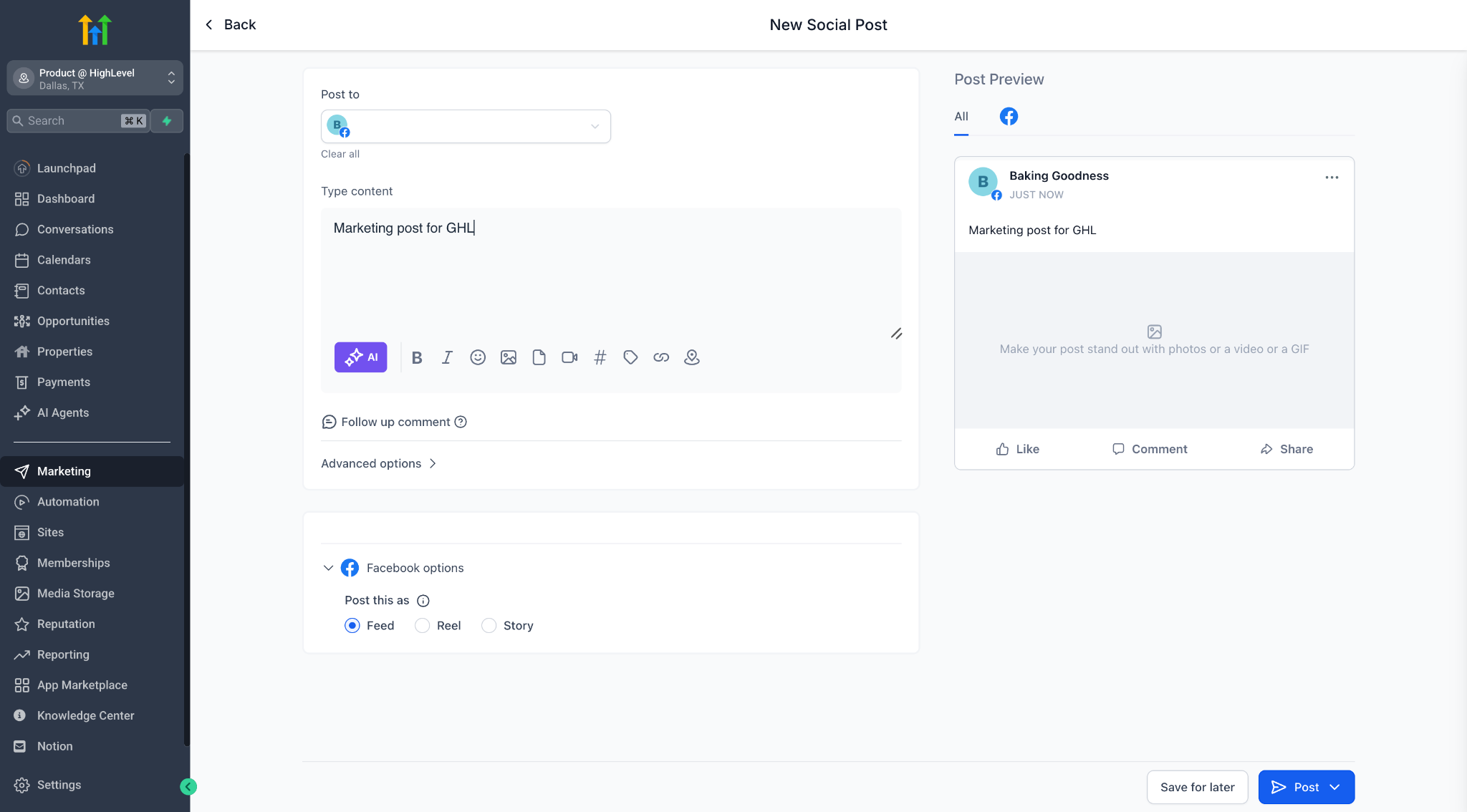
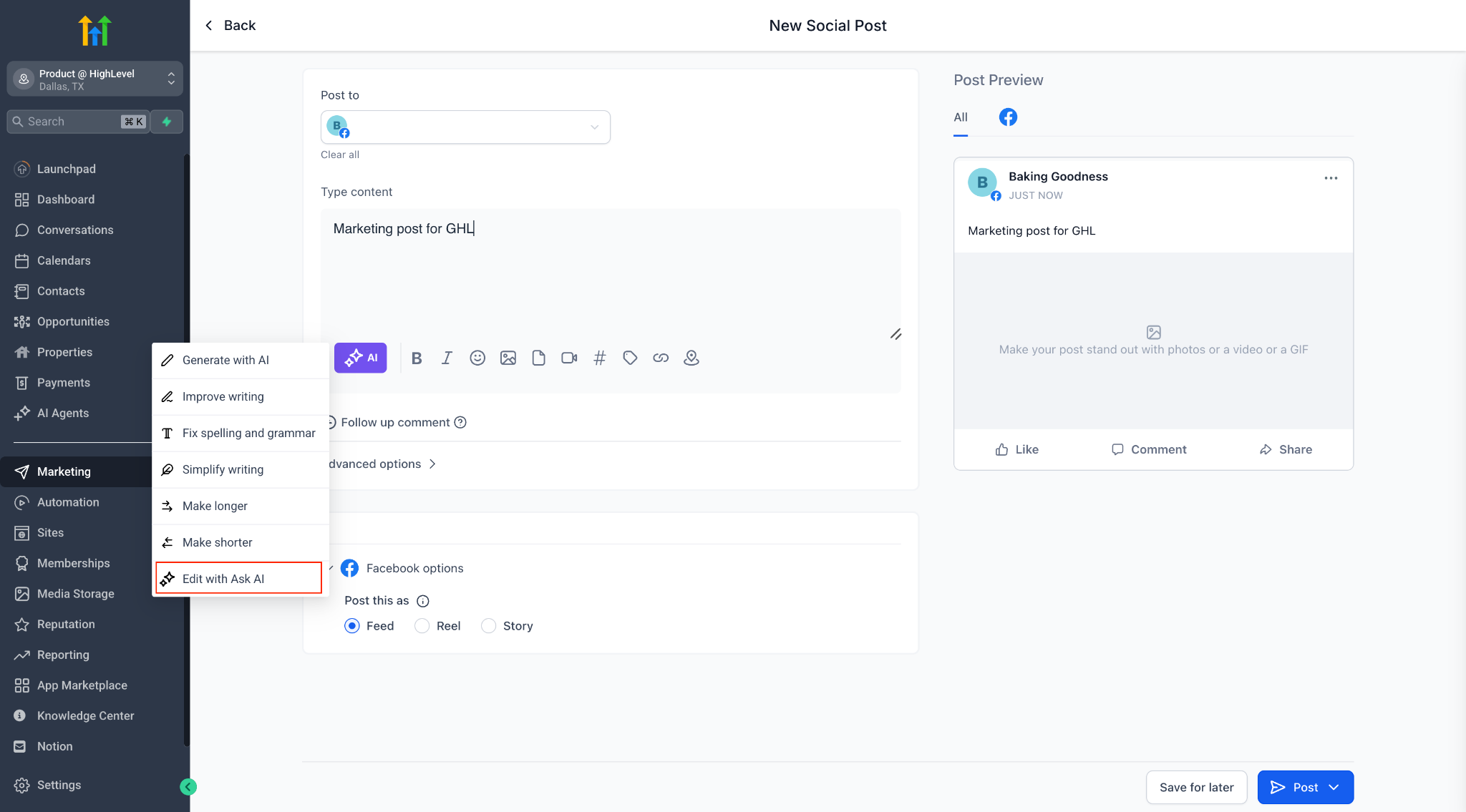
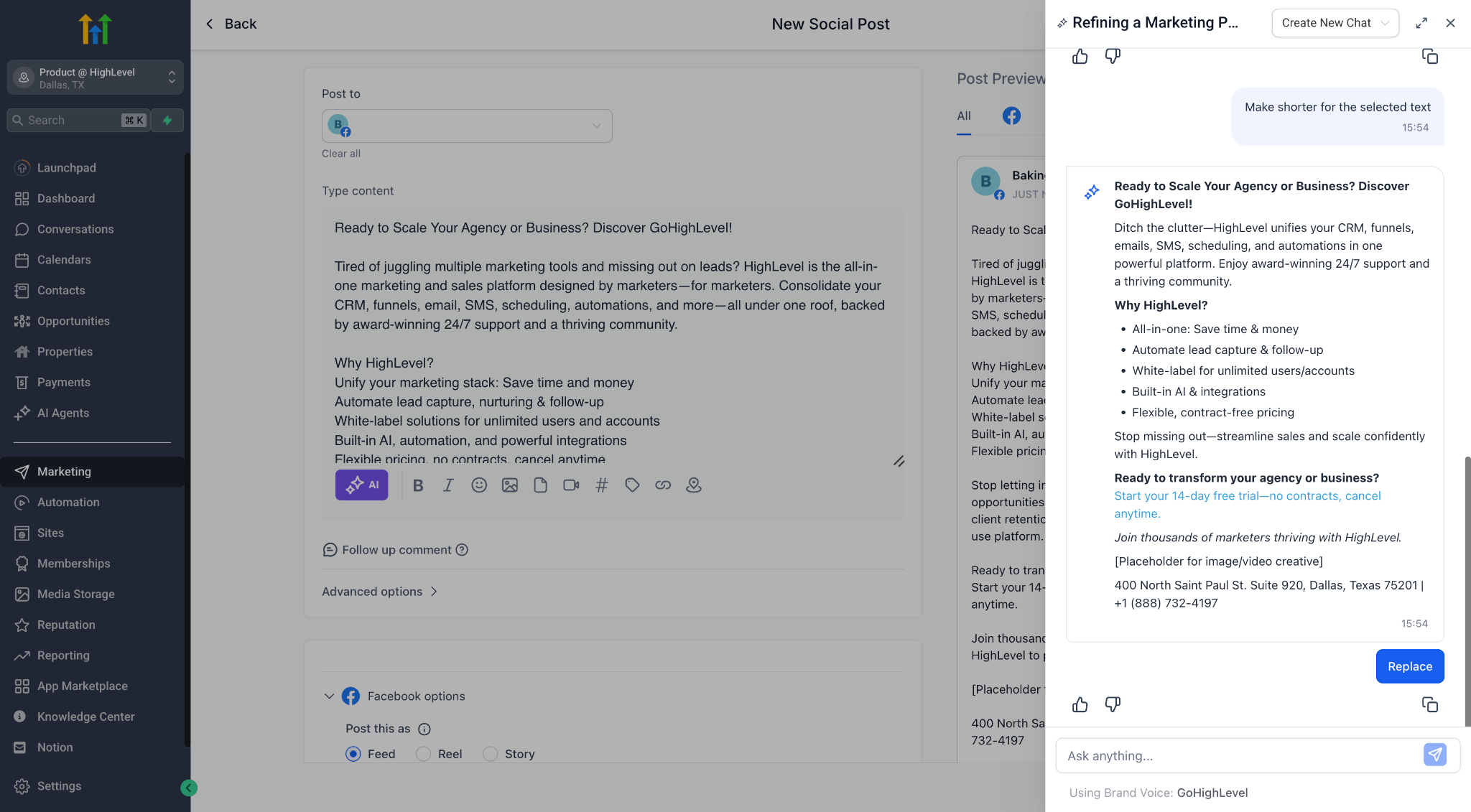
Introducing a new quick action: “Edit with Ask AI”
This lets you:
– Edit content in a freeform, chat-style flow
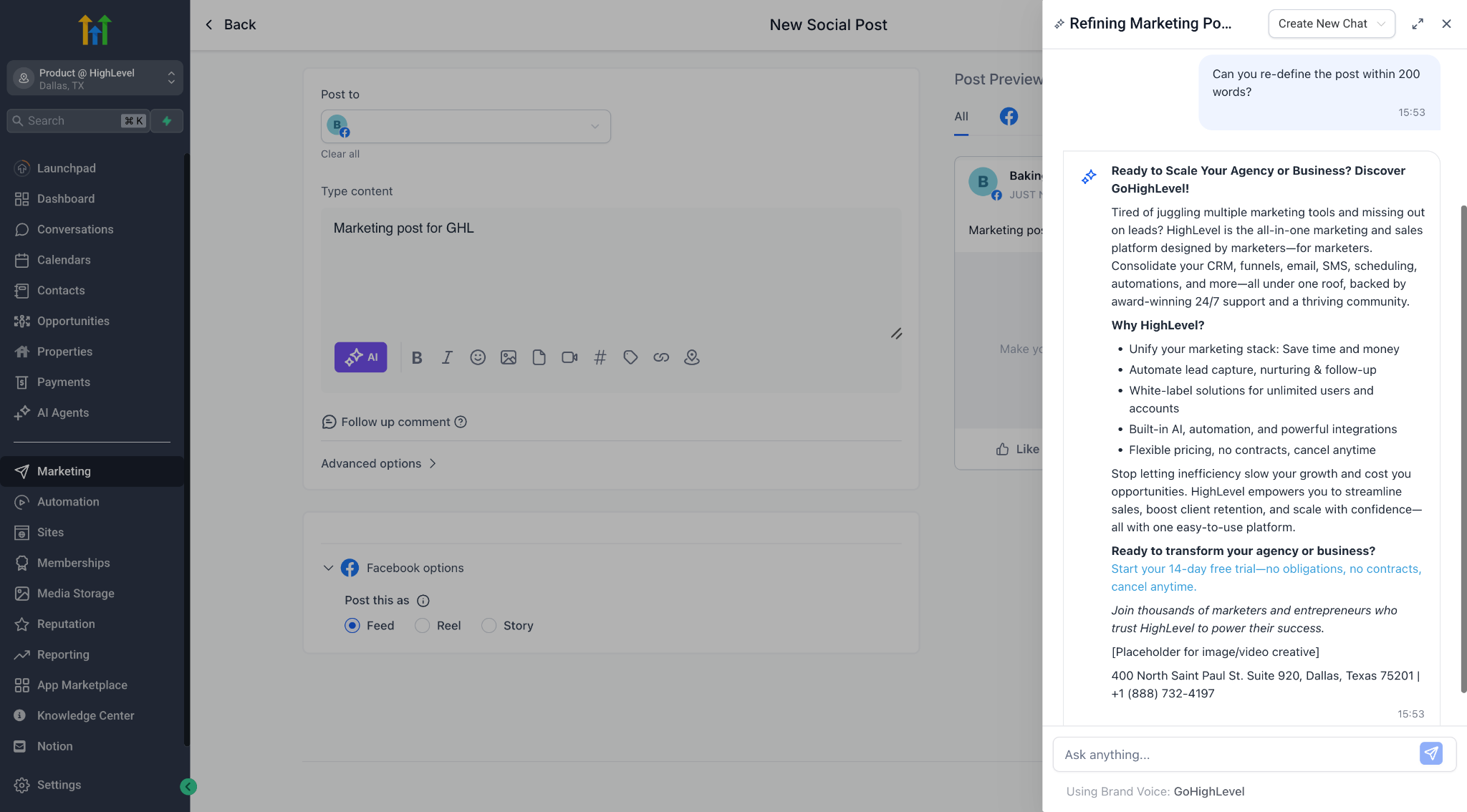
– Ask AI to rewrite, simplify, polish, shorten, expand, or more.
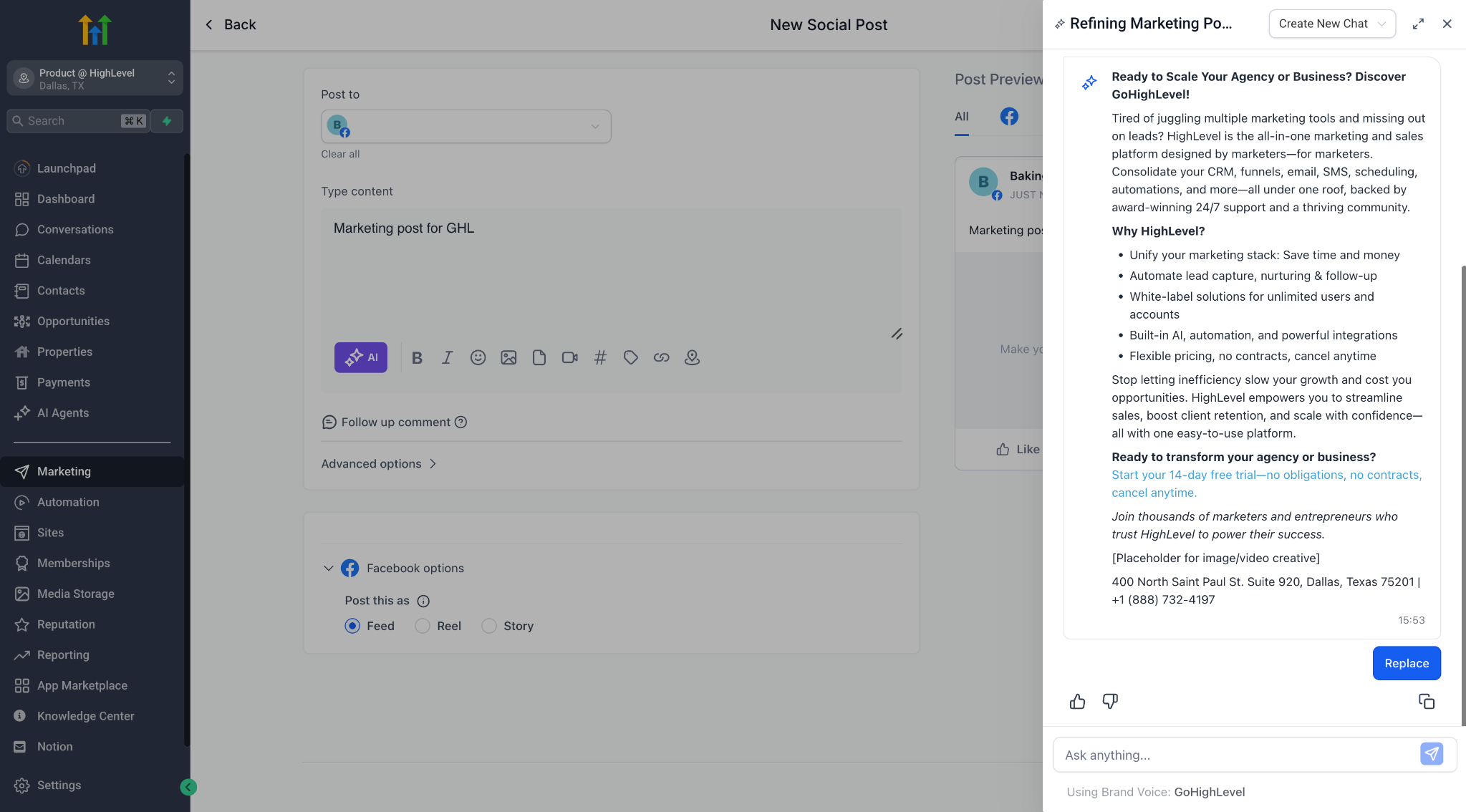
– Preview each edit, iterate with follow-ups, and only apply when you’re satisfied
– Retain your original brand voice and generation context throughout the session
💡 Where You’ll See It
In all Content AI-enabled product areas (like Social Planner), if you have AI Employee enabled, you’ll now find “Edit with Ask AI” under the AI ✨ button
💡 How It Works
– Highlight any AI-generated content block
– Click “Edit with Ask AI” or choose any quick action from the dropdown
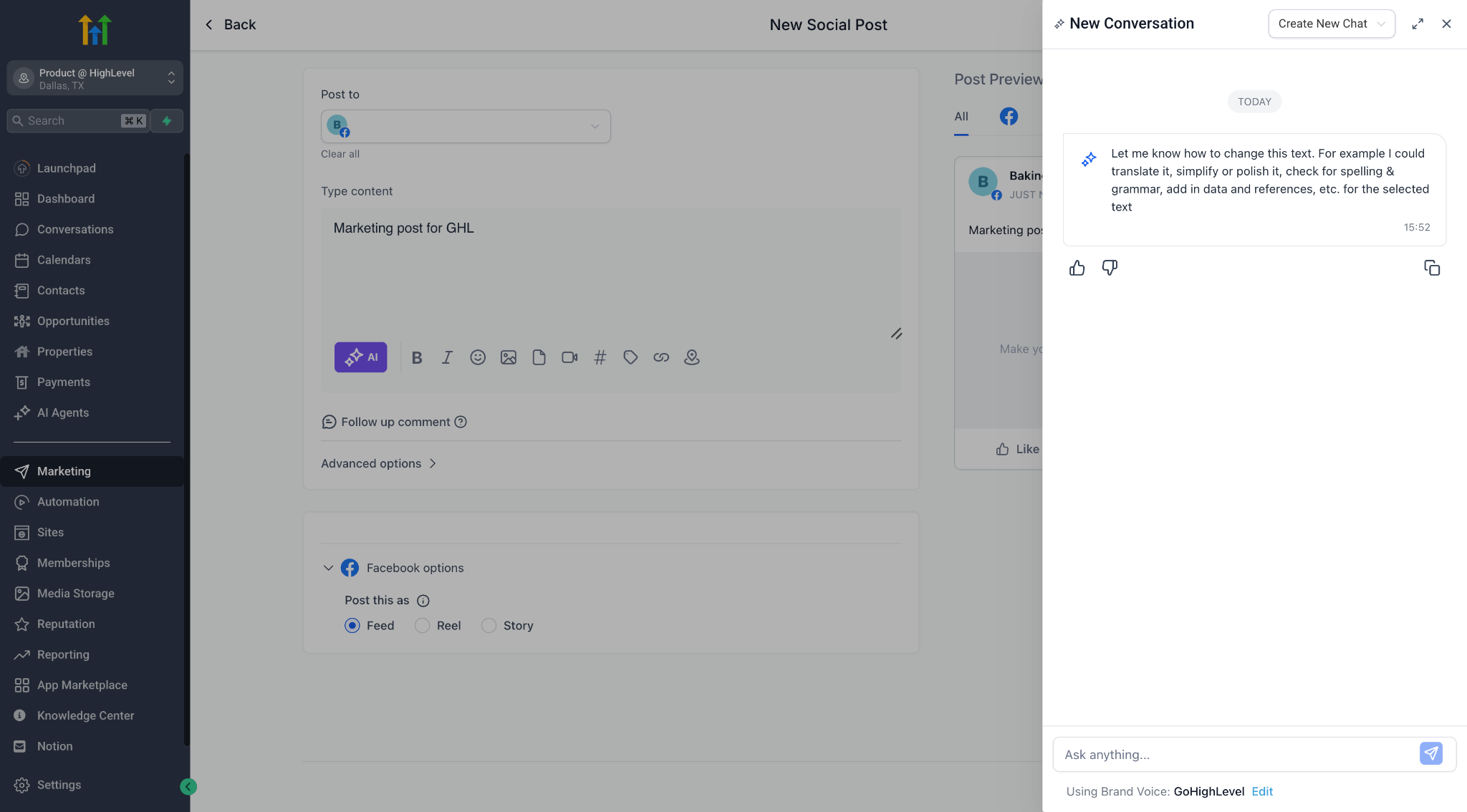
– Start chatting with AI about how you’d like to change it
– Use Replace to update the original, or just Copy if you want to paste elsewhere
– Your session stays intact — even if you close the editor or leave the page!
🧠 Smart Session Memory
Every editing session is saved with full context — so you can always come back and pick up where you left off. Ask AI knows which post you’re editing and resumes the same conversation.
🛡 Other Details
– No extra credits consumed — Ask AI edits are not billed
– Now live in Social Planner, coming soon to Blogs, Emails & more
Try it out and share your feedback!
Mobile Progress Bar Now Available in Surveys and Quizzes
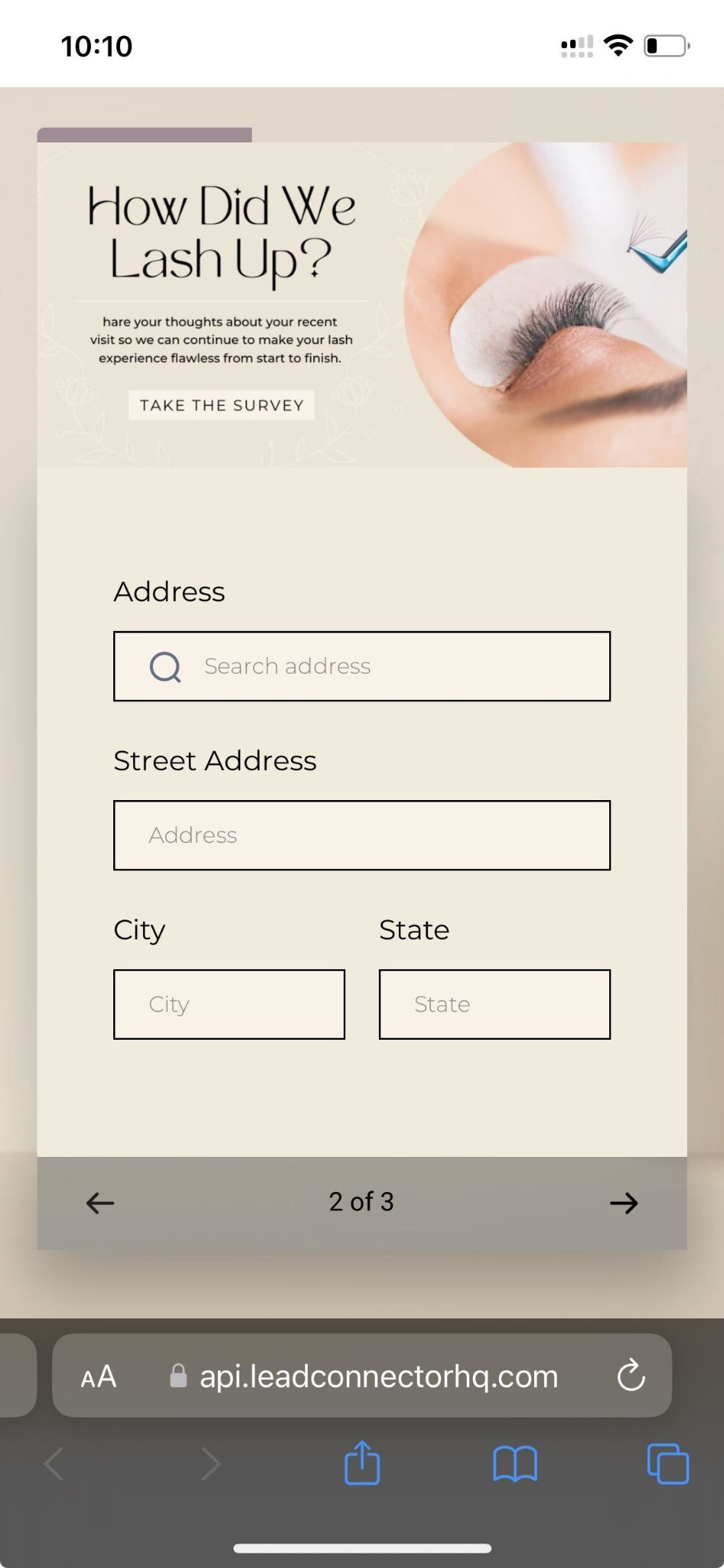
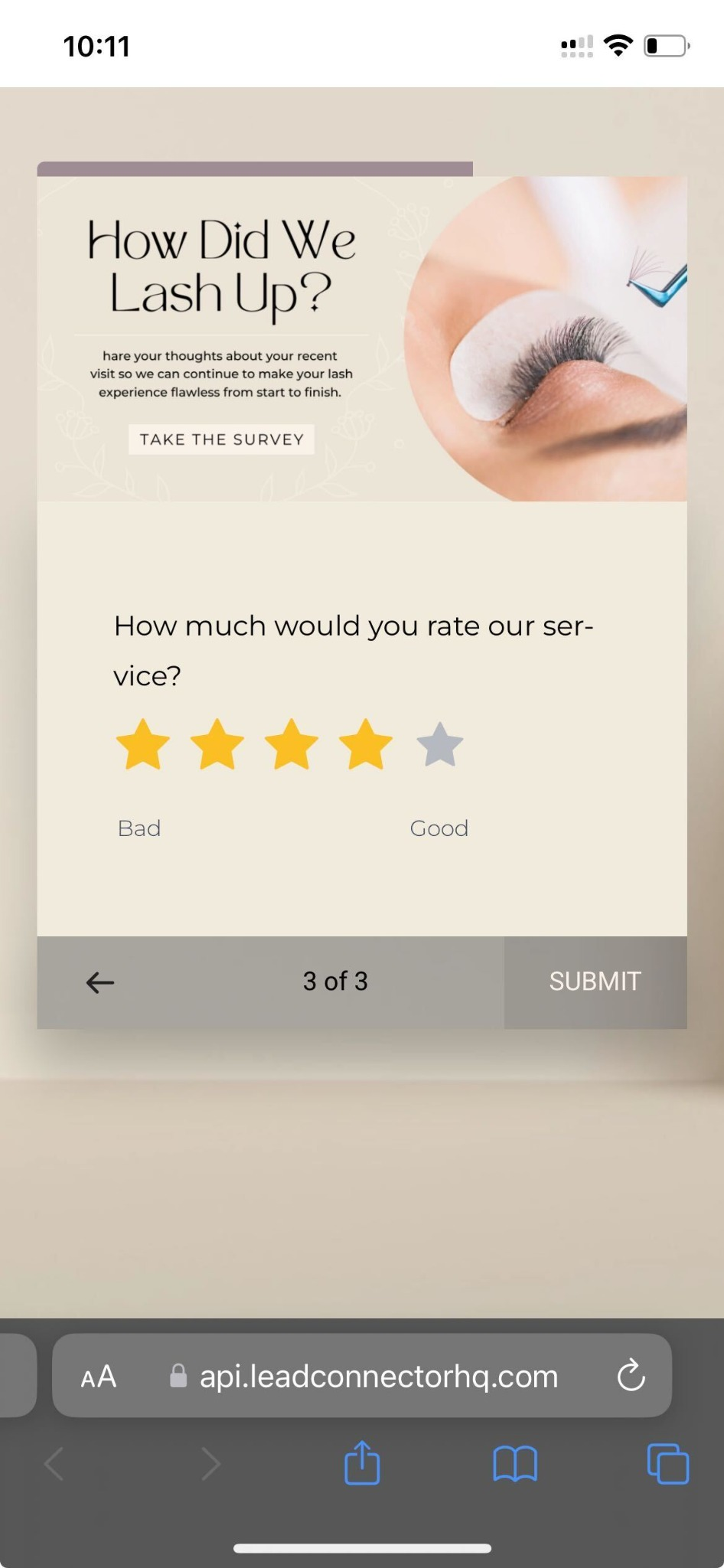
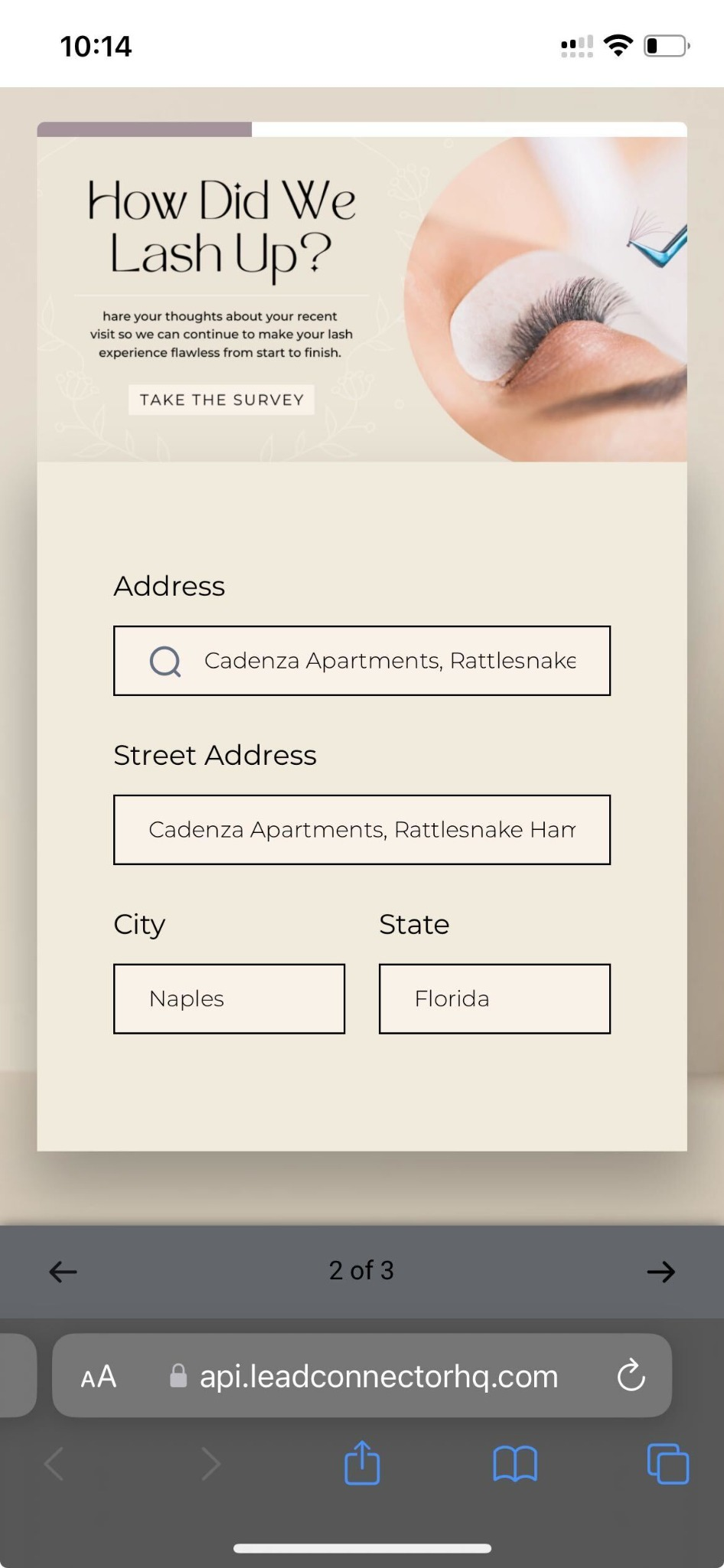
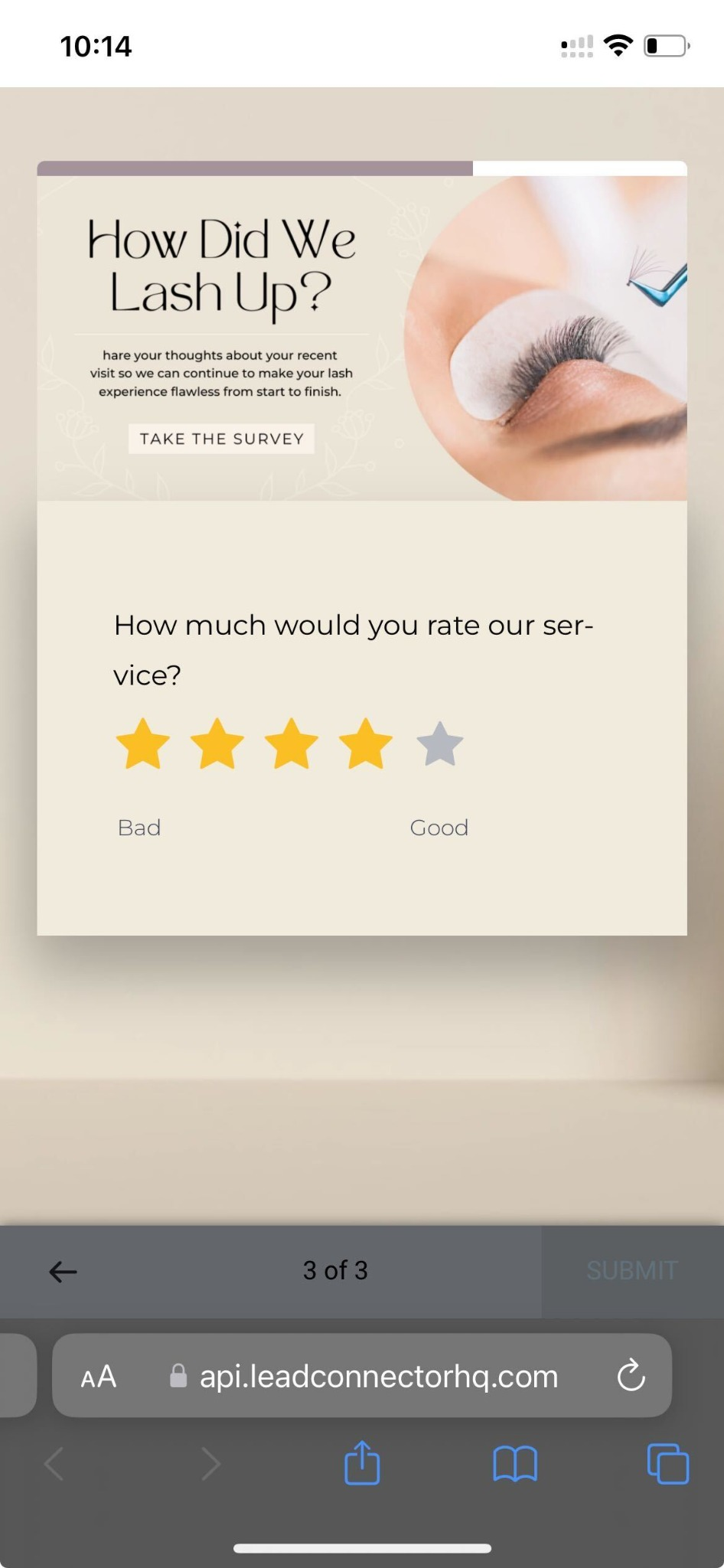
You can now enable a progress bar for mobile users in surveys and quizzes, making it easier for respondents to track their progress across multi-step forms.
What’s New
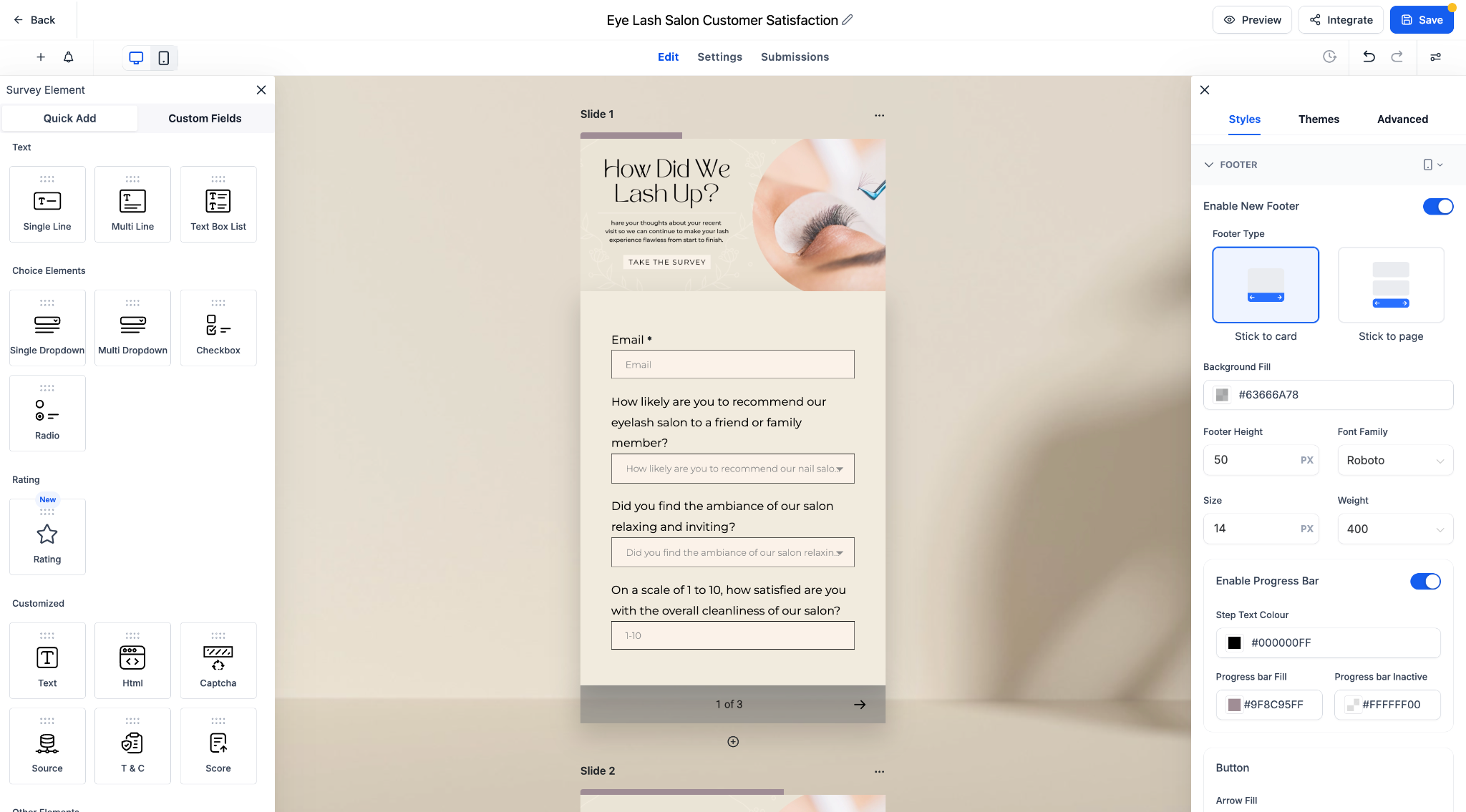
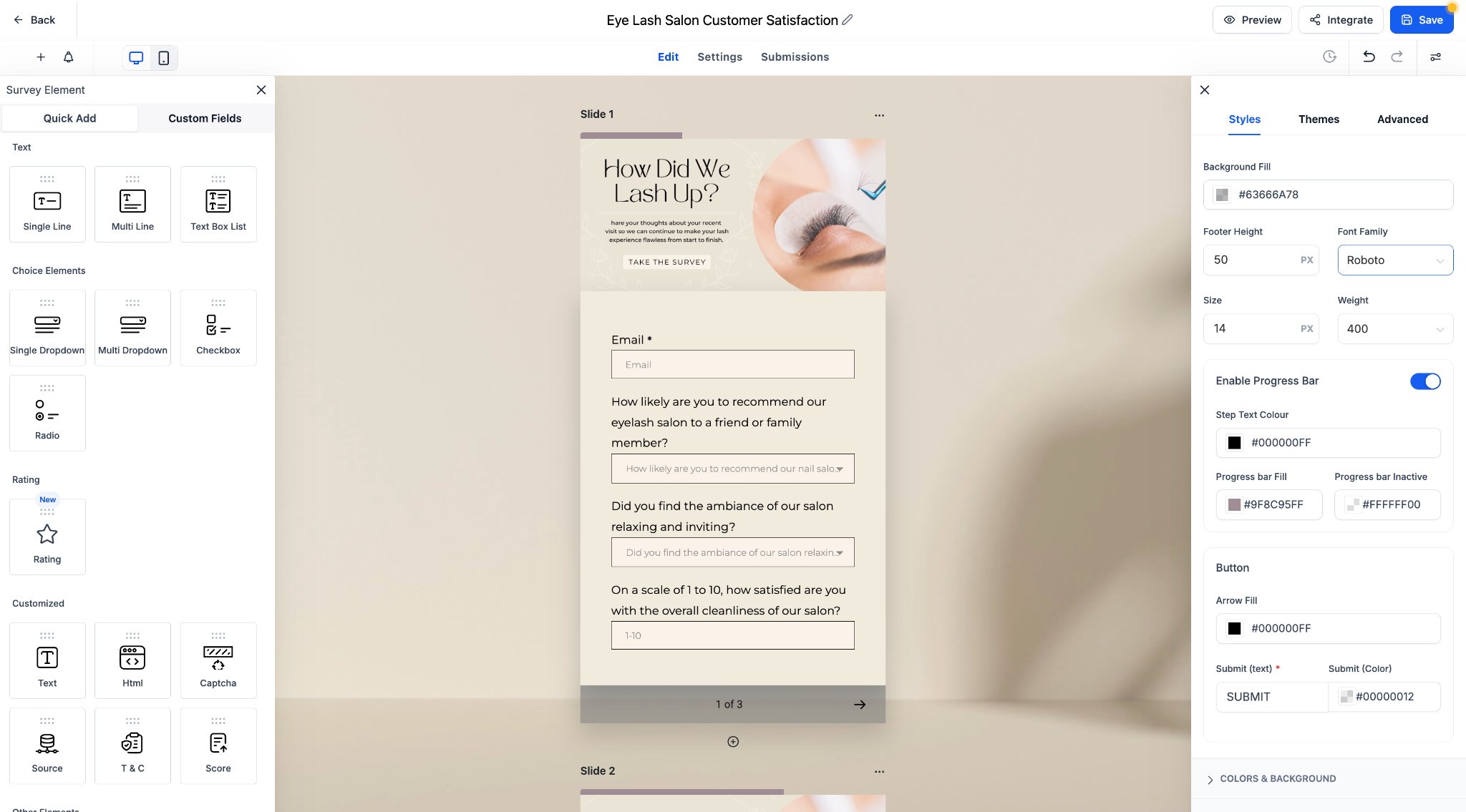
Progress Bar Support on Mobile: The progress bar is now fully functional and visually optimized for mobile screens.
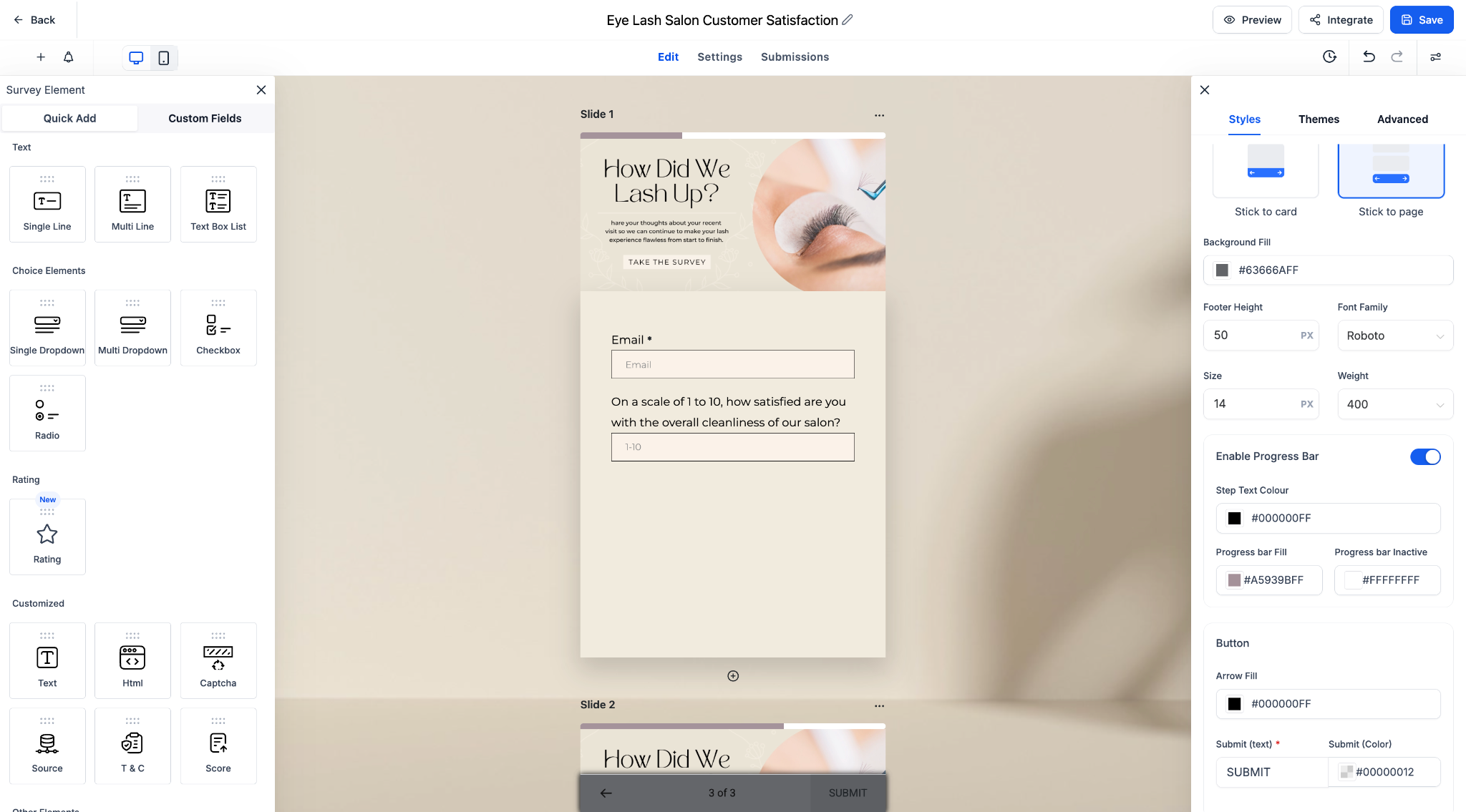
Customizable Appearance: Choose colors for fill and inactive states, and adjust step text styles to match your brand.
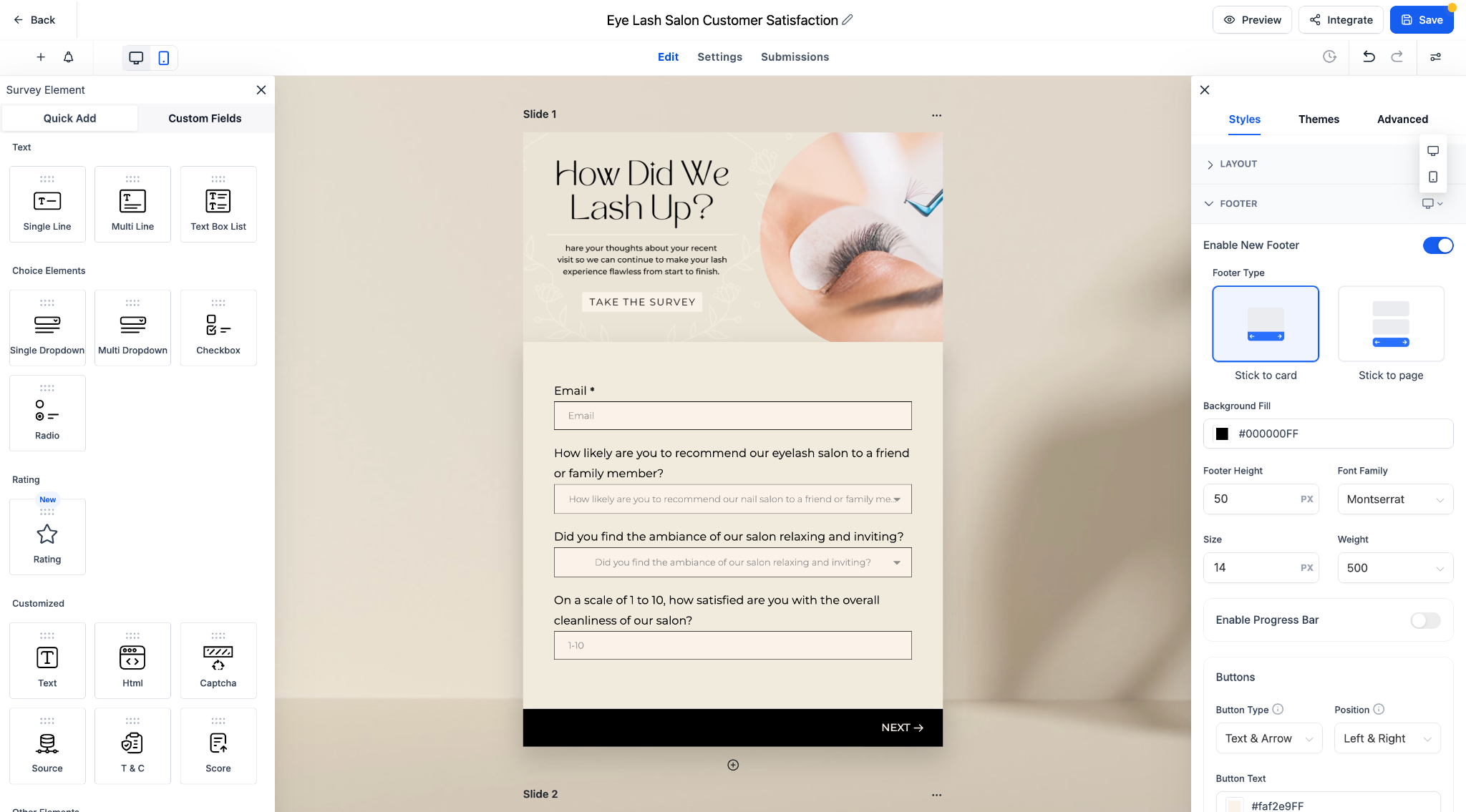
Toggle-Based Activation: Easily enable or disable the progress bar per survey or quiz using a simple toggle in the footer settings.
Key Highlights
1. Improved clarity for respondents with clear visual feedback.
2. Mobile-friendly design that adapts seamlessly to screen sizes.
3. Works with both “Stick to card” and “Stick to page” footer types.
How It Works
1. Open any survey or quiz form.
2. Navigate to Styles > Footer.
3. Toggle Enable Progress Bar and customize the colors and step label.
4. Preview to see the mobile experience update in real-time.
This update helps increase form completion rates by giving users visibility into where they are—and how much is left to go.