
Enhanced Button Styling Experience
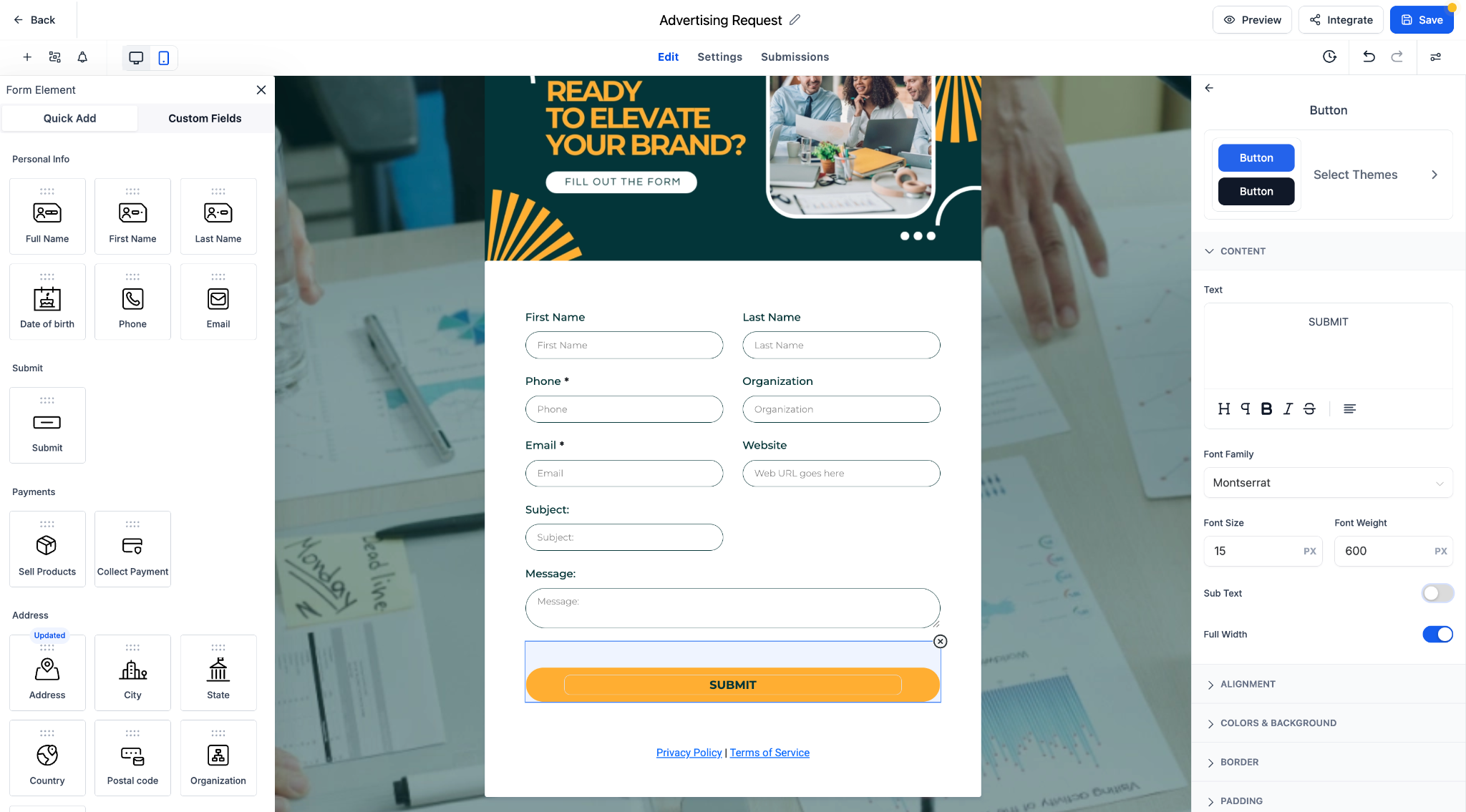
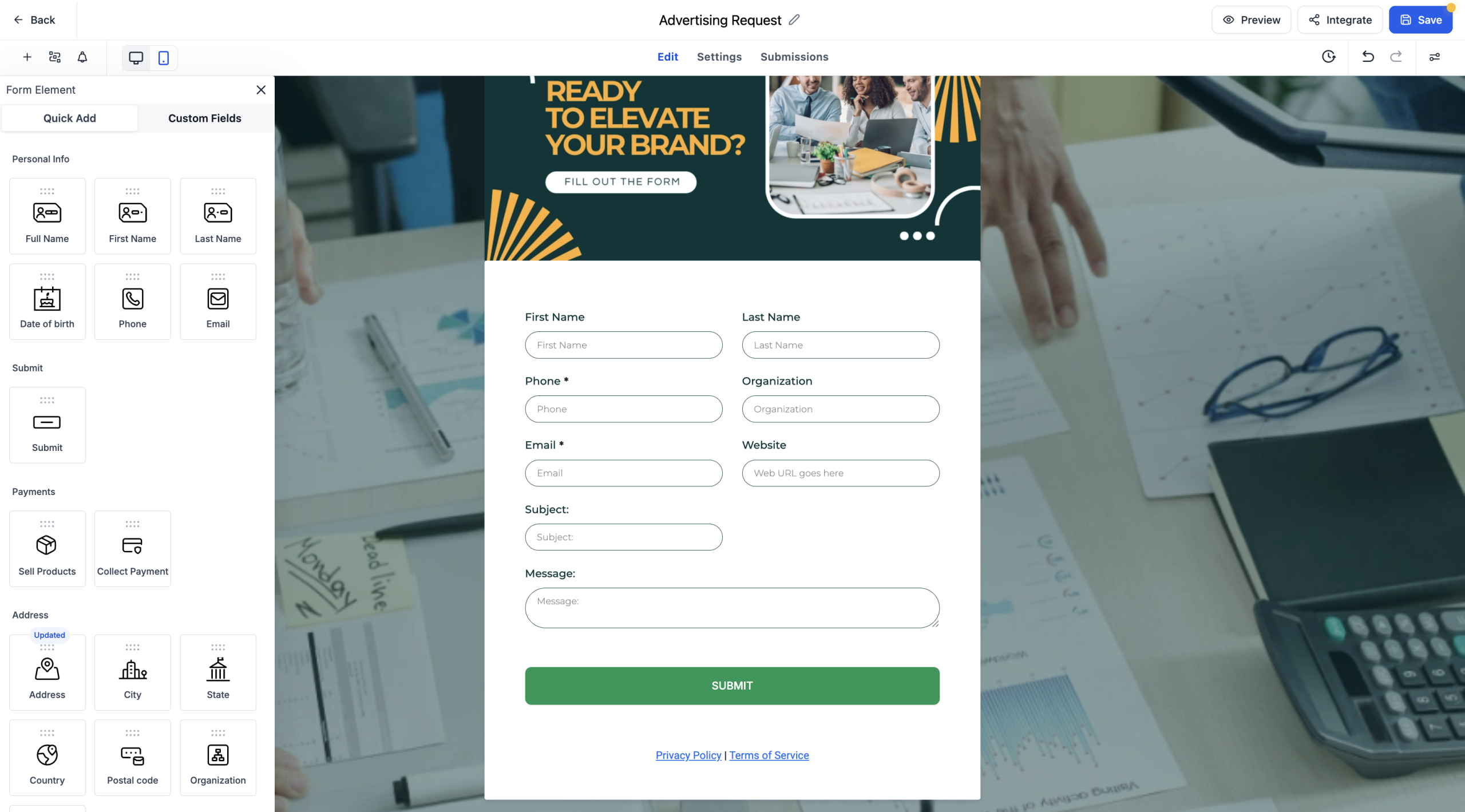
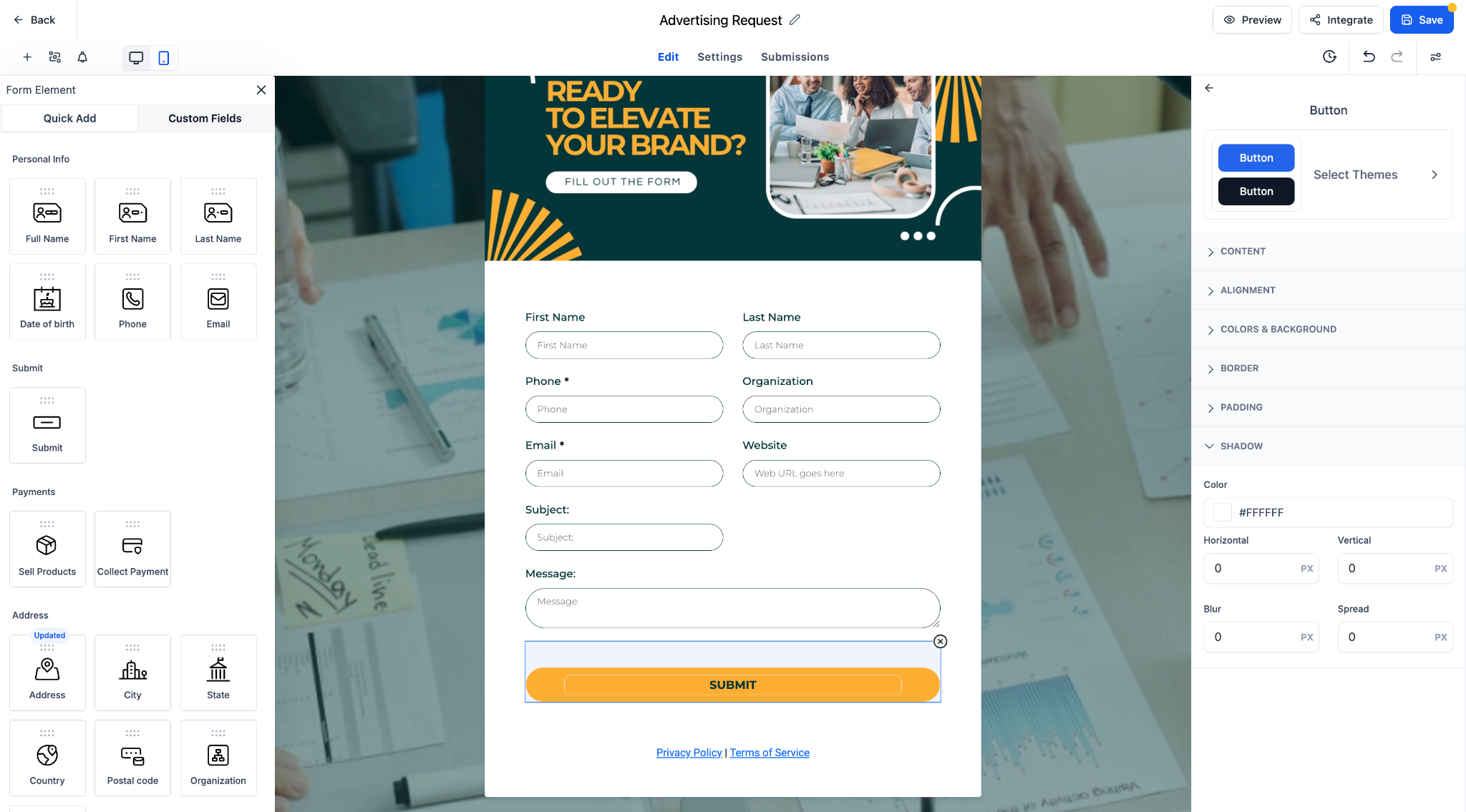
We’ve revamped the button editing panel to deliver a cleaner interface and introduced powerful new customisation features, including a full theme gallery to elevate your form design.
What’s New
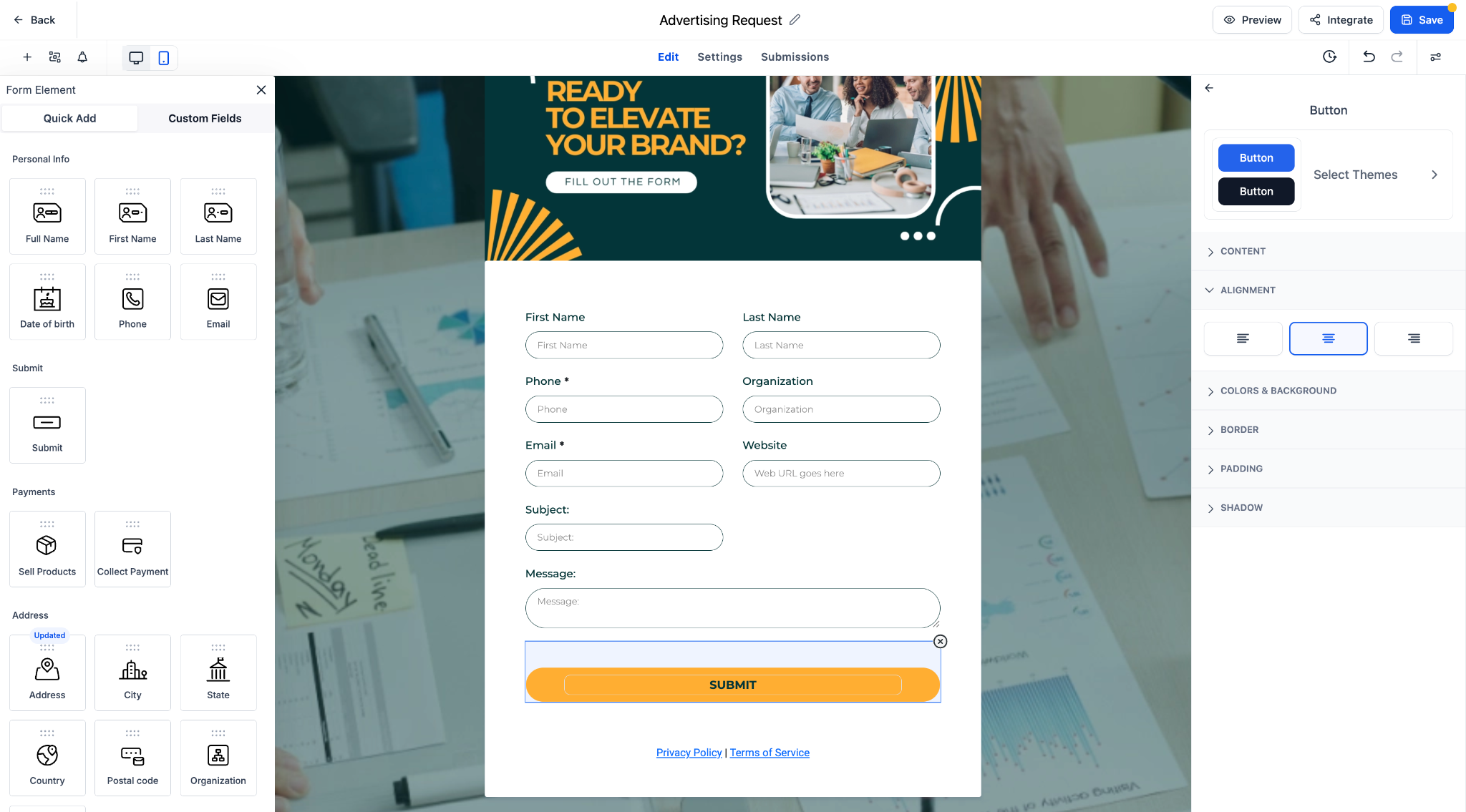
Redesigned Button Editing Panel: A structured, user-friendly layout for easier styling and faster navigation.
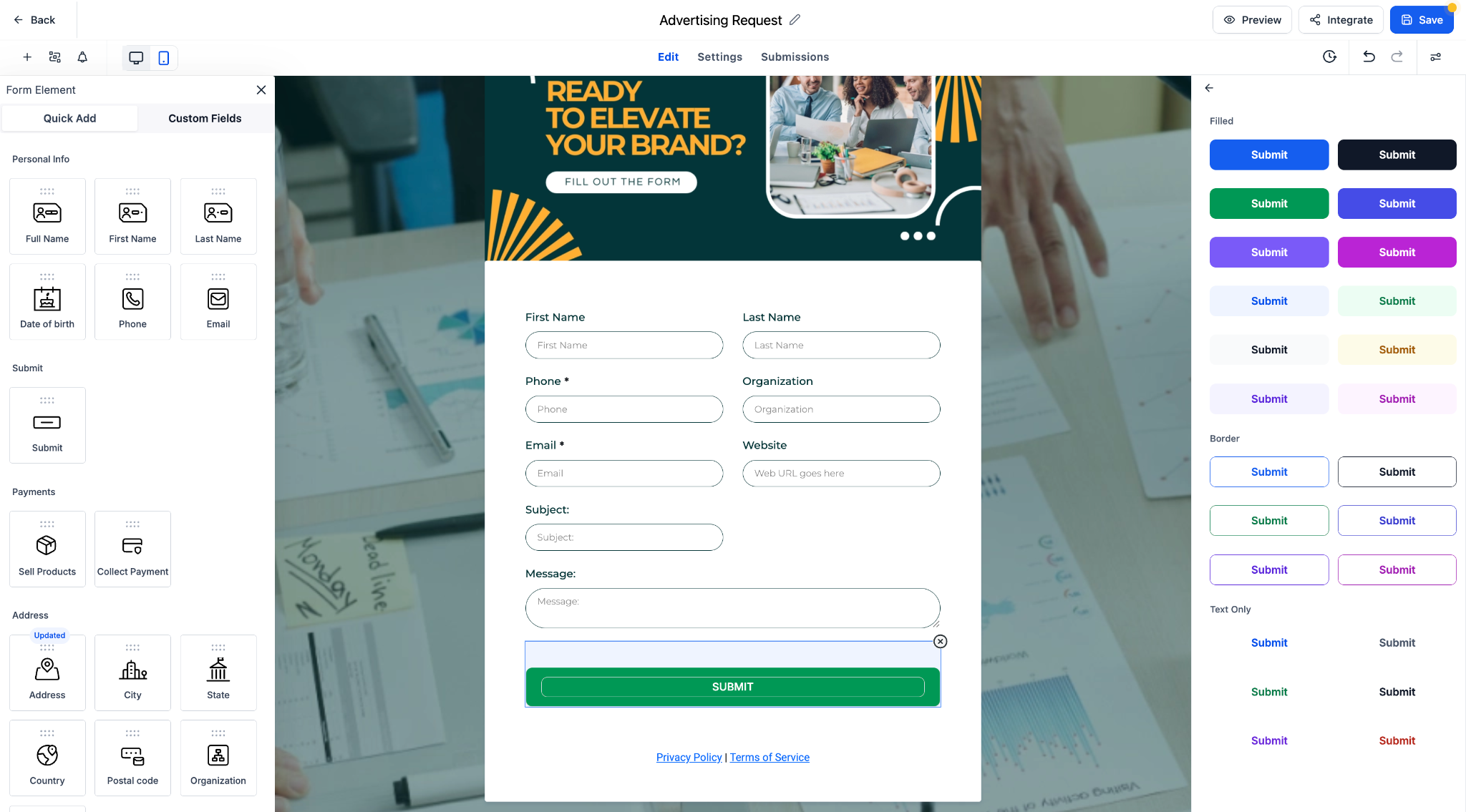
New Theme Selector: Choose from a curated set of button themes, including Filled, Border, and Text Only options.
Live Preview: Instantly see how each theme and style change will look in your form.
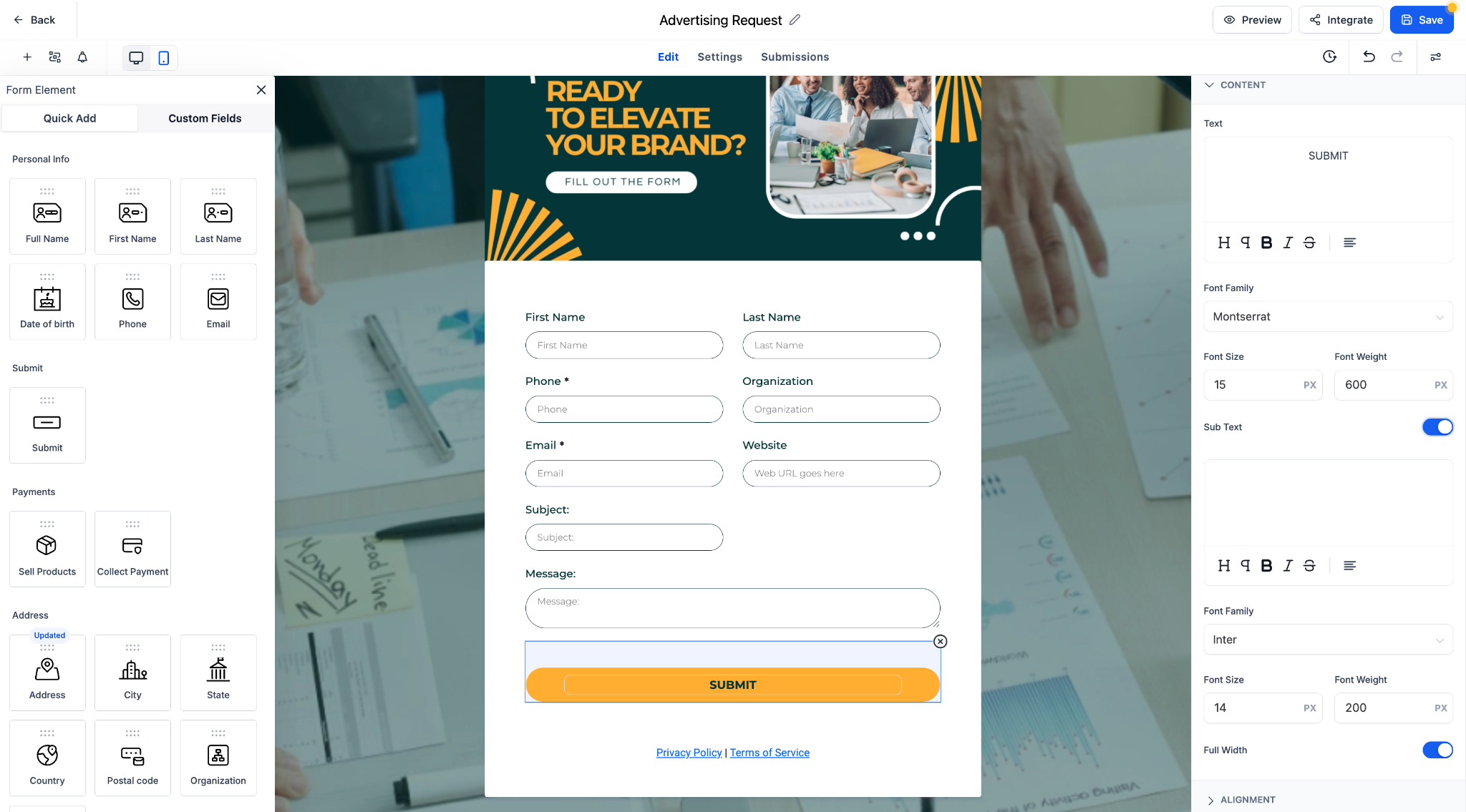
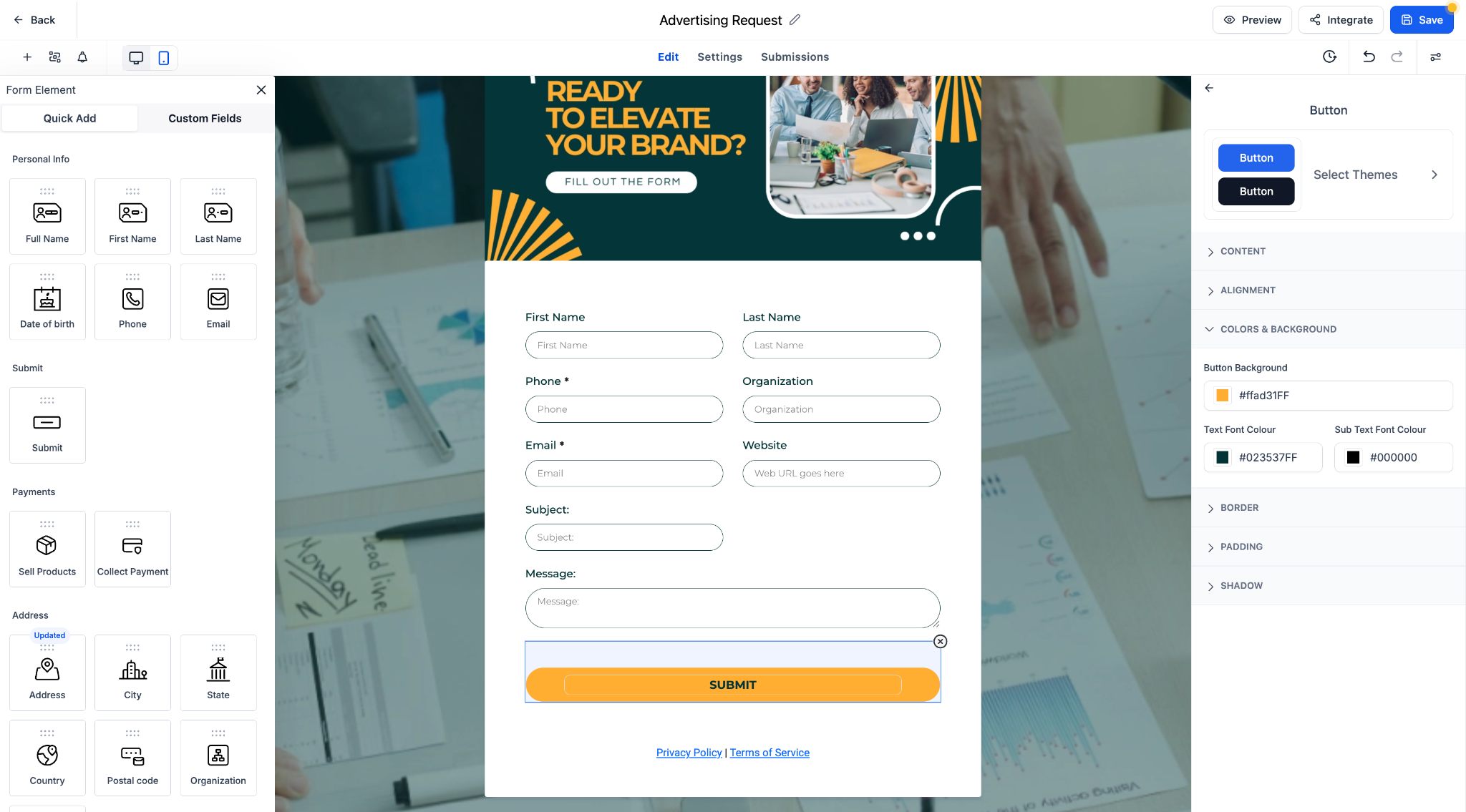
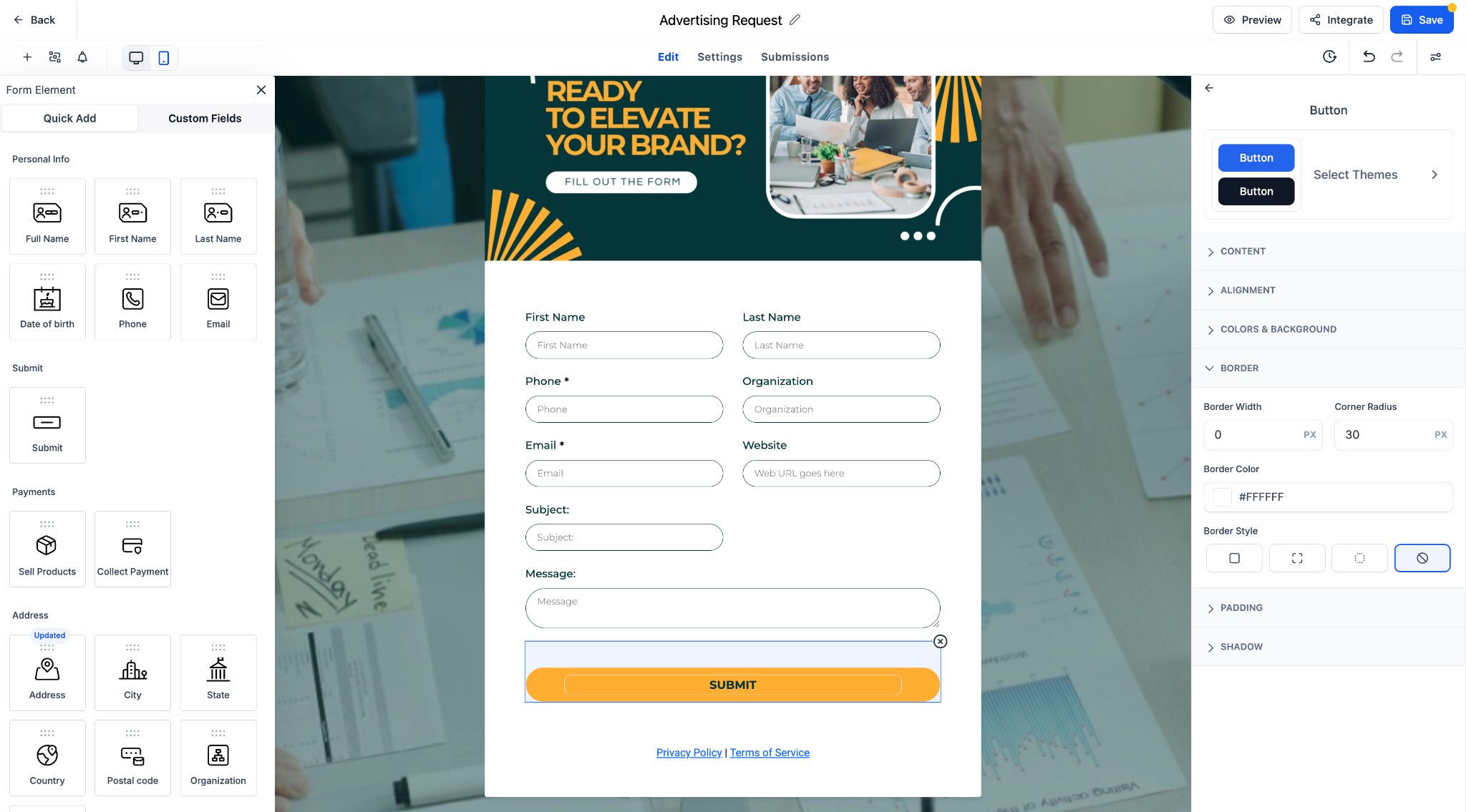
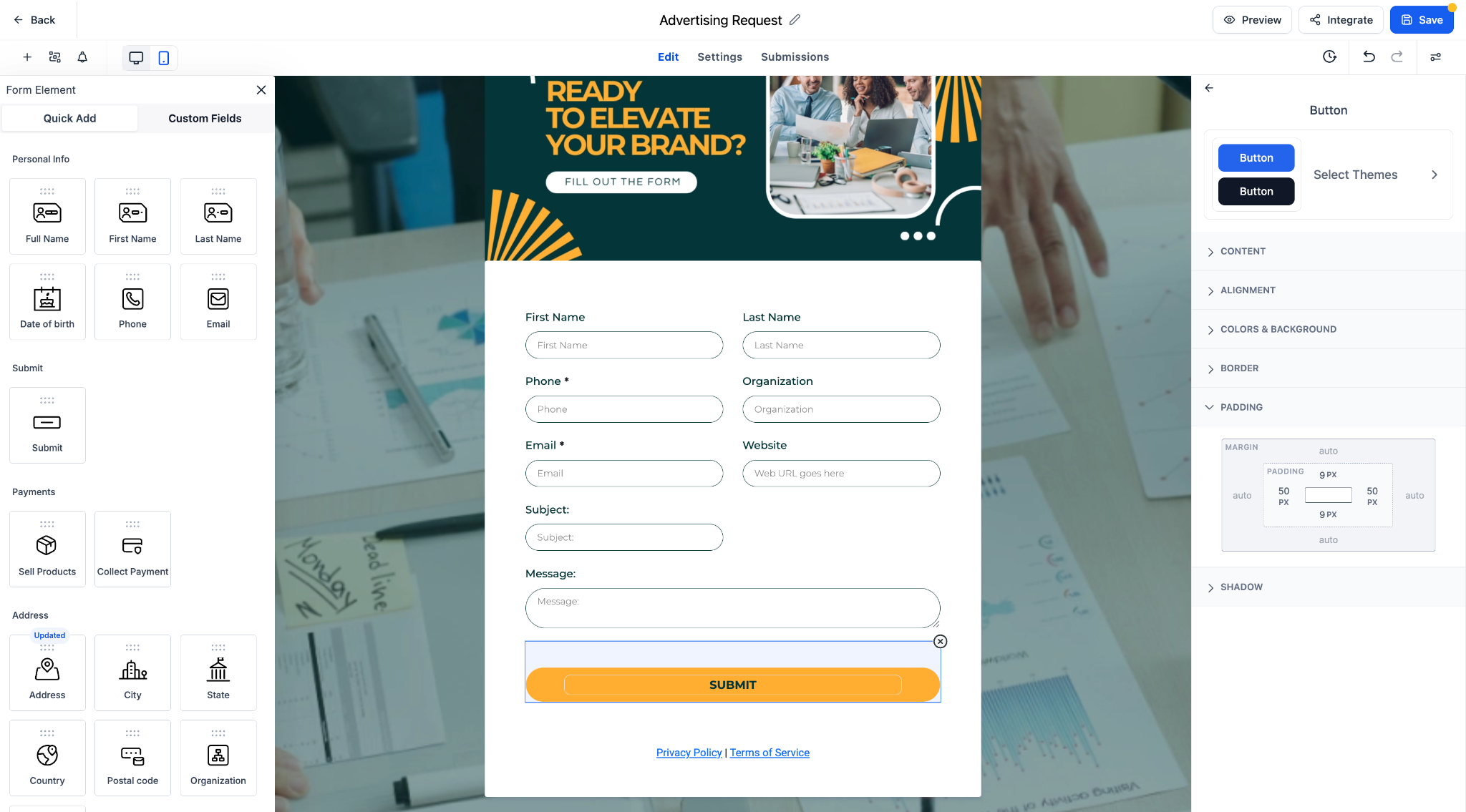
Grouped Styling Options: Controls for font, color, alignment, border, padding, and shadow are now logically organised into collapsible sections.
Key Highlights
1. Faster editing with clearly organised style categories.
2. One-click theme application from a diverse collection of button styles.
3. Support for custom fonts, font weights, and responsive design elements.
4. Full-width toggle and corner radius controls for more flexible layouts.
How It Works
1. Select any form button to open the styling panel.
2. Edit text, layout, and appearance using the updated panel sections.
3. Click “Select Themes” to browse and apply pre-built button styles.
4. Customise further with font, spacing, and shadow controls.
Notes
1. All prior customization options are preserved and now easier to access.
2. Themes serve as a starting point and can be fully tailored to your design needs.
3. Great for improving form engagement and maintaining brand consistency.
Let me know if you’d like this version in a markdown format or formatted for another platform.
Call transfers via Deskphone charges reduced to zero
2nd July, 2025
Call transfers via Deskphone charges reduced to zero
Earlier, Call transfers done via the deskphones cost $0.10 per call transfer.
Now, there is no additional cost for the call transfer!
Other call charges still apply.
Clearer speech in Whisper and Call Recording messages
2nd July, 2025
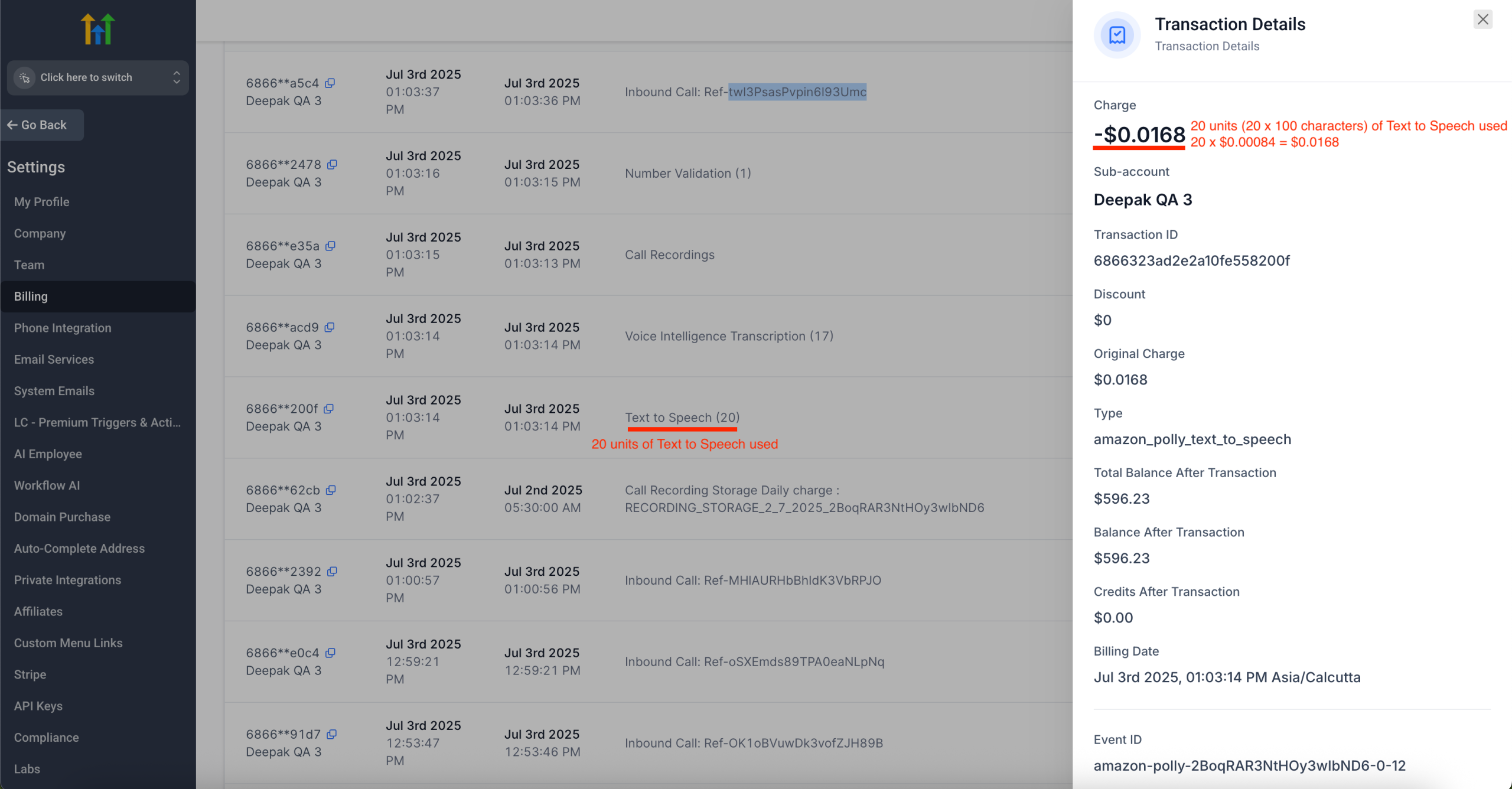
Text to Speech model used for Voice calls is now improved!
– Whisper message and Call Recording message are now more easily understandable
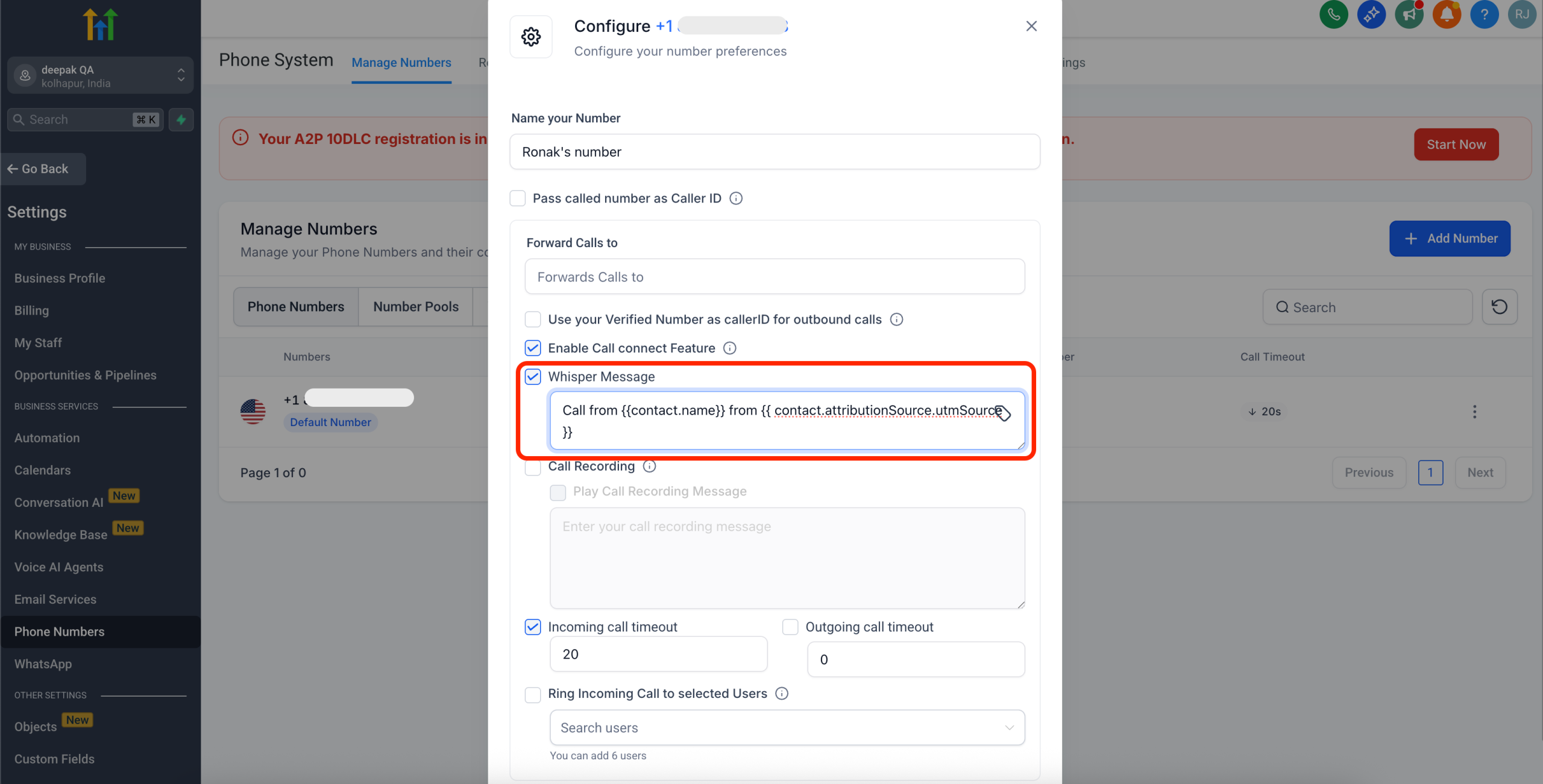
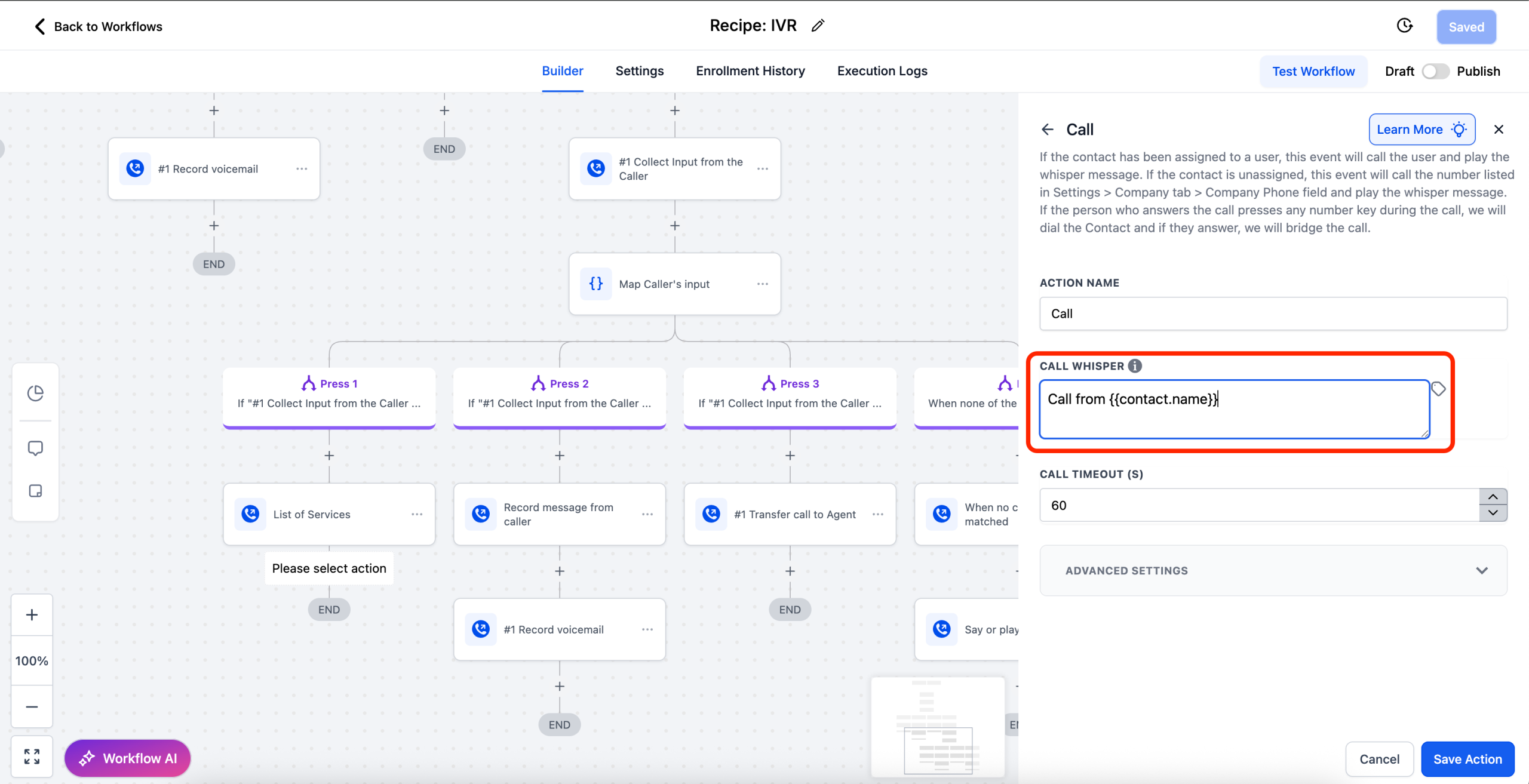
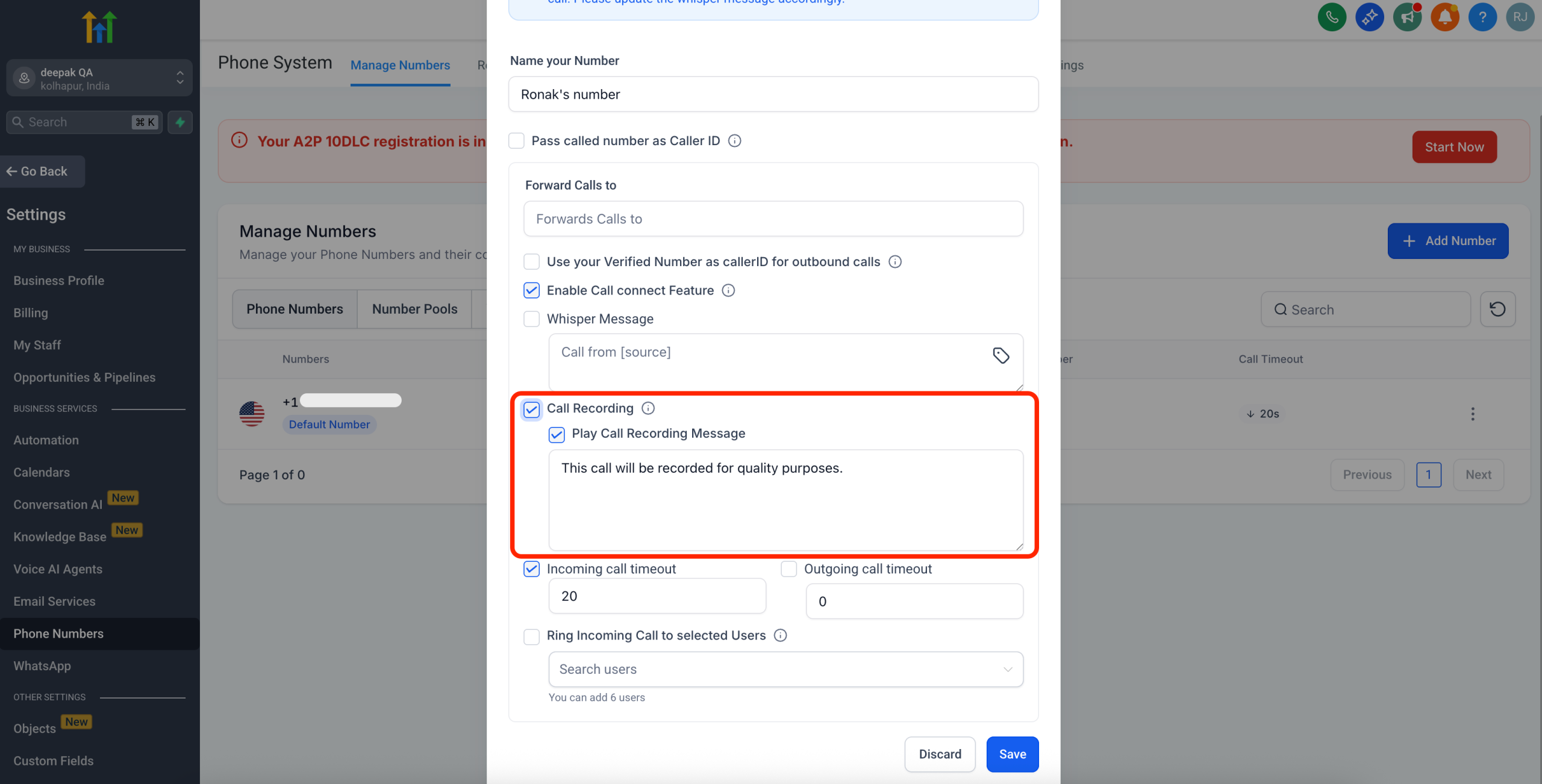
– Costs $0.00084 per 100 characters of text
Coupon Triggers in Workflows
What’s New?
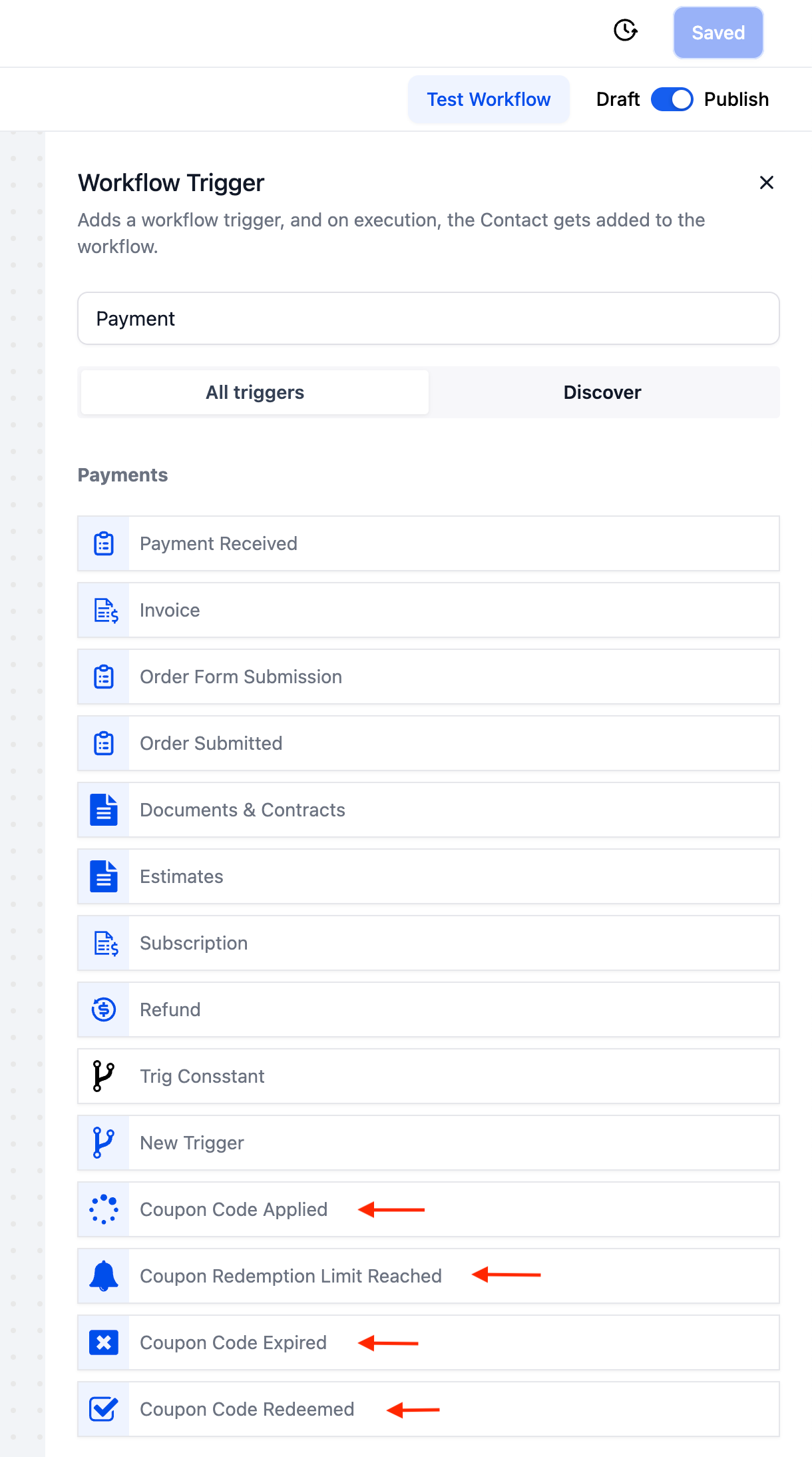
Businesses can now automate actions based on coupon activity during checkout and transactions using four new workflow triggers. These triggers let you build targeted, timely, and personalized automations whenever a coupon code is applied, redeemed, or expires.
Here’s what you can set up:
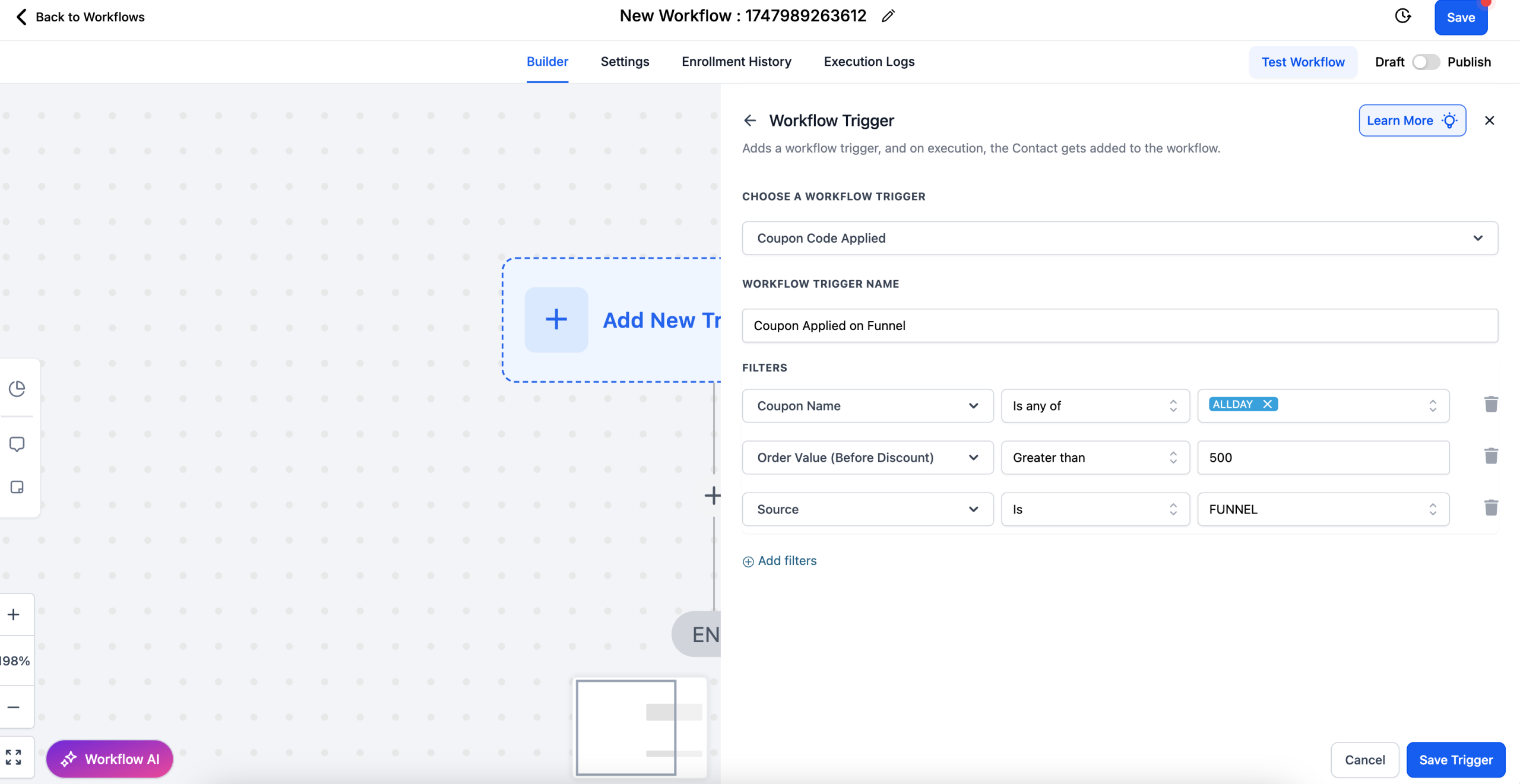
– Coupon Code Applied – Trigger actions the moment a customer applies a coupon code at checkout, even if they don’t complete the purchase.
“`
Example: Send a follow-up email offering an upsell or bonus if they complete their order within the next 24 hours.
“`
– Coupon Code Redeemed – Trigger actions when a coupon is successfully used in a completed transaction.
“`
Example: Notify your sales team when a VIP coupon is redeemed, or tag customers who use high-discount coupons for future marketing campaigns.
“`
– Coupon Redemption Limit Reached – Get notified when a coupon reaches its maximum allowed number of uses, so you can take immediate action.
“`
Example: Automatically deactivate or replace popular coupons and notify your marketing team to avoid overselling.
“`
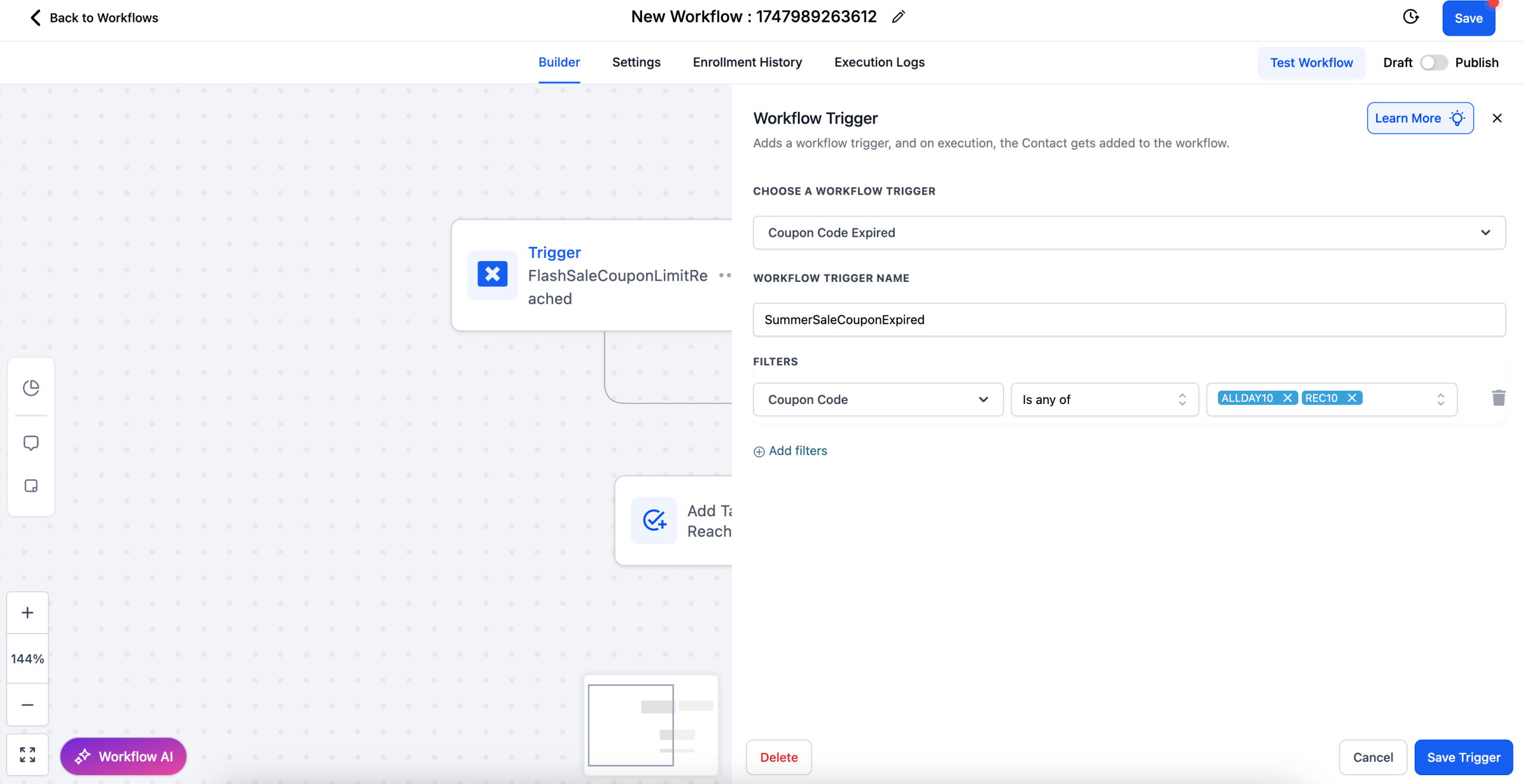
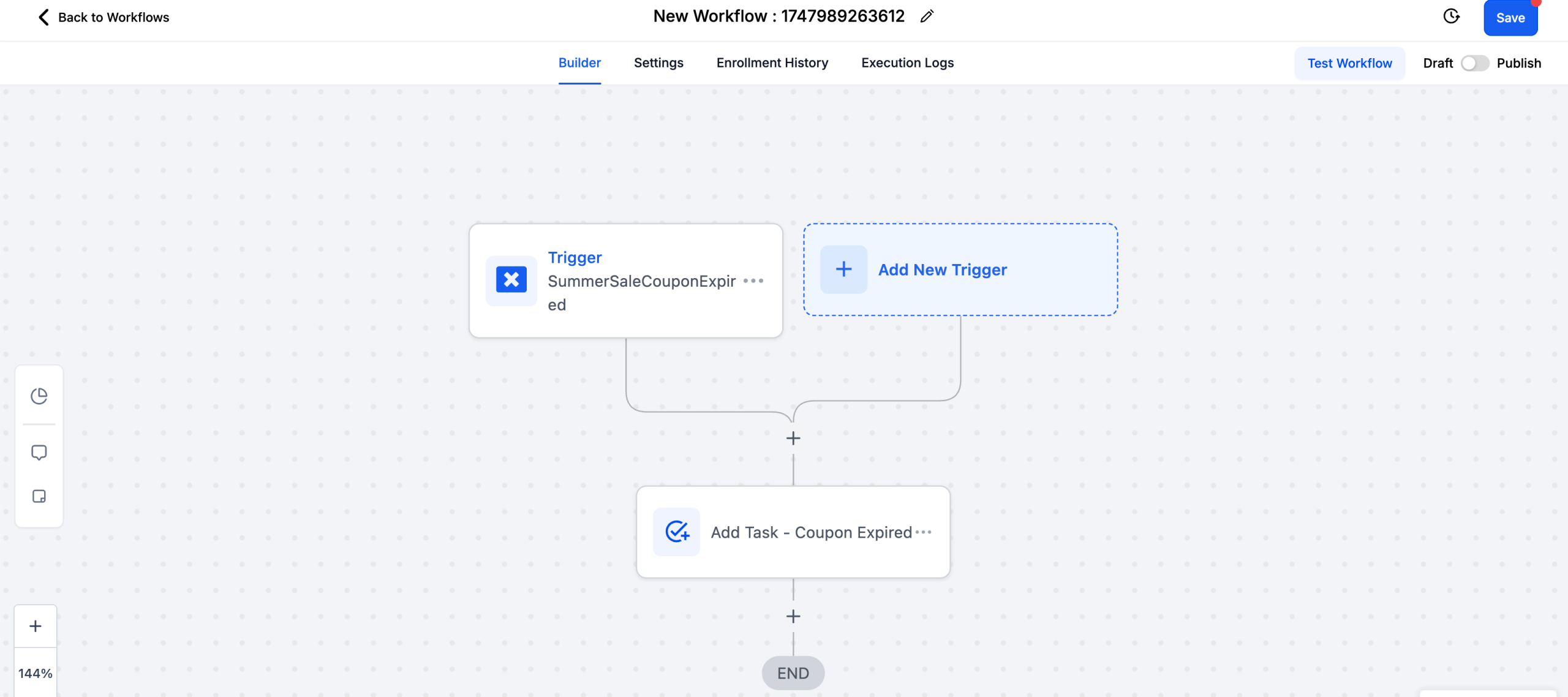
– Coupon Code Expired – Trigger actions when a coupon code reaches its set expiration date and becomes inactive.
“`
Example: Send a reminder email to customers 24 hours before their coupon expires or inform your team so they can launch a replacement offer.
“`
You can fine-tune each of these triggers using flexible filters like coupon code, type, order value, coupon value, product in order, source, redemption count, product type (one-time vs subscription) and more — giving you complete control over your coupon-based automations.
What’s Next?
– Workflow Action > Generate Single Use Coupons – With triggers for coupons implemented, the next plan of action is to enable generation of coupons as an action in the workflow.
Where Can You Access This Feature?
Automation → Workflows → Create New Workflow → Add New Trigger
Help Documents
–
–
–
–
Visuals
All triggers –
Coupon Code Applied –
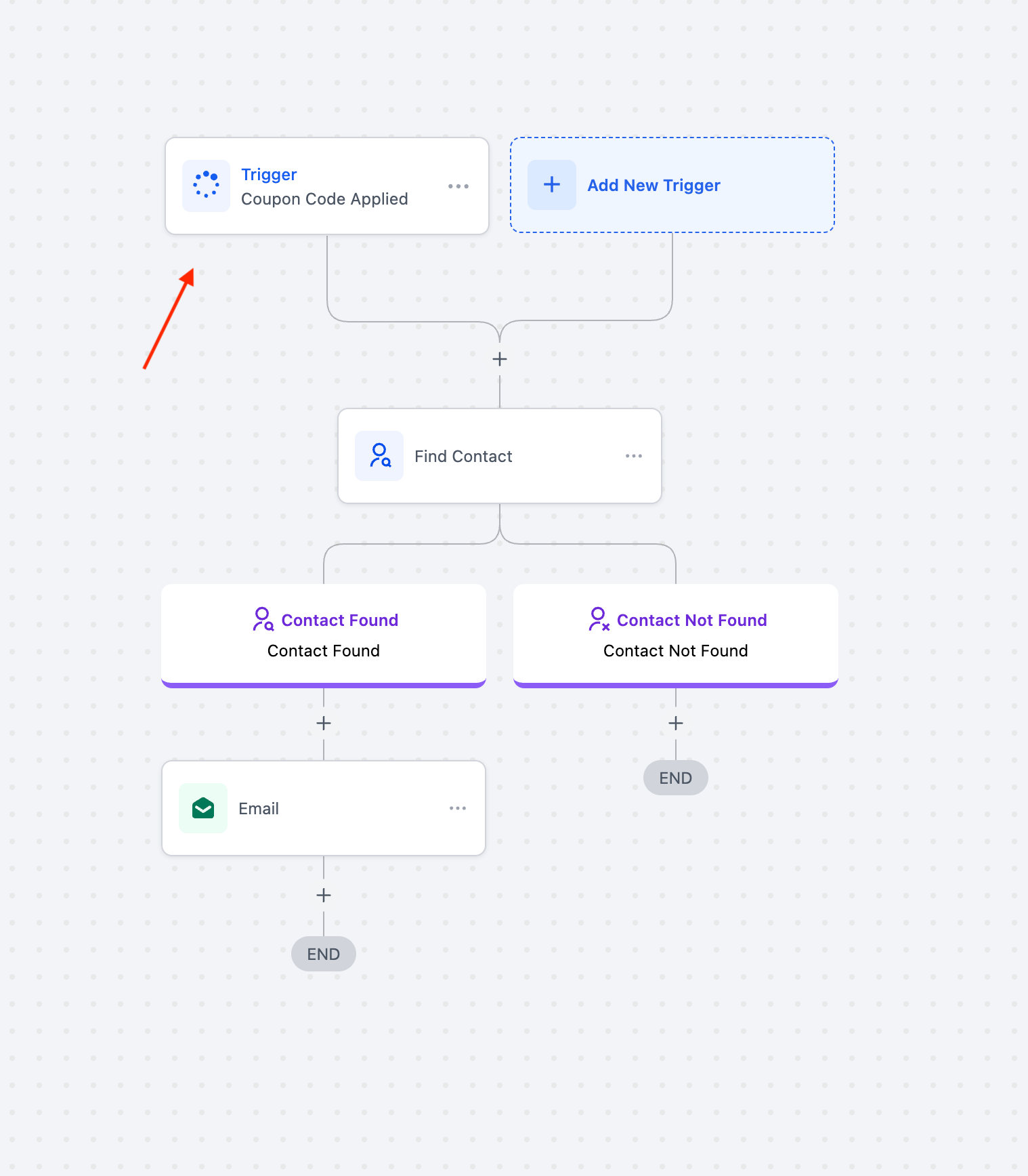
Coupon Code Redeemed –
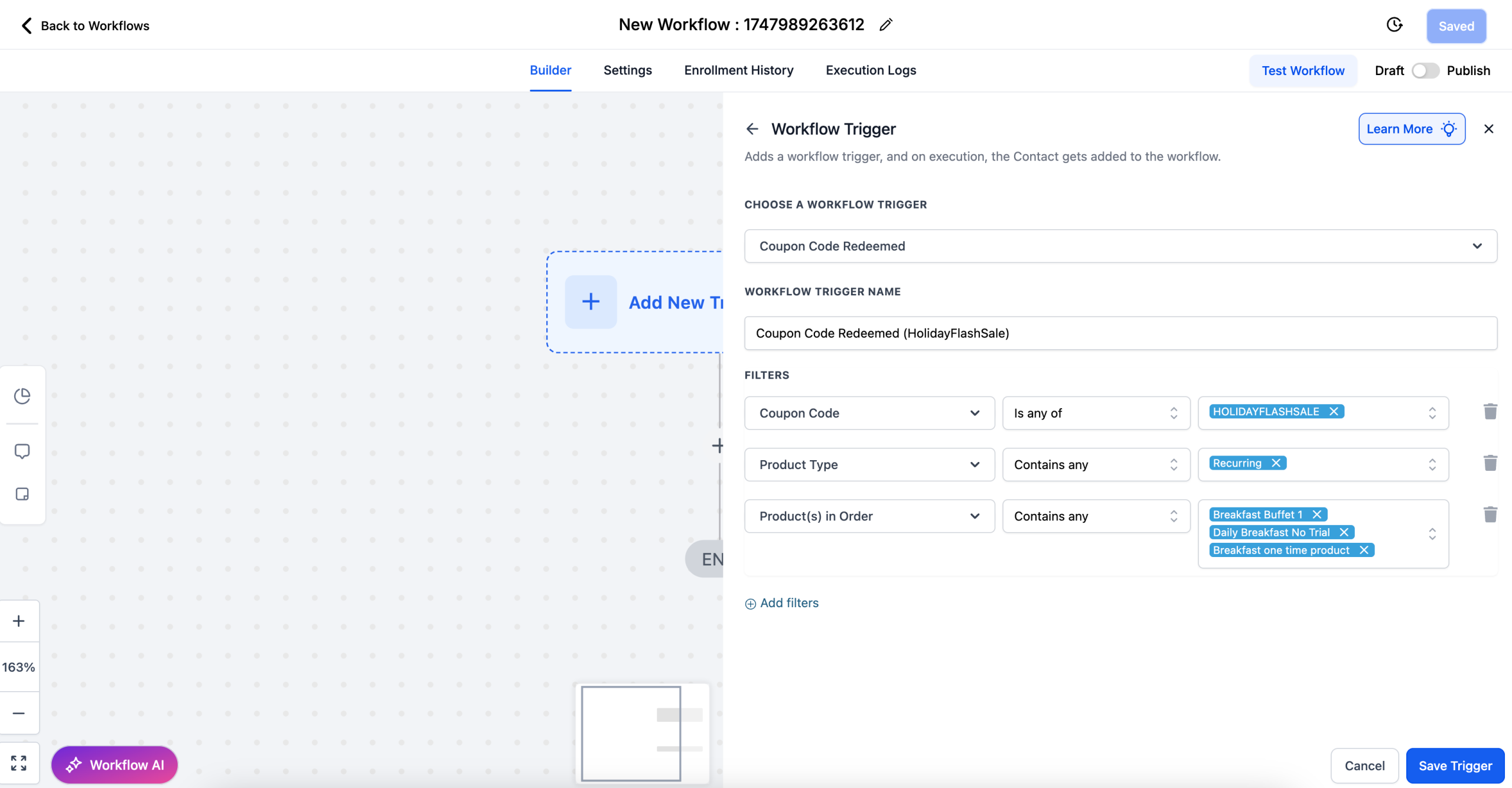
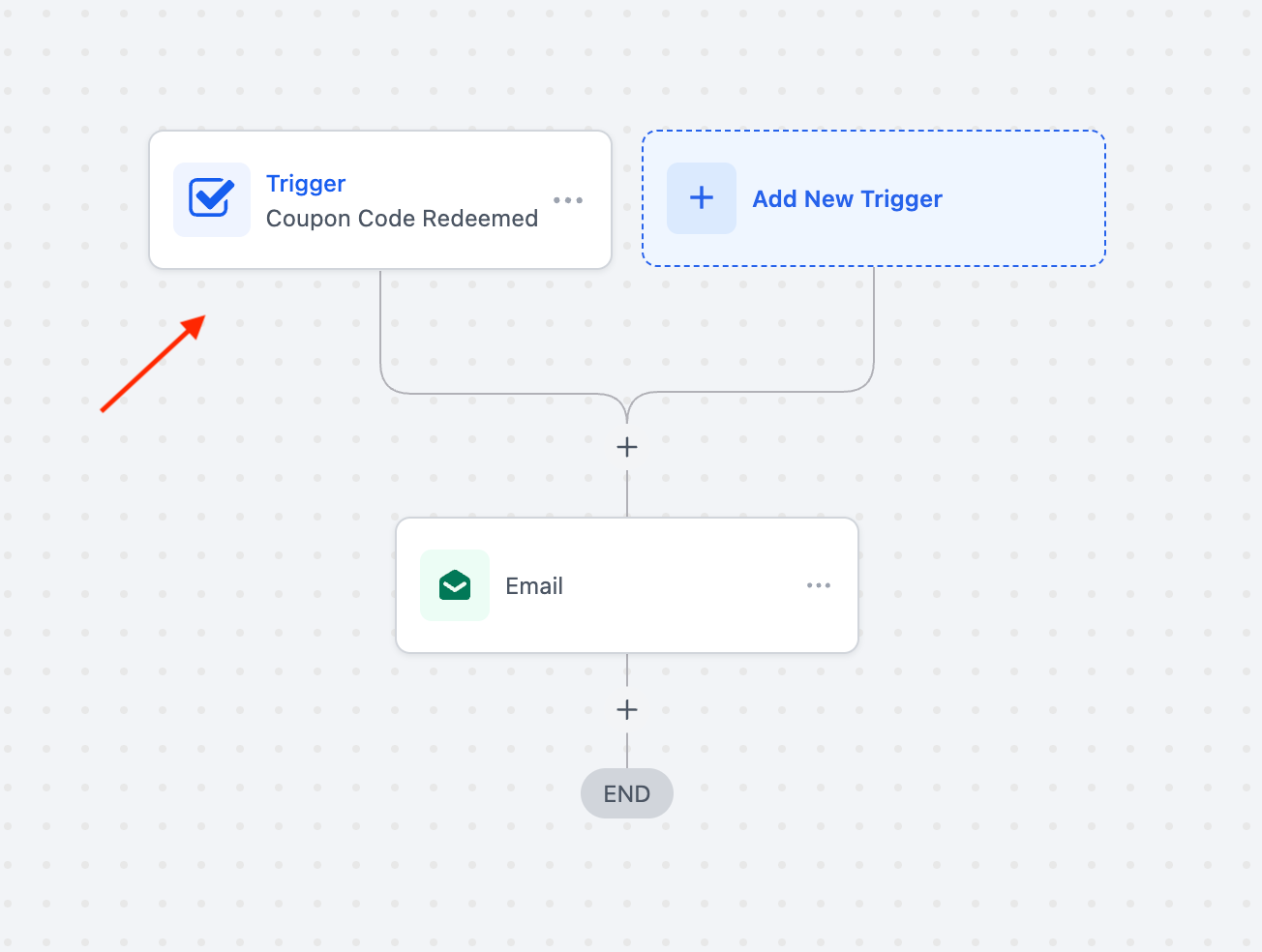
Coupon Redemption Limited Reached –
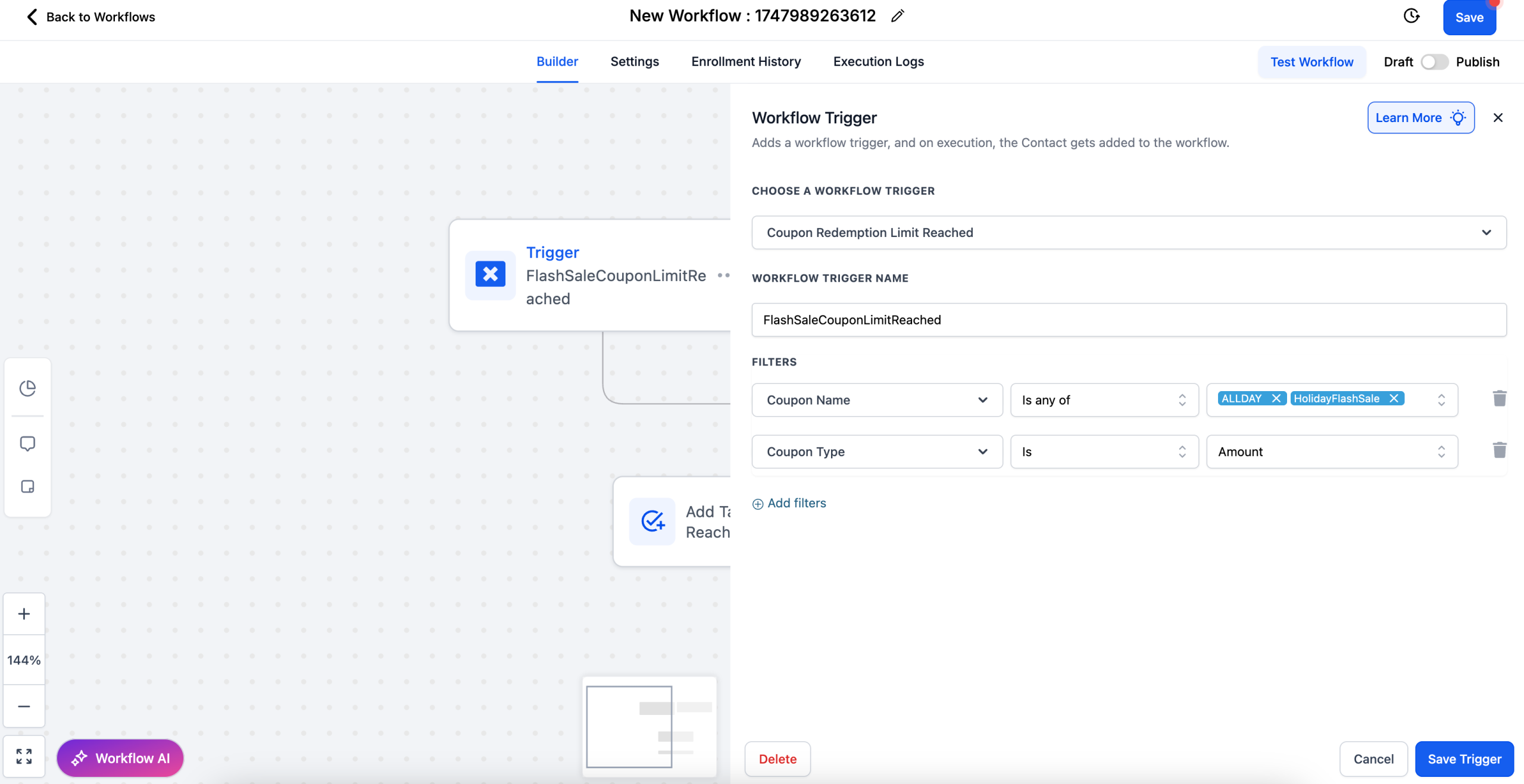
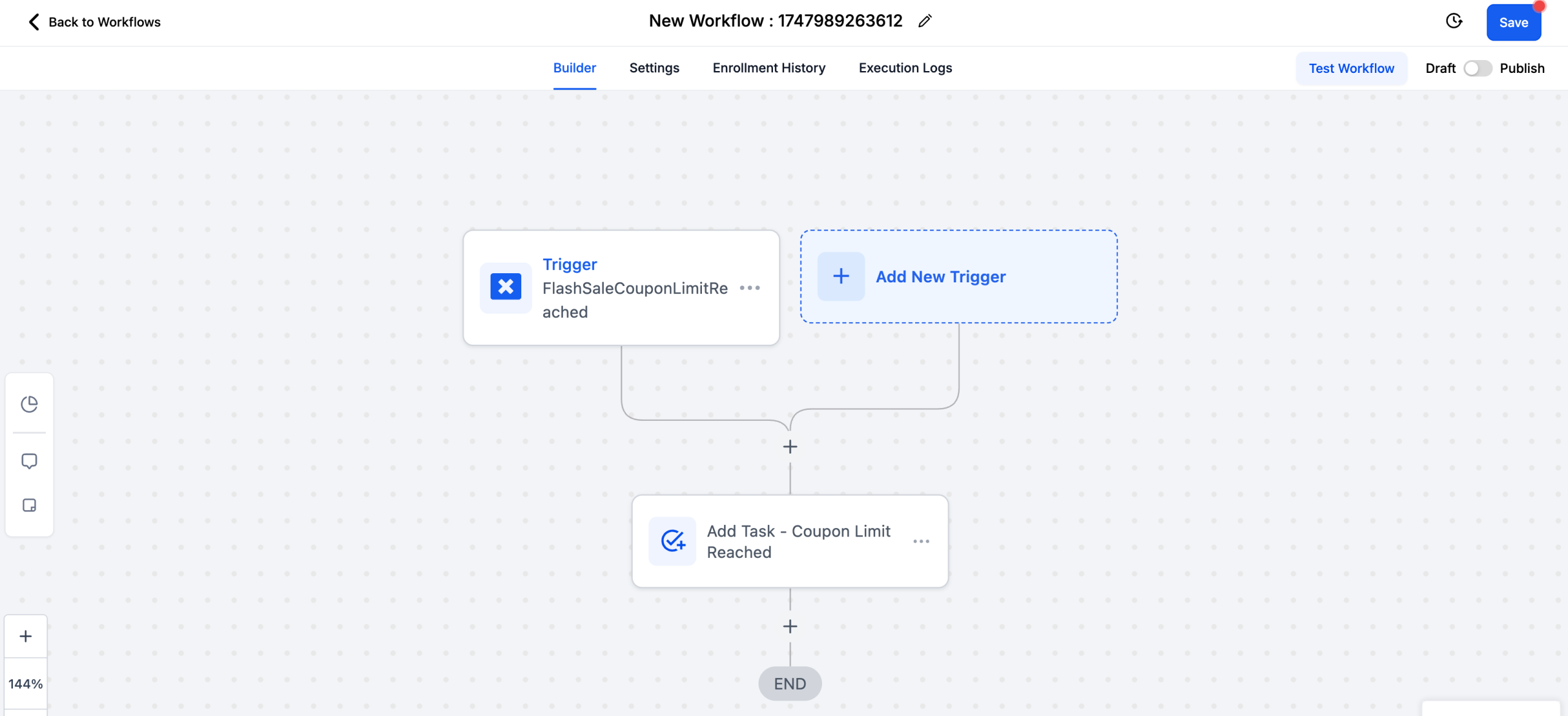
Coupon Code Expired –
Consistent Reply Domains for Email Threading (LC Email Only)
🆕 What’s New
We’ve rolled out a critical improvement to how replies are handled in LC Email to ensure consistent domain usage in a email thread. This change addresses a common user pain point i.e., email replies creating new threads in recipients’ inboxes due to domain inconsistencies.
🔧 Problem Previously
Users could configure multiple sending domains.
When replying to an email, the system would pick sending domain according to the domain configuration set or the default sending domain, not necessarily the one that started the conversation.
This behaviour often caused email clients (like Gmail or Outlook) to create new threads, breaking the conversation flow and creating confusion.
✅ What’s Changed
Going forward, LC Email replies will always use the domain that initiated the conversation, ensuring replies stay neatly within the same thread in recipient’s inbox.
✔️ Criteria’s Met
Reply Domain Matching:
Replies automatically use the original sending domain from the conversation.
If that domain is no longer available, the system will:
1. Fall back to the assigned domain (if configured), or
2. Default to the primary LC domain if none is available.
Thread Consistency:
All replies now stay within the same conversation thread, improving continuity and user experience.
LC Email Only:
This update is exclusive to LC Email provider and not for other SMTP provider services and Mailgun.