
Improved Time Range Validation in Campaign Scheduling
❓ The Problem Statement
Previously, users could set an end time that was earlier than the start time when scheduling campaigns. This led to logical errors, scheduling failures, and unnecessary support queries due to invalid time ranges.
✅What’s New
– Front-End Time Validation:
– Now, if an end time is set before the start time, users will see a clear error below the end time:
– “End time can’t be before start time.”
– If an end time is chosen before a start time is set, users see:
– “Please enter a valid start time.” below the start time field.
– Action buttons (like Send or Schedule) are disabled until all errors are resolved.
– Simplified Confirmation:
– Editing the start time now uses a single “OK” button to confirm, with only one prompt.
🎯Benefits
– Prevents scheduling mistakes and platform errors
– Reduces support tickets related to schedule errors
– Fast, easy correction of timing mistakes
⚒️ How to Use
– Go to Marketing → Email Builder
– Create a campaign and in campaign scheduling, enter both start and end times.
– If the end time is earlier than the start time, you’ll see an error below the end time and Send/Schedule will be disabled.
– If start time is missing, and you enter an end time, you’ll see a prompt under start time to correct it.
– Use the “OK” button to confirm start time changes with no extra confirmation prompts.
💡Notes
Midnight transitions (12:00 AM) are handled correctly – no false errors.
Unbold Headings (H1–H4) in Text Element
❓ The Problem Statement
Previously, headings (H1 to H4) in the text element were always bold, limiting design flexibility and making it harder to match branding or style preferences.
✅ What’s New
Unbold Headings: You can now remove bold styling from headings H1 to H4 in the text element.
🎯 Benefits
– Greater flexibility in email designs
– Cleaner or lighter heading look, as needed
⚒️ How to Use
– Go to Marketing → Email Builder
– Open the text element in your email builder.
– Select the heading (H1, H2, H3, or H4) you want to change.
– Click the Bold (B) in inline editor to keep or remove the Bold formatting for your heading text.
💡Notes
Applies to all text elements using H1–H4 headings.
Improved Conditional Logic Handling in Email Builder
❓The Problem Statement
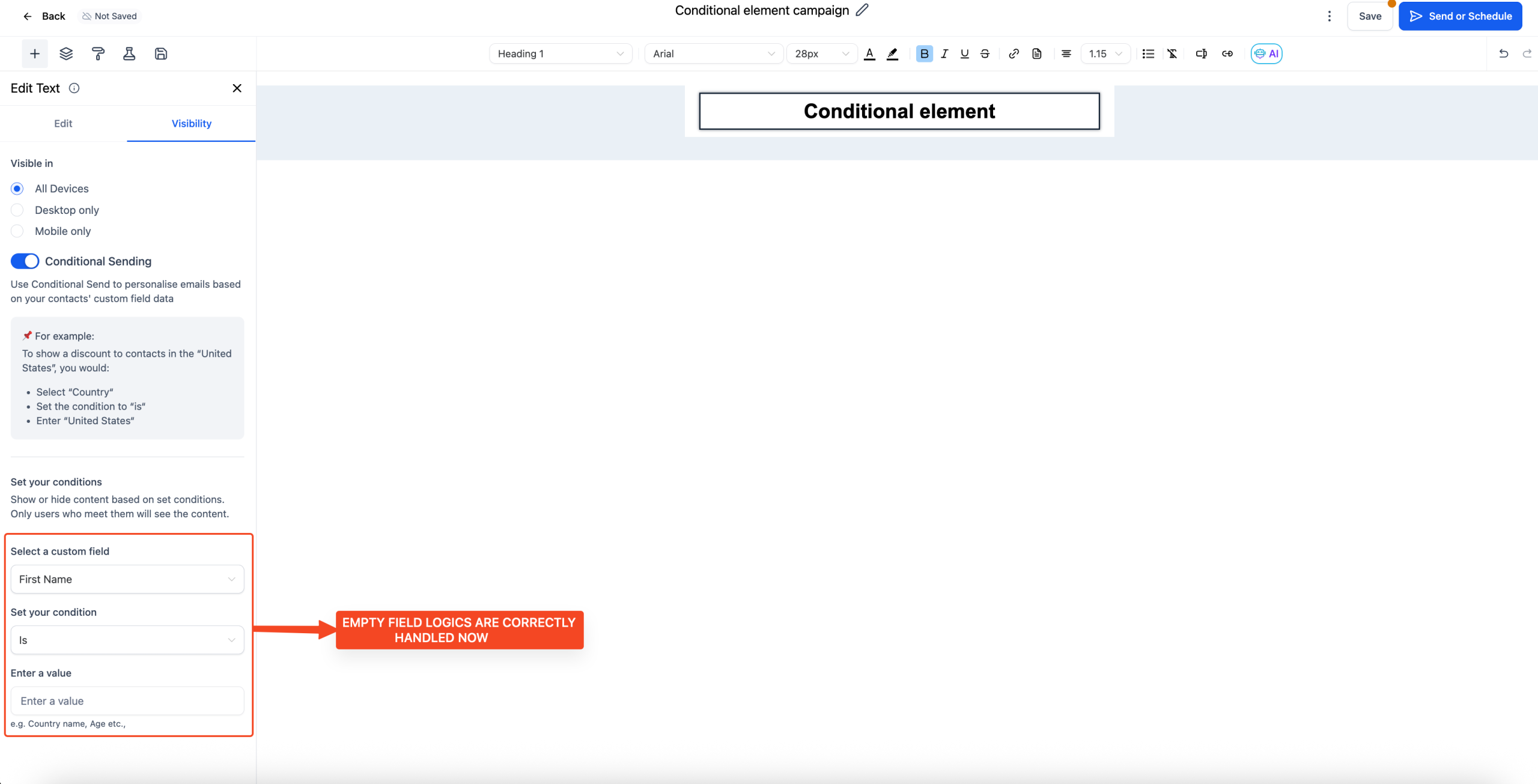
Conditional elements didn’t evaluate properly when custom fields were empty or undefined causing them to fail silently.
✅ What’s Fixed
– Improved the comparator function behind conditional logic to correctly handle undefined, null, and empty string values.
– Conditional logic will now behave as expected even when custom fields haven’t been set for a contact.
🎯Benefits
– Ensures conditions render correctly regardless of field state
– Eliminates silent failures in email logic
– Improves reliability for personalised and dynamic content
Improved Conditional Logic Handling in Email Builder
❓The Problem Statement
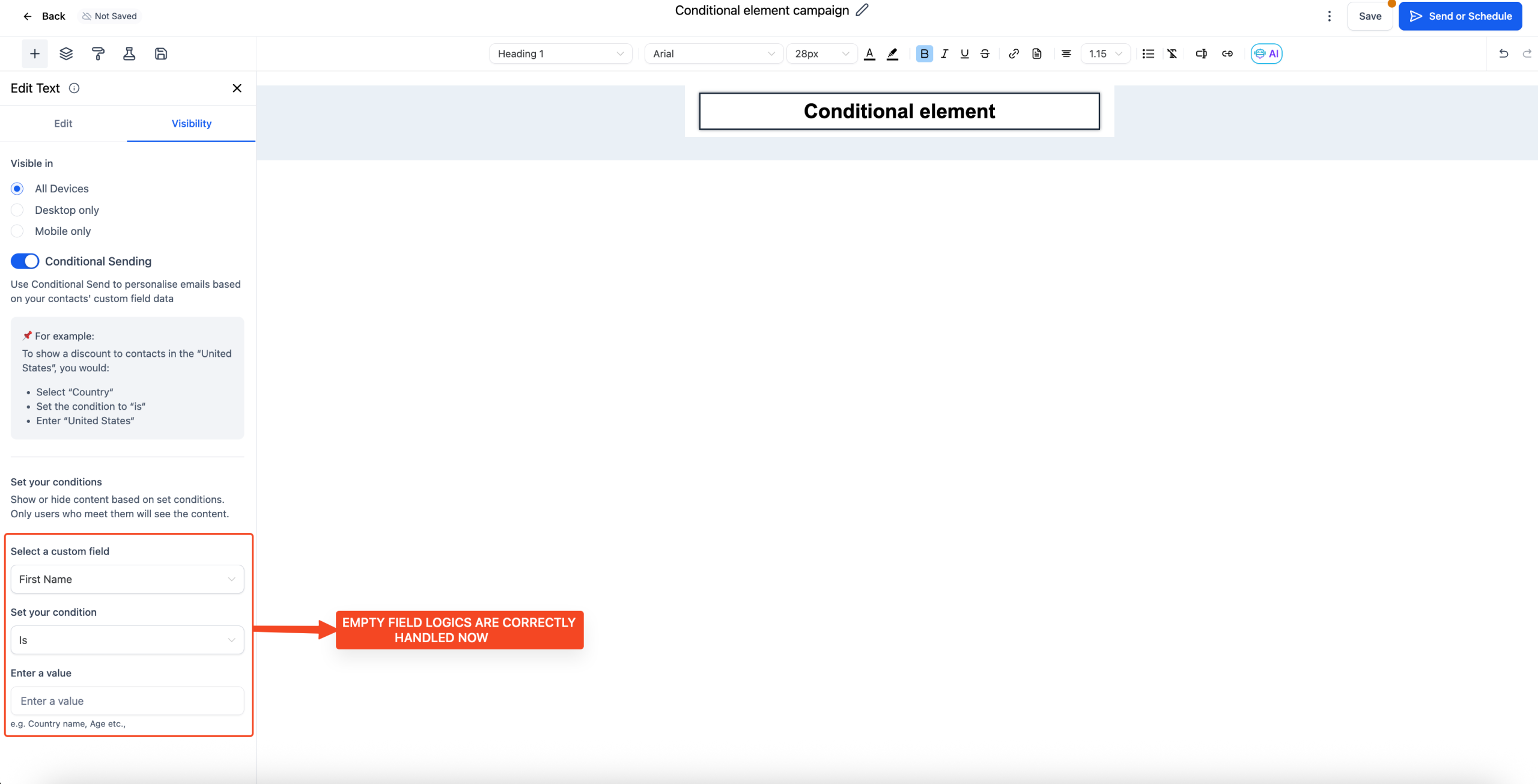
Conditional elements didn’t evaluate properly when custom fields were empty or undefined causing them to fail silently.
✅ What’s Fixed
– Improved the comparator function behind conditional logic to correctly handle undefined, null, and empty string values.
– Conditional logic will now behave as expected even when custom fields haven’t been set for a contact.
🎯Benefits
– Ensures conditions render correctly regardless of field state
– Eliminates silent failures in email logic
– Improves reliability for personalised and dynamic content
Improved Conditional Logic Handling in Email Builder
❓The Problem Statement
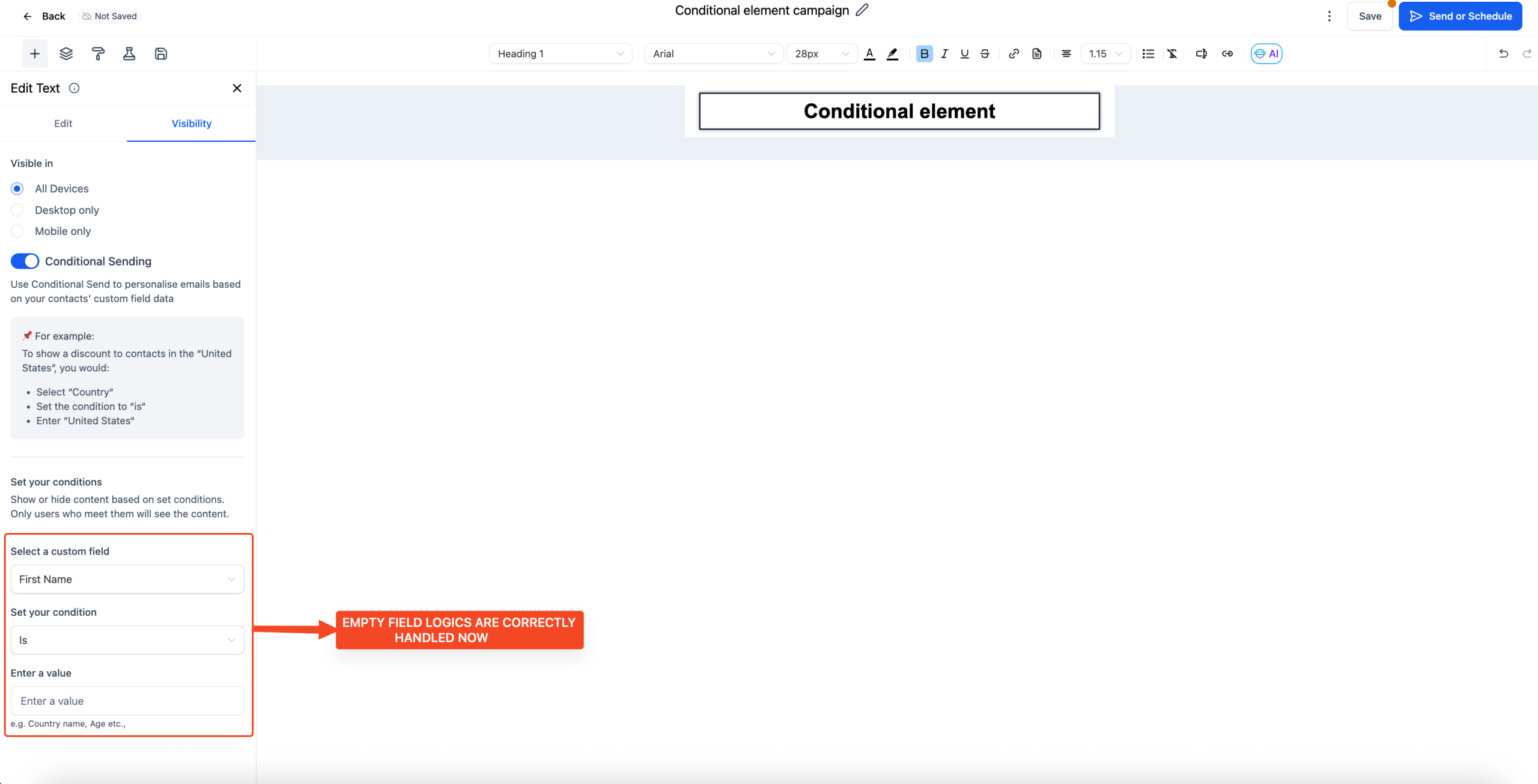
Conditional elements didn’t evaluate properly when custom fields were empty or undefined causing them to fail silently.
✅ What’s Fixed
– Improved the comparator function behind conditional logic to correctly handle undefined, null, and empty string values.
– Conditional logic will now behave as expected even when custom fields haven’t been set for a contact.
🎯Benefits
– Ensures conditions render correctly regardless of field state
– Eliminates silent failures in email logic
– Improves reliability for personalised and dynamic content