Social Planner: Best Time to Post 😇
🥰 What’s New in Social Planner: Best Time to Post Feature
We are excited to introduce the “Best Post Time” feature in the Social Planner! This new feature will help you optimize your posting schedule by suggesting the best times to post on social media based on your audience’s engagement patterns. Now you can ensure your posts go live at the perfect time to maximize reach and engagement.
😇 Key Highlights
1. Best Time to Post: The feature analyzes your audience’s engagement data and suggests the optimal time to post on each platform.
2. Easy-to-Use: Simply create your post and select “Post Now” or “Schedule” to view the suggested best time to post.
3. Improved Engagement: By posting at the recommended time, you’ll increase the chances of reaching more people and improving your content’s performance.
4. Support for Multiple Platforms: The best time to post feature is available for all connected social media accounts within the Social Planner.
🚀 How to Use Best Post Time
1. Go to Marketing > Social Planner
3. Click on “Add Post”
4. Select the social platforms you wish to post on under “Add Socials”

5. Add your content, including images, videos, and text
6. When you’re ready, click either “Post Now” or “Schedule”
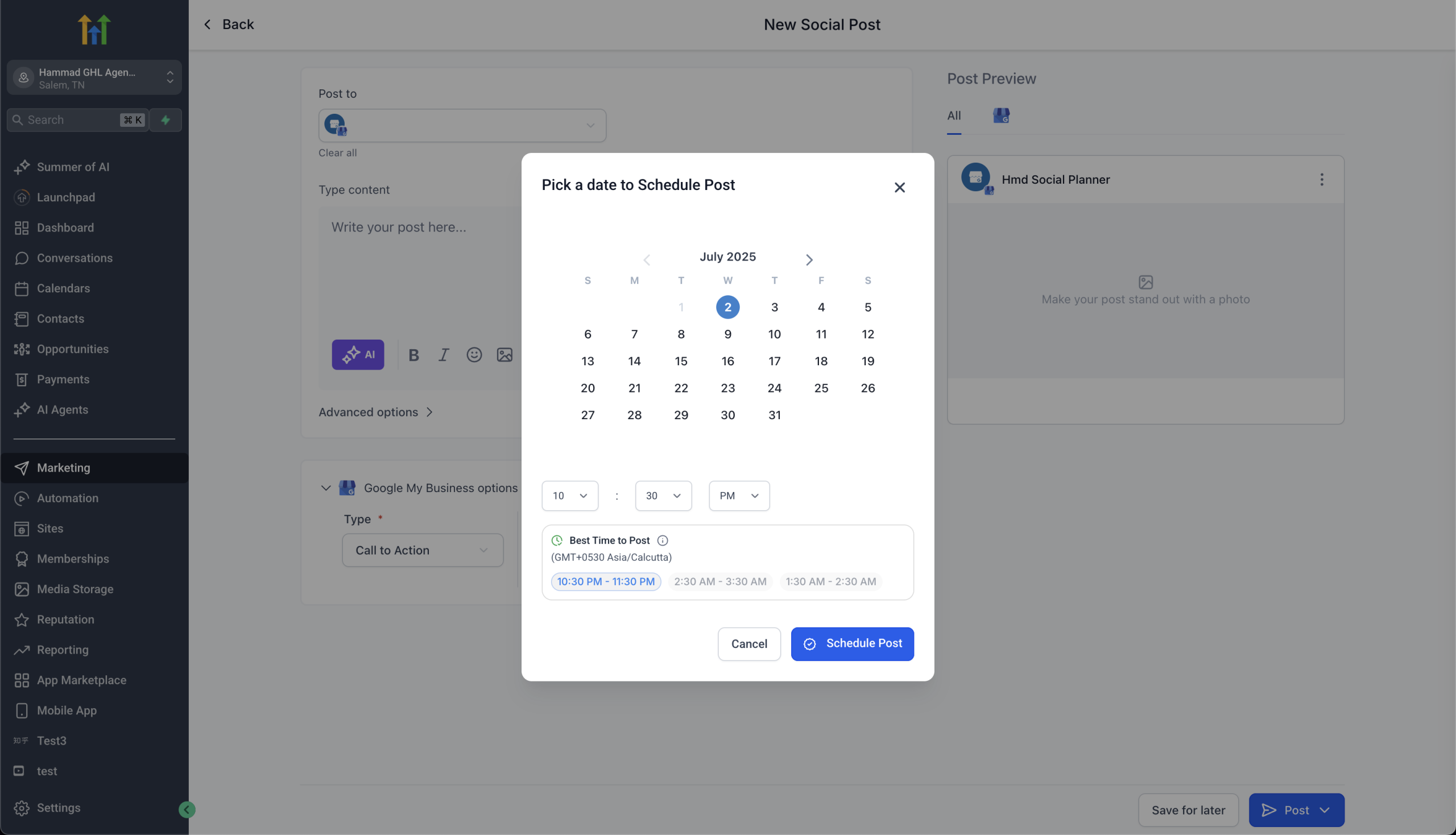
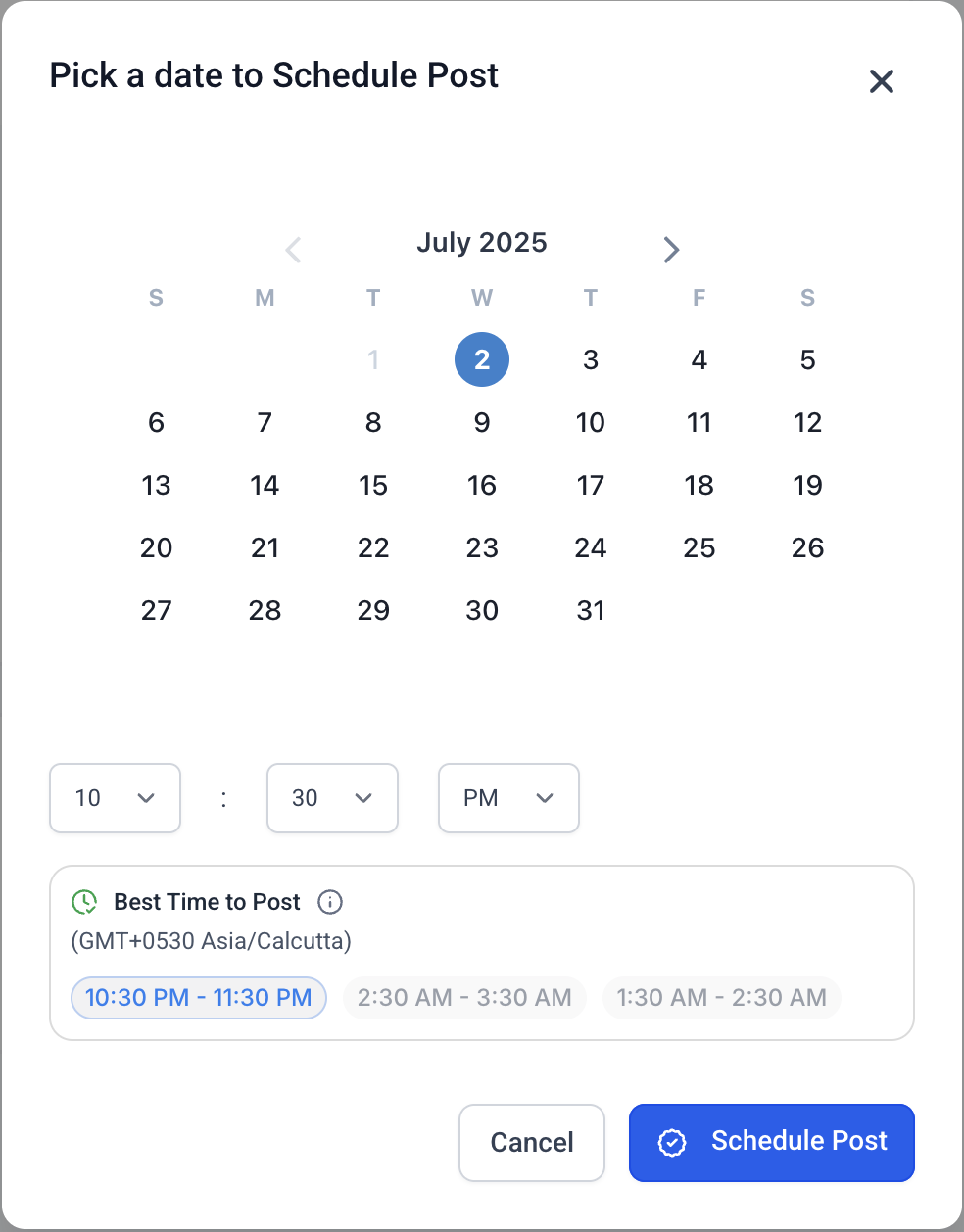
7. The system will show you the “Best Time to Post” based on your audience’s engagement trends
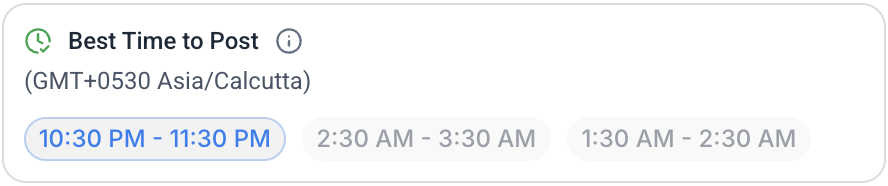
8. Select the suggested time or adjust as needed, and you’re all set to post!
🎼 Note –
1. Best time to post is not available in the mobile app
2. Best time to post is available in post composer and CSV bulk action (basic/advanced) , it will come to other formats in the upcoming like Recurring, Review, RSS and category queue in the future.
Start leveraging the Best Post Time feature today to increase your social media impact with minimal effort!
Help Article –
Value & Currency support for Lead Event with ‘Purchase’ stage in CAPI action
👀 What’s New?
We’ve introduced Value and Currency input fields for Lead Event when the Stage Name is set to “Purchase” inside the CAPI action of the Workflows module. This ensures parity with Funnel Events, aligning with Meta’s requirement for passing a monetary value when the event is marked as Purchase.
👷 How It Works:
1. This enhancement applies to both Integration and Ad Manager radio options inside the CAPI Action.
2. When users select:
– Event Type: Lead Event
– Stage Name: Purchase
3. The following fields will now appear:
– Value (supports both static and custom fields)
– Currency (dropdown with default set to USD, same list as in Funnel Event)
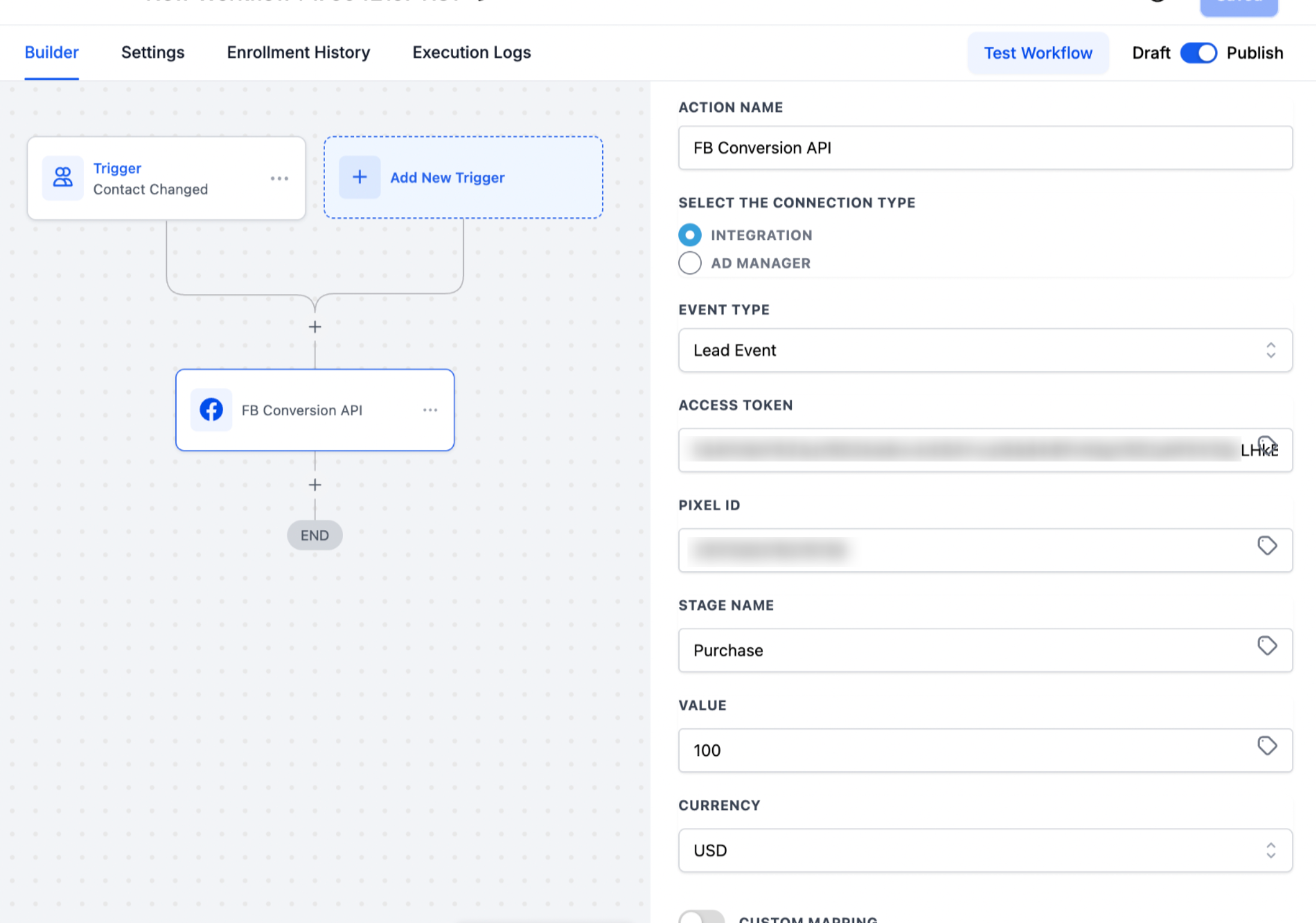
4. These fields are mandatory only when the above condition is met.
5. The backend logic ensures that:
– If value and currency are provided, they are passed along correctly.
– If the stage name isn’t “Purchase”, the value/currency are ignored, even if they’re present in the payload.
⭐ Why it Matters:
– Previously, users selecting Lead Event with Stage Name as “Purchase” had no way to pass the mandatory value to Meta, leading to CAPI errors or failed event delivery. This update resolves that inconsistency, improving event fidelity and ensuring successful Purchase event tracking across both Funnel and Lead event types.
Value & Currency support for Lead Event with ‘Purchase’ stage in CAPI action
👀 What’s New?
We’ve introduced Value and Currency input fields for Lead Event when the Stage Name is set to “Purchase” inside the CAPI action of the Workflows module. This ensures parity with Funnel Events, aligning with Meta’s requirement for passing a monetary value when the event is marked as Purchase.
👷 How It Works:
1. This enhancement applies to both Integration and Ad Manager radio options inside the CAPI Action.
2. When users select:
– Event Type: Lead Event
– Stage Name: Purchase
3. The following fields will now appear:
– Value (supports both static and custom fields)
– Currency (dropdown with default set to USD, same list as in Funnel Event)
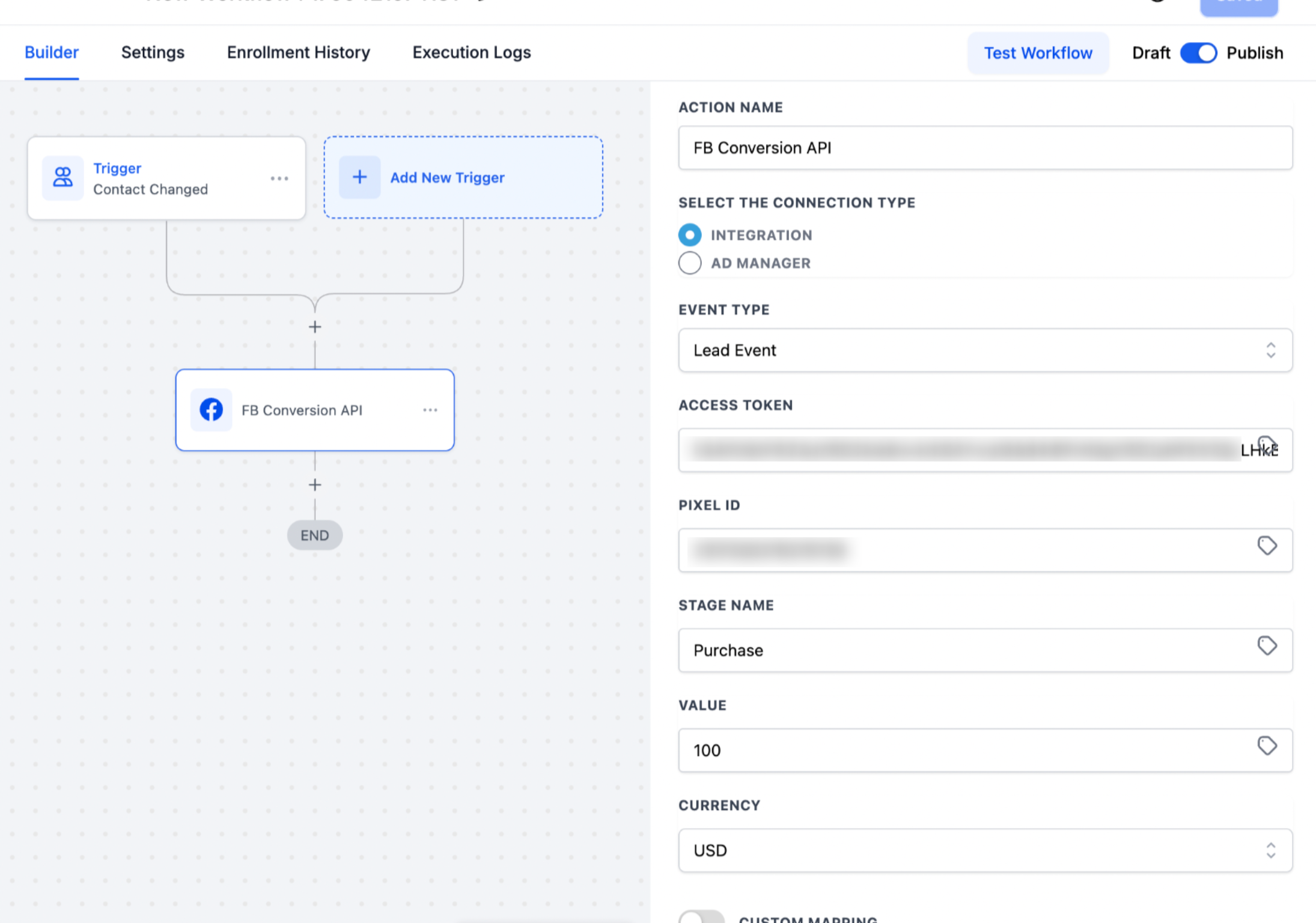
4. These fields are mandatory only when the above condition is met.
5. The backend logic ensures that:
– If value and currency are provided, they are passed along correctly.
– If the stage name isn’t “Purchase”, the value/currency are ignored, even if they’re present in the payload.
⭐ Why it Matters:
– Previously, users selecting Lead Event with Stage Name as “Purchase” had no way to pass the mandatory value to Meta, leading to CAPI errors or failed event delivery. This update resolves that inconsistency, improving event fidelity and ensuring successful Purchase event tracking across both Funnel and Lead event types.
Value & Currency support for Lead Event with ‘Purchase’ stage in CAPI action
👀 What’s New?
We’ve introduced Value and Currency input fields for Lead Event when the Stage Name is set to “Purchase” inside the CAPI action of the Workflows module. This ensures parity with Funnel Events, aligning with Meta’s requirement for passing a monetary value when the event is marked as Purchase.
👷 How It Works:
1. This enhancement applies to both Integration and Ad Manager radio options inside the CAPI Action.
2. When users select:
– Event Type: Lead Event
– Stage Name: Purchase
3. The following fields will now appear:
– Value (supports both static and custom fields)
– Currency (dropdown with default set to USD, same list as in Funnel Event)

4. These fields are mandatory only when the above condition is met.
5. The backend logic ensures that:
– If value and currency are provided, they are passed along correctly.
– If the stage name isn’t “Purchase”, the value/currency are ignored, even if they’re present in the payload.
⭐ Why it Matters:
– Previously, users selecting Lead Event with Stage Name as “Purchase” had no way to pass the mandatory value to Meta, leading to CAPI errors or failed event delivery. This update resolves that inconsistency, improving event fidelity and ensuring successful Purchase event tracking across both Funnel and Lead event types.
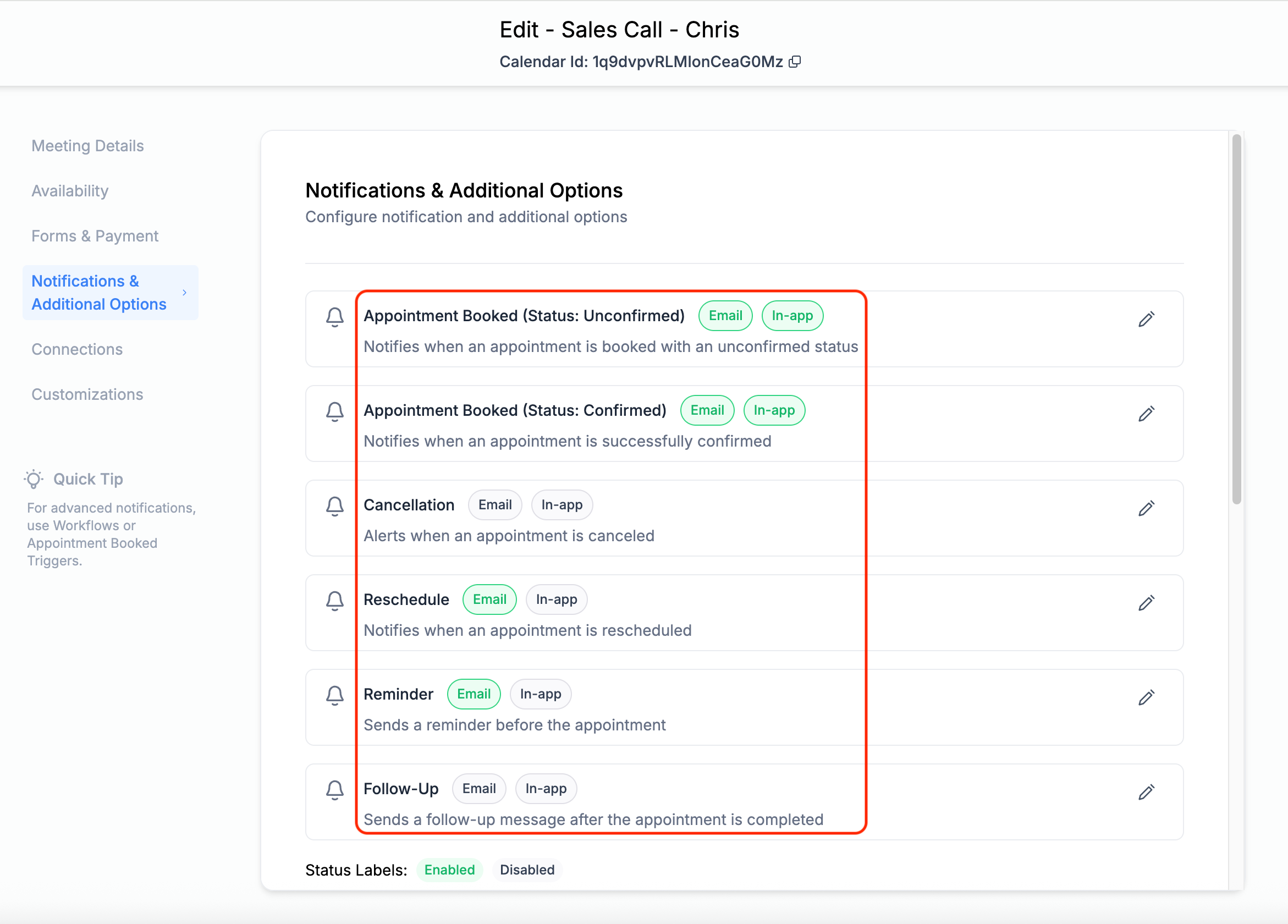
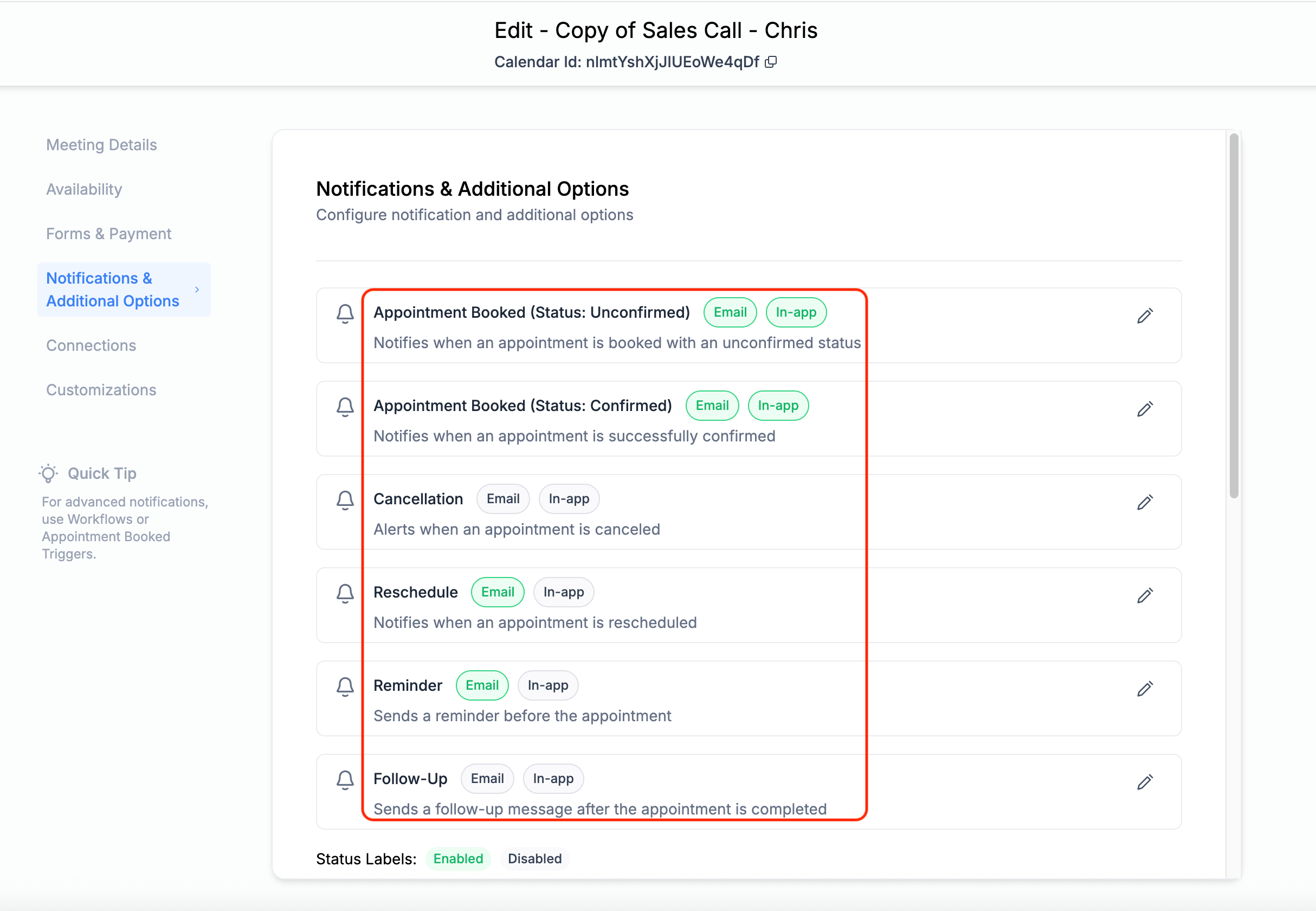
Calendar Duplication Now Copies Notification Settings!
🧭 Overview:
We’ve improved the Duplicate Calendar functionality to ensure a more consistent and reliable setup experience. Now, when you duplicate a calendar, all notification templates and their associated settings/toggles will be copied over—just like the rest of the calendar configuration.
🎉 What’s New:
Previously, notification templates (such as email/in app) weren’t carried over when duplicating a calendar. This created confusion, led to missed client communications, and led to users raising support tickets. With this update, duplicated calendars will now include all notification configurations from the original, so nothing gets missed.
✅ Key Benefits:
– Notification templates are now copied during calendar duplication
– All associated toggles and settings (like “Reminder”) are retained
– No more missed notifications due to silent configuration gaps
– A more intuitive duplication experience that matches user expectations
This improvement ensures better reliability and a more seamless scheduling workflow.