🎨 Smarter Visuals with Ask AI: Image Generation & Editing with Ask AI is Now Live!
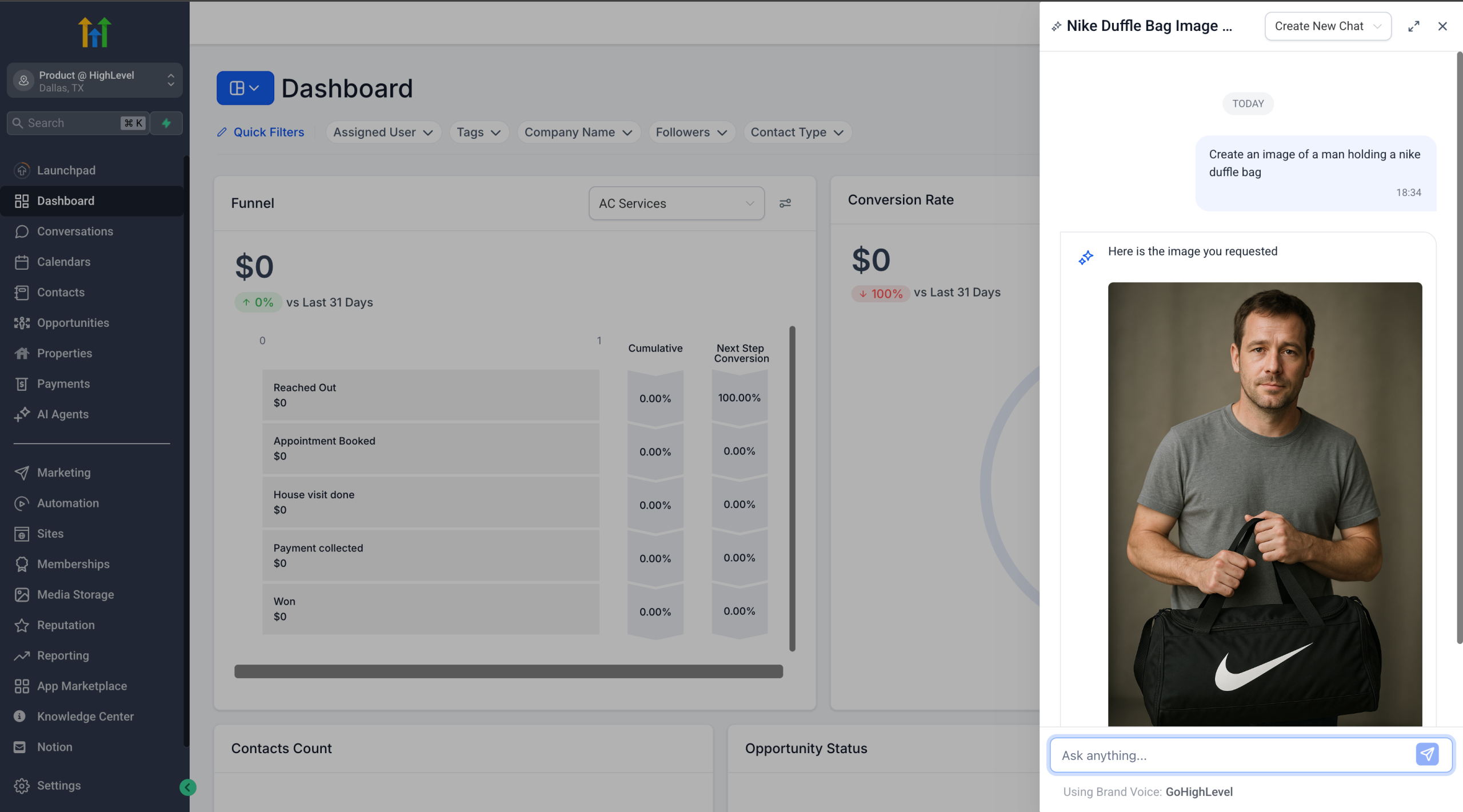
You can now create and refine images directly through Ask AI. Whether you’re working on social posts, email creatives or websites —Ask AI will help you with your visuals.
🆕 What’s New?
1. Image Generation with Ask AI
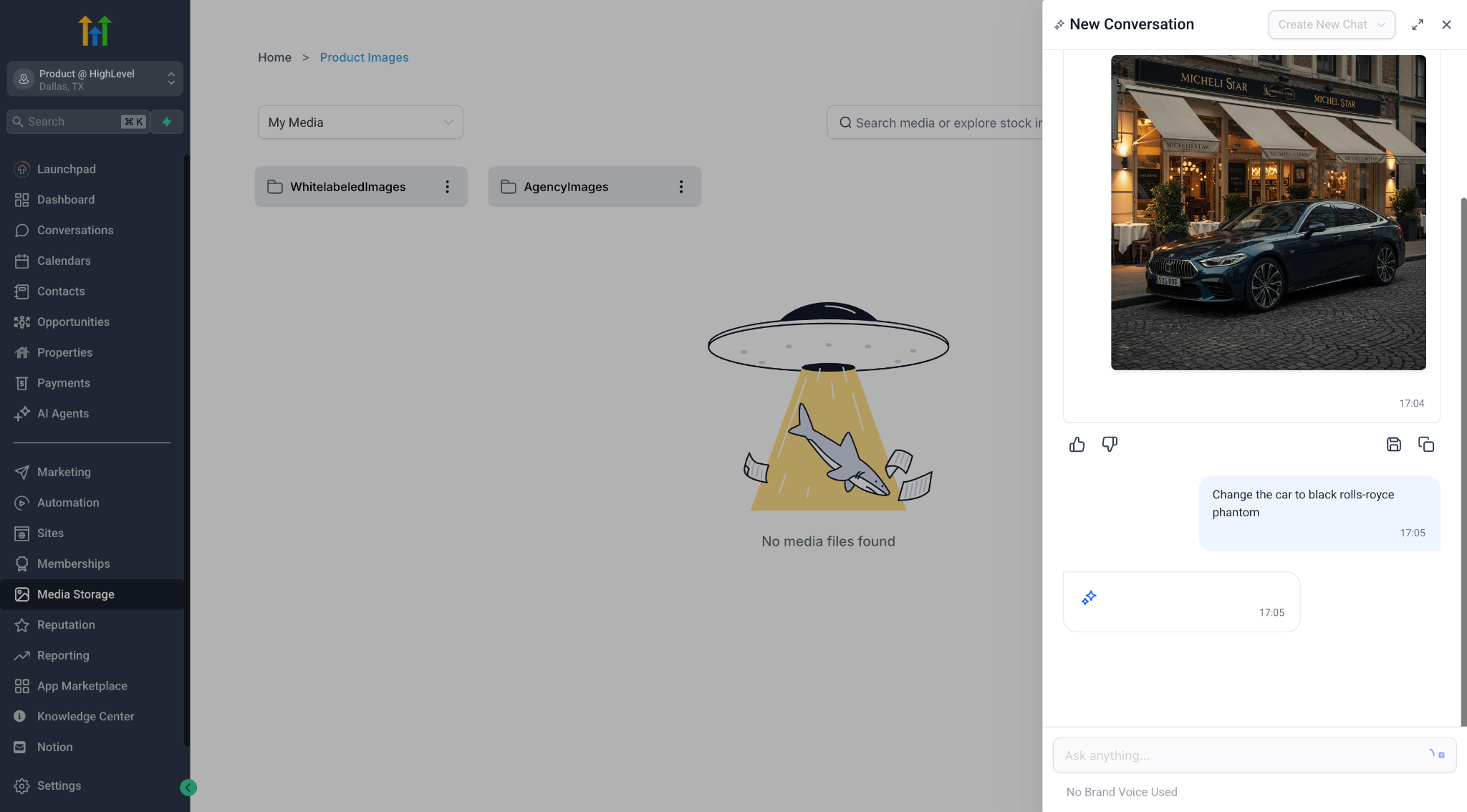
– Type a prompt like “Generate an image of a beautiful sunset” → get an image instantly.
– Want a specific style? Just mention it in your prompt (e.g., cartoon, realistic, 3D).
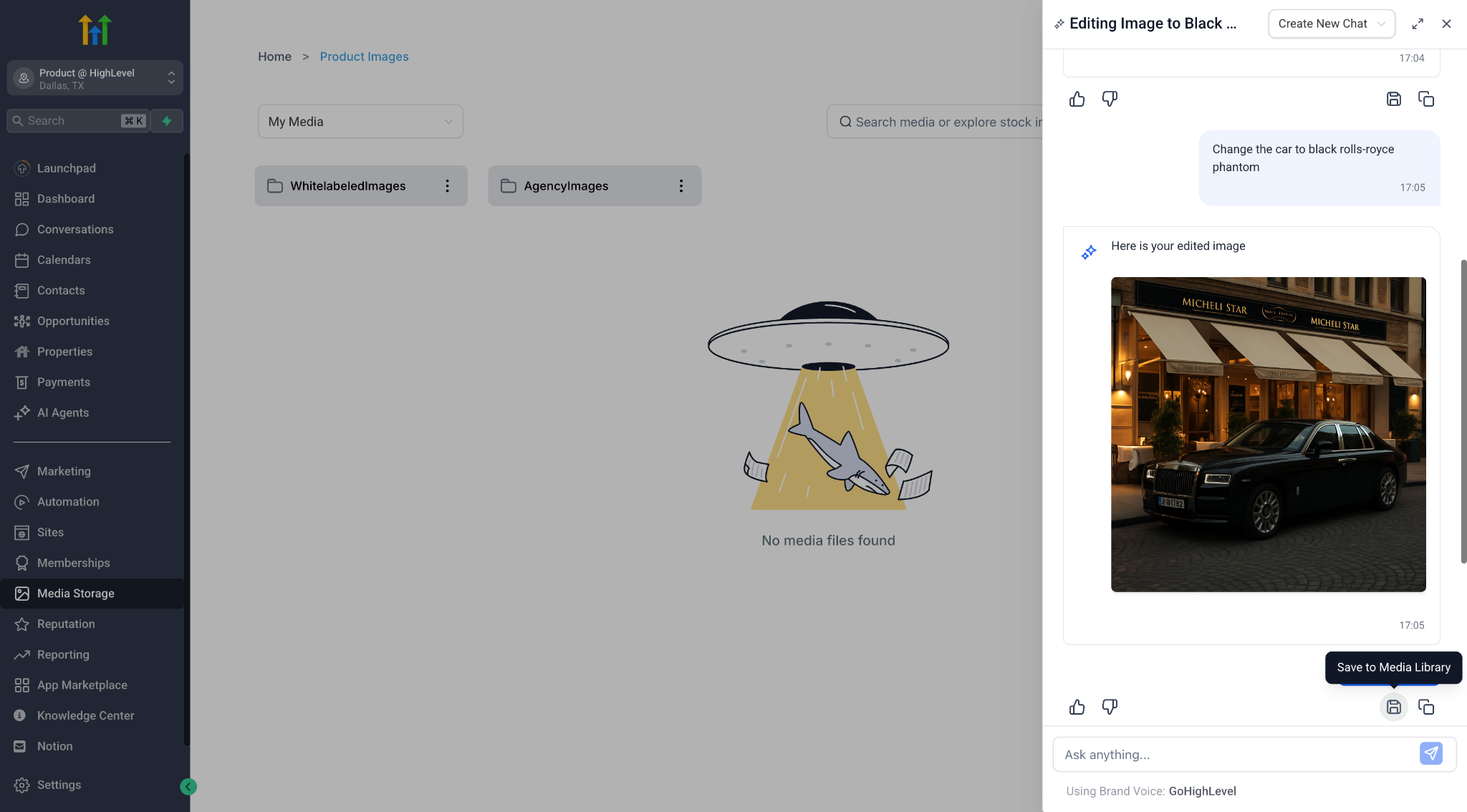
– All generated images are stored in Ask AI sessions by default. Click ‘save’ button to save them to your Media Library for future use.
2. Advanced Image Editing with Ask AI
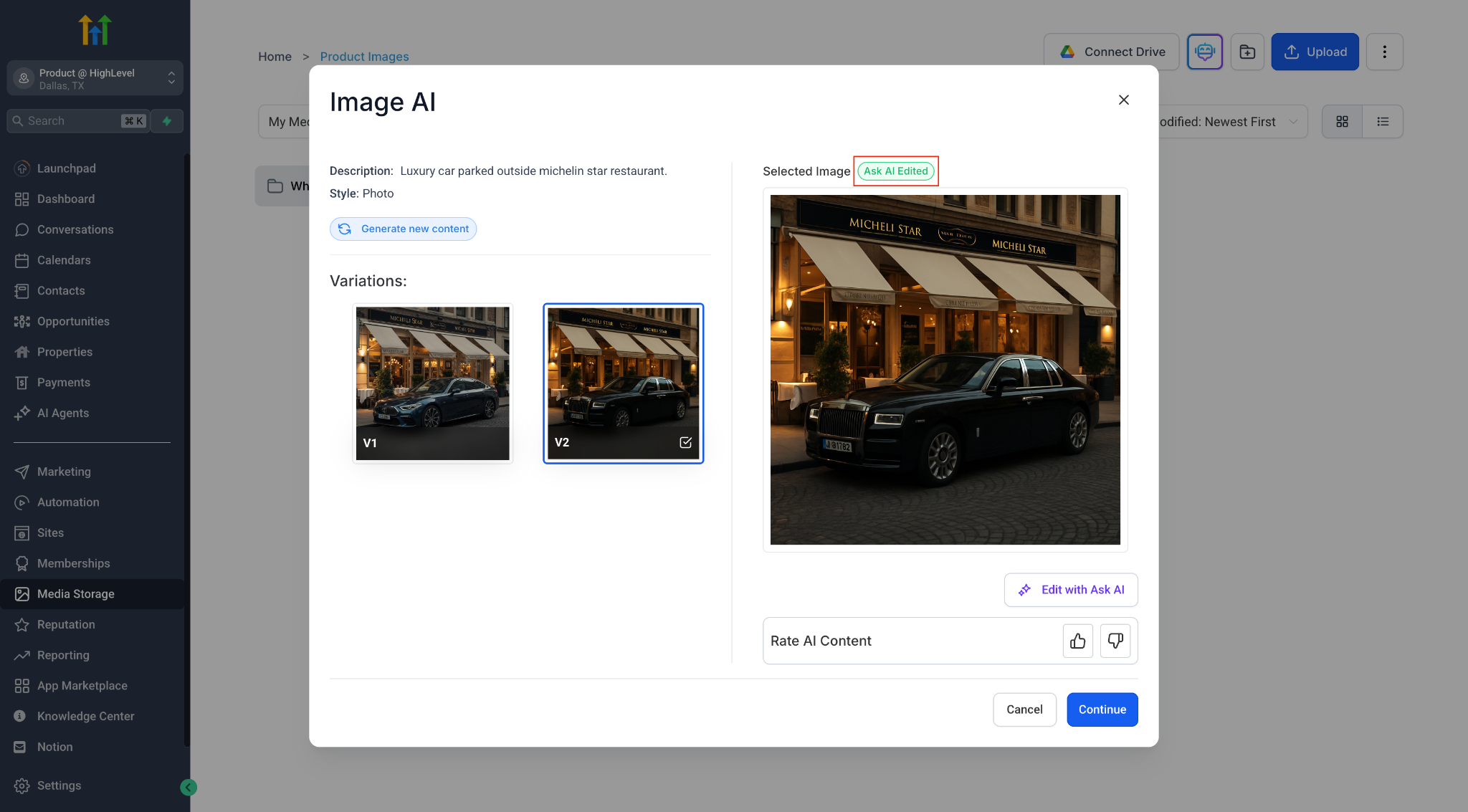
– Edit any image — whether it was generated in Ask AI or the Content AI modal.
🛠 Two ways to start editing:
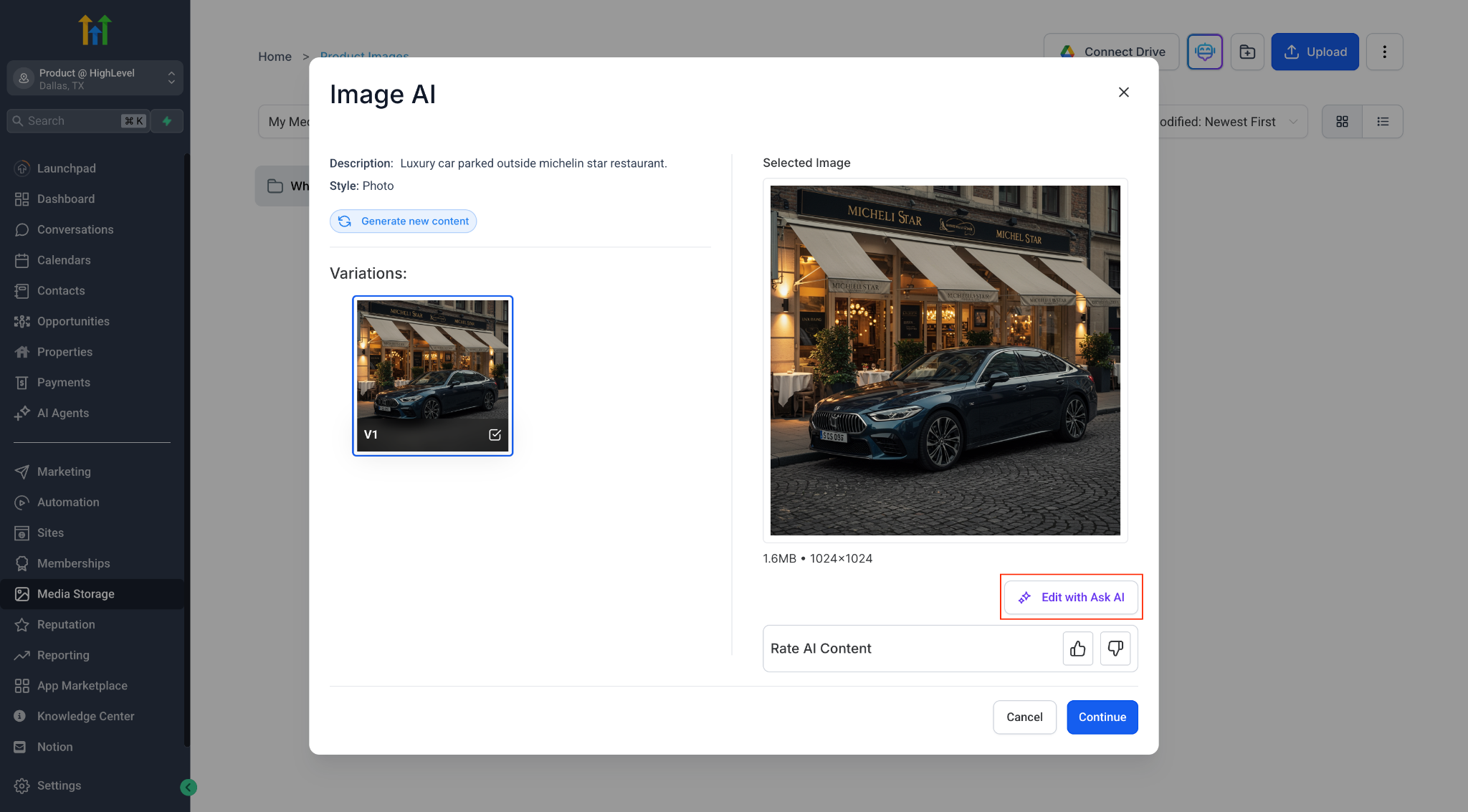
– From Content AI Image Modal: Click the ✏️ “Edit with Ask AI” icon after selecting an image.
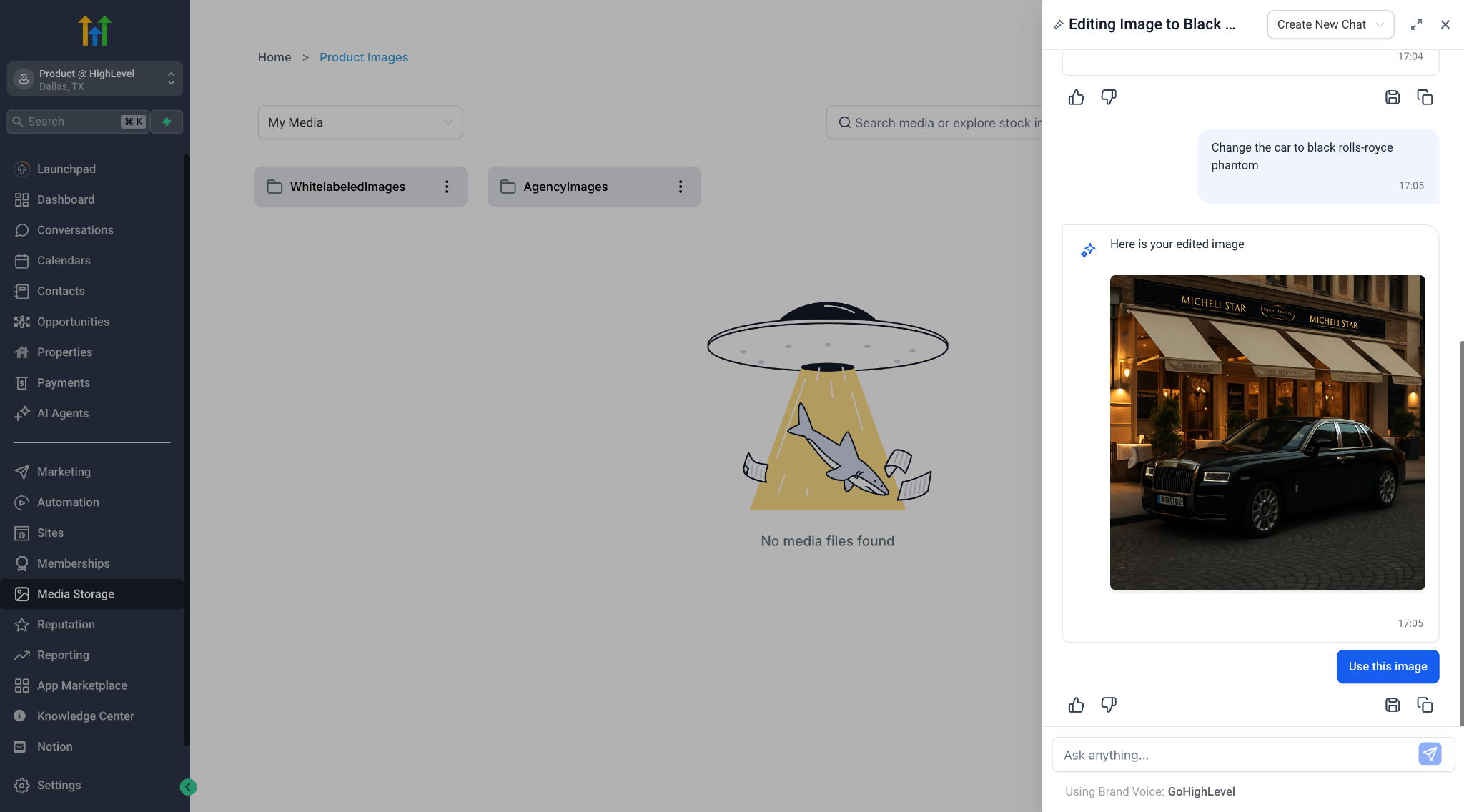
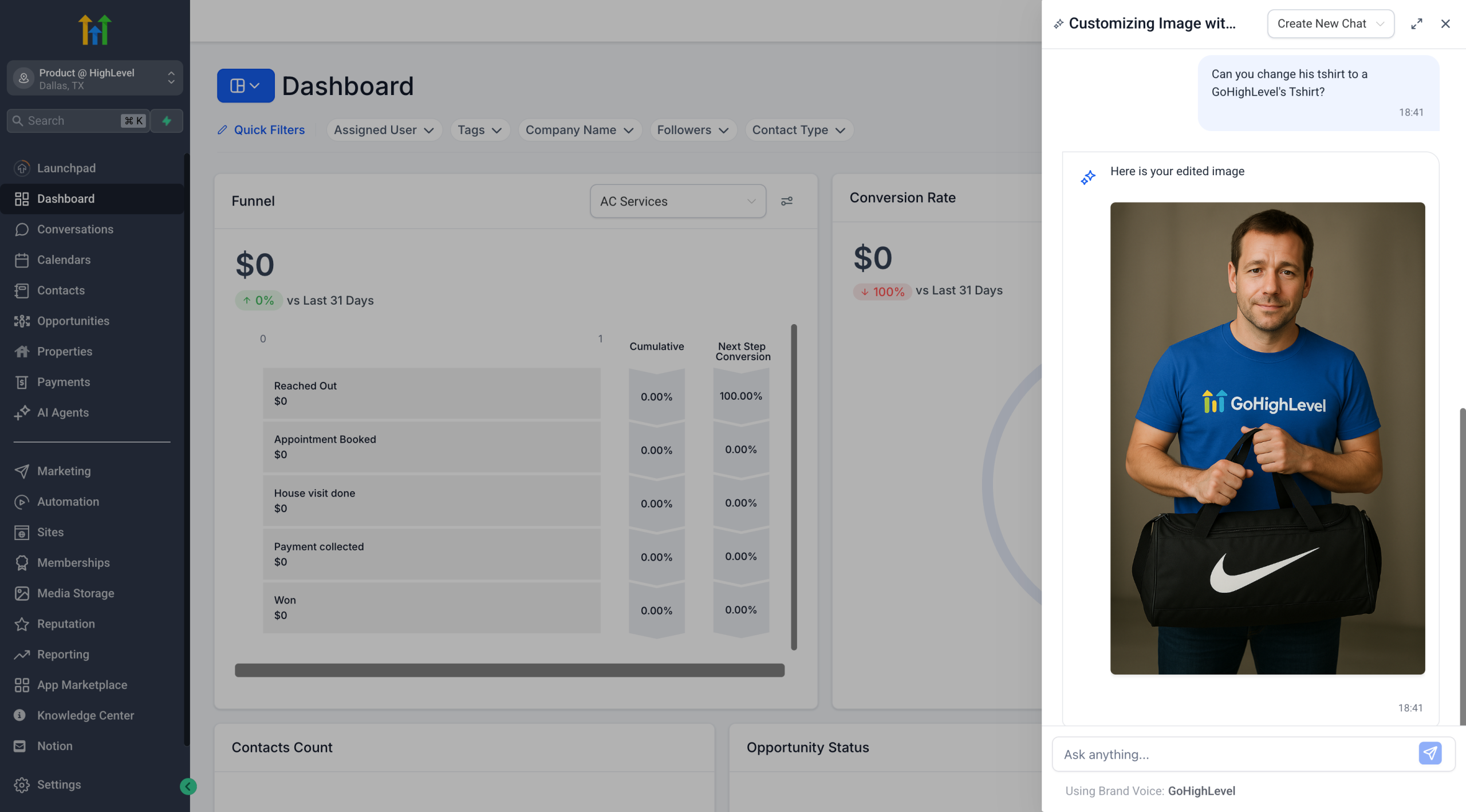
– From Ask AI: Continue your image generation flow with a natural prompt like “Add greenery” or “Change background.”
🧠 How it works:
– Ask AI automatically detects whether your intent is to generate or edit an image.
– When editing, Ask AI keeps your session history intact, allowing iterative improvements.
– You can keep refining the same image in a conversational flow.
– Click Use to send the final edited image back to the Content AI modal, or Save it to your Media Library for reuse.
📂 Session-aware editing:
– Edits are tied to the specific image variation you started from.
– Re-entering editing from the same image brings up your previous Copilot session.
💡 Pro Tip: Edits or Generations done through Ask AI do not show up in Content AI history (for now). The session lives inside Ask AI history only.
🔓 Availability
– This feature is currently available to accounts with AI Employee access ($97 subscription or Pay Per Use enabled for Content AI).
– Image generation and editing via Ask AI is not billed separately at this time.
⚙️ Key Details & Safeguards
– Guardrails are in place to block unsafe visual content.
– Ask AI intelligently detects edit vs. generate intent.
– Edited or generated images are only saved to Media Library when you click Save.
Try it and share your feedback!
Modern Order Bumps Now in Forms & Surveys
Drive more revenue with high-converting add-ons—now directly within your forms and surveys
What’s New
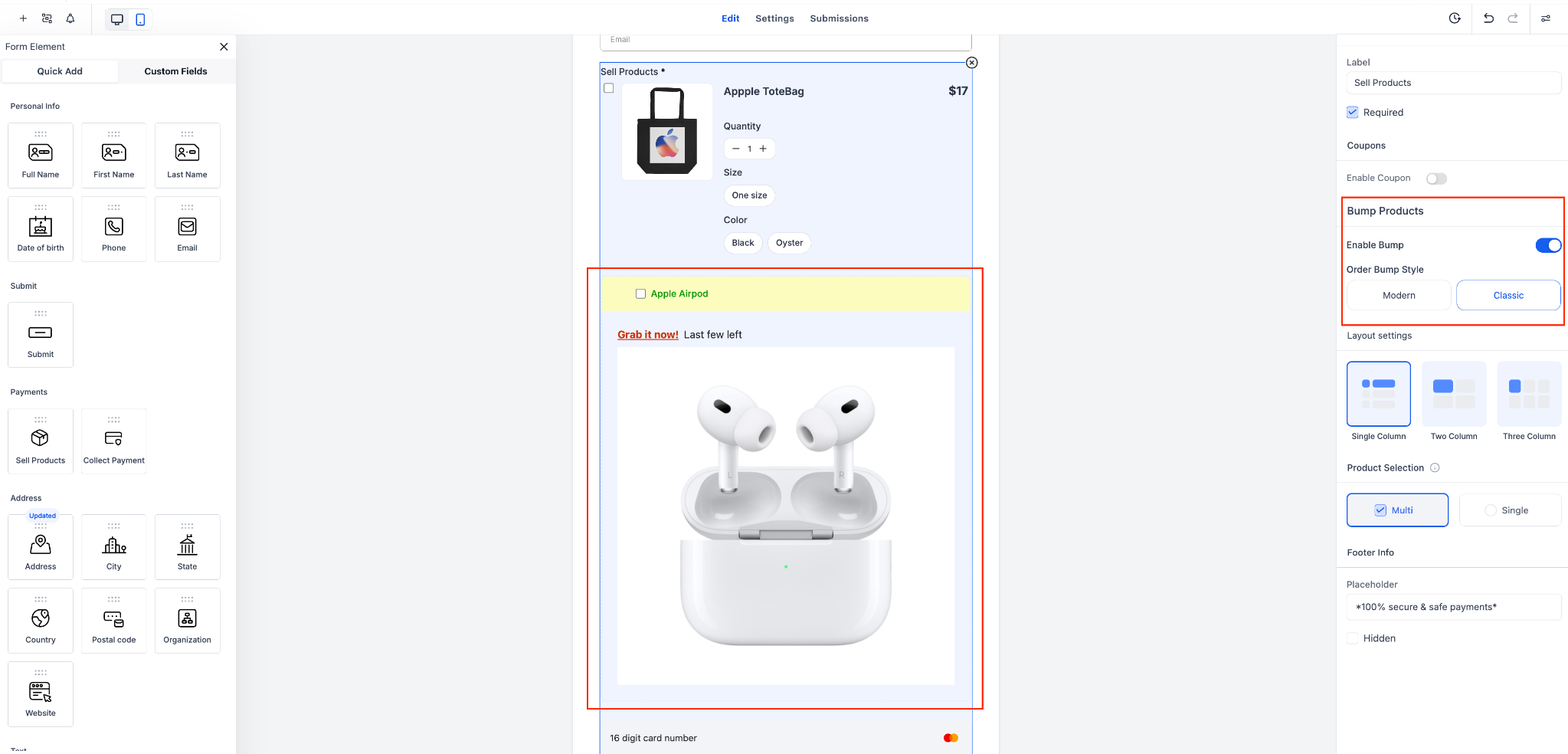
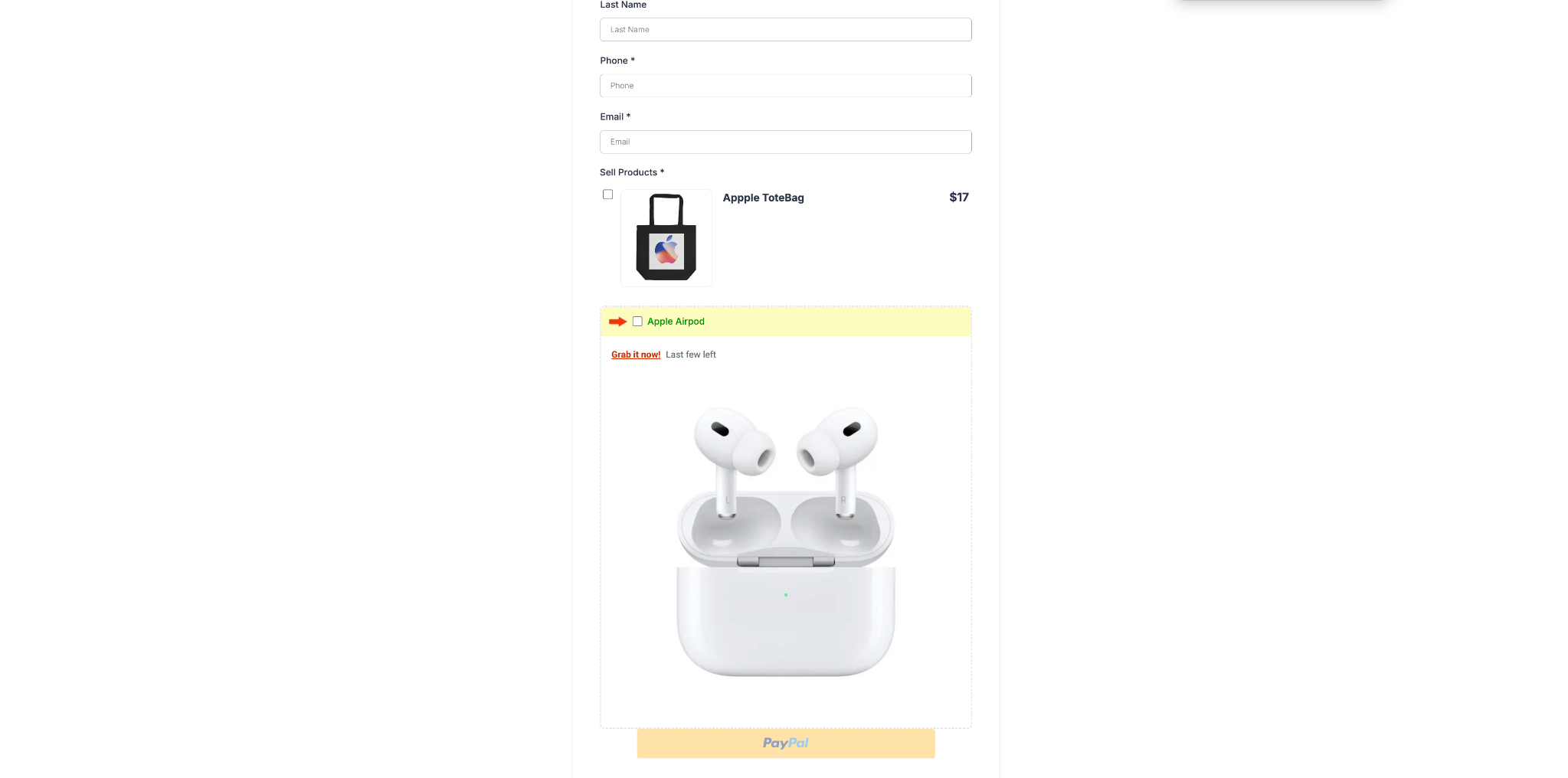
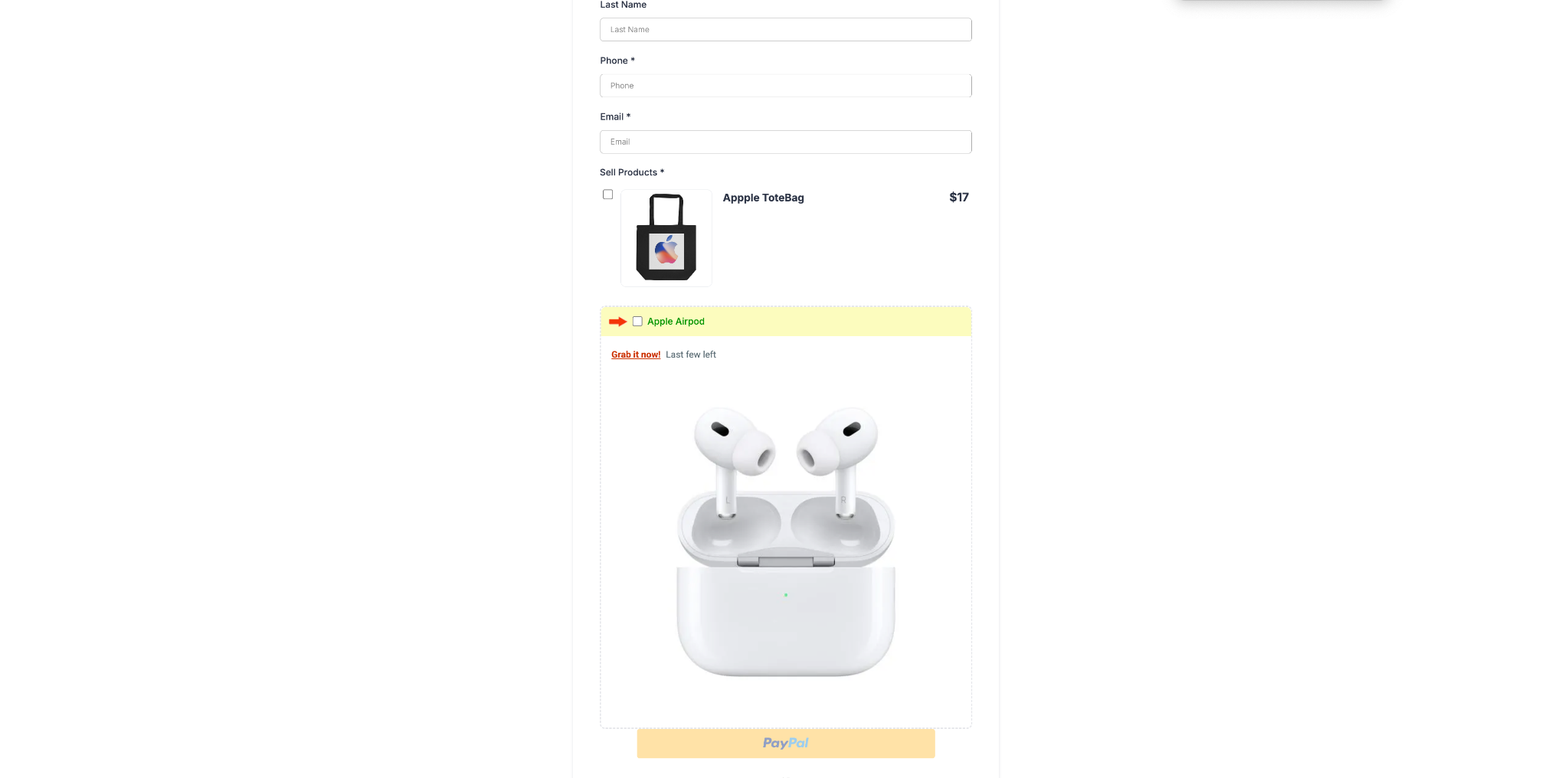
Order Bumps are now available in Forms and Surveys, expanding beyond their original use in funnel-based order forms. This update not only revives the Classic view but also introduces a powerful new Modern style with multiple templates and full customization options.
Key Highlights
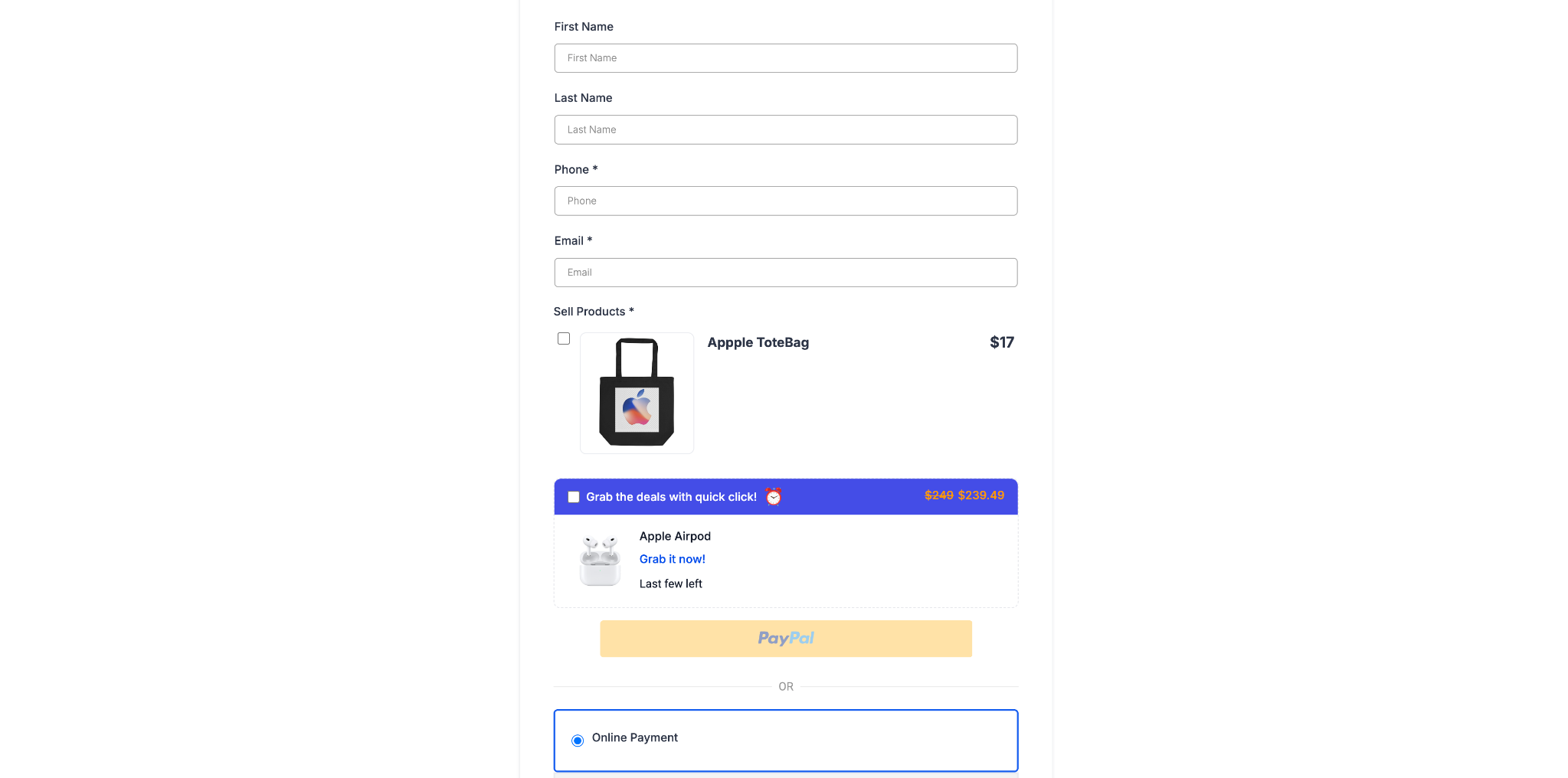
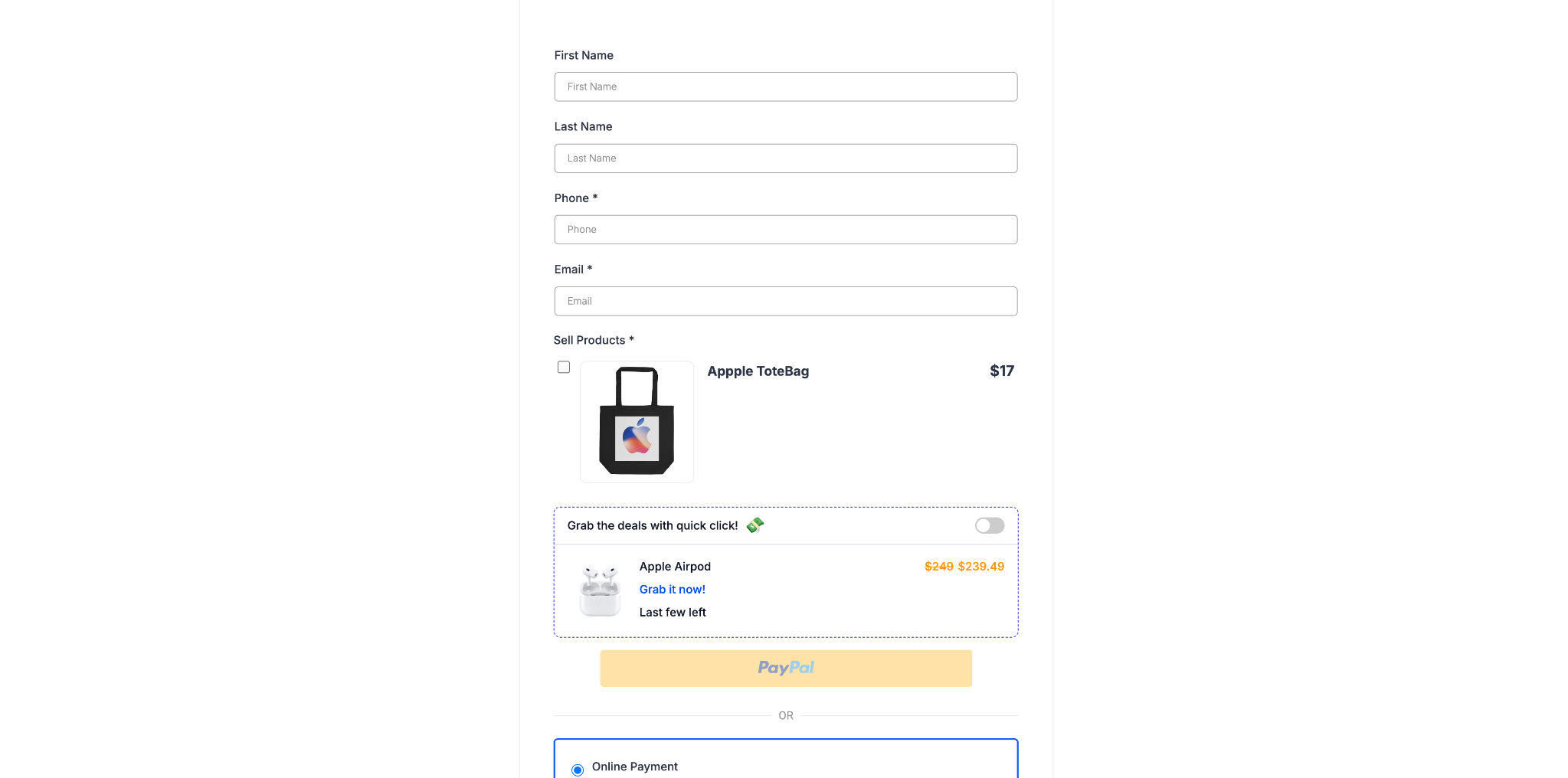
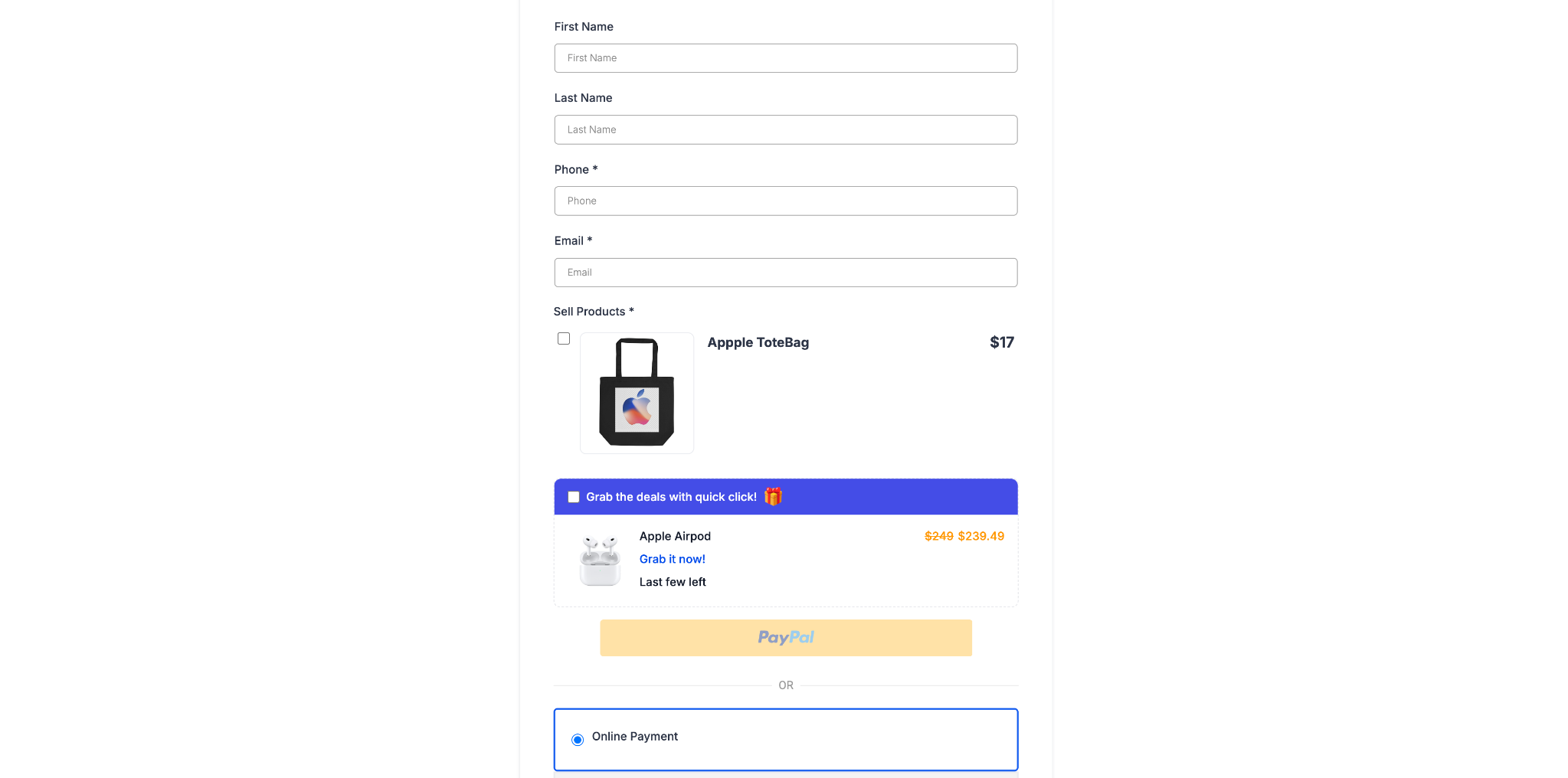
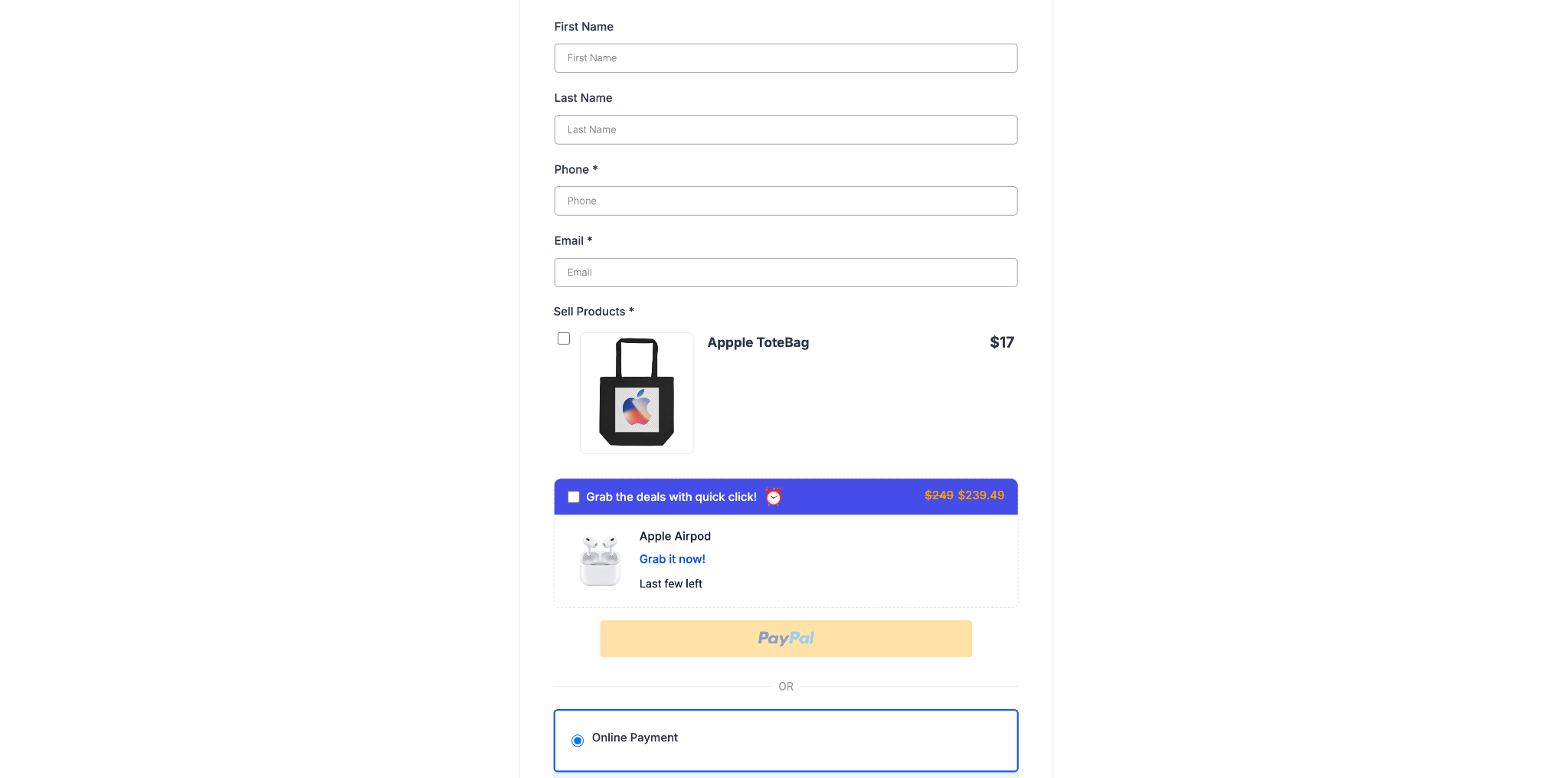
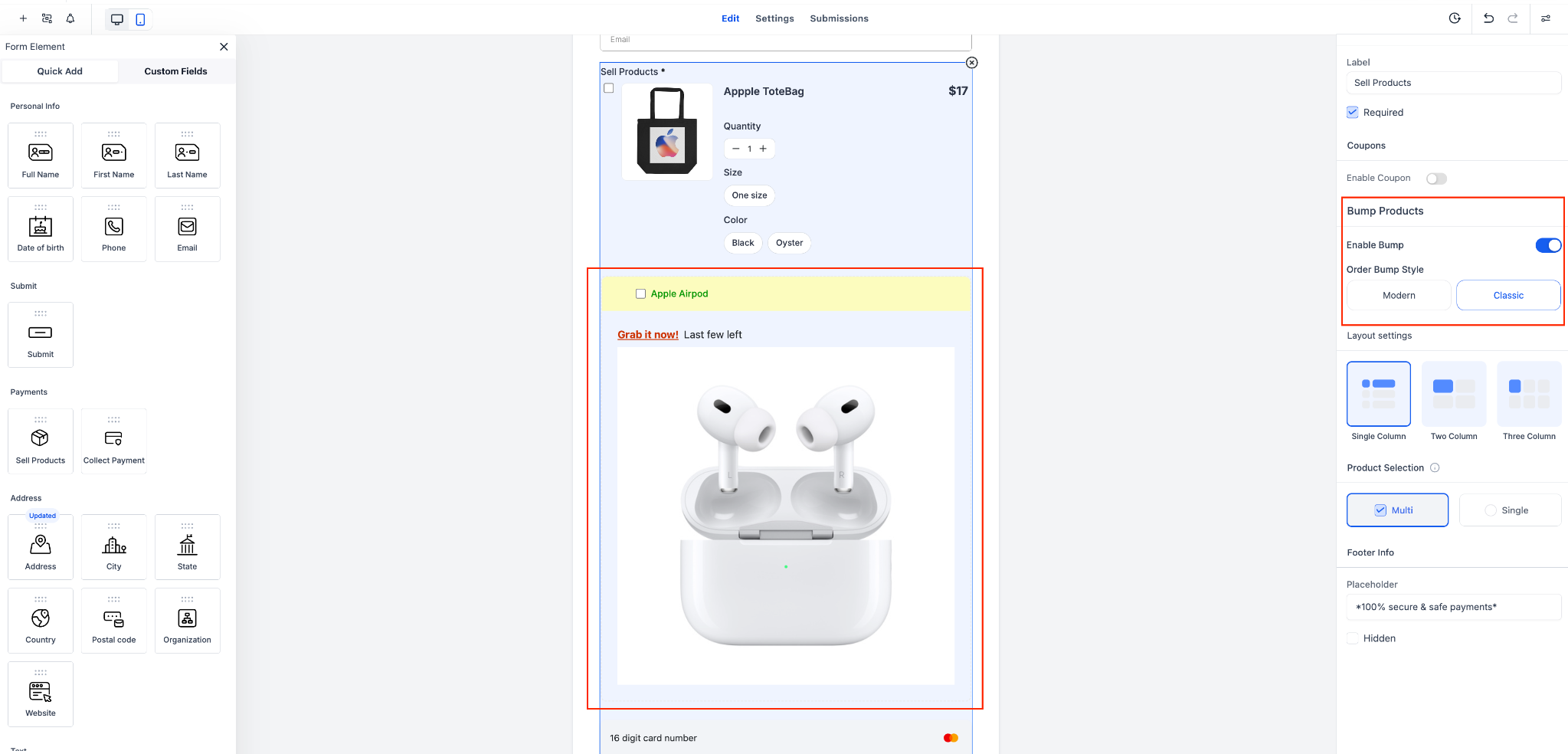
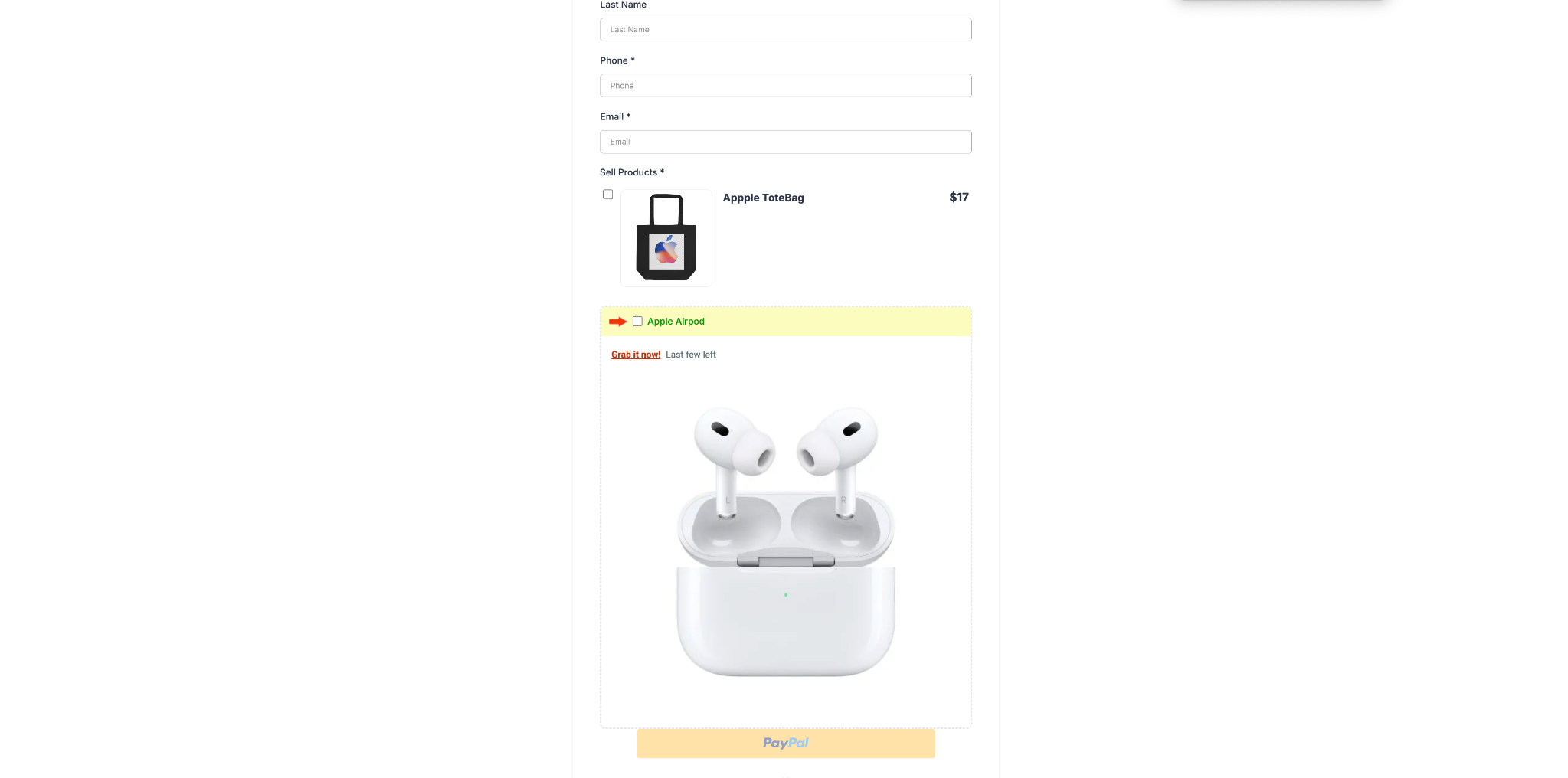
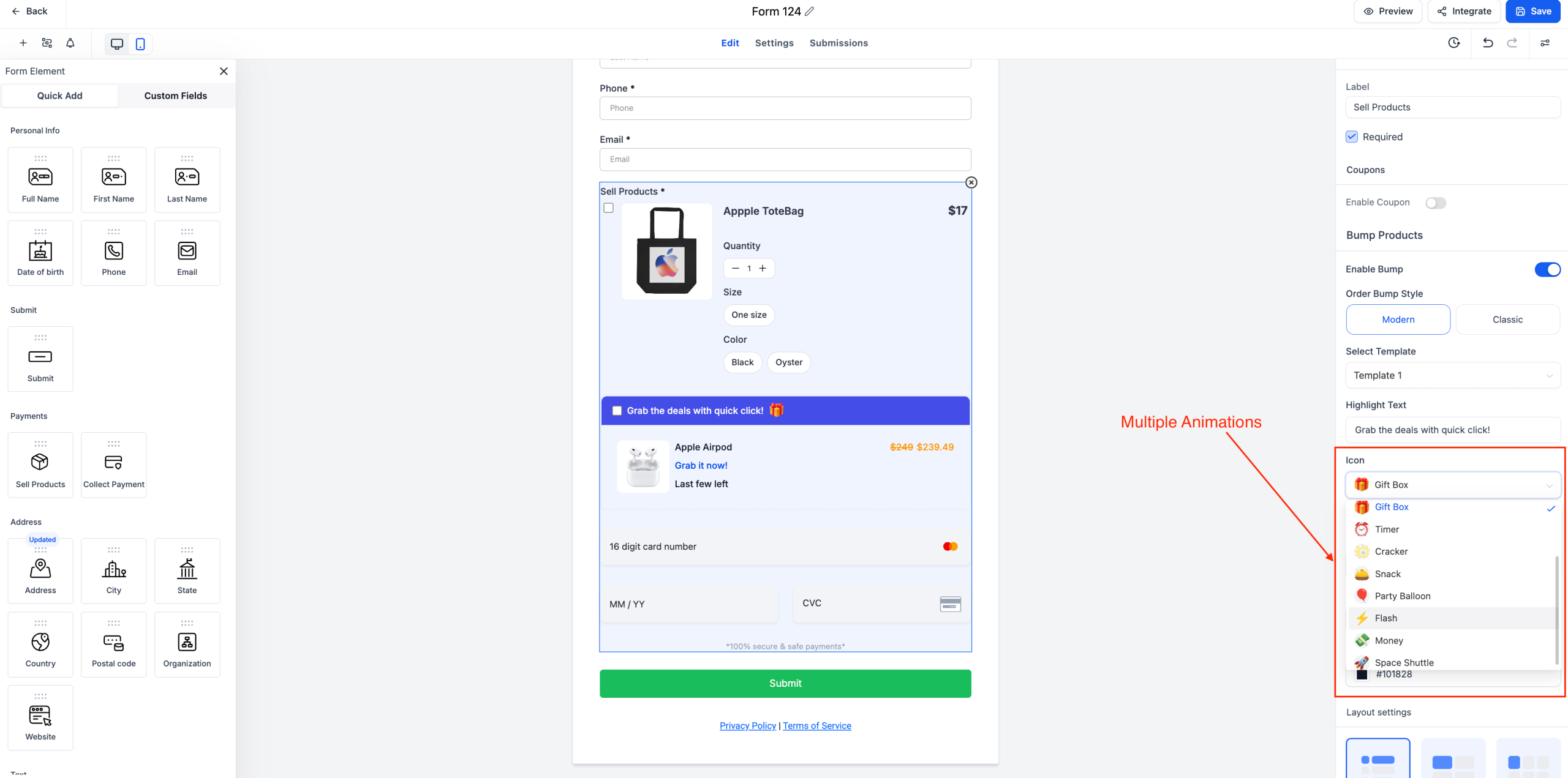
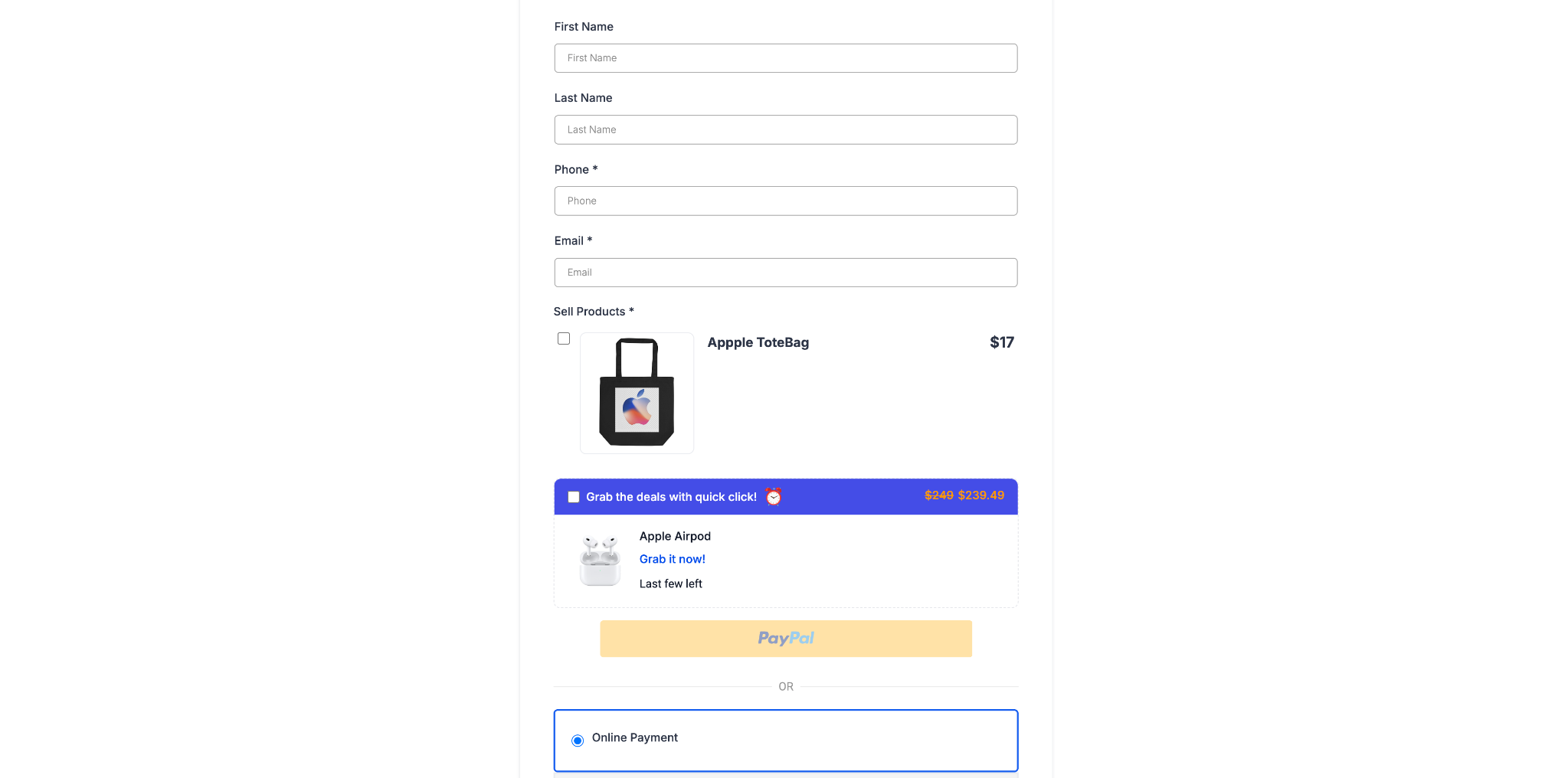
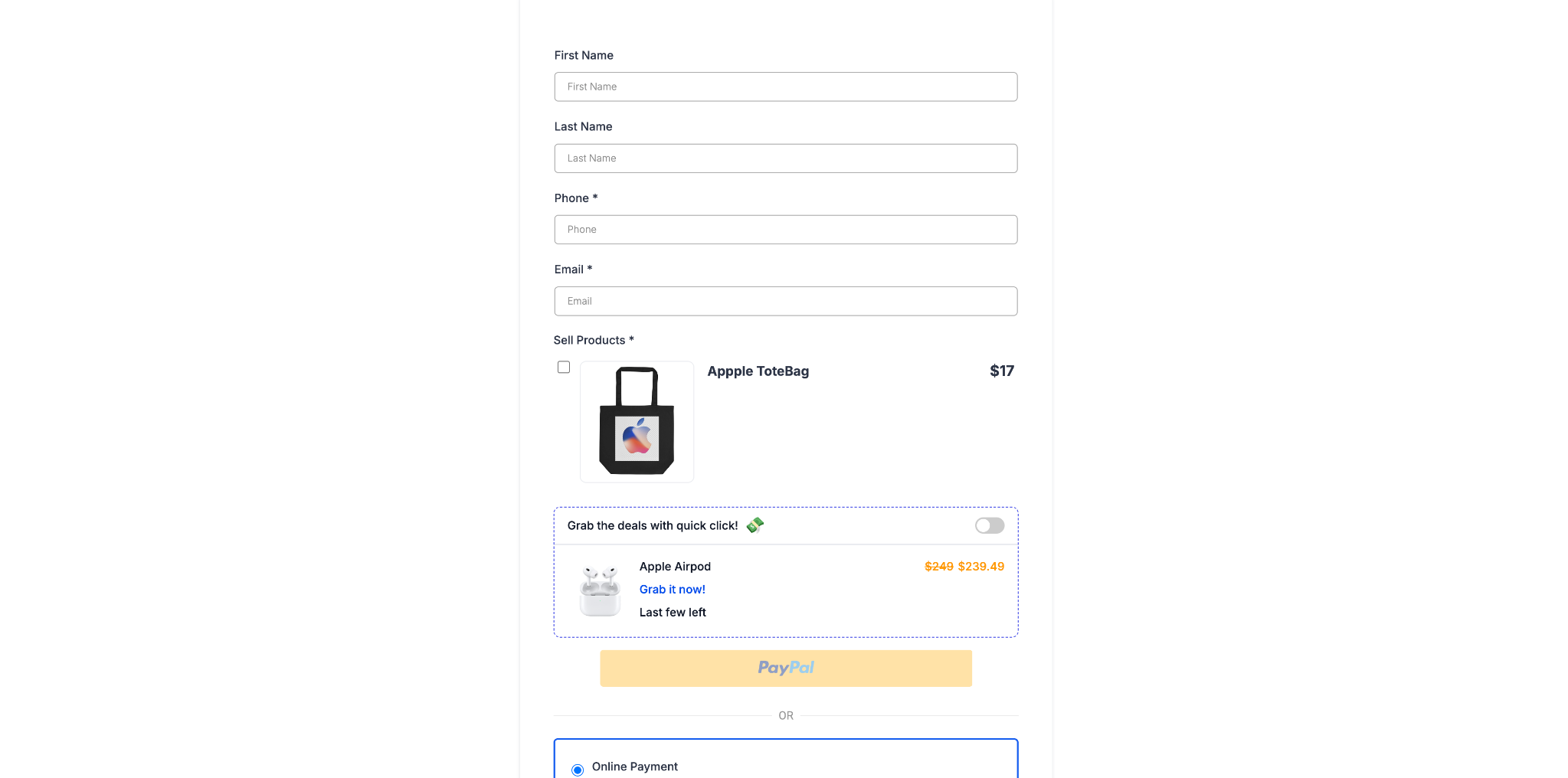
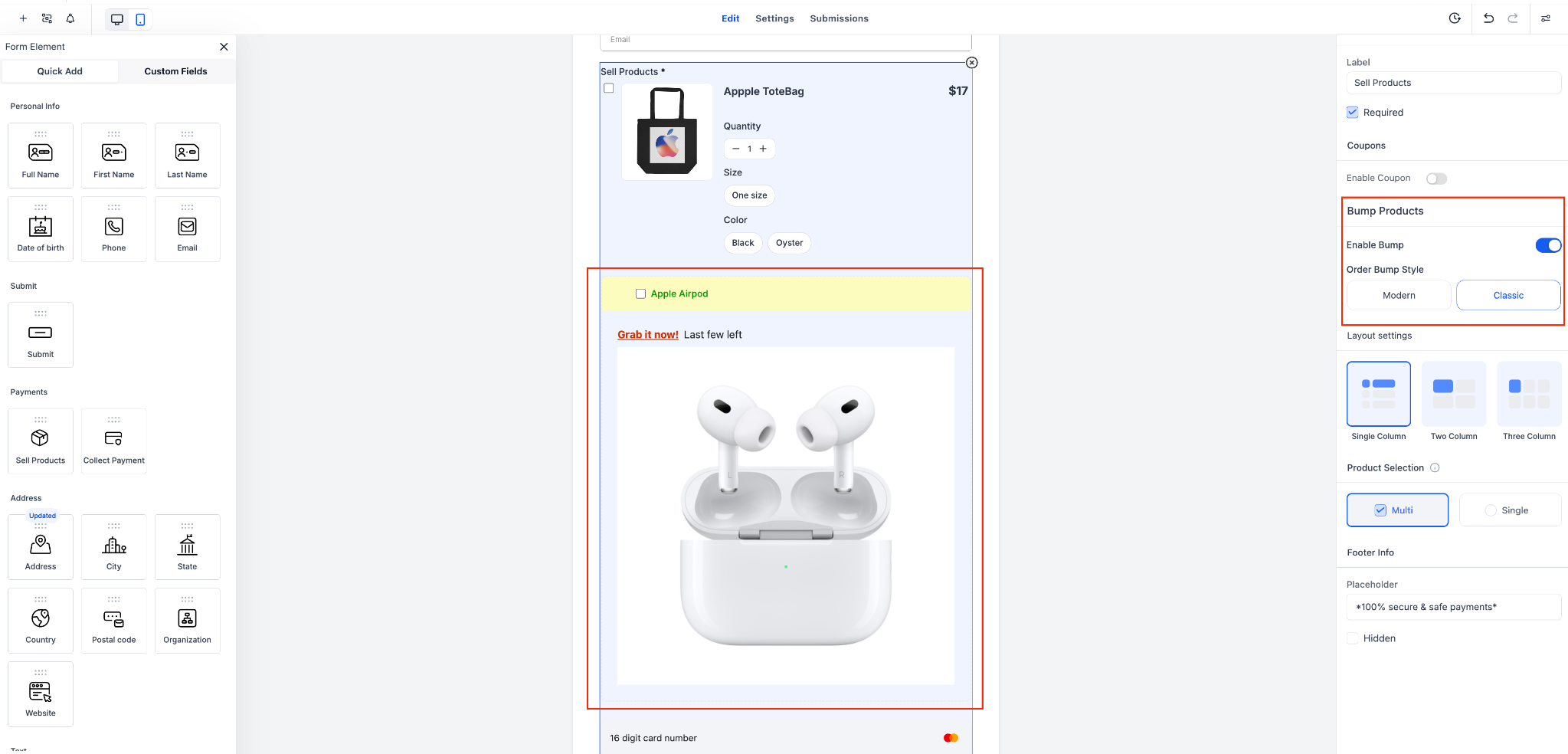
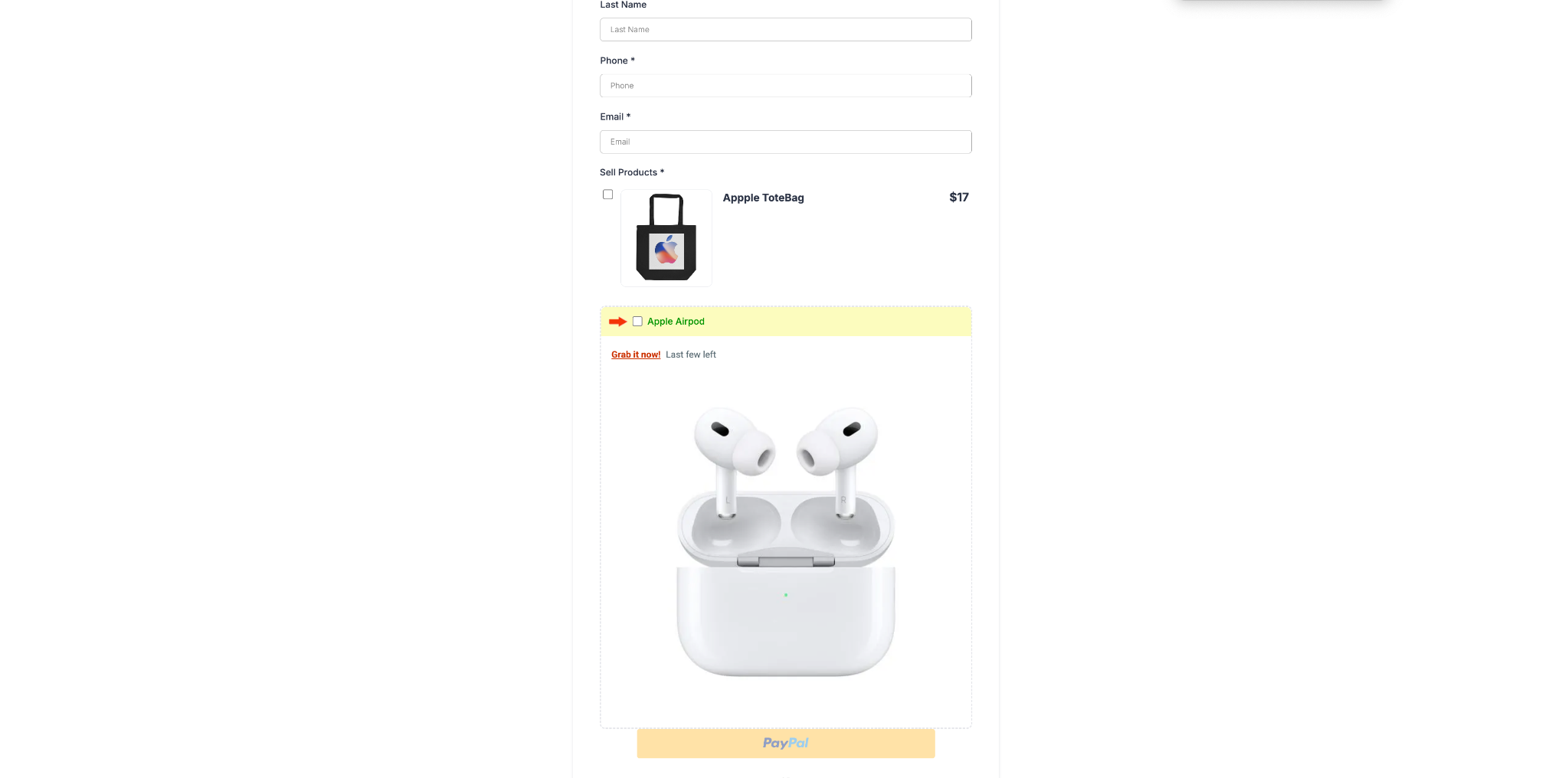
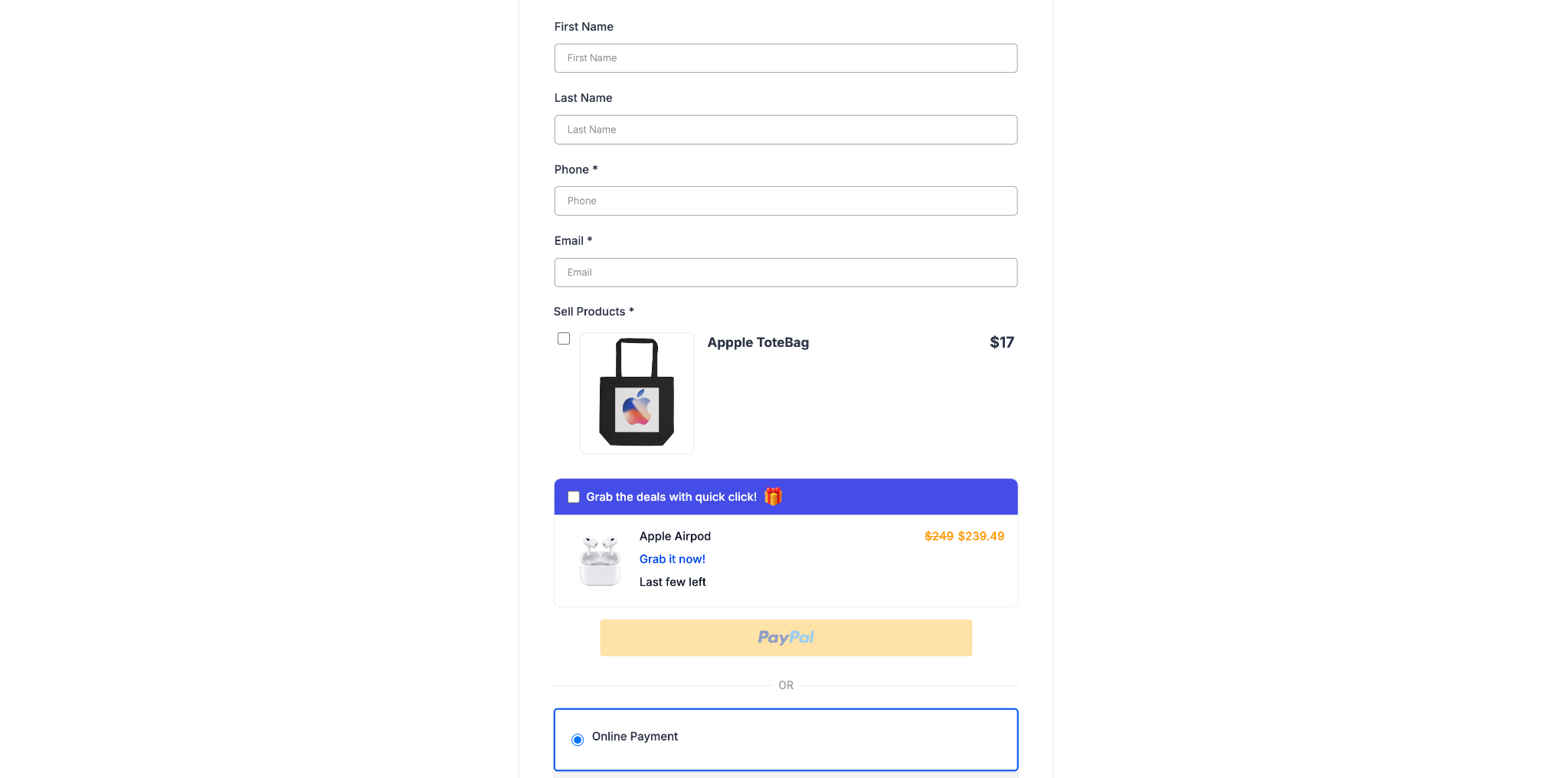
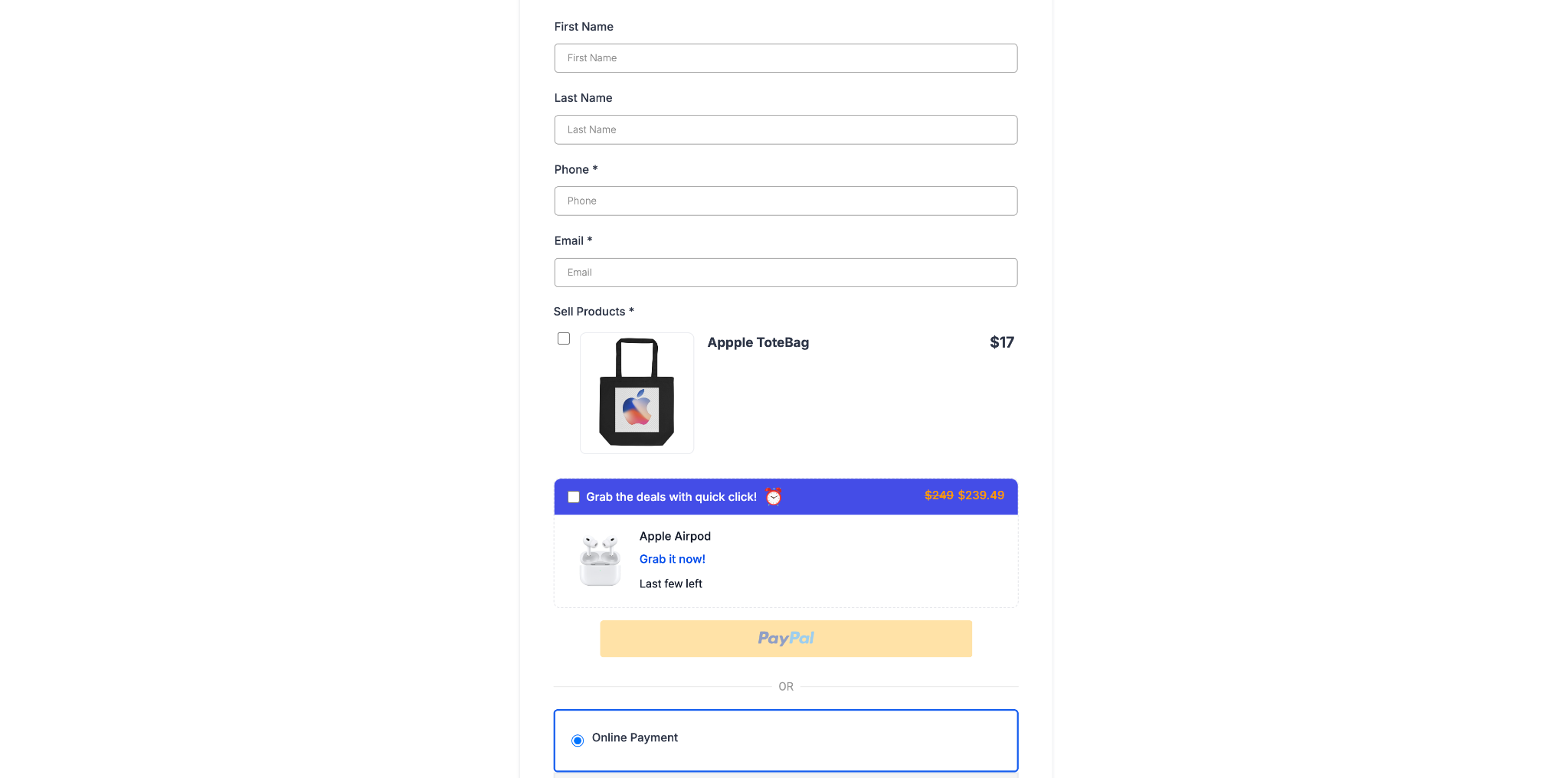
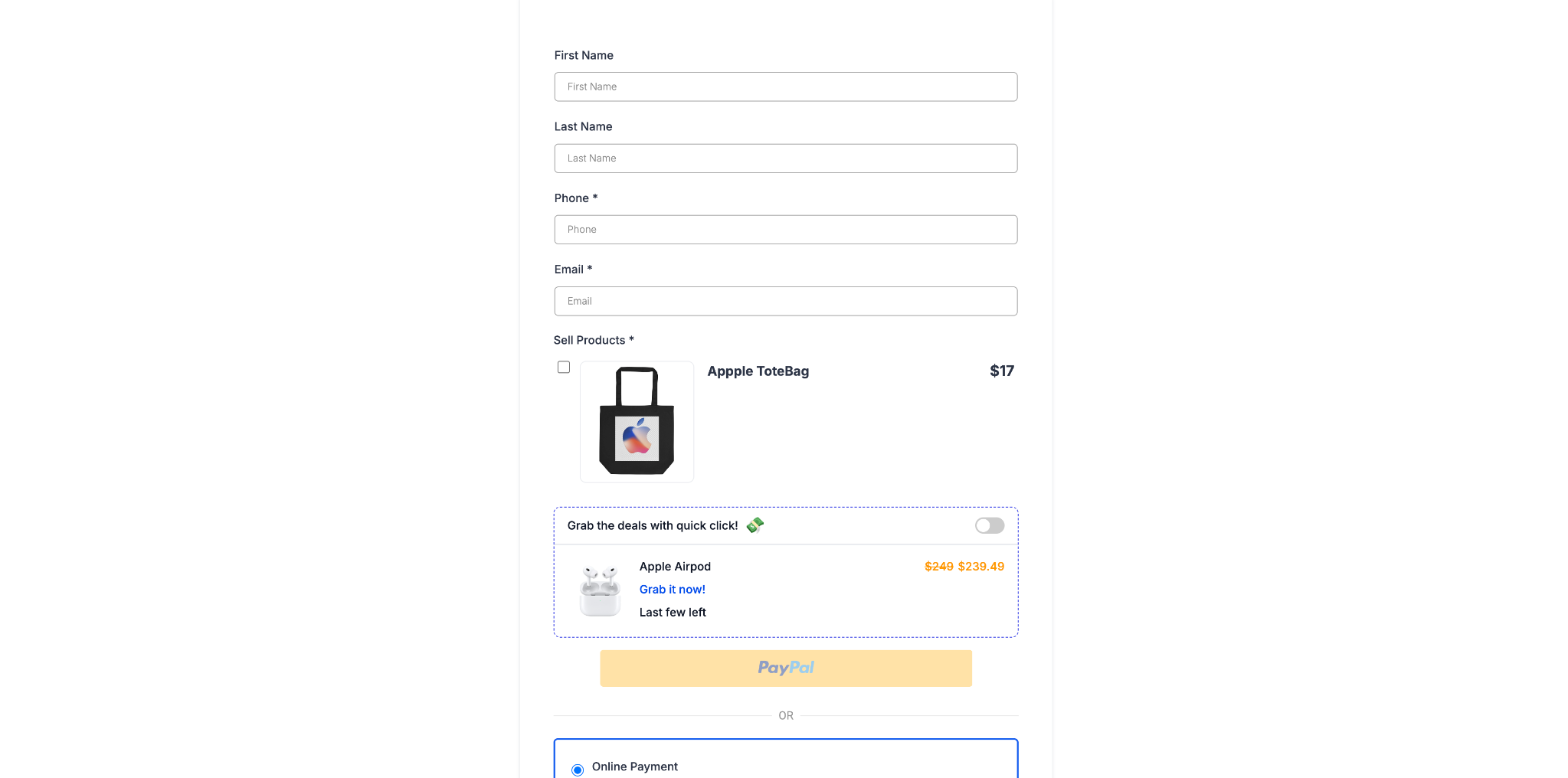
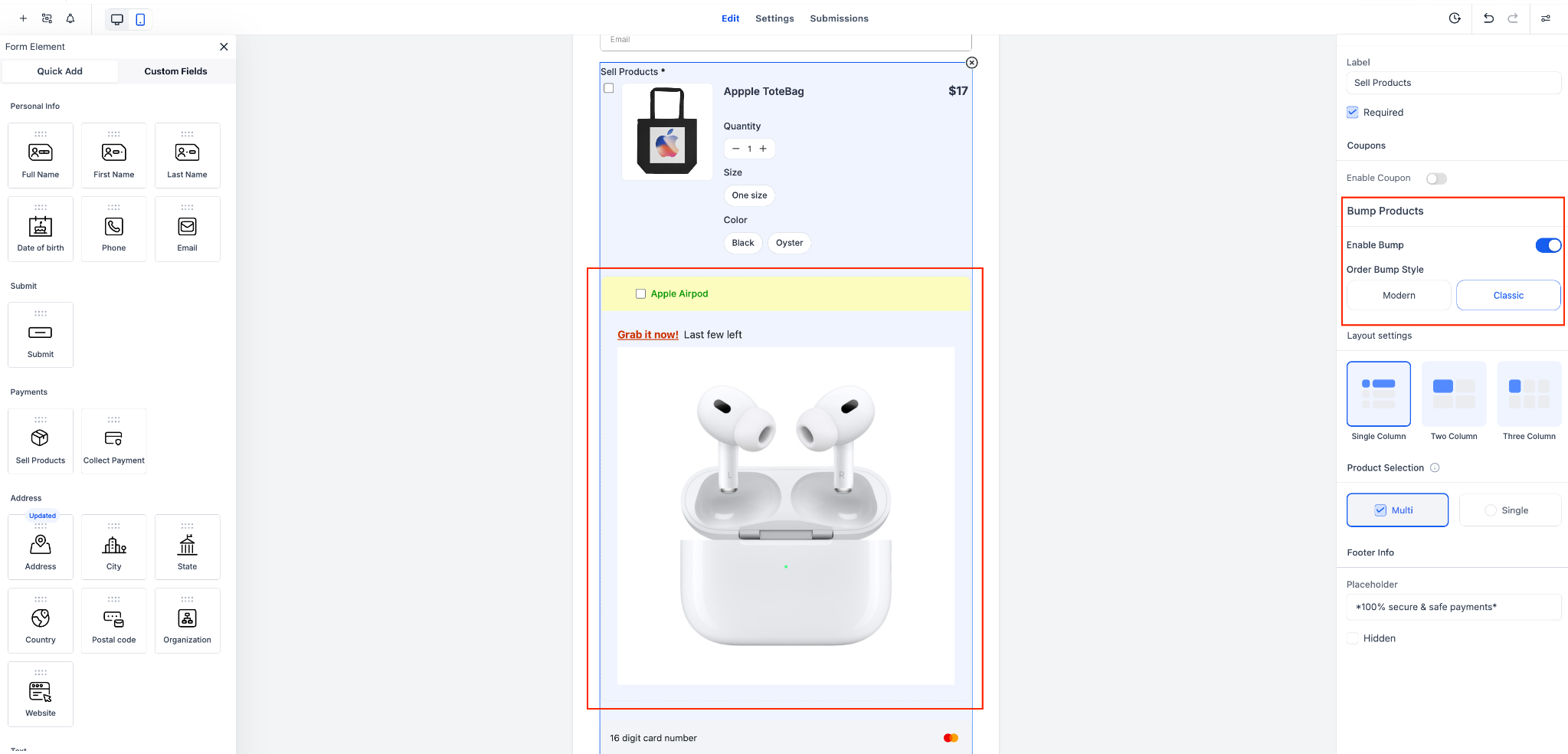
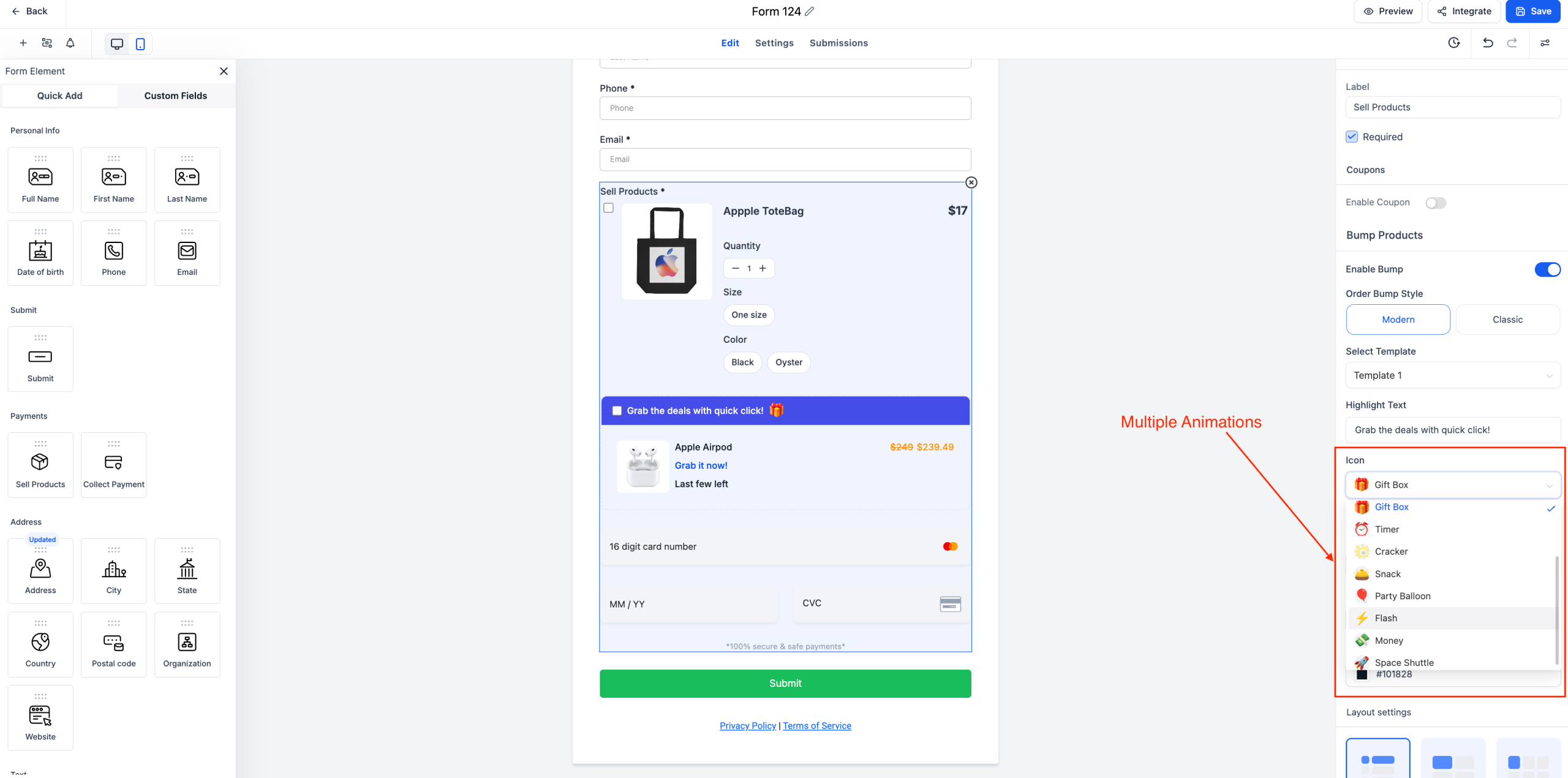
Classic & Modern Bump Styles: Choose between the traditional Classic view or a sleek Modern layout.
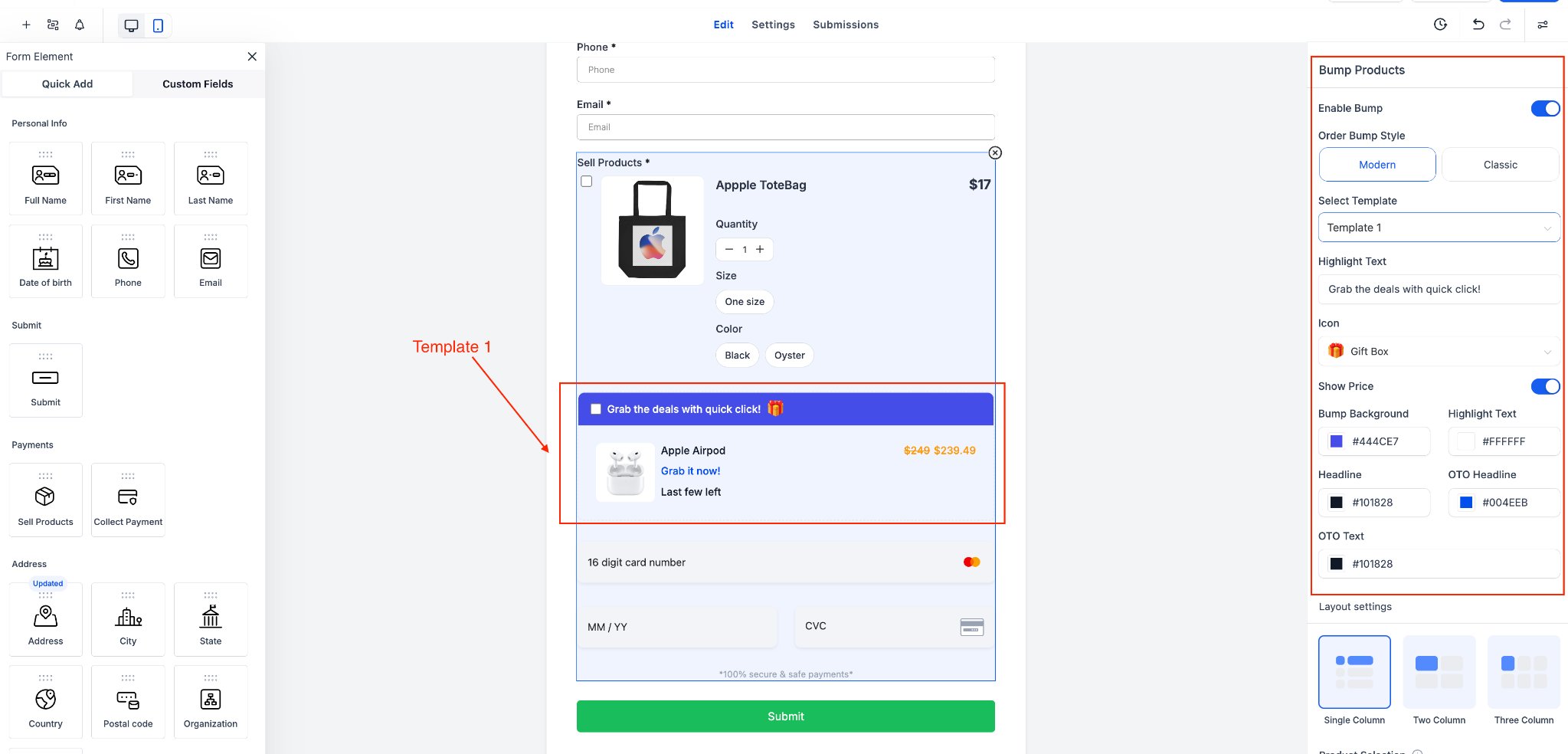
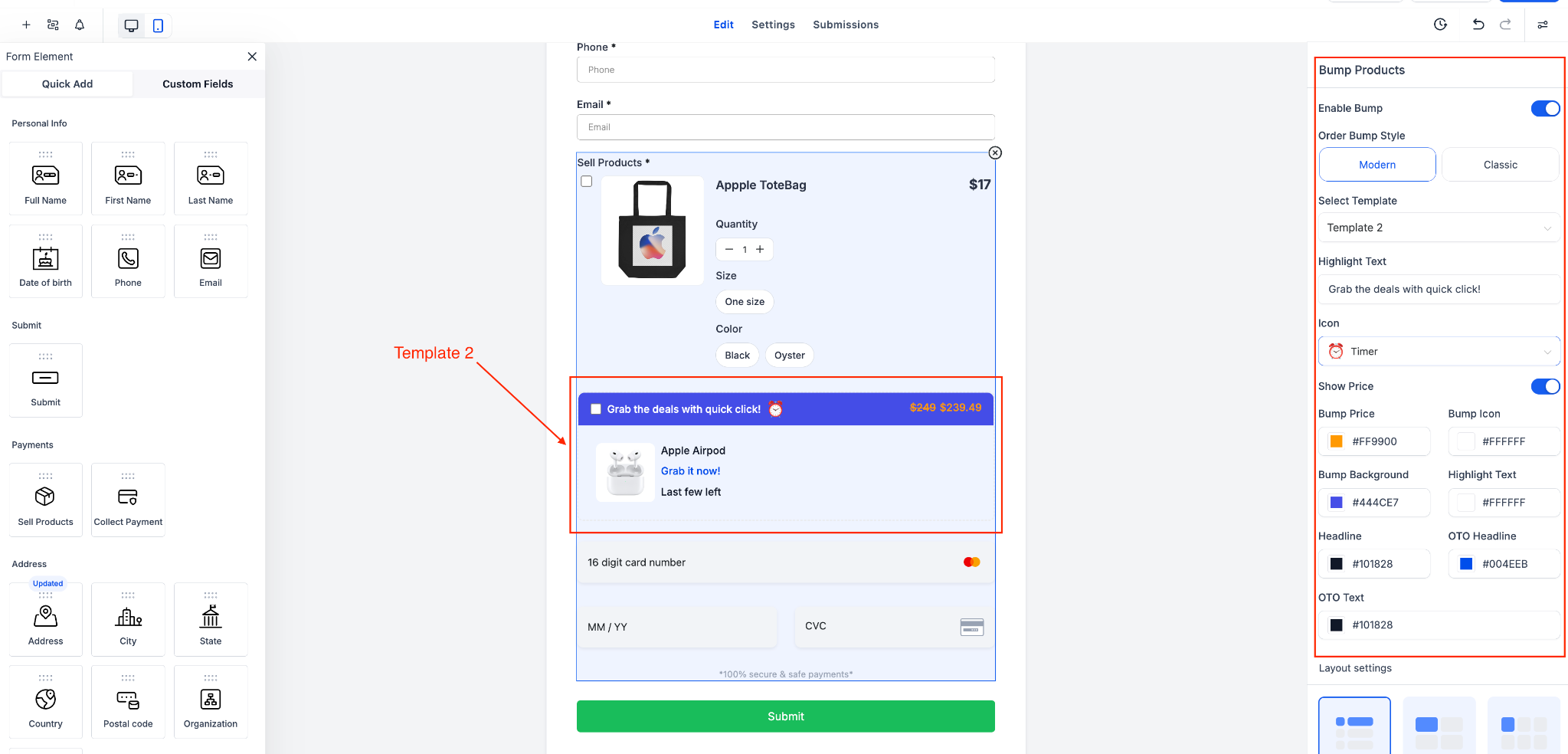
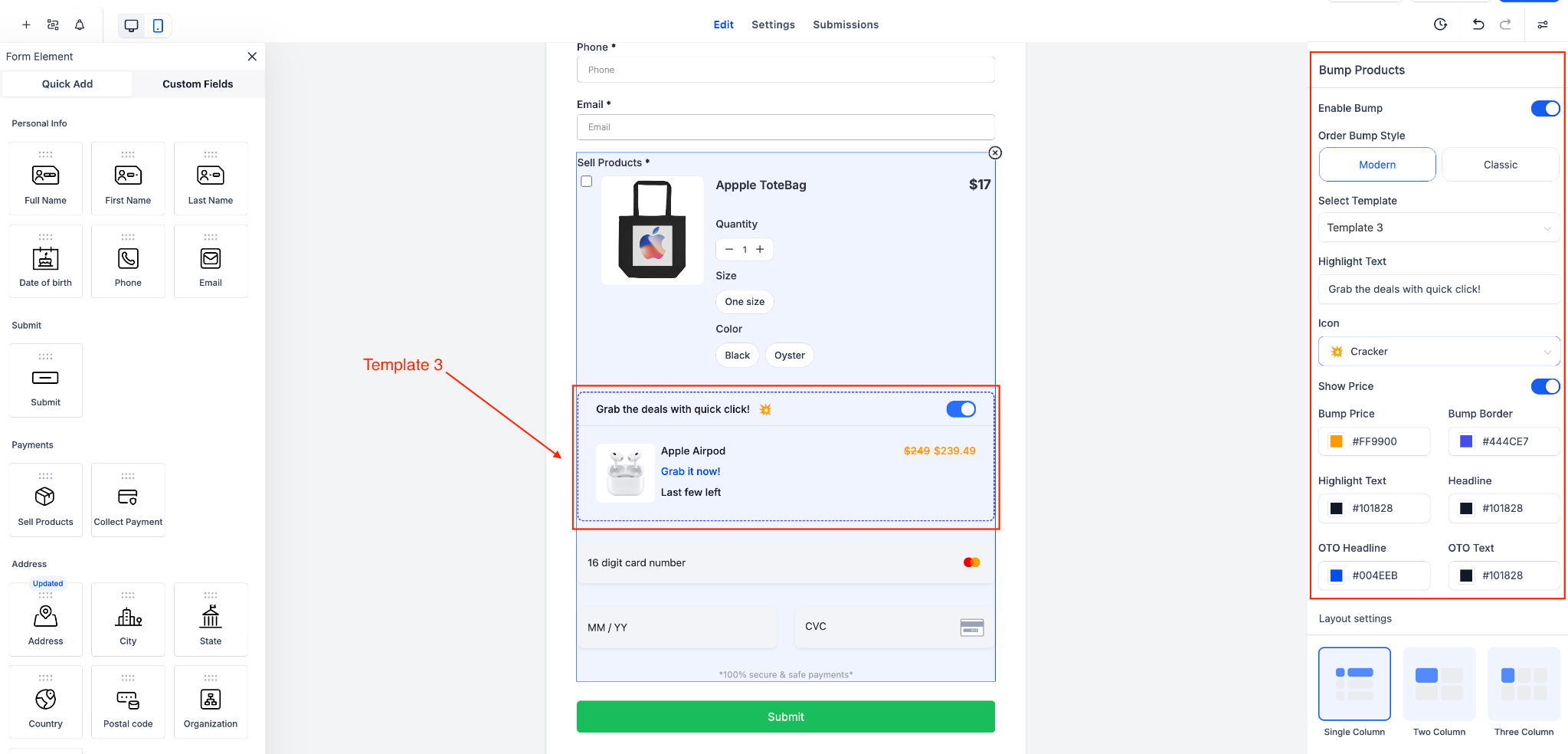
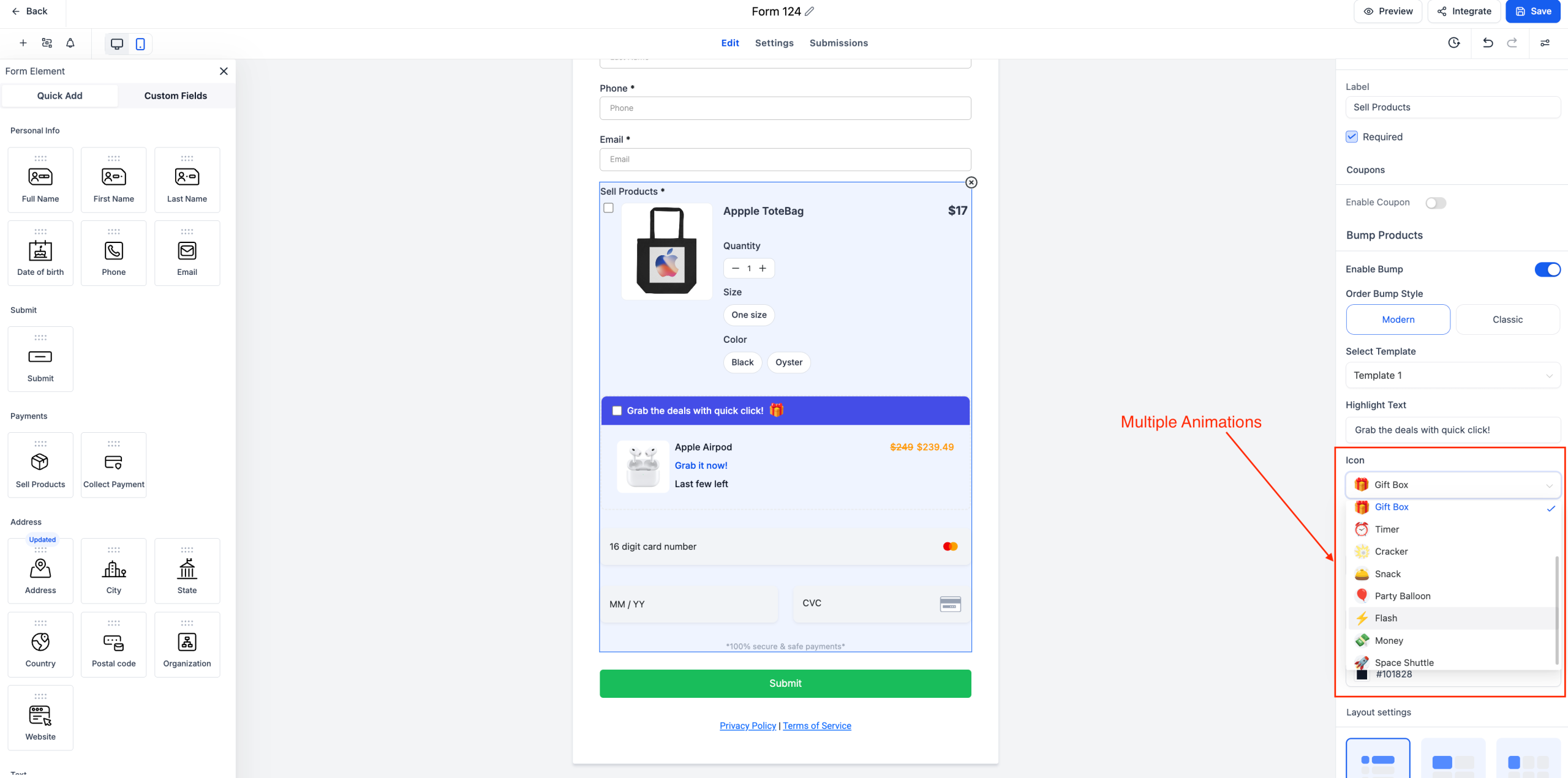
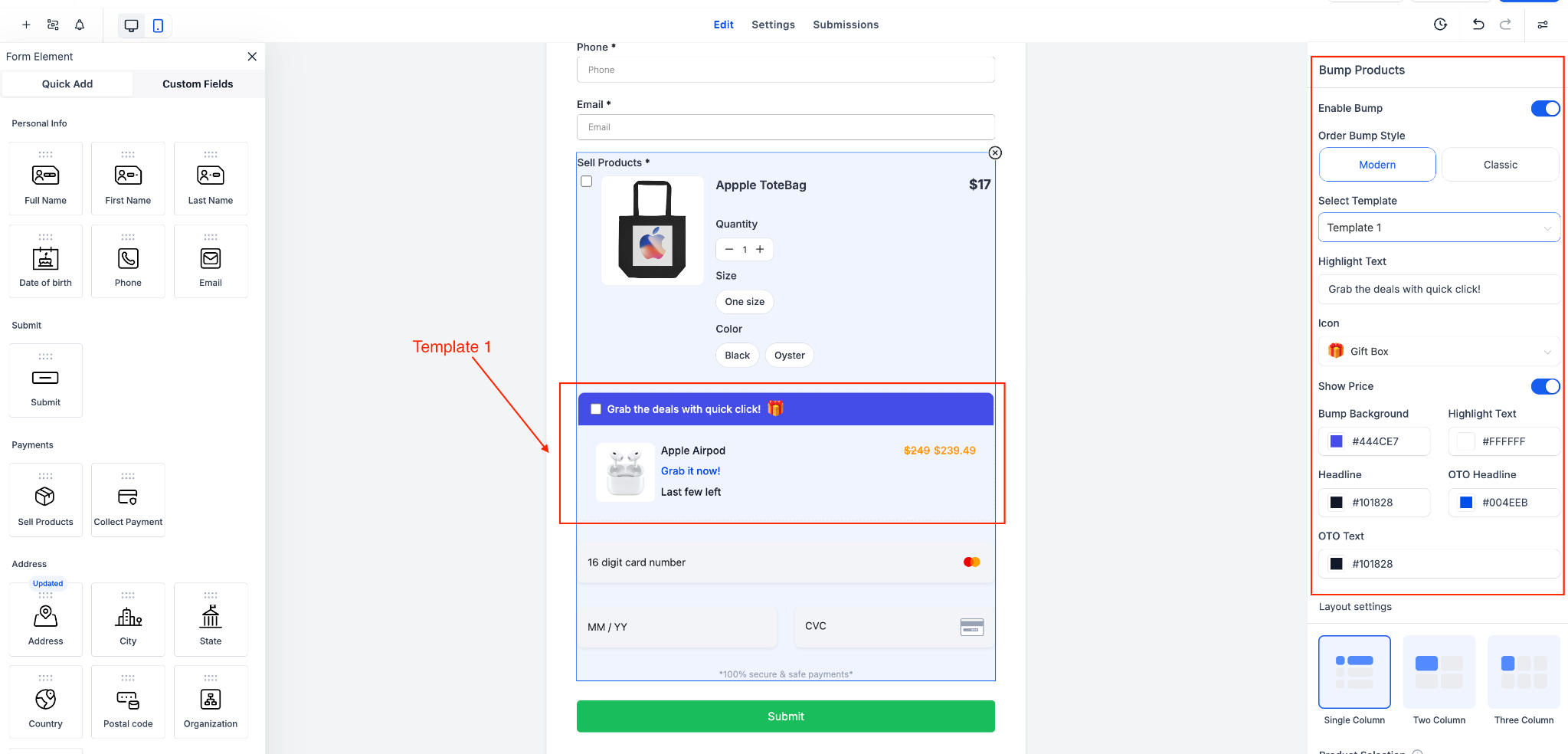
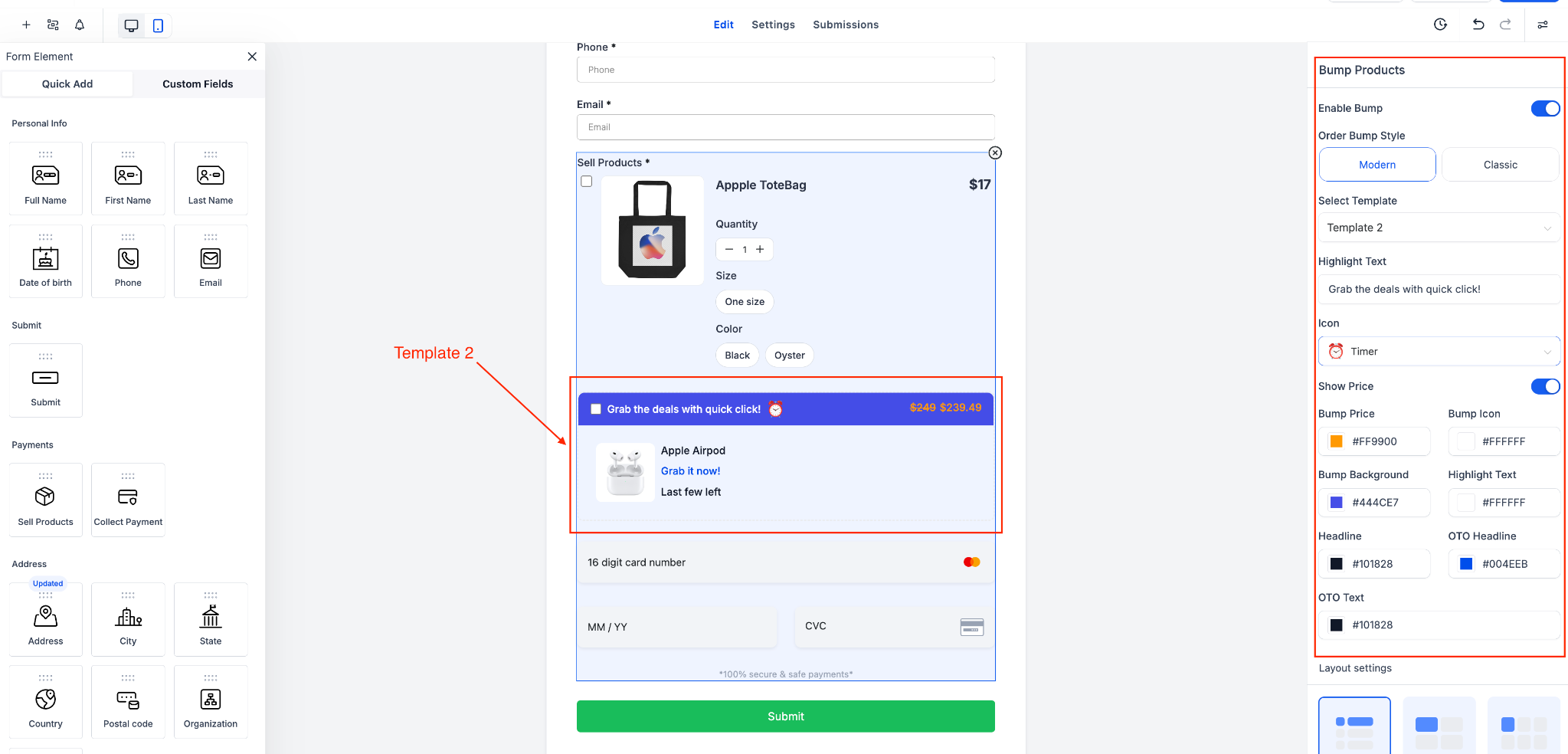
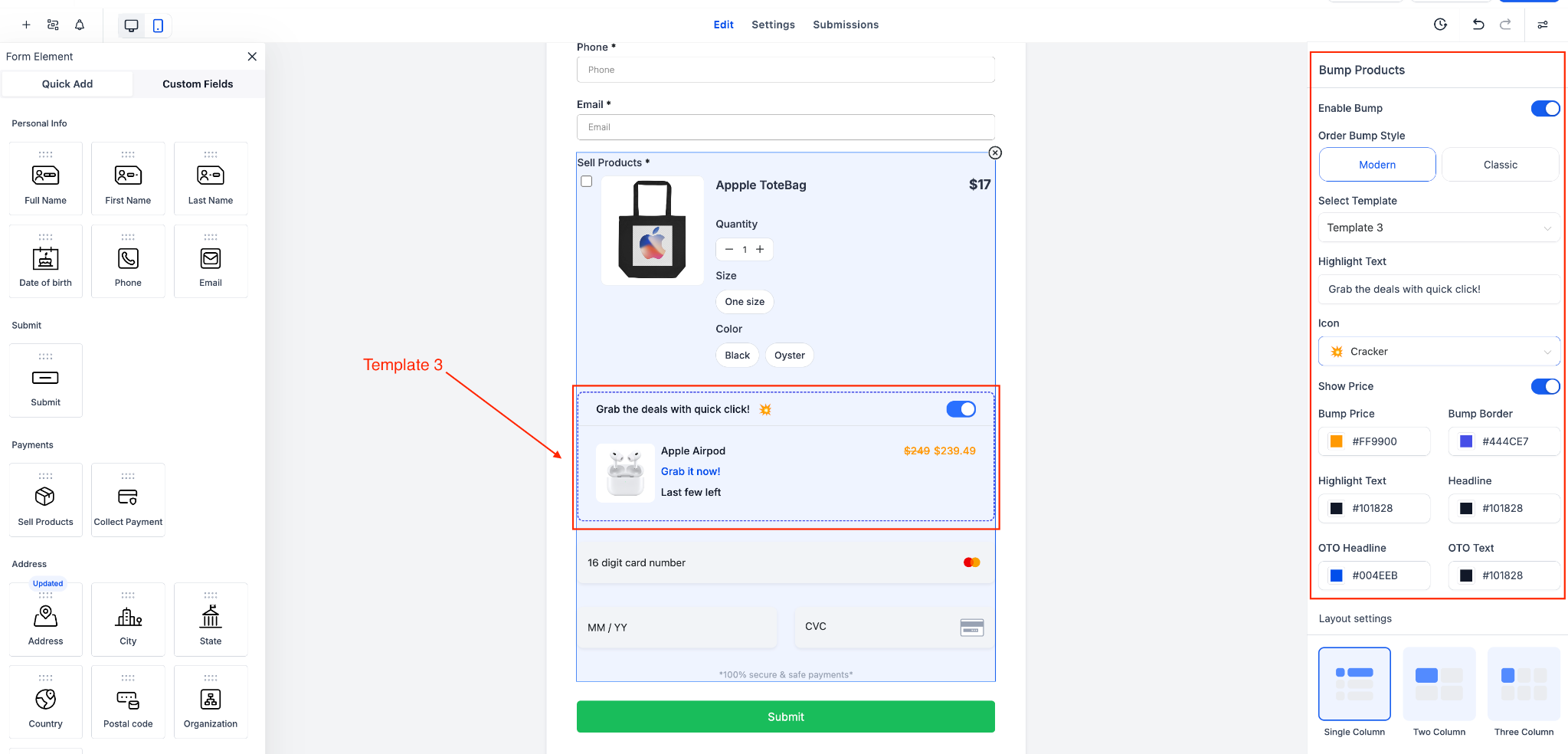
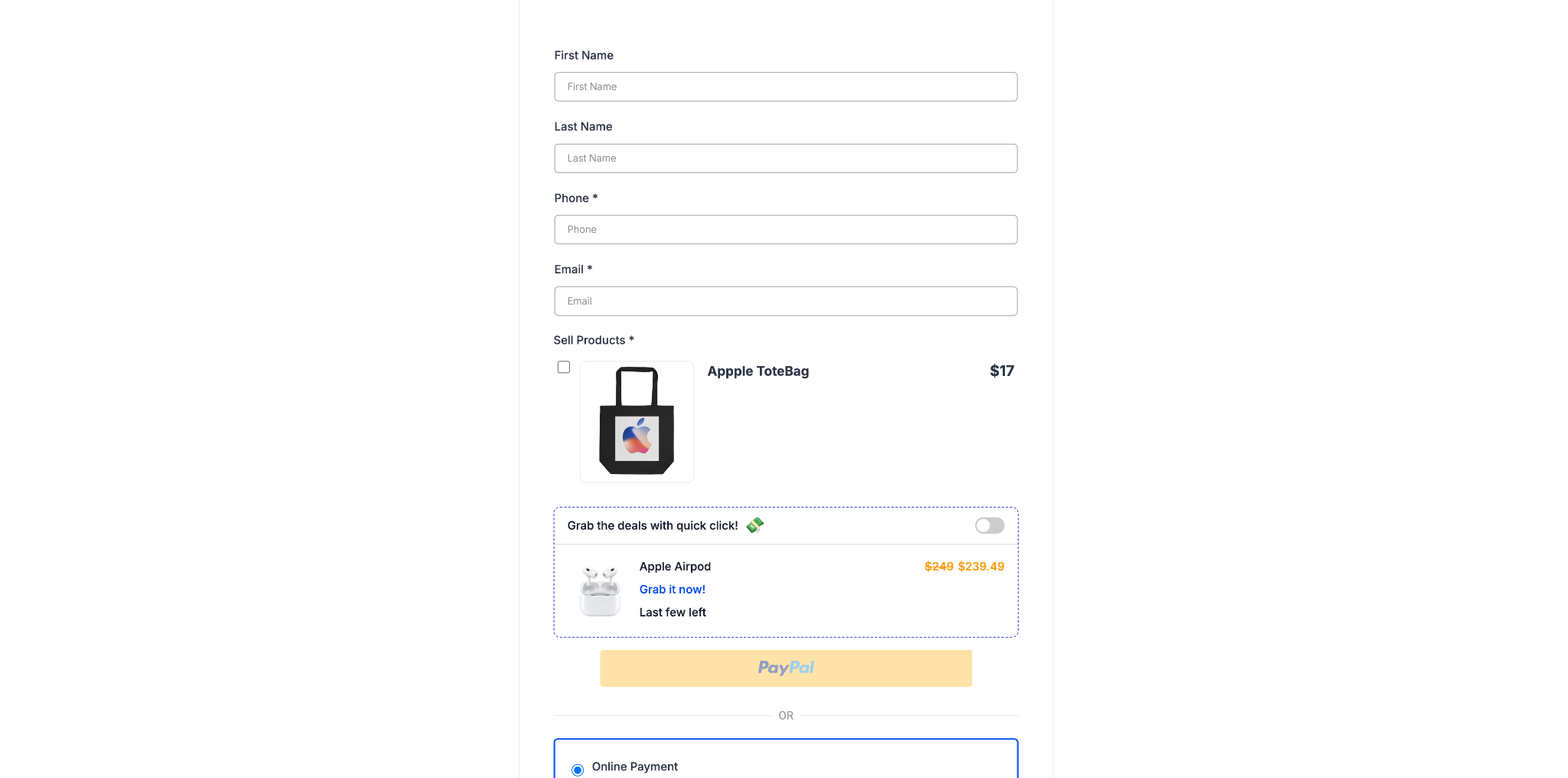
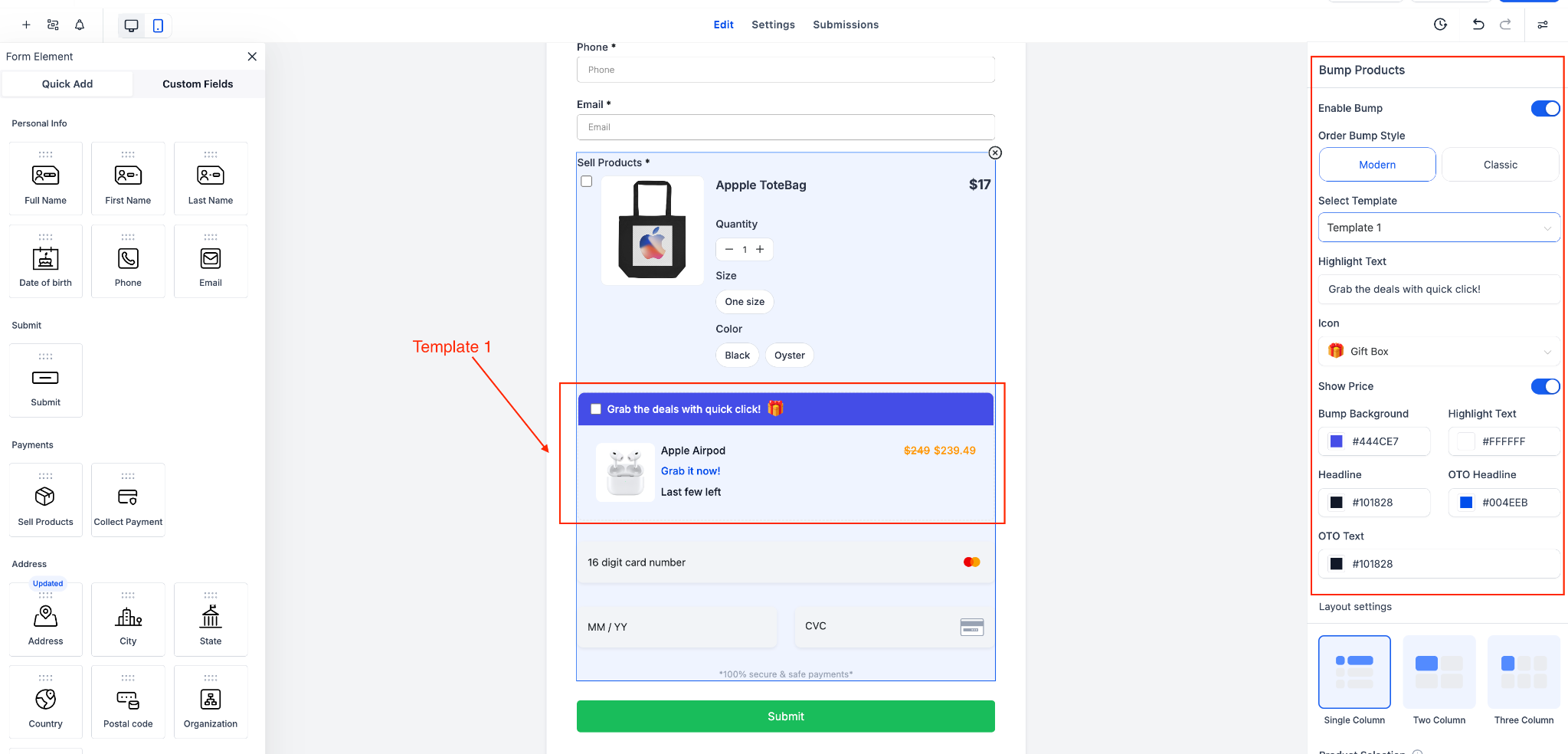
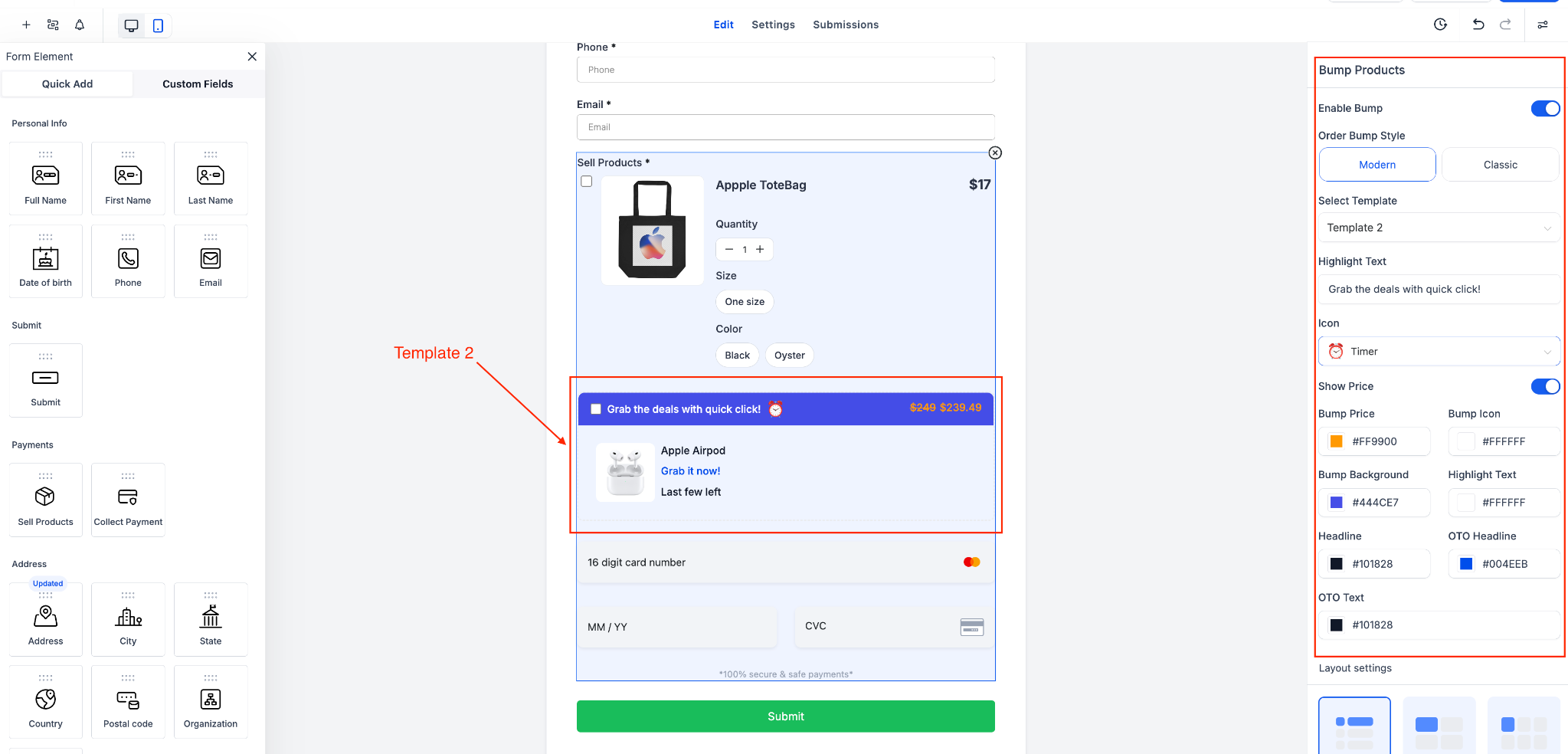
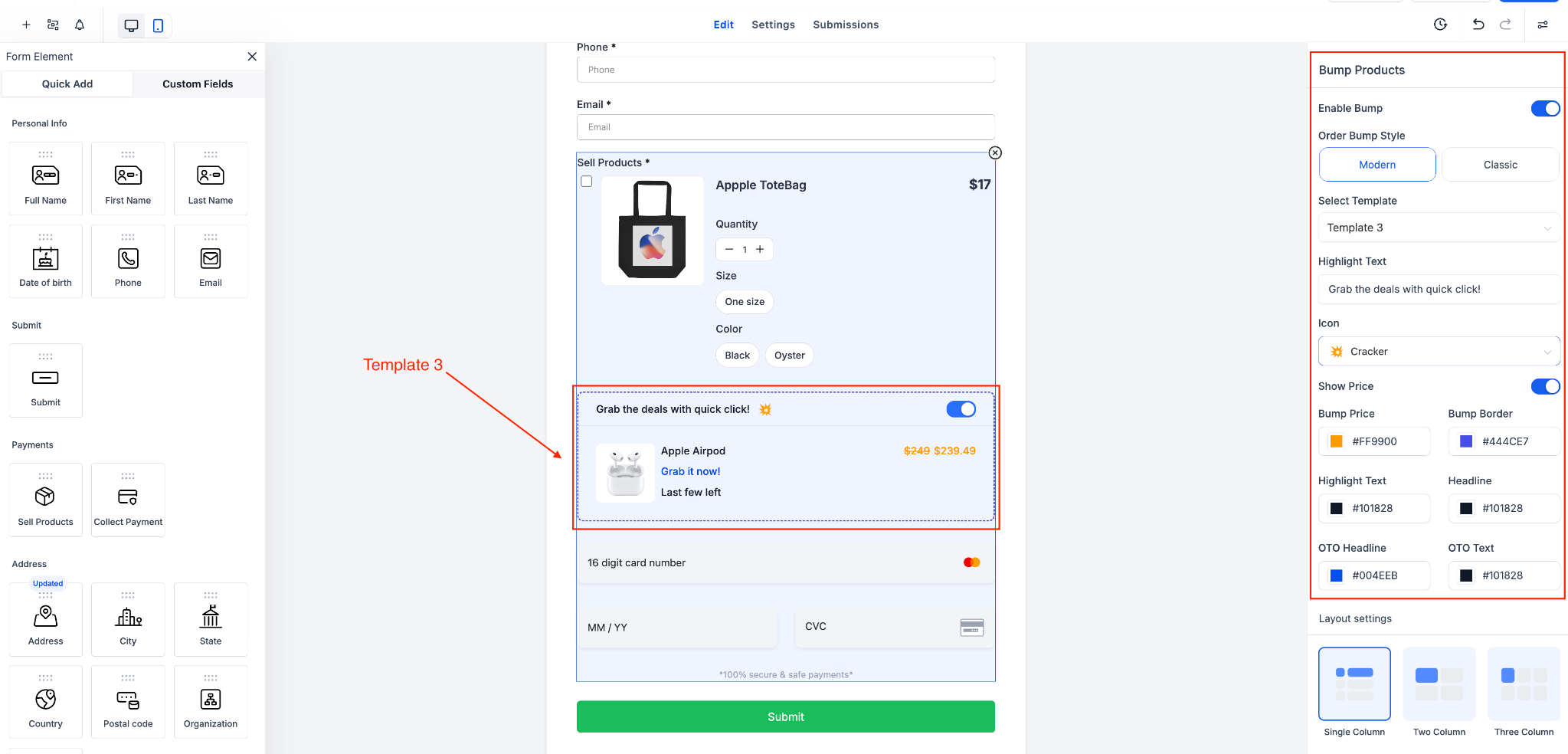
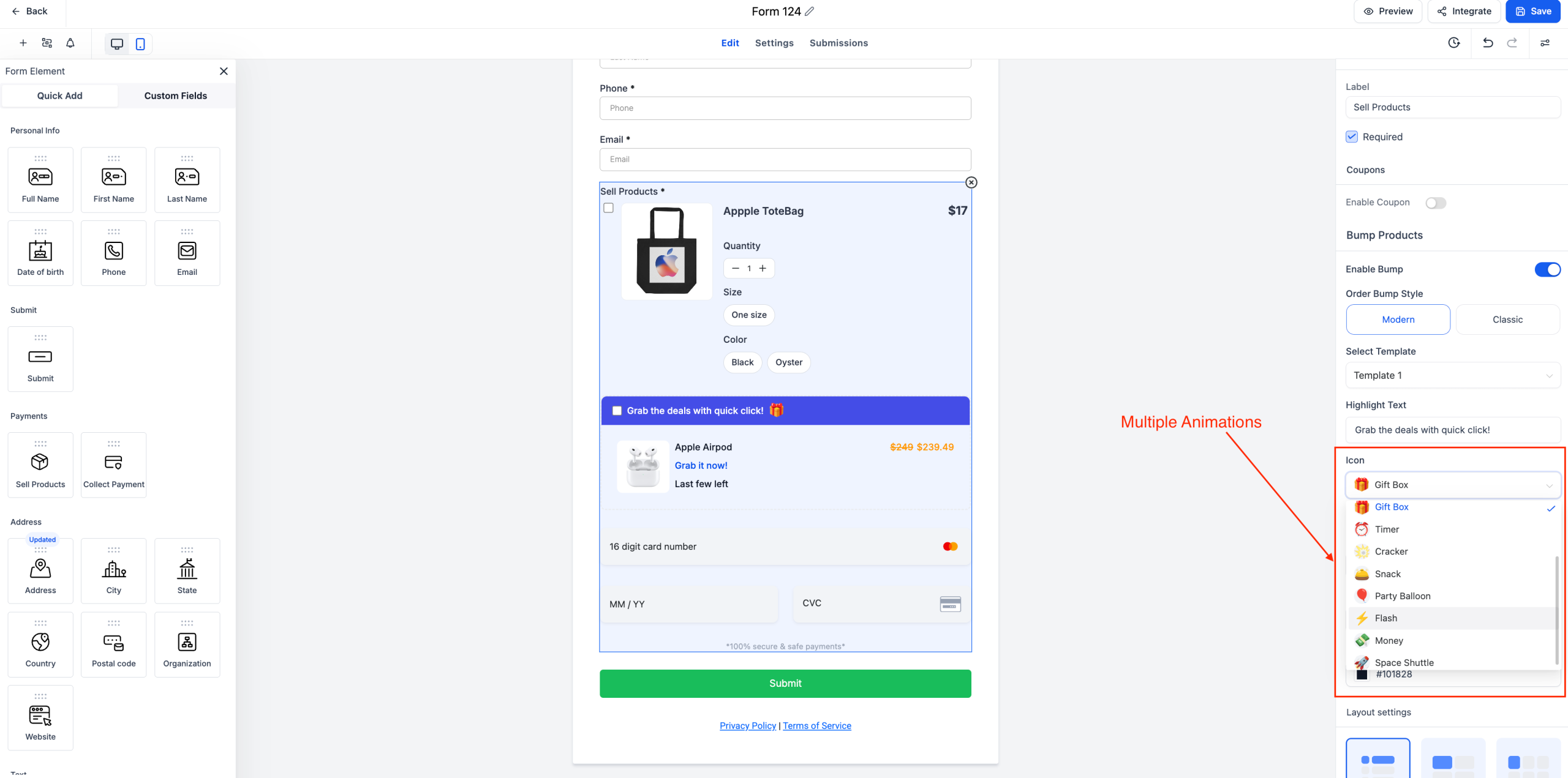
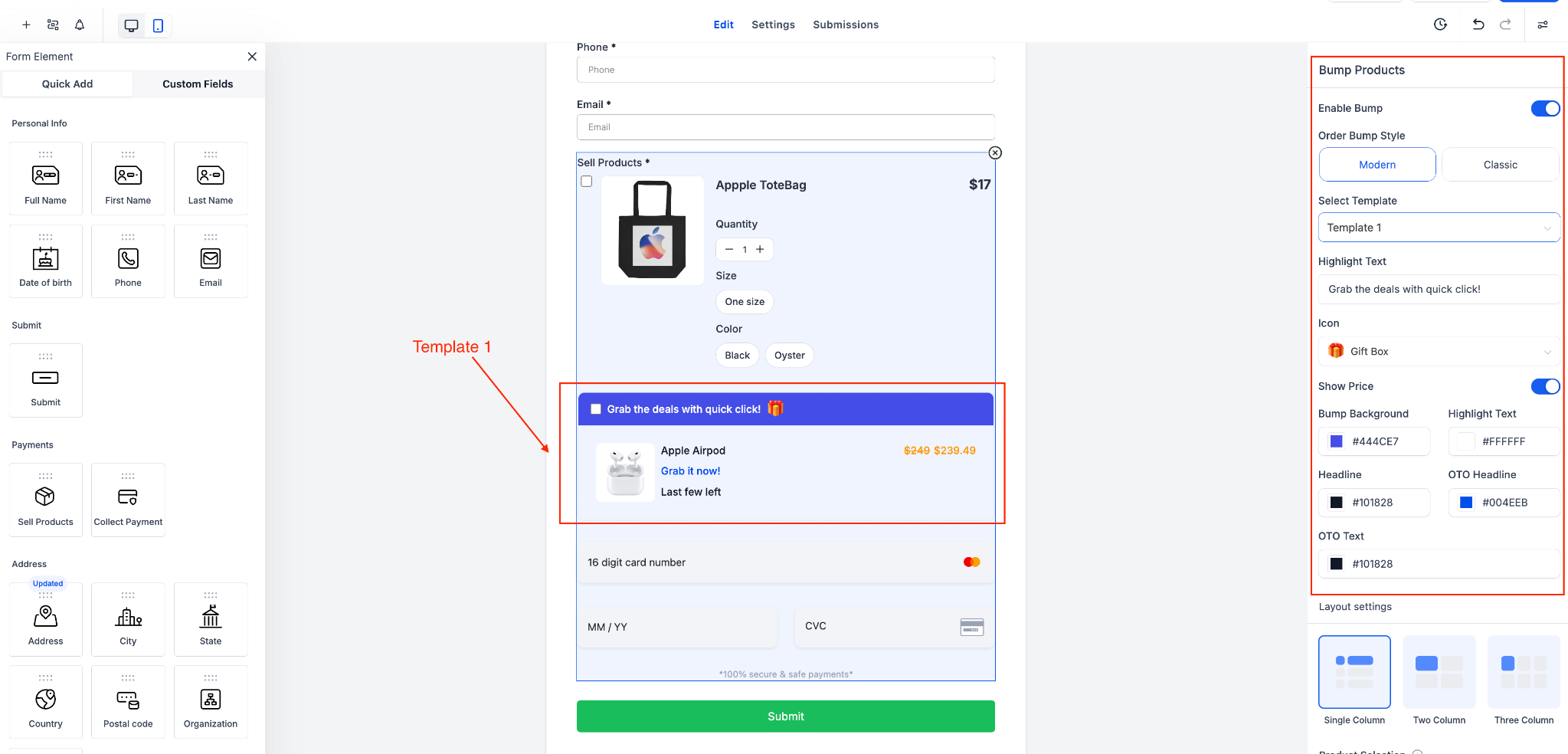
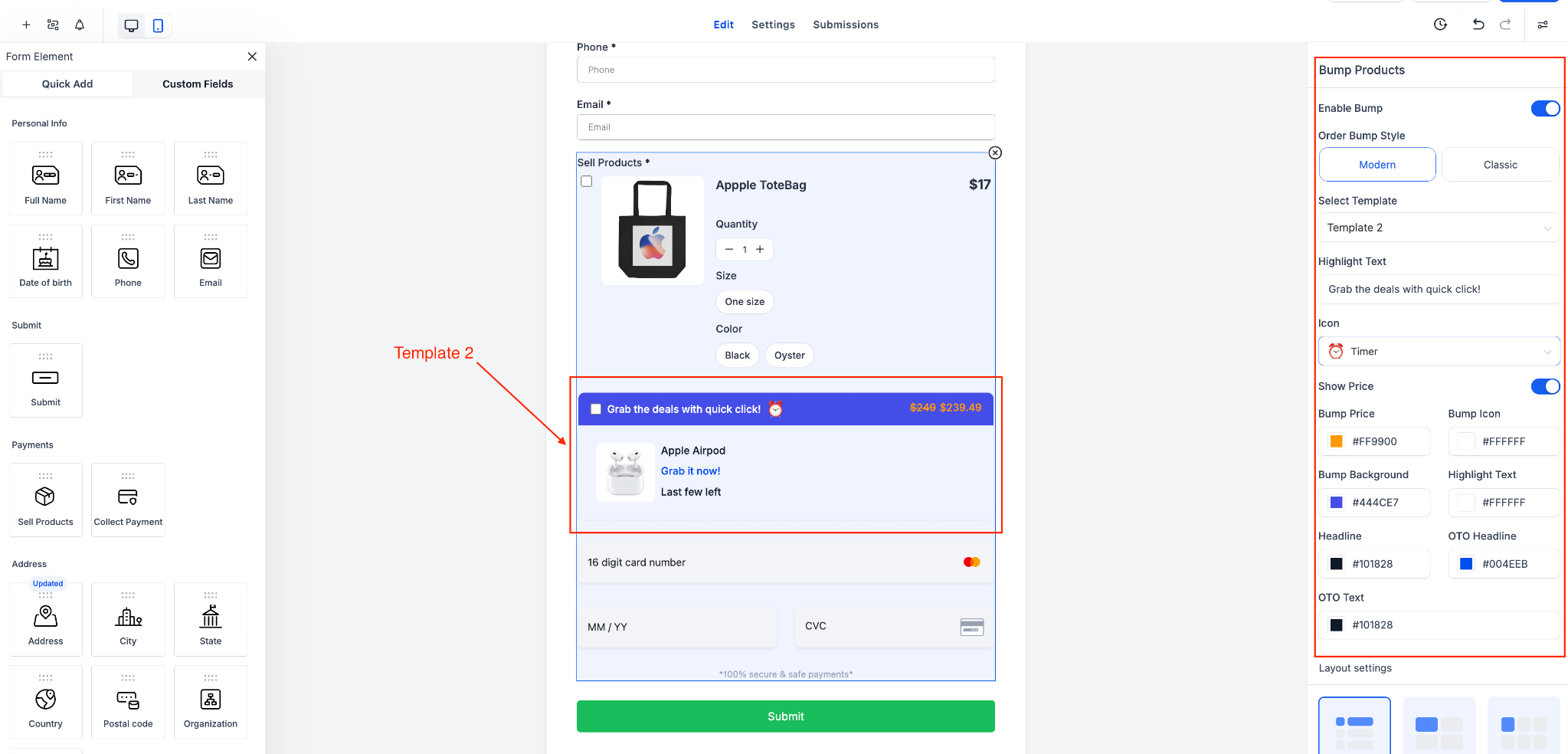
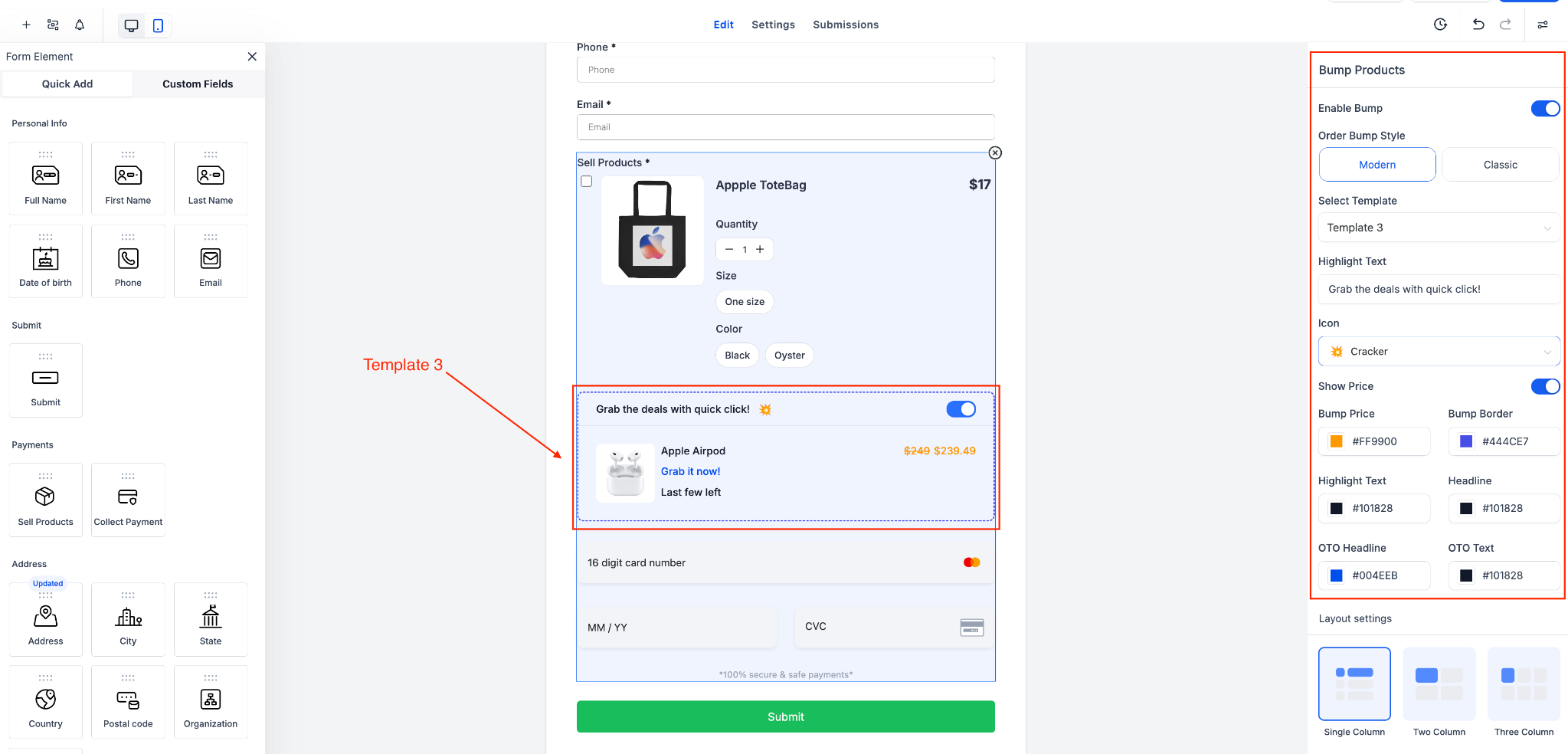
Multiple Templates: Select from Template 1, 2, or 3—each crafted to increase visibility and engagement.
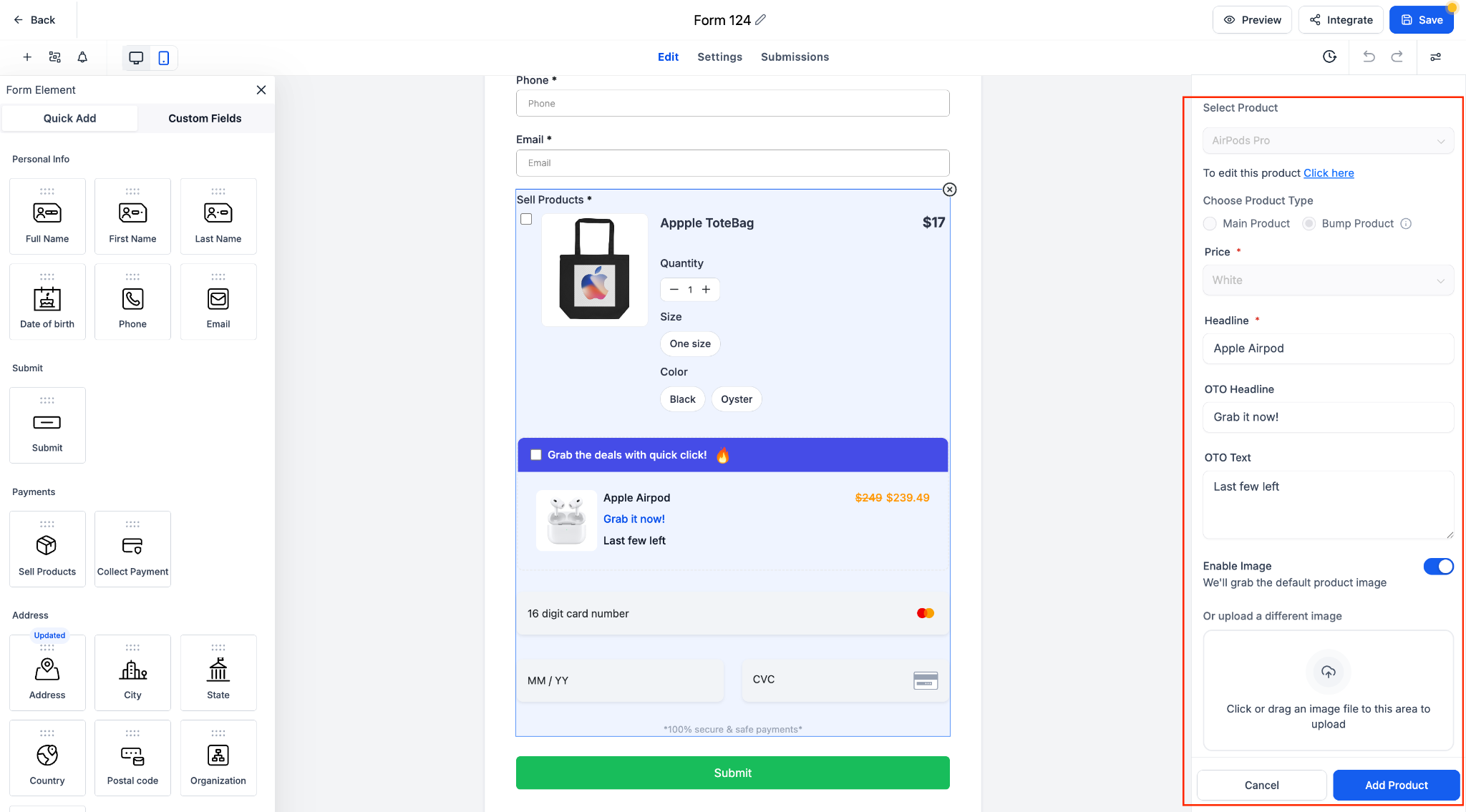
Custom Design Options: Modify bump colors, icons, highlight text, borders, pricing display, and more.
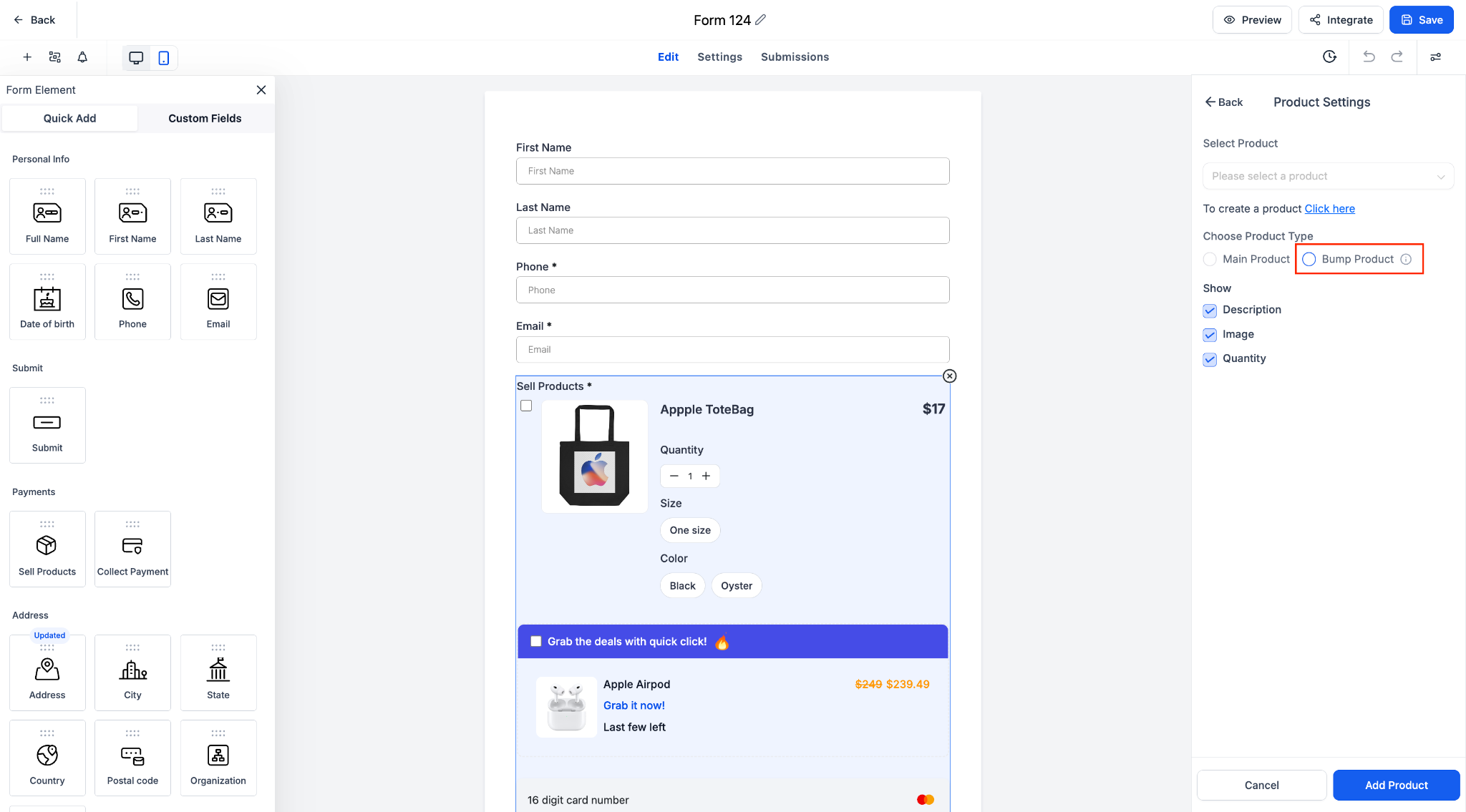
Supports Multiple Bump Products: Add more than one bump product to a single form or survey.
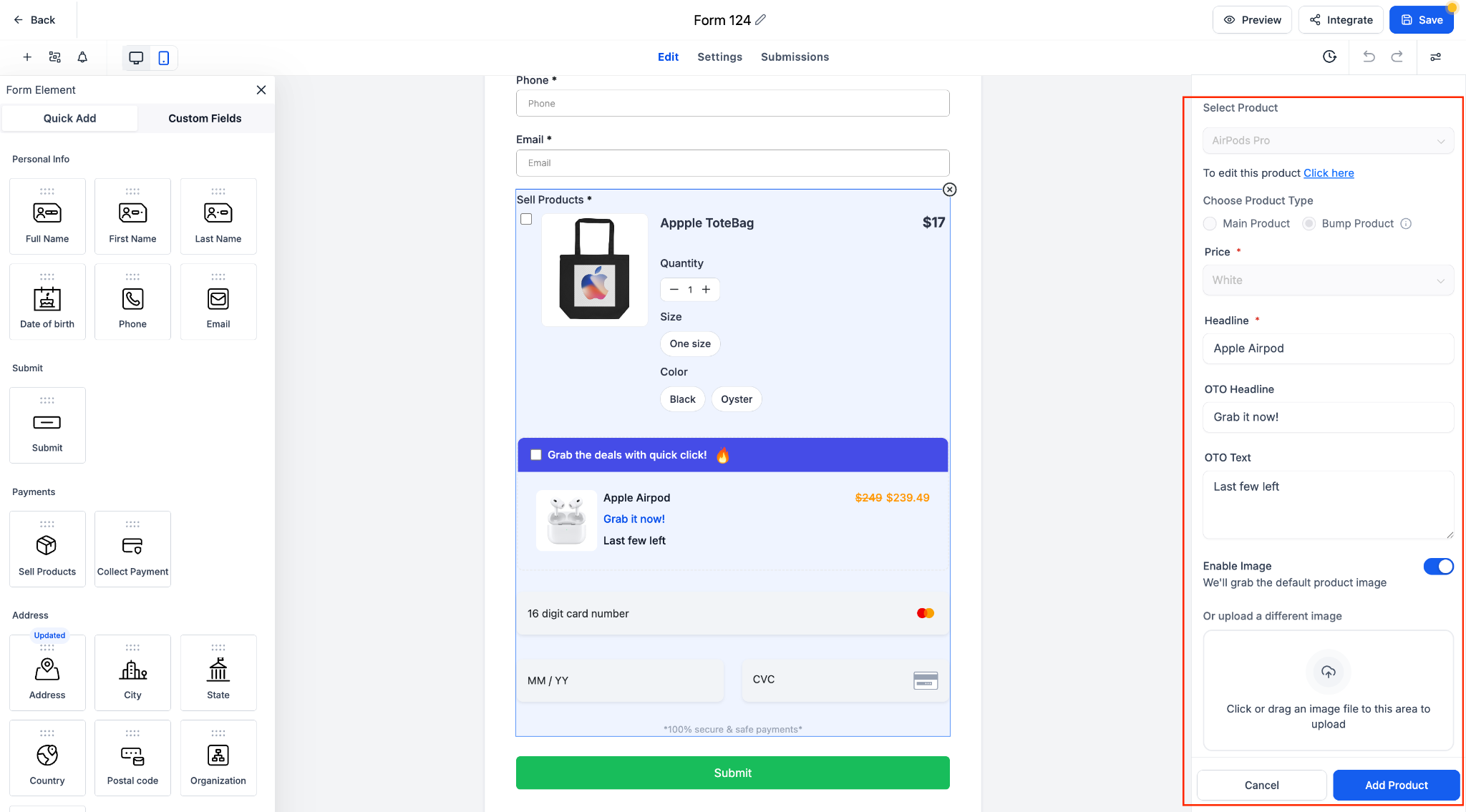
Recurring Product Logic: Either the main product or a bump product can be set as recurring, but not both simultaneously.
Toggle & Reorder: Activate or deactivate bump products with ease and arrange their order to suit your needs.
How It Works
1. Insert a Sell Product field into your form or survey.
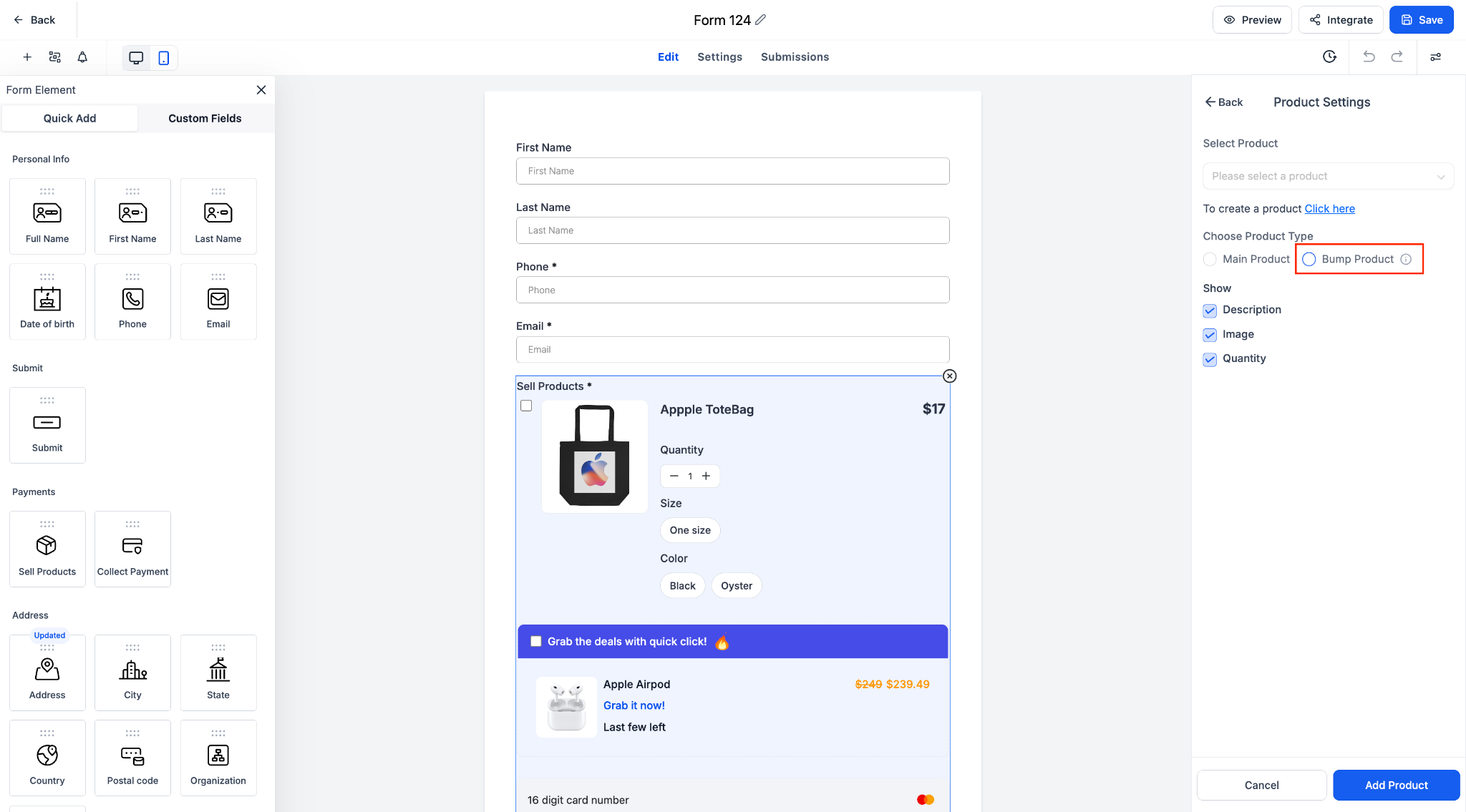
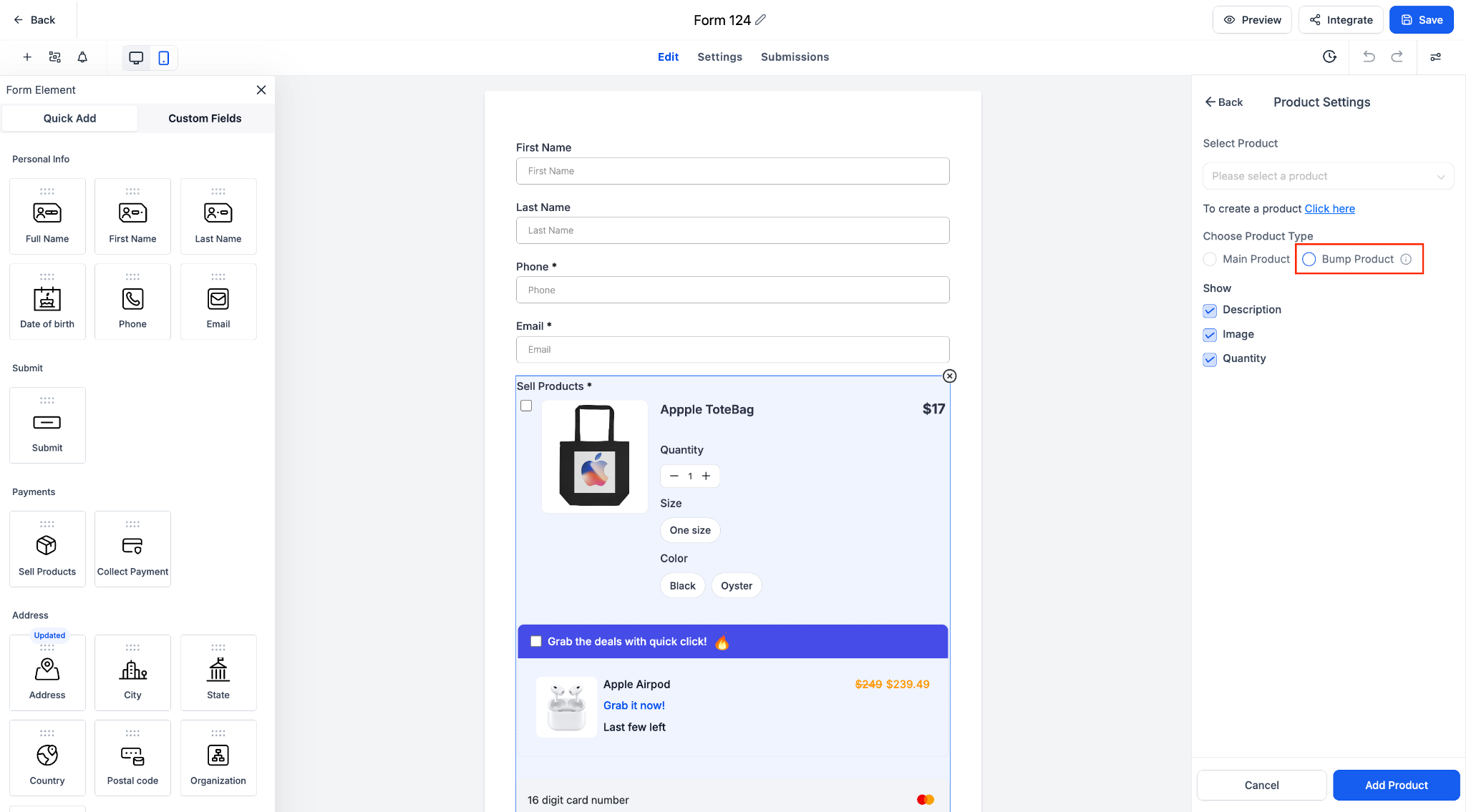
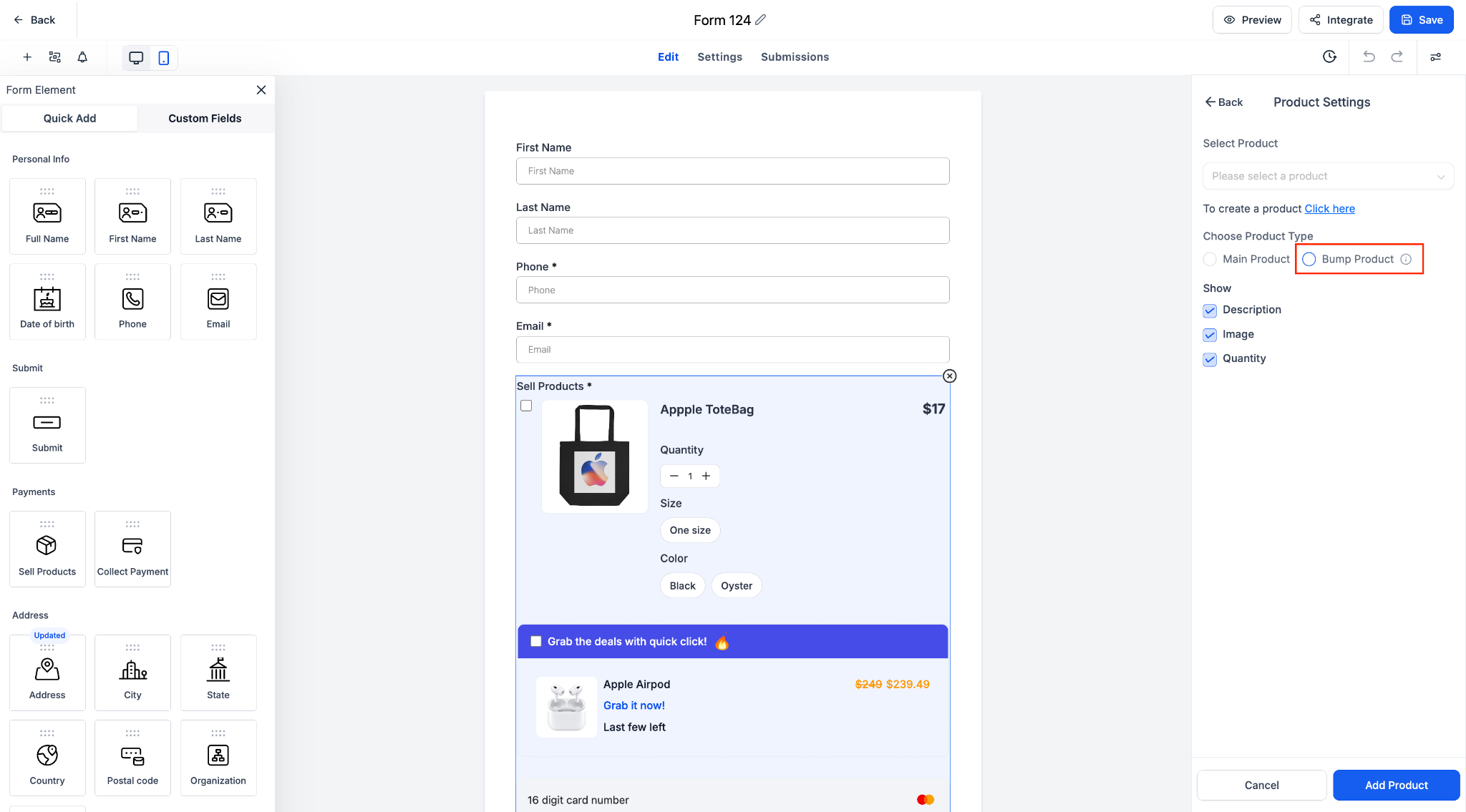
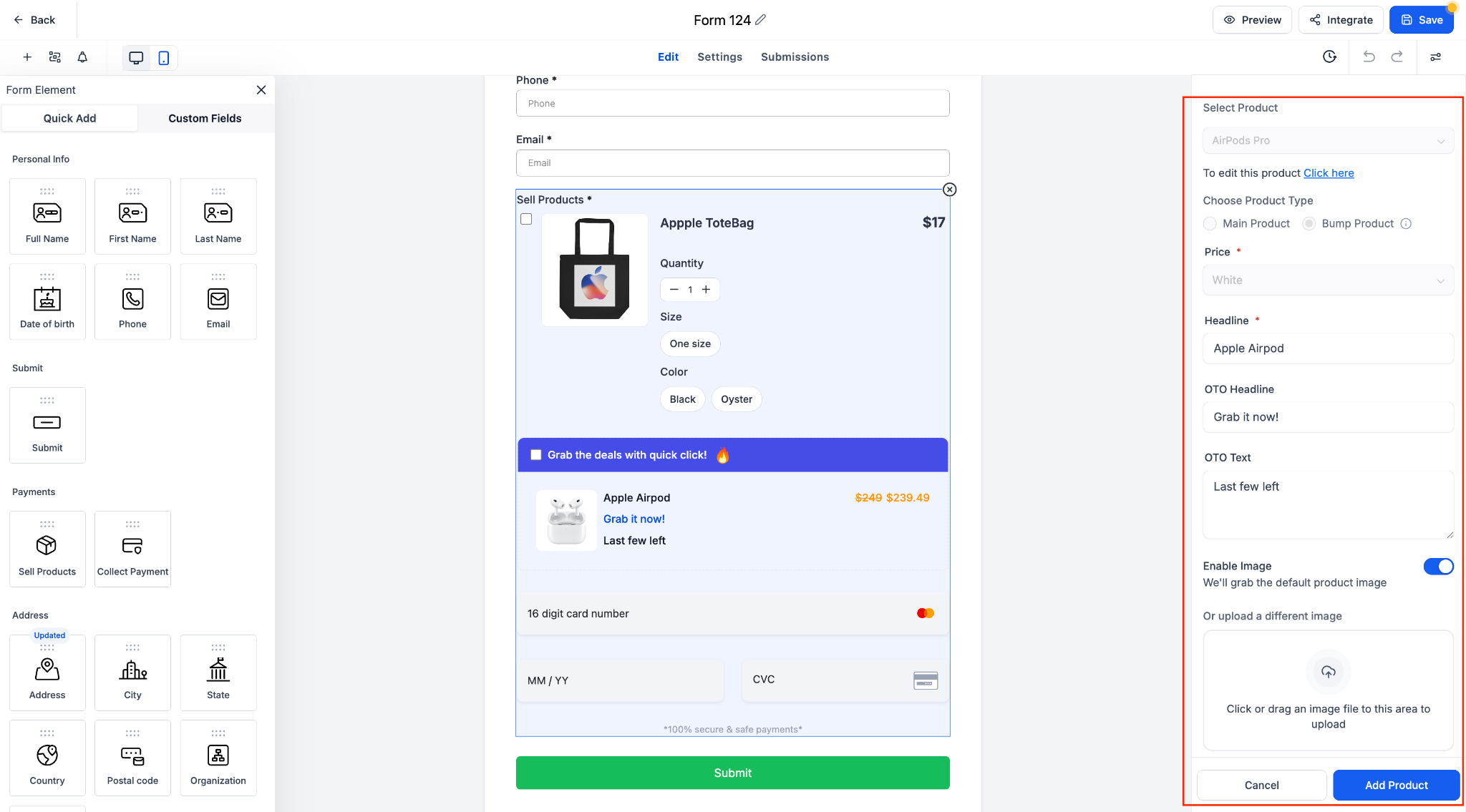
2. Choose your product type as either Main Product or Bump Product in the settings panel.
3. Enable Bump Products and select your preferred style—Classic or Modern.
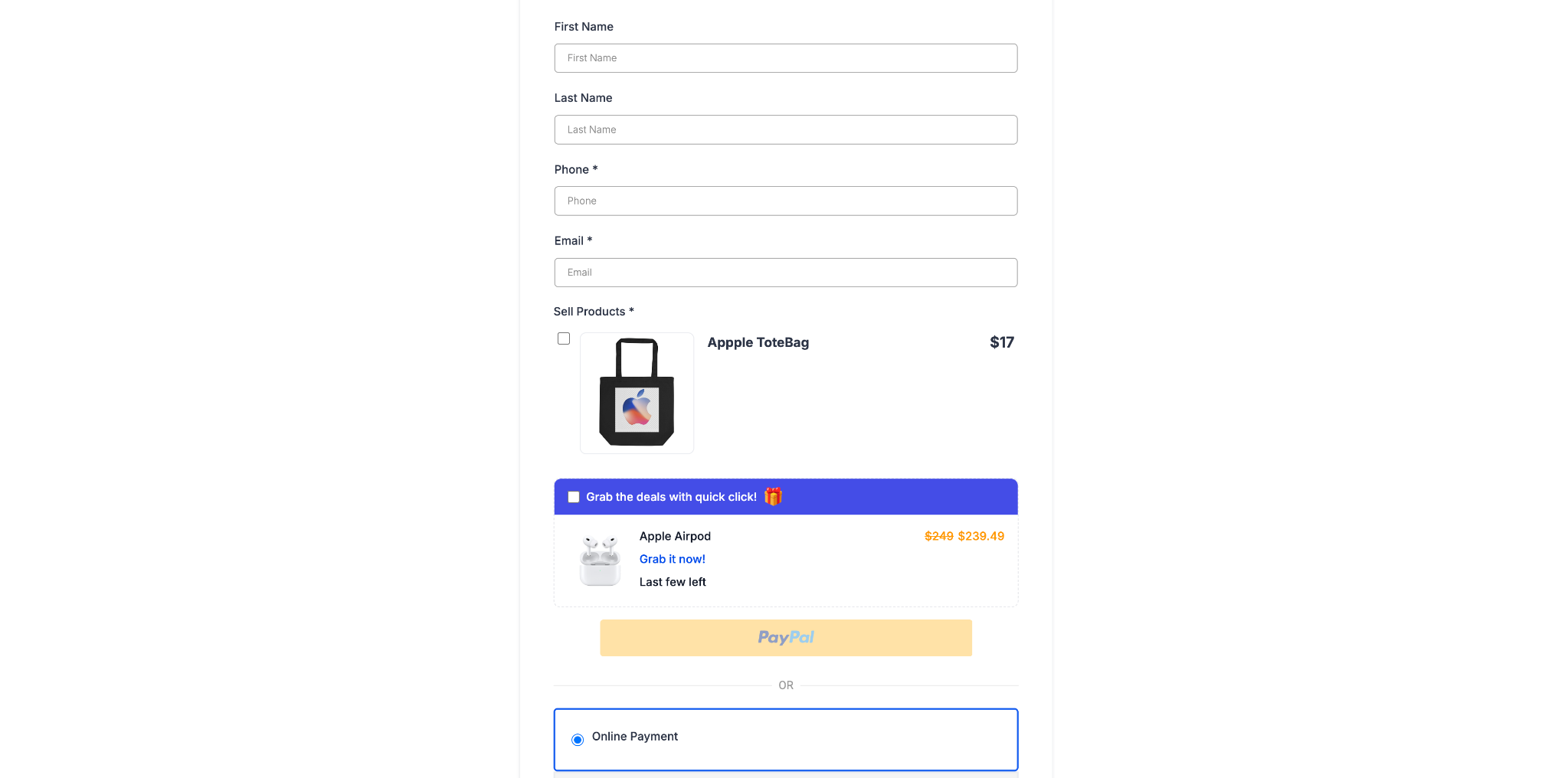
4. Pick a template, configure your styling and text, and preview it live.
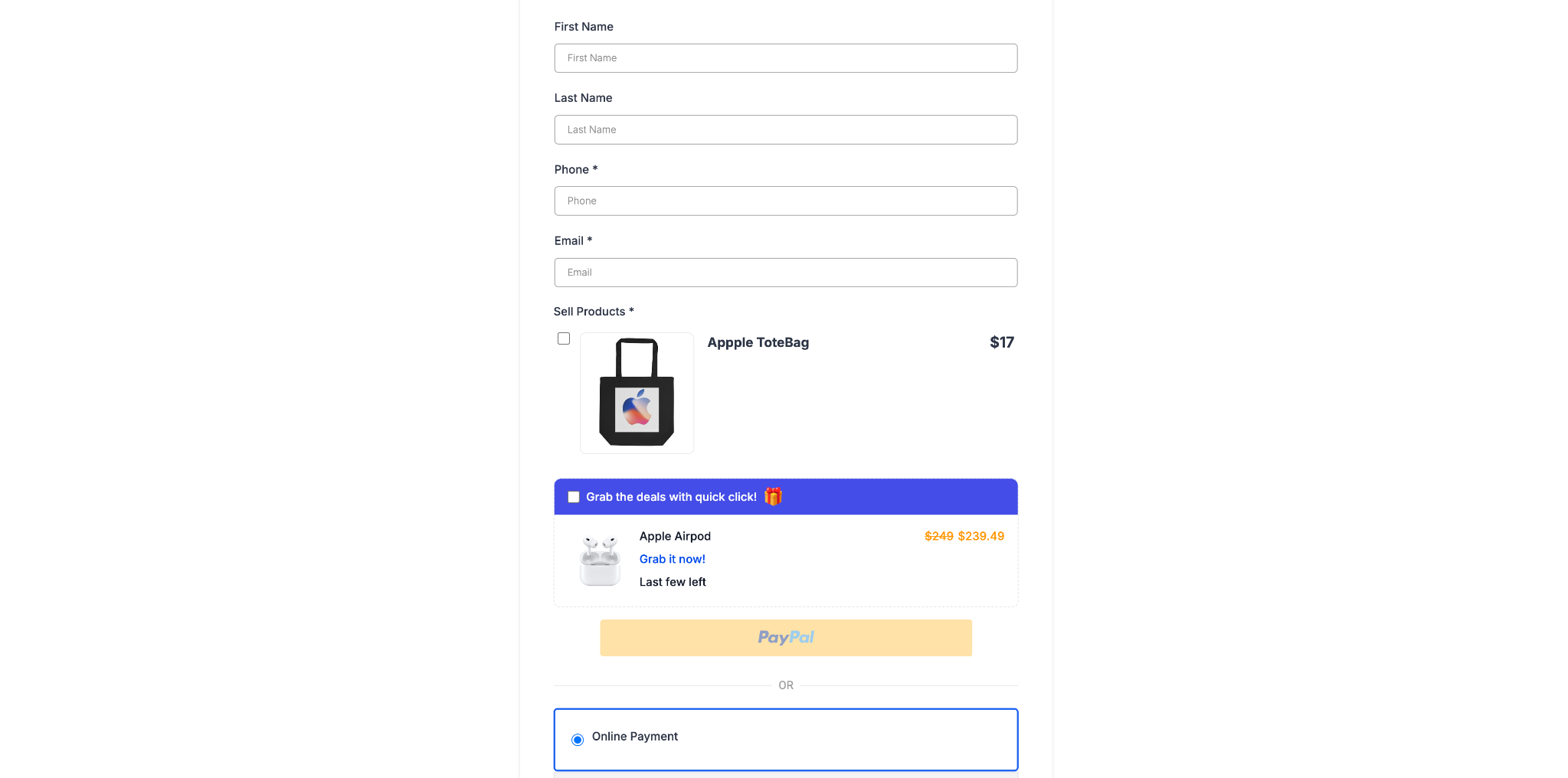
5. Save your form or survey and start collecting boosted payments.
Notes
– Multiple bump products can be used per form or survey.
– Only one product in the form (either main or bump) can be set as recurring.
– Works with all existing payment processors including Stripe and PayPal.
– Bump products can be added only when at least one main product is selected.
This enhancement makes it easier than ever to increase average order value using clean, customisable bump product experiences—now available with modern look.
Modern Order Bumps Now in Forms & Surveys
Drive more revenue with high-converting add-ons—now directly within your forms and surveys
What’s New
Order Bumps are now available in Forms and Surveys, expanding beyond their original use in funnel-based order forms. This update not only revives the Classic view but also introduces a powerful new Modern style with multiple templates and full customization options.
Key Highlights
Classic & Modern Bump Styles: Choose between the traditional Classic view or a sleek Modern layout.
Multiple Templates: Select from Template 1, 2, or 3—each crafted to increase visibility and engagement.
Custom Design Options: Modify bump colors, icons, highlight text, borders, pricing display, and more.
Supports Multiple Bump Products: Add more than one bump product to a single form or survey.
Recurring Product Logic: Either the main product or a bump product can be set as recurring, but not both simultaneously.
Toggle & Reorder: Activate or deactivate bump products with ease and arrange their order to suit your needs.
How It Works
1. Insert a Sell Product field into your form or survey.
2. Choose your product type as either Main Product or Bump Product in the settings panel.
3. Enable Bump Products and select your preferred style—Classic or Modern.
4. Pick a template, configure your styling and text, and preview it live.
5. Save your form or survey and start collecting boosted payments.
Notes
– Multiple bump products can be used per form or survey.
– Only one product in the form (either main or bump) can be set as recurring.
– Works with all existing payment processors including Stripe and PayPal.
– Bump products can be added only when at least one main product is selected.
This enhancement makes it easier than ever to increase average order value using clean, customisable bump product experiences—now available with modern look.

Modern Order Bumps Now in Forms & Surveys
Drive more revenue with high-converting add-ons—now directly within your forms and surveys
What’s New
Order Bumps are now available in Forms and Surveys, expanding beyond their original use in funnel-based order forms. This update not only revives the Classic view but also introduces a powerful new Modern style with multiple templates and full customization options.
Key Highlights
Classic & Modern Bump Styles: Choose between the traditional Classic view or a sleek Modern layout.
Multiple Templates: Select from Template 1, 2, or 3—each crafted to increase visibility and engagement.
Custom Design Options: Modify bump colors, icons, highlight text, borders, pricing display, and more.
Supports Multiple Bump Products: Add more than one bump product to a single form or survey.
Recurring Product Logic: Either the main product or a bump product can be set as recurring, but not both simultaneously.
Toggle & Reorder: Activate or deactivate bump products with ease and arrange their order to suit your needs.
How It Works
1. Insert a Sell Product field into your form or survey.
2. Choose your product type as either Main Product or Bump Product in the settings panel.
3. Enable Bump Products and select your preferred style—Classic or Modern.
4. Pick a template, configure your styling and text, and preview it live.
5. Save your form or survey and start collecting boosted payments.
Notes
– Multiple bump products can be used per form or survey.
– Only one product in the form (either main or bump) can be set as recurring.
– Works with all existing payment processors including Stripe and PayPal.
– Bump products can be added only when at least one main product is selected.
This enhancement makes it easier than ever to increase average order value using clean, customisable bump product experiences—now available with modern look.
Modern Order Bumps Now in Forms & Surveys
Drive more revenue with high-converting add-ons—now directly within your forms and surveys
What’s New
Order Bumps are now available in Forms and Surveys, expanding beyond their original use in funnel-based order forms. This update not only revives the Classic view but also introduces a powerful new Modern style with multiple templates and full customization options.
Key Highlights
Classic & Modern Bump Styles: Choose between the traditional Classic view or a sleek Modern layout.
Multiple Templates: Select from Template 1, 2, or 3—each crafted to increase visibility and engagement.
Custom Design Options: Modify bump colors, icons, highlight text, borders, pricing display, and more.
Supports Multiple Bump Products: Add more than one bump product to a single form or survey.
Recurring Product Logic: Either the main product or a bump product can be set as recurring, but not both simultaneously.
Toggle & Reorder: Activate or deactivate bump products with ease and arrange their order to suit your needs.
How It Works
1. Insert a Sell Product field into your form or survey.
2. Choose your product type as either Main Product or Bump Product in the settings panel.
3. Enable Bump Products and select your preferred style—Classic or Modern.
4. Pick a template, configure your styling and text, and preview it live.
5. Save your form or survey and start collecting boosted payments.
Notes
– Multiple bump products can be used per form or survey.
– Only one product in the form (either main or bump) can be set as recurring.
– Works with all existing payment processors including Stripe and PayPal.
– Bump products can be added only when at least one main product is selected.
This enhancement makes it easier than ever to increase average order value using clean, customisable bump product experiences—now available with modern look.