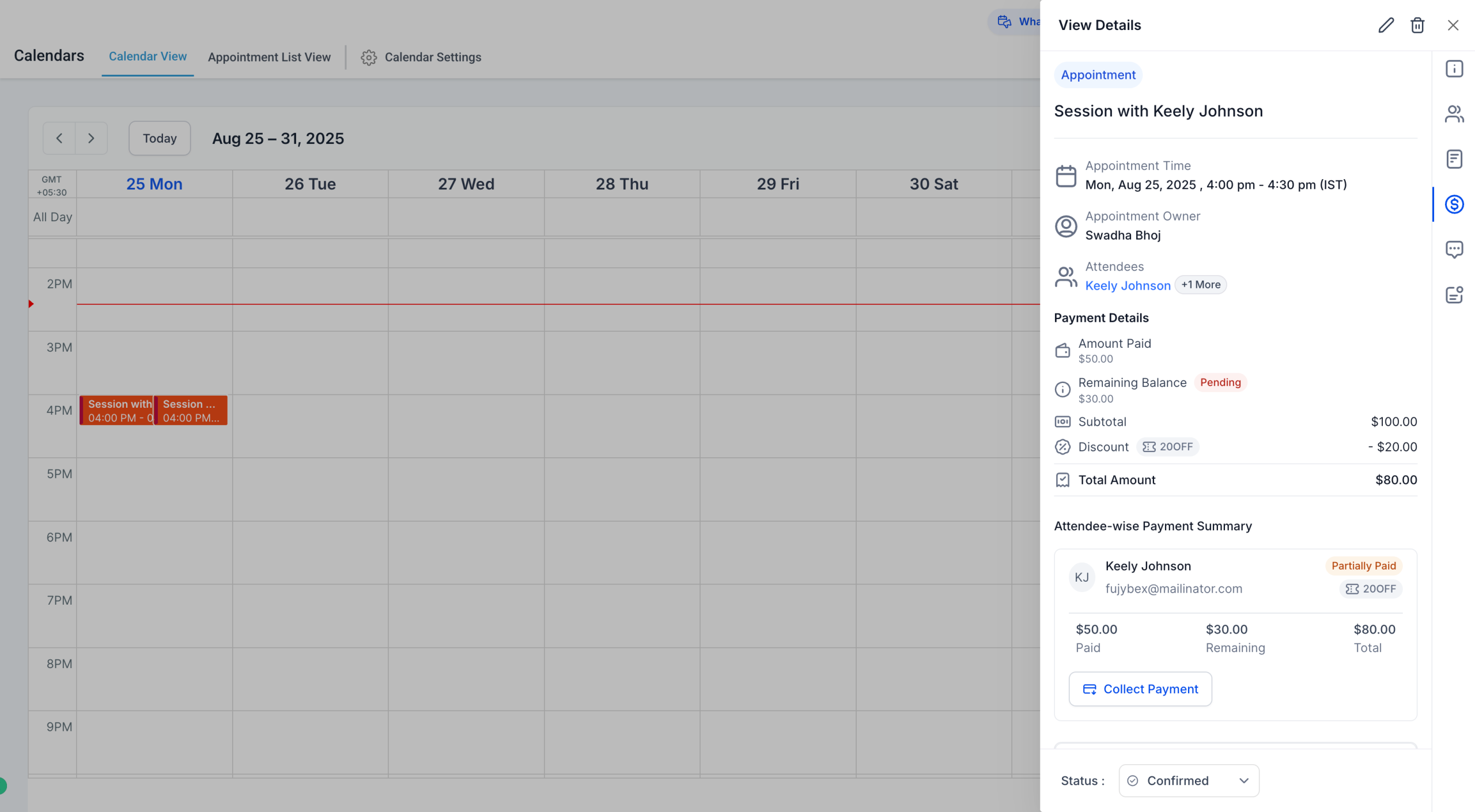
We are excited to announce that we have added a new Payments Tab inside the Appointment Modal. This gives you a complete view of all payment-related details for each appointment.
What’s New
– View amount paid, remaining balance, and total amount
– See attendee-level payment summaries
– Review all transactions tied to the appointment
– Check which coupon codes were applied and the discount amount
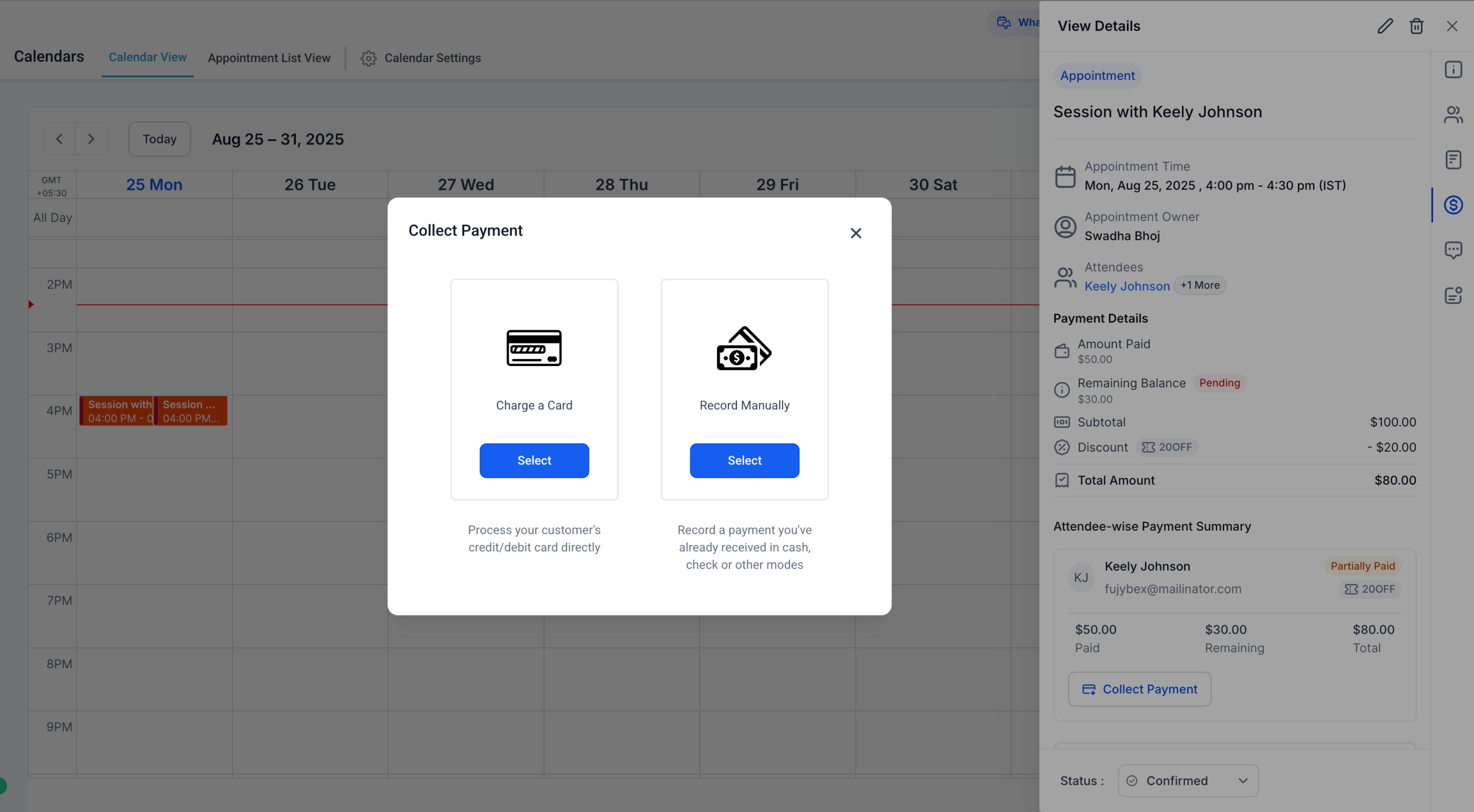
– Collect remaining payments directly through the modal
—
How to Use
1. Click on any appointment to open the appointment modal.
2. Go to the Payments Tab in the Appointment Modal.
3. Review payment details including balances, history, and discounts.
4. If there’s a balance due, click Collect Payment to either: Charge a card, or Record a manual payment
Note: This feature is currently available via Labs. Go to Agency Settings > Labs > Sub accounts and enable Payments Tab in Appointments + Coupon Codes for your sub accounts.
—
Benefits
– Manage all payment actions without leaving the appointment view
– Quickly access payment history and discount details
– Collect outstanding balances in just a few clicks
—
Important Notes
– Payments tab is supported for appointments of all calendar types, except appointments booked via Service Menu (v1) and custom recurring appointments created directly through the in-app modal
– When payments are enabled for a calendar, an associated product is automatically created (visible in the Products Tab) with a Calendar tag.