📌 Overview
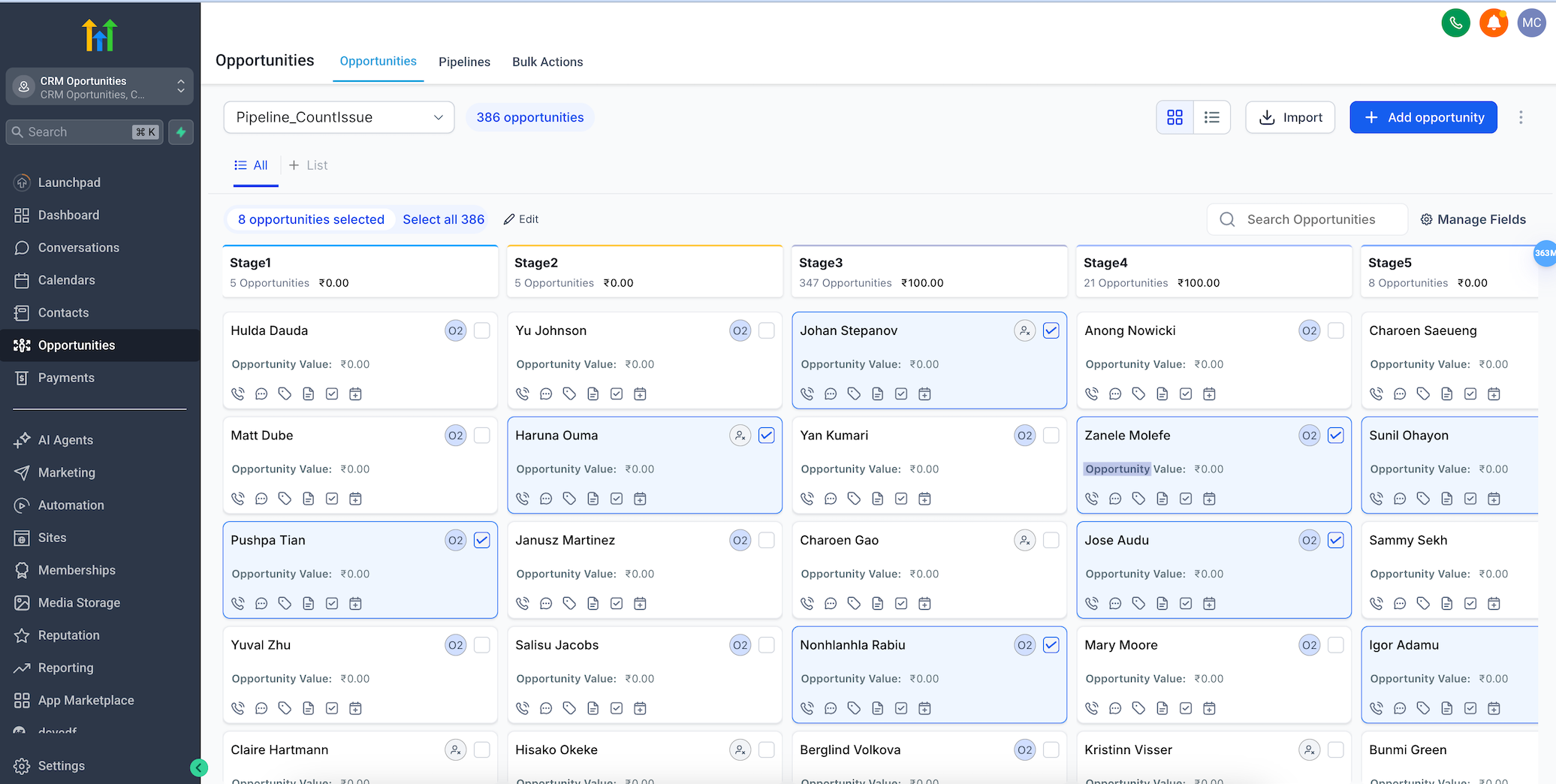
You can now perform bulk actions directly from the Opportunities Kanban/Card view without switching to List view.
Note: To enable this feature go to Settings > Labs > Enable “Bulk Actions in Cards View”

🚀 What’s New
1. Bulk Card Selection: Select multiple opportunity cards using checkboxes right in the Card view.
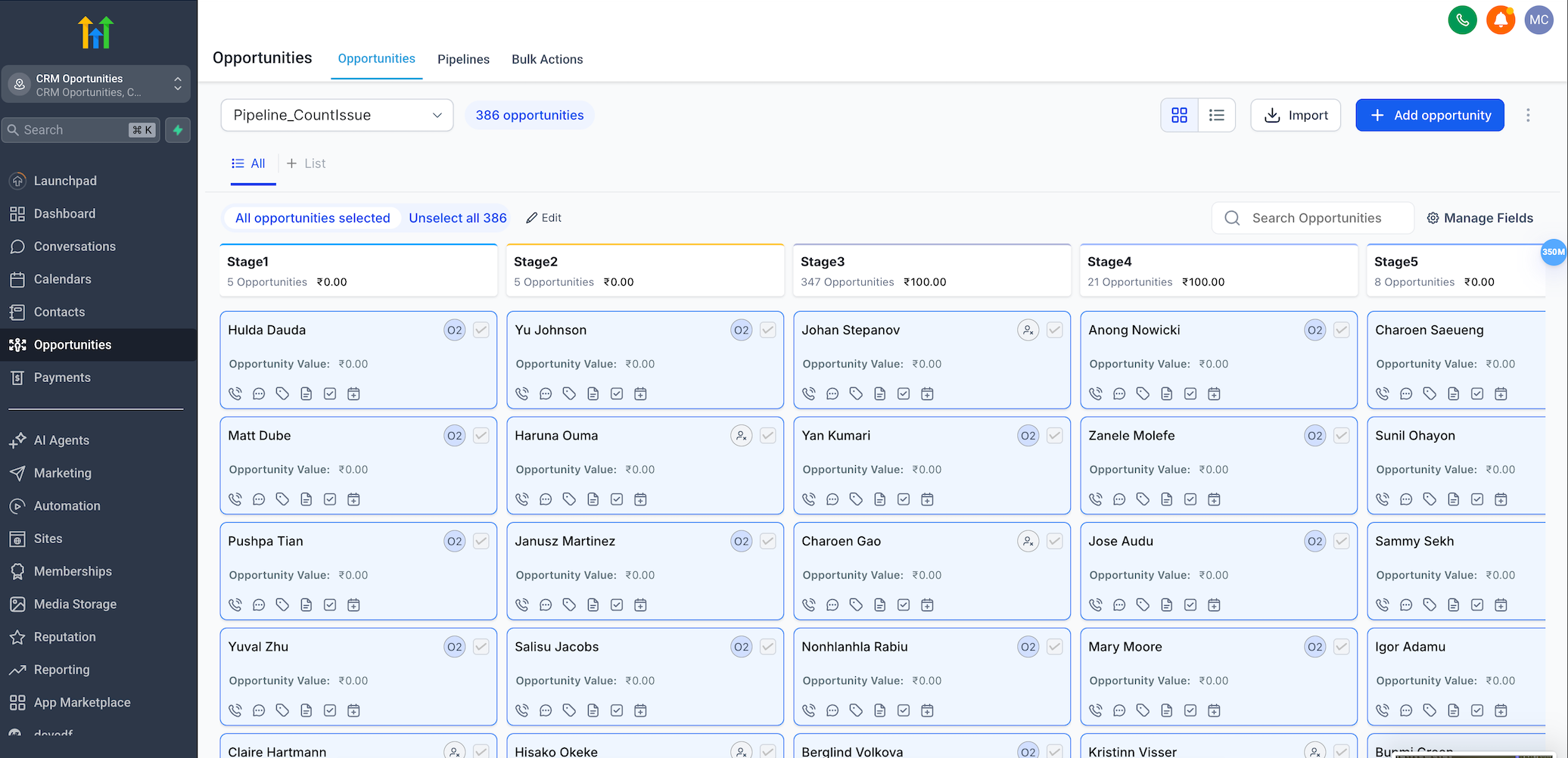
2. Select All on Page: If there are more than 20 opportunities, you’ll see a “Select All on Page” button to quickly select every visible card.
3. Interaction Lock During Selection: While in selection mode, cards are locked from dragging or opening to avoid accidental changes.
⚙️ How It Works
– Go to Opportunities > choose a Pipeline > switch to Kanban/Card view.
– Click the checkbox on any card to enter selection mode.
– Use additional checkboxes to select more cards.
– When opportunities exceed 20, click “Select All on Page” to select all visible.
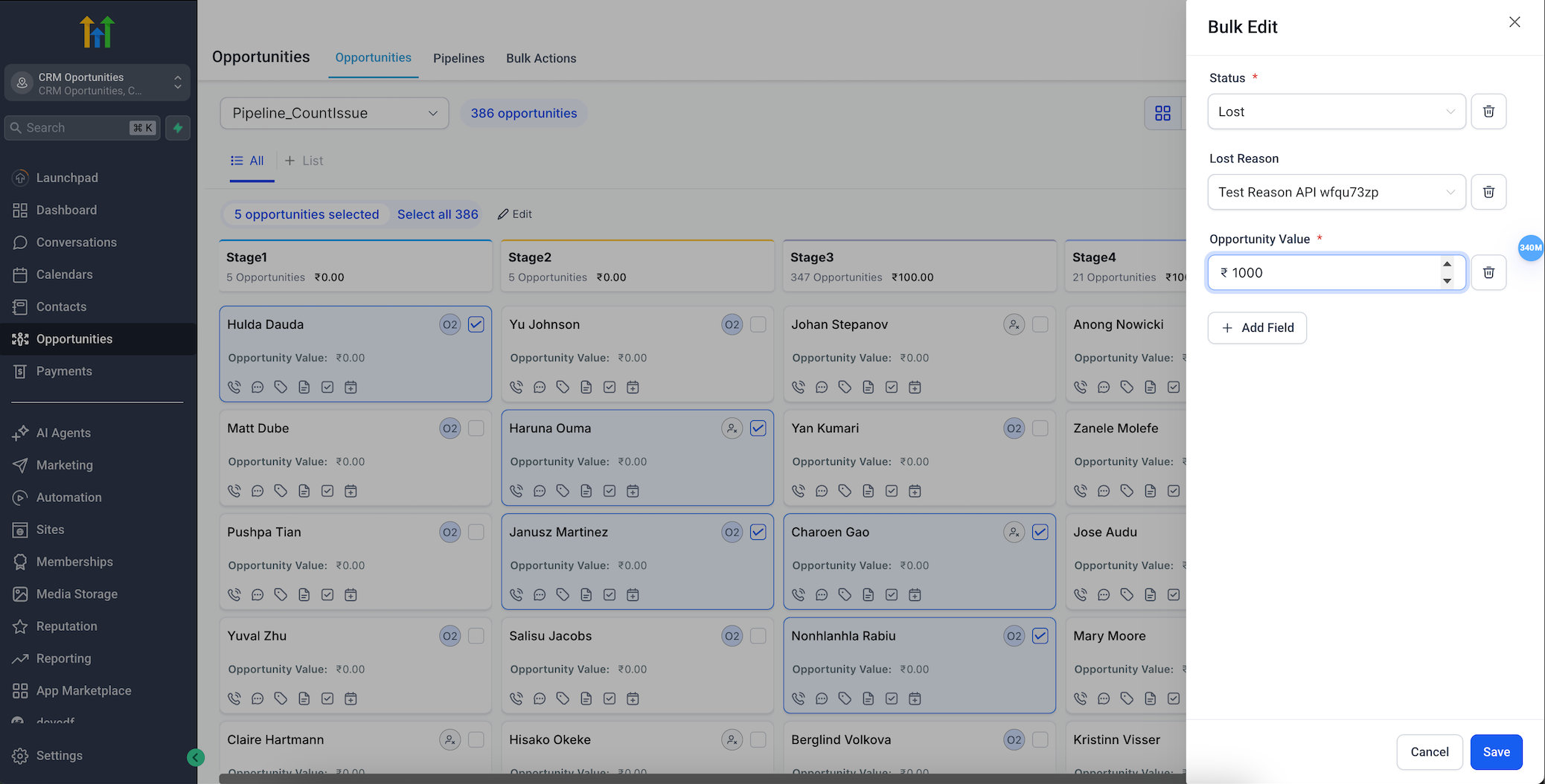
– Once selected, click Edit to perform bulk actions.
💡 Why It Matters
– Saves time by allowing bulk actions within your preferred view.
– Prevents unintended card interactions during selection.