What’s New:
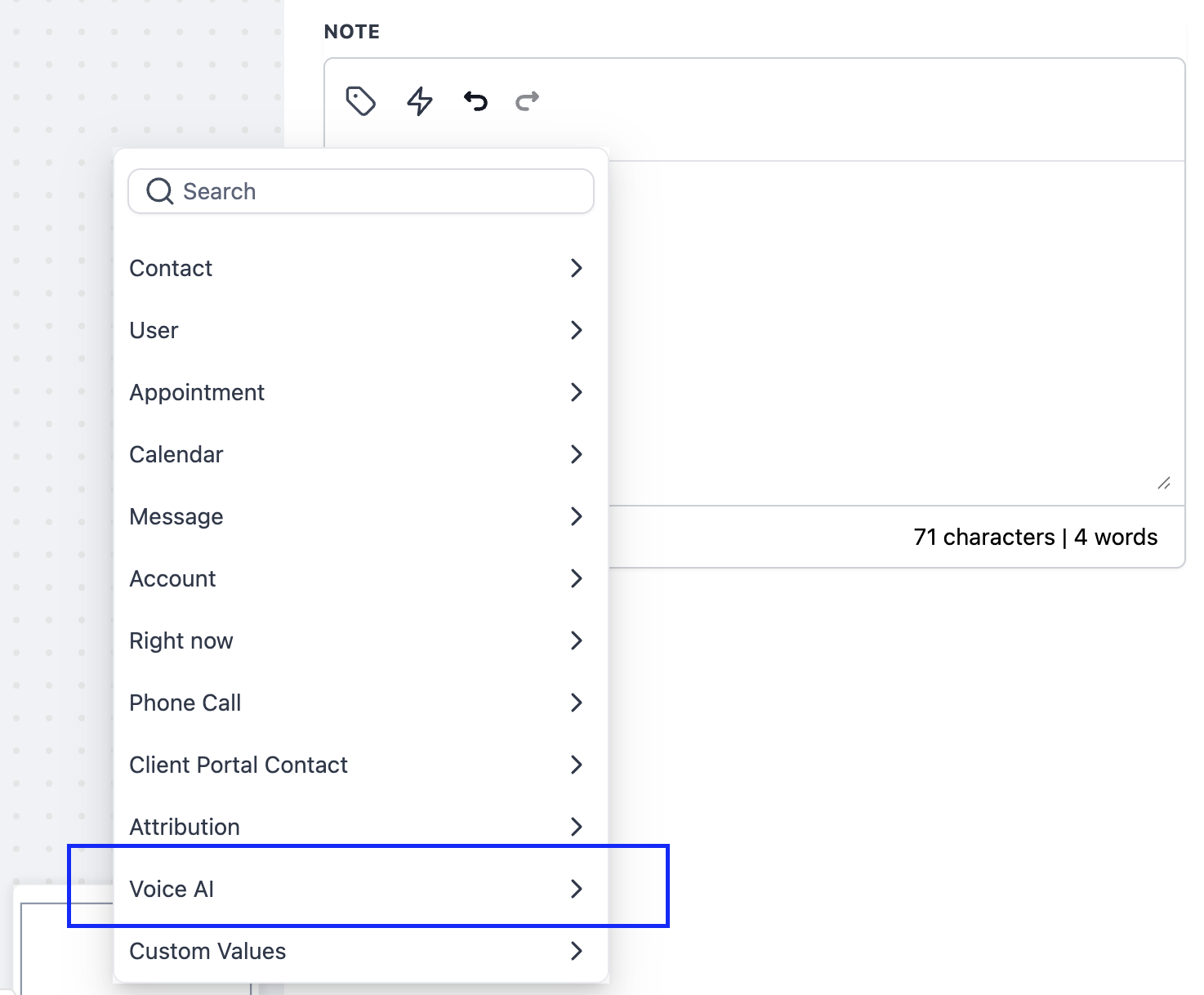
– We’ve added support for accessing and templating Voice AI data within workflows.
– Users can now seamlessly incorporate Voice AI call details like call duration, summary, and transcript directly into their workflows.
How to Use?
– Within the workflow, Voice AI variables can be accessed from the Voice AI Menu under Custom Tags.
Pre Requisites:
1. Enabling Voice AI Agents
– Navigate to Agency View > Settings > AI Employee.
– Select the sub-account where you want to enable Voice AI Agents.
– Ensure the Voice AI Agent feature is enabled for that sub-account. If it’s not, turn it on.
2. Configuring the Agent
– Go to the enabled sub-account: Settings > Voice AI Agents.
– Add a new agent and fill in the required fields: Agent Name, Business Name, Language and Voice
– Set the Interaction Type to Inbound Calls.
– Under Agent Goals, enable “Trigger workflow when a call is completed” to link the agent with a workflow.
– Select the workflow you want the agent to trigger.
3. Phone & Availability Setup
– Assign a phone number to the AI agent.
– When someone calls this number, the Voice AI agent will either answer immediately or step in if the recipient doesn’t pick up, whatever is configured.